In this article
The best image format depends on where the image is going. A compact file is not useful if the recipient cannot open it, and a widely accepted format is not enough if your design needs transparency.
When choosing an output in Image Converter, I ask three questions: what accepts the file, what details must survive, and how small does it need to be?
Start with the destination
Read the upload rules or ask the recipient before converting. An application portal may list JPG and PNG explicitly. A website’s publishing system may accept WebP. A design tool may need a transparent background.
Keep an original copy. Conversion creates a file for a particular job; it does not need to replace your source.
| Format | A useful starting point for | What to watch |
|---|---|---|
| JPG / JPEG | Photos, email attachments, and many upload forms. | Lossy compression; no transparency. |
| PNG | Graphics, screenshots, and transparent artwork. | Photographs can become much larger. |
| HEIC | Efficient photo storage in a compatible workflow. | Some recipients and websites reject it. |
| WebP | Web images when the publishing system supports it. | Check compatibility and whether the export preserves the features you need. |
Use JPG when compatibility is the job
For a normal photograph going to a web form or another person, JPG is a practical first choice. Adjust quality to balance detail against file size, and inspect faces, foliage, gradients, and small text.
Converting a JPG to another JPG can introduce further loss. If you have the original HEIC or another source, begin there instead of using a copy that has already been compressed several times.
Use PNG when edges or transparency matter
A logo, diagram, or interface screenshot has different needs from a photograph. PNG can preserve sharp edges without lossy compression and supports transparency.
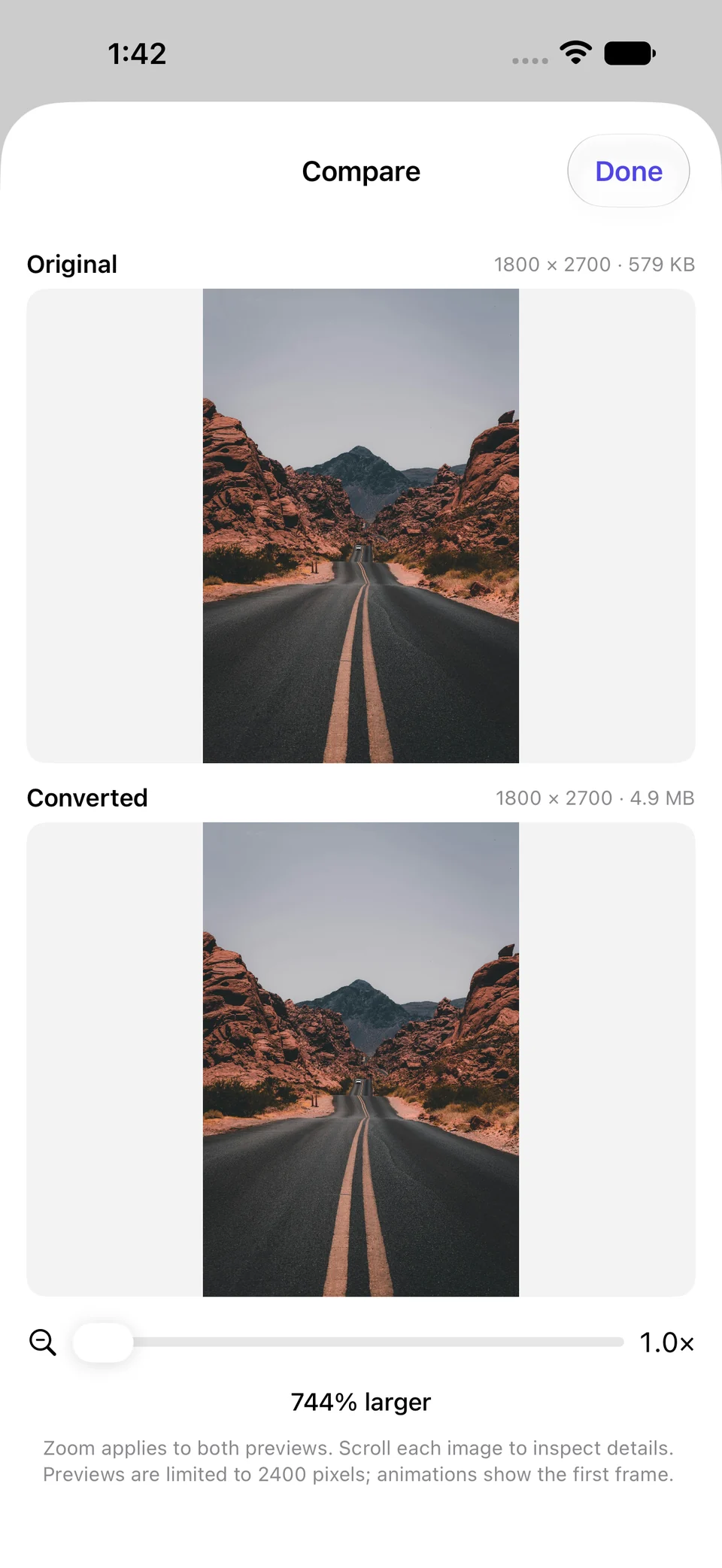
It cannot recover detail missing from the source. Turning a blurry JPG into PNG simply stores that existing appearance in a new format. For photographs, it may also create a much larger file.
Keep HEIC where the workflow supports it
HEIC is a useful camera-photo format in compatible software. Apple explains HEIF compatibility and conversion in its format guide. I would keep the original rather than convert an entire library just because one destination needs JPG.
If a recipient cannot open it, create a separate compatible copy. A different filename extension alone does not convert the image data.
Try WebP for a compatible publishing workflow
WebP can be a good choice for web delivery, but compare actual outputs rather than assuming a universal percentage saving. A photograph, a flat illustration, and a text-heavy screenshot can behave differently.
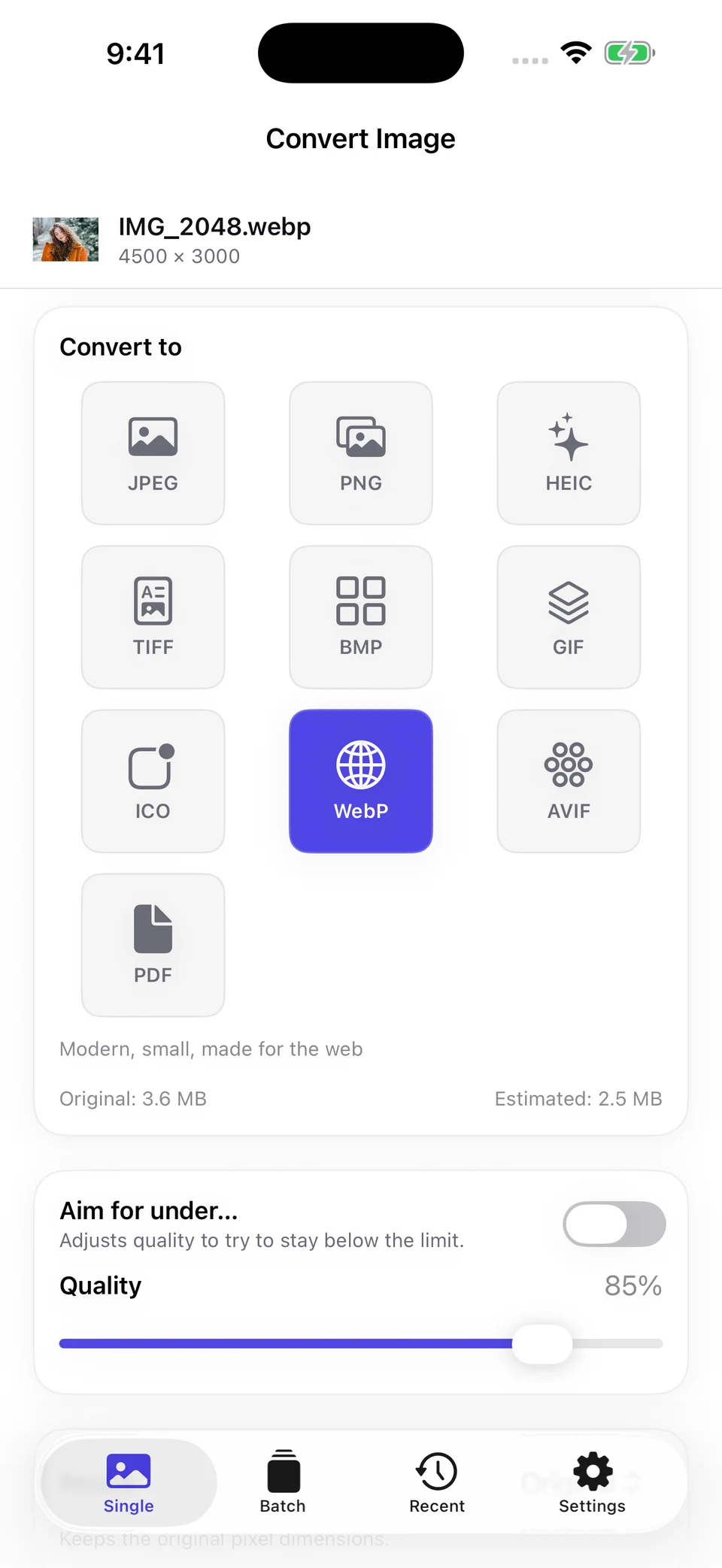
Compare one real image before converting a folder
For a fair comparison, use the same original and pixel dimensions. Record the encoder, quality setting, output size, and whether transparency or metadata changed. A quality value of 80 in one encoder is not necessarily equivalent to 80 in another.
For one measured example, I encoded the same 960 × 2087-pixel ColorPicker screenshot in three formats. It contains interface text and a colourful image, so treat it as a screenshot example rather than a benchmark for every photograph.
| Output | Measured bytes | Encoding |
|---|---|---|
| PNG | 1,504,701 | Lossless, optimised. |
| JPG | 352,805 | Quality 85, 4:4:4 colour sampling. |
| WebP | 185,336 | Quality 85, method 6. |
These are local Pillow encodings, not an Image Converter speed or quality test. Equal quality numbers are not equivalent across encoders; HEIC was not measured in this sample. The image is the fruit-cart screenshot used in the palette guide.
If a form only accepts JPG, an even smaller unsupported file will not help. If the task is a strict upload limit, use the under-500-KB workflow. For the actual taps in the app, see my conversion walkthrough.