In this article
A camera RAW file may need a more widely accepted copy before you can send it. Image Converter can import supported RAW sources, but support depends on the source and the device’s decoding capabilities.
I would test one file from the actual camera before transferring an entire shoot into a new workflow.
Make the original available locally
Copy the RAW file into Files or make its photo-library original available on the device. A cloud-only source may need a connection to download before local conversion can begin.
Import it into Single and check that it opens correctly. If the image cannot decode, use a workflow compatible with that camera and file variant rather than renaming the extension.
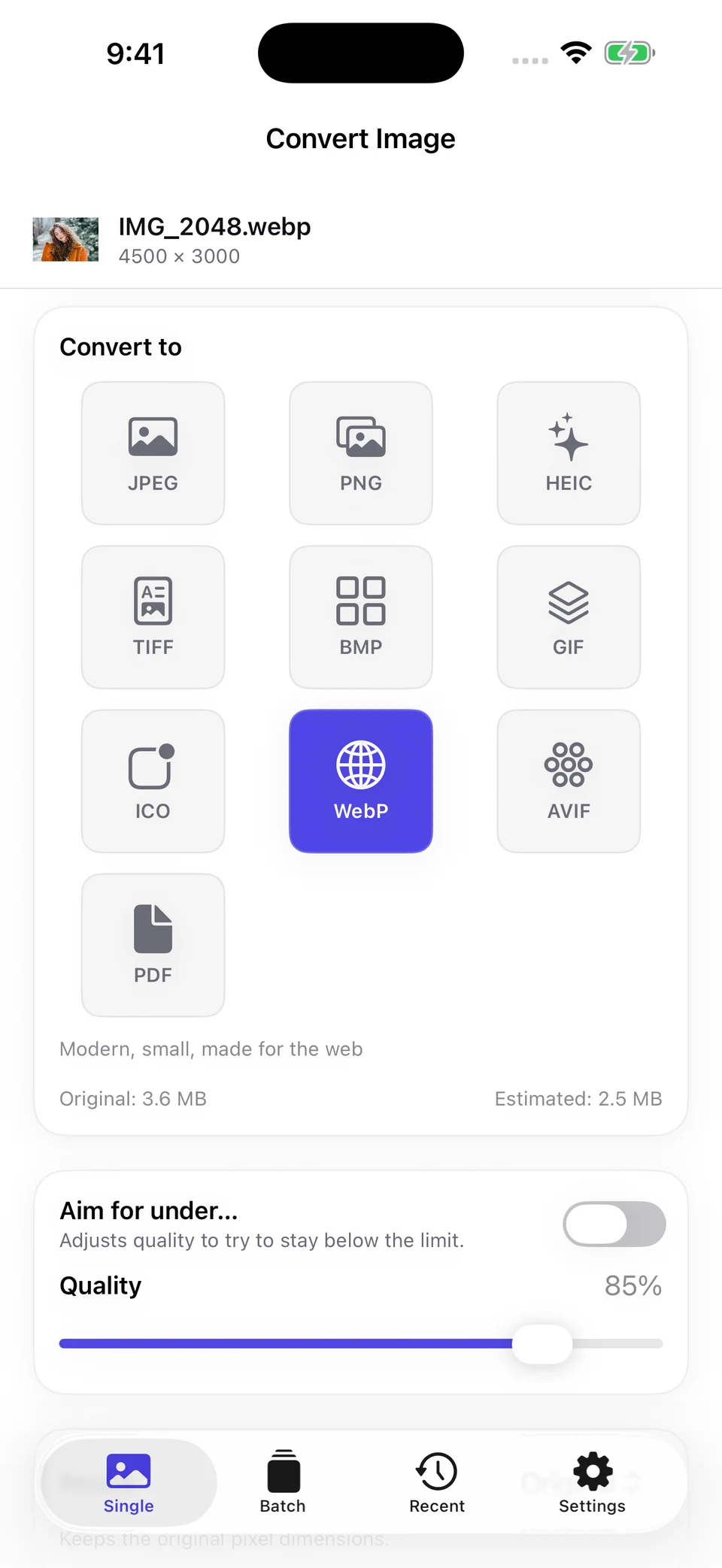
Choose output settings for the destination
JPEG is a useful starting point for ordinary photo sharing; PNG stores a rendered image losslessly but may be much larger. Neither turns a rendered output back into the original RAW editing data.
Keep the RAW source. Choose dimensions and quality based on the destination instead of expecting a fixed file size or percentage saving from every photograph.
Inspect the rendered result
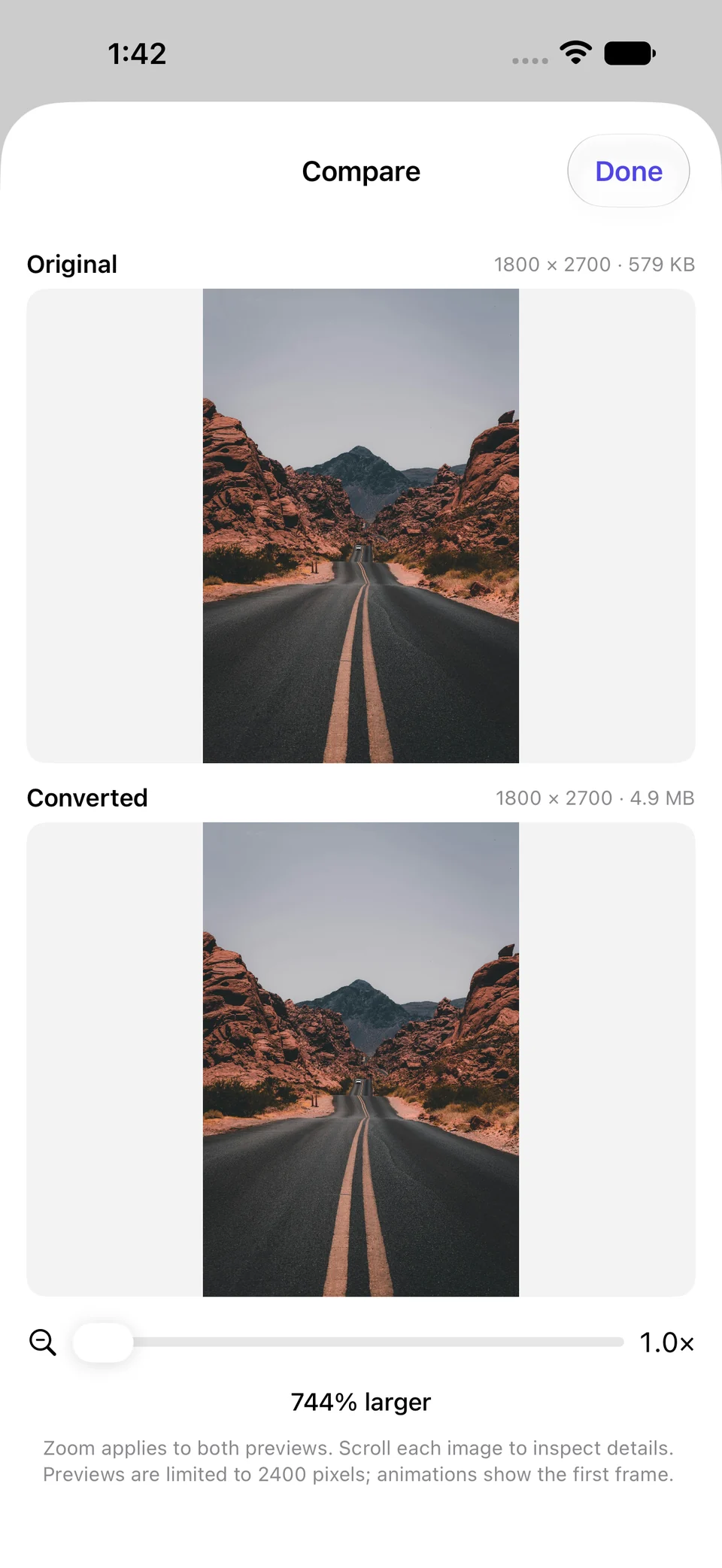
Check exposure, colour, orientation, fine detail, and dimensions. Review location metadata separately if it should not accompany the copy. Removing GPS is not a promise that every possible metadata field is stripped.
Save a compatible copy
Open the saved file in the recipient’s app before processing a batch. Free access includes five images per day with ads and optional rewarded extras. Pro removes ads and unlocks unlimited images, compressed PDFs, and ZIP export.
Use the output-checking guide or size targeting if the destination has a strict limit.