In this article
Attaching three or four iPhone screenshots to a support email or expense claim can push a message past a mailbox or ticketing-portal attachment limit before you notice. The culprit is usually the default PNG format: high-resolution iPhone screen captures store every pixel losslessly, so a single screenshot containing maps, photos, or rich web graphics can easily sit at several megabytes.
When I need to email screenshots reliably without stripping out readable detail, I convert them from PNG to JPG and aim just under 1 MB per image. Below is the before-and-after reasoning I use in Image Converter so the attachment clears the mail server while small interface text remains legible.
Why a PNG screenshot grows past an email limit
iOS saves screenshots as PNG files by default. For flat, solid-colour menus, PNG is efficient because lossless compression packs identical neighbouring pixels tightly. The trouble starts as soon as your screenshot includes a photograph, a map tile, a shaded card, or anti-aliased graphics across a modern high-resolution display. Lossless encoding tries to preserve every subtle colour step, and the byte count climbs quickly.
On the email side, two things compound the problem. First, many webmail clients, helpdesk forms, and corporate relays enforce strict per-file or per-message caps. Second, email encoding adds overhead to attachments, meaning a 980 KB file on your phone can expand past a 1 MB limit in transit. Relying on a mail app’s automatic “Small” or “Medium” prompt does not always give you control over exact dimensions, and some third-party email or browser uploaders attach the raw PNG untouched.
Switching from PNG to JPG with a 1 MB ceiling
The practical solution is moving from lossless PNG to lossy JPG while giving yourself a realistic size ceiling. Unlike a tiny web-form avatar, an email attachment usually has room for 750 KB to 900 KB per screenshot, which leaves sensible headroom below 1 MB for encoding overhead without forcing aggressive compression.
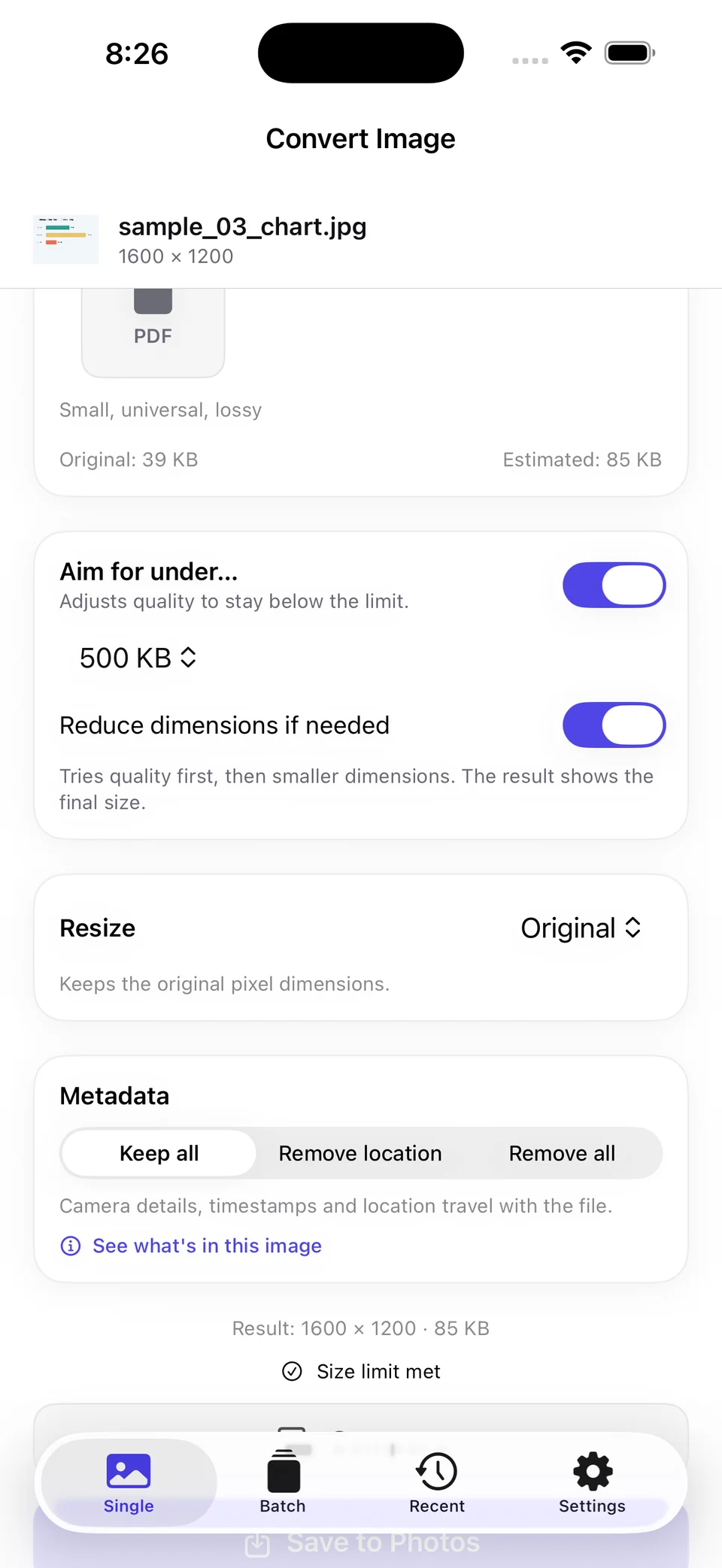
In Image Converter, I open the Single workspace for one capture—or Batch when I have a sequence of three or four screens to send together—and choose JPEG as the output format. Next, I turn on Aim for a file size and set a target comfortably below 1 MB, such as 800 KB. The app adjusts quality first to approach that target for supported lossy formats.
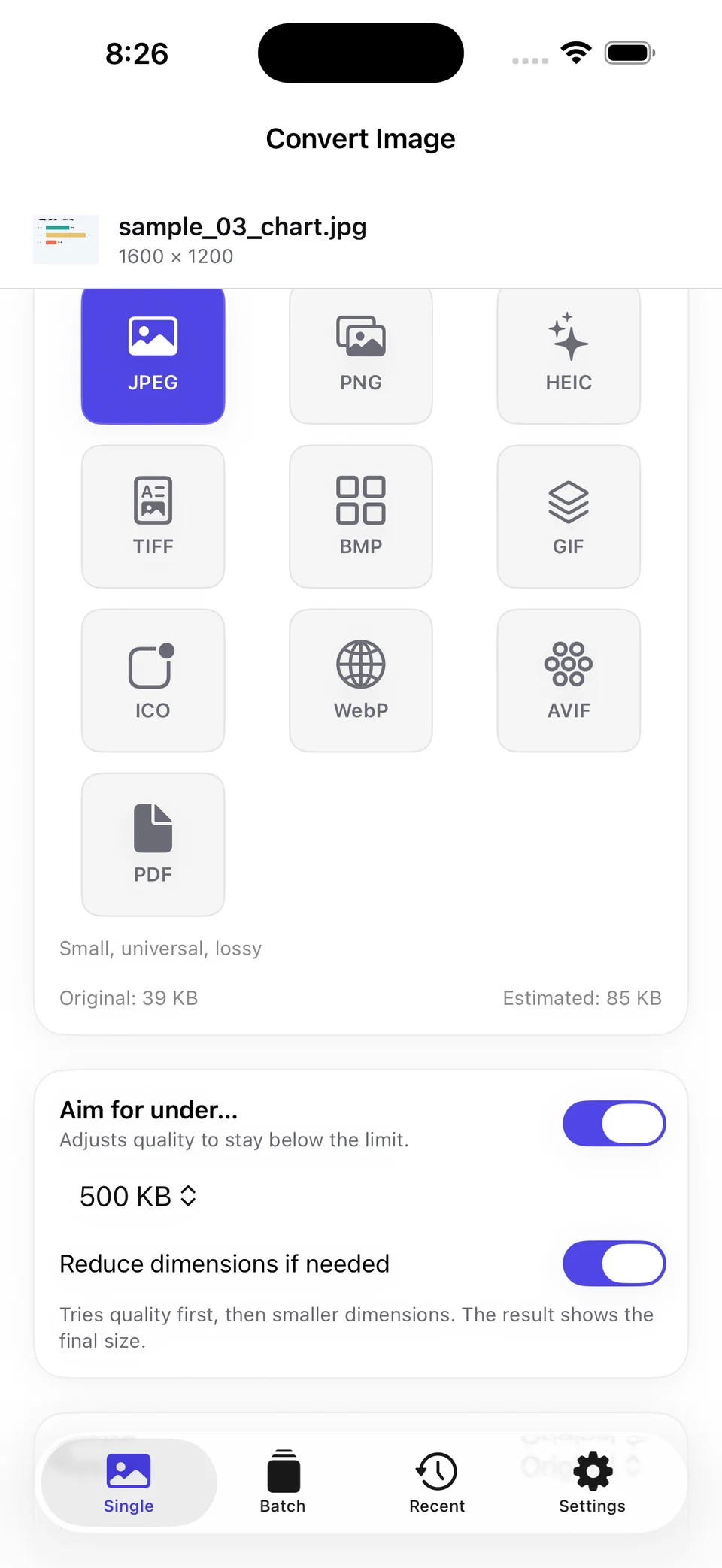
If a tall scrolling capture or dense webpage still refuses to drop below your target through quality alone, toggle on Reduce dimensions if needed. That lets Image Converter scale the pixel dimensions down just enough to hit the size goal rather than crushing the image with heavy compression artefacts. Remember that in Batch mode, the file-size target applies to each screenshot individually, not the combined total of the whole email.
Checking text legibility before you hit send
Screenshots are not holiday snapshots: the whole reason you are sending one is usually a tiny order reference, an error code, a timestamp, or a line of table figures. Before you export, use Image Converter’s comparison view with shared zoom to inspect the before-and-after state side by side. I walk through that inspection habit in my guide to comparing original and converted images.
Pan to the smallest text on the screen—status bars, grey footnotes, or thin-bordered input fields—and look for fuzzy halos around dark letters on white backgrounds. If the characters look soft or smudged:
- Give the target more room: If your recipient allows 1 MB per file, do not force a screenshot down to 250 KB. Raising the target to 850 KB lets the encoder keep sharper edges.
- Keep the original PNG as your starting point: Always adjust from the original capture rather than re-converting an already compressed JPG.
- Consider a single PDF for several screens: When a recipient prefers one document over four separate attachments, you can follow my walkthrough on combining images into one PDF instead.
Once the converted copy looks crisp at reading zoom, save it to Files with a clear name—or send it straight through the Share Sheet—so you do not accidentally pick the multi-megabyte PNG from Photos when composing your email.
Exporting on-device and knowing the access limits
All conversions in Image Converter run locally on your iPhone, iPad, or Apple silicon Mac without uploading your screenshots to an external conversion server, which matters when a capture shows account numbers, receipts, or private messages. Note that if a screenshot is stored only in iCloud Photos, iOS may need a brief connection to download the original before conversion.
The free version of Image Converter includes ads (which use network access) and covers five conversions per day, with optional rewarded ads for extra conversions and original-quality PDF export within that daily allowance. A one-time Lifetime Pro purchase removes ads and unlocks unlimited conversions, compressed PDFs, and ZIP export. If you want to check the current app details and access options before your next email, visit the app page.