In this article
A photo can be below the advertised size limit and still fail an upload. I start with the form’s exact requirements because repeating compression on the same image can damage detail while leaving the real problem untouched.
Copy the requirements into a short checklist
Record accepted extensions or file types, maximum file size, required width and height, and any crop or editing restrictions. An application portal may require a square JPG while a website editor accepts a rectangular PNG. Those are different jobs.
Keep the form’s actual error message. “Unsupported file type” gives a different starting point from “Image dimensions too small.” If the service publishes document or identity-photo rules, follow those rather than improvising an edit that changes the required evidence.
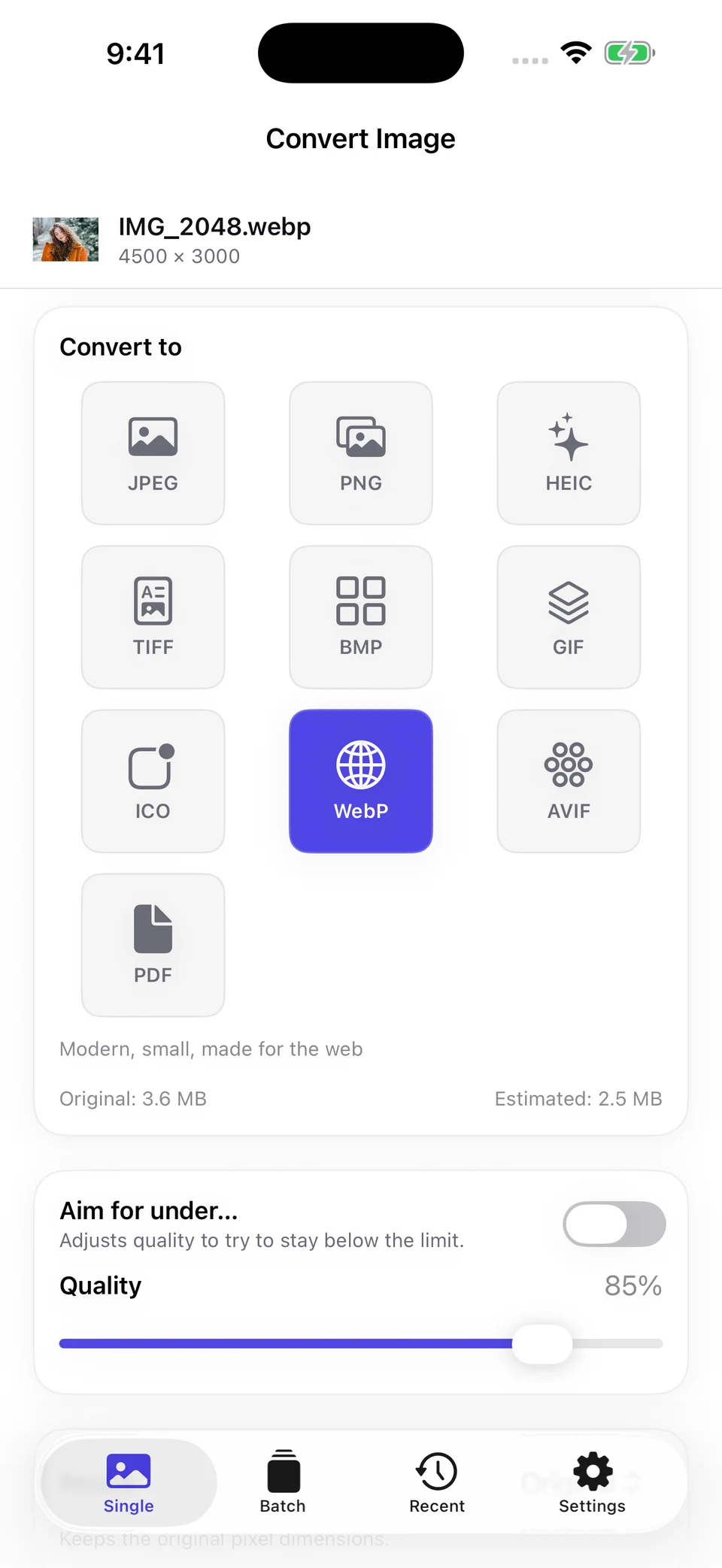
Change the encoding rather than the filename
Renaming a HEIC file to end in .jpg does not encode its pixels as JPEG. Import the original into Image Converter, select the format the service accepts, and convert a copy. Save the output somewhere you can identify, such as a dedicated folder in Files.
If the form asks for JPG, a smaller WebP is still the wrong output. Use the format conversion walkthrough for that step rather than changing several settings blindly.
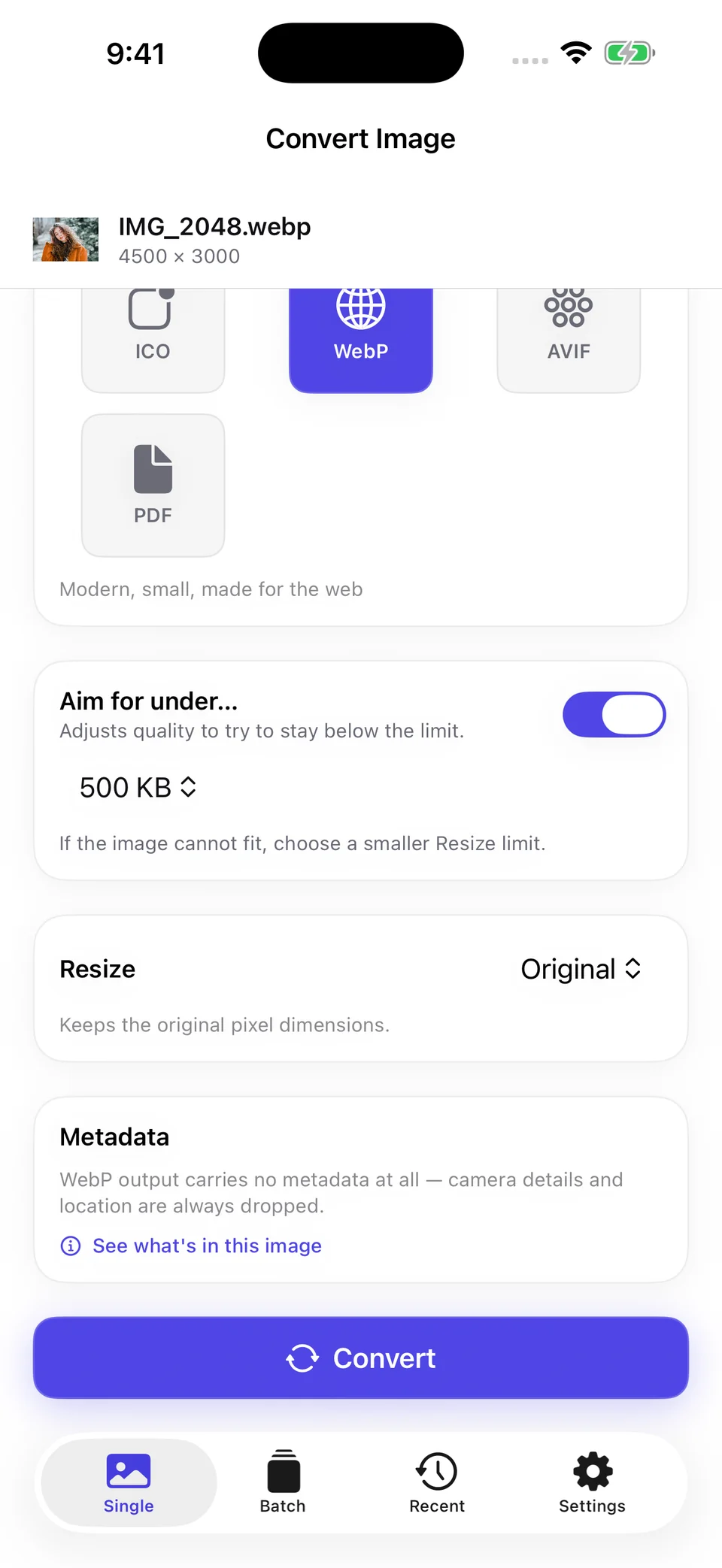
Treat pixels and bytes as separate checks
Use Custom dimensions when the portal specifies an exact shape. Fit can preserve the whole image inside a bounding box without filling both dimensions. Center Crop can remove important edges. White Padding keeps the picture but introduces a visible border that some portals may reject.
Then inspect the exported size. For a byte limit, leave a little headroom because the portal may display units differently. The 500 KB guide covers size targeting; the dimension guide explains Fit, Crop, and Pad.
Retry with the verified output
- Open the saved converted file and check its extension, dimensions, and actual size.
- Zoom into the smallest important text or detail.
- Return to the upload picker and choose that copy, not the original from Photos.
- If it still fails, preserve the error and check the service’s supported browser and support instructions.
This is a diagnostic workflow, not a claim that I tested every upload portal. Authentication, network failures, and server rules can also reject a valid image. Once the file meets the documented requirements, more compression may be the wrong next action.
Know the access limits
Image Converter processes conversions on your device without a photo upload or account. The free app includes ads and five images per day, with optional rewarded ads for extra conversions. Lifetime Pro removes ads and adds unlimited images, compressed PDF export, and ZIP export. Advertising uses network access; a cloud-only source may need downloading first.
Questions before you start
Will a screenshot fix the upload?
Not reliably. A screenshot changes the image and may still have the wrong dimensions or format.
Can a file below 500 KB still fail?
Yes. File type, dimensions, content requirements, and service errors are independent checks.
See the app details and current access information before choosing your next step.