In this article
You send a handful of photos from your iPhone, and a few minutes later your friend on a Windows PC replies asking what a .heic file is or saying their computer refuses to open it. On your own screen those pictures look completely normal, which makes the message feel puzzling at first.
When someone asks me why a Windows friend cannot open iPhone photos, the cause is rarely a damaged file. It is a mismatch between how iOS stores camera shots and what the recipient’s Windows setup is able to decode. Rather than asking your friend to hunt for extensions on their PC, I prefer to convert a separate copy to JPEG and leave the original untouched in Photos.
Why the same photo opens on iPhone and fails on Windows
Modern iPhones save camera photos in HEIC (High Efficiency Image Container) by default so high-resolution pictures take up less space. Every recent Apple device decodes HEIC natively, so you never notice the format while browsing your library.
On Windows, support varies from machine to machine. Newer Windows installations with the right media extensions installed can open HEIC files directly, but many PCs cannot. Work laptops with restricted Microsoft Store access, older Windows setups, and third-party desktop image viewers frequently show an unsupported-format error or a blank file icon instead of your picture.
The way you send the photo also changes what arrives. Some chat apps automatically re-encode images into JPEG when you send them as standard messages, whereas sending a photo as a full-quality document, an email attachment, or a shared cloud file passes the raw .heic file straight through. That is why your friend might open yesterday’s chat picture without trouble and get stuck on today’s email attachment.
Check what your friend is actually seeing
Before changing settings on your iPhone, it helps to match the symptom on their screen to the actual cause:
- Windows asks to install a codec or reports an unsupported file type: Their PC lacks HEIC decoding support. Sending a JPEG copy solves this immediately without touching their system.
- They tried renaming .heic to .jpg and it still fails: Changing the filename extension does not re-encode the image data inside the file. A viewer expecting JPEG bytes will still reject a renamed HEIC file.
- Only certain photos from a shared folder fail: Mixed batches often happen when older screenshots (saved as PNG) sit alongside newer camera shots (saved as HEIC).
You can switch your iPhone Camera settings to store every future photo as JPEG, but I avoid doing that globally just to satisfy one recipient. Changing the camera default makes every photo in your own library larger from that point on. Converting a copy only when you share keeps your local storage compact and preserves the original file.
Convert a JPEG copy and keep your original
In Image Converter, I handle this by exporting a fresh JPEG copy rather than altering the source in Photos. Open the app in Single mode for one picture, or Batch mode if your friend is waiting on several shots from an event. If the photo lives in iCloud and only a thumbnail is cached locally, let Photos finish downloading the full image before importing it.
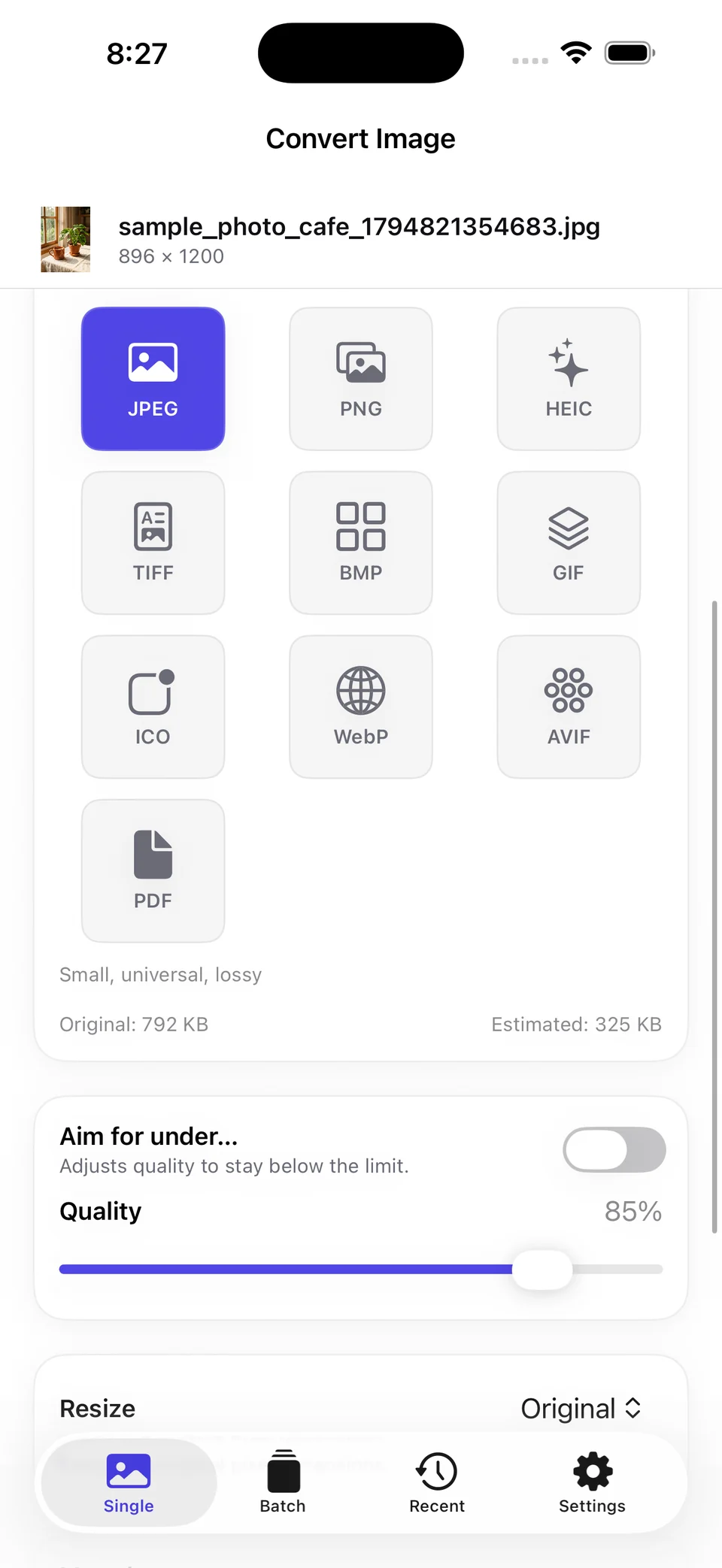
Select JPEG as the output format. JPEG is readable across virtually every Windows version, desktop viewer, and webmail client. If you want to verify that faces, fine details, or text in the background still look sharp, use the original-versus-converted comparison with shared zoom and check the exported file size alongside the source.
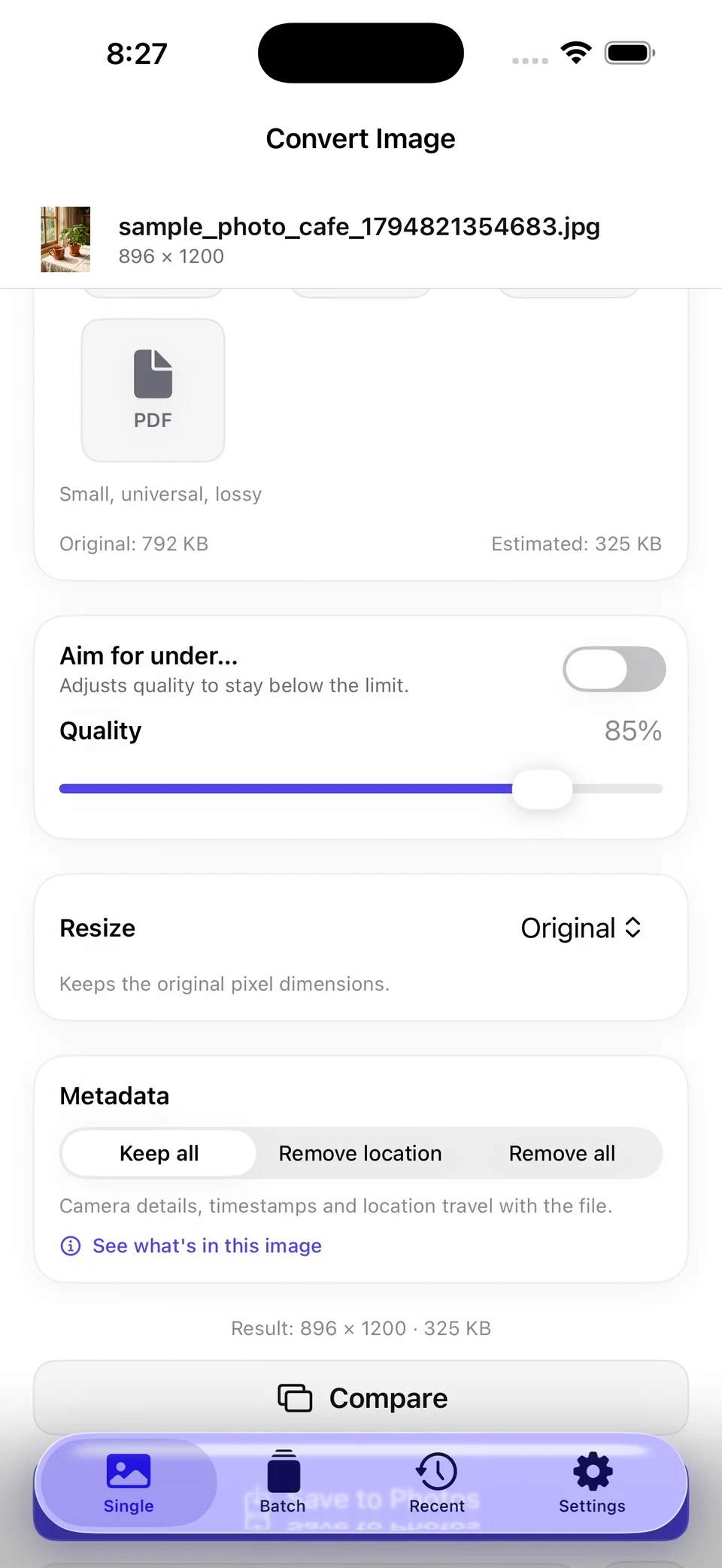
When emailing photos to someone outside your household, it is also worth checking whether you want camera location coordinates included in the copy. You can toggle location metadata off before converting; the location metadata guide explains how to check what stays in the exported file.
Once converted, save the JPEG to Files or send it straight through the Share Sheet. The most common slip at this stage is returning to Photos and attaching the original HEIC again by mistake, so double-check that the file you send ends in .jpg.
Sending a full set and knowing the access limits
If your friend needs twenty or thirty pictures from a trip, converting them one by one gets tedious quickly. In Batch mode you can browse the selected images in a swipeable preview, remove any stray shots, and rename the outputs with a clear prefix and numbering so they stay in order on a Windows desktop. For larger sets, the batch conversion guide covers how I organise multiple files before sending them.
Image Converter runs all conversions on your device, with no photo upload or account required. The free version includes advertising that uses network access and gives you five conversions per day, with optional rewarded ads if you need a few extra on a busy day. A one-time lifetime Pro purchase removes ads and unlocks unlimited conversions, compressed PDFs, and direct ZIP export, with no subscription.
If you want to try converting a few photos for a Windows friend before deciding whether you need unlimited batches, you can check the full details and App Store link on the app page.