In this article
A palette export is a starting material, not a finished interface. I wanted a small example where the next step is visible: a page with a background, readable text, and one clear action built from three deliberately chosen colours.
Keep the source and the example separate
Choose a photo you have permission to use and extract candidates in ColorPicker. Save the source reference and useful swatches. If you still have a long strip of similar colours, narrow it before copying code.
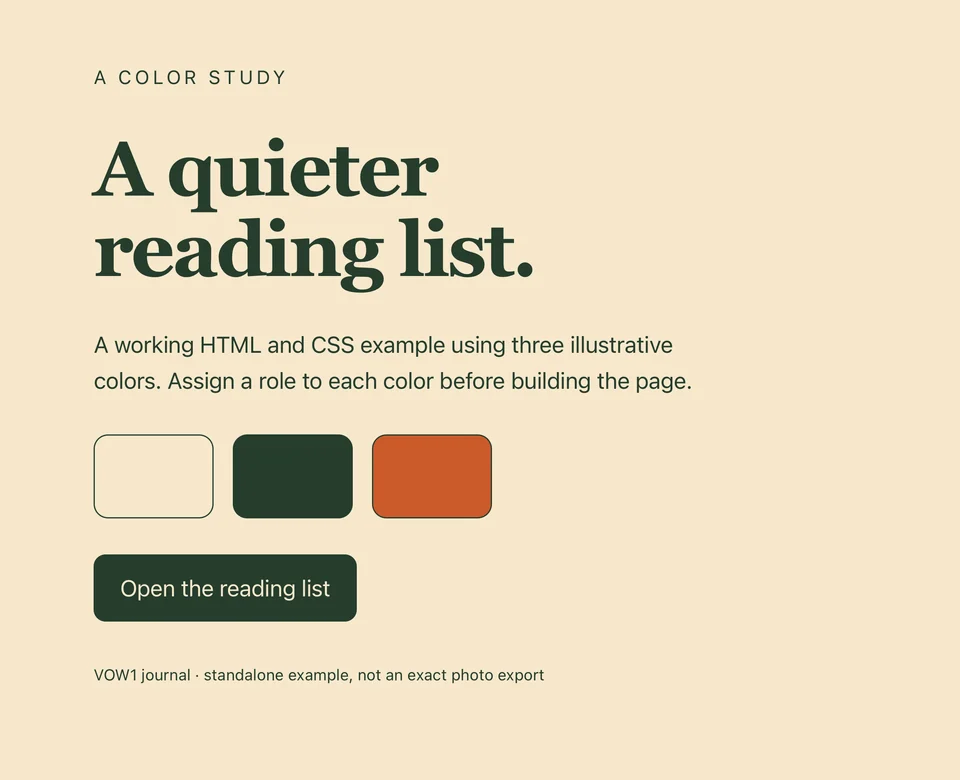
The page shown here uses illustrative values #F7E8CC, #263D2D, and #CC5A2A. They are not claimed to be the exact colours in the export screenshot. I keep that distinction explicit so you can reproduce the example without matching a particular photograph.
Give the values names that describe their jobs
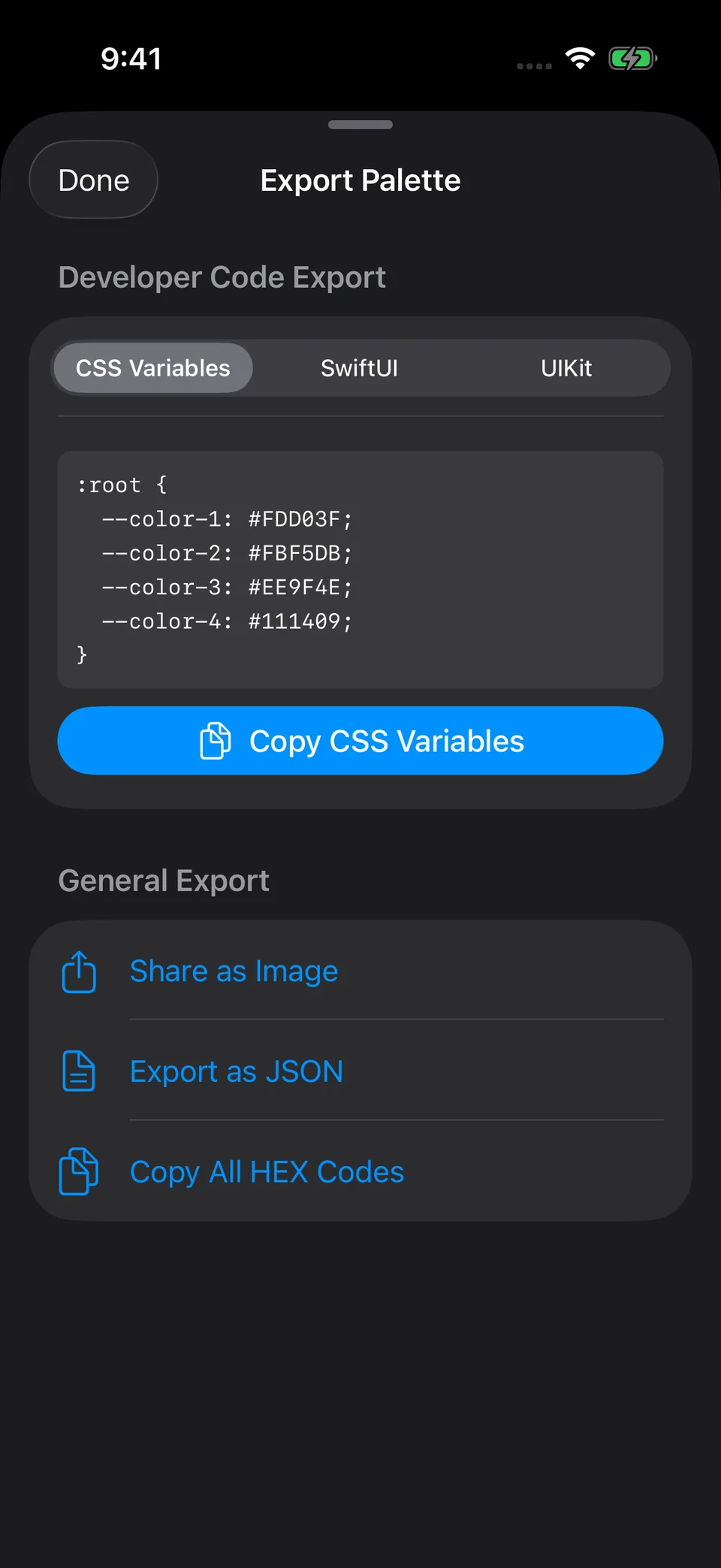
Open Export Palette and choose CSS Variables if you have Pro or a credit. Free HEX copying also works if you write the declarations yourself. Preserve the original values, then add names such as paper, ink, and accent in your project.
:root {
  --paper: #F7E8CC;
  --ink: #263D2D;
  --accent: #CC5A2A;
}
body { background: var(--paper); color: var(--ink); }
a.primary { background: var(--ink); color: var(--paper); }
I use the dark ink for the primary button, not the orange accent, so the action label can share the same strong light/dark pairing as the body. A decorative accent does not have to carry small text.
Open the working page
Open the standalone HTML example or save that file and inspect its source. It has a responsive viewport, real text, and CSS custom properties. The result image was captured from the actual page in WebKit, not generated as a website mockup.
Replace the three values with your own choices and open the page at a narrow phone width. Longer headings and button labels can expose problems that a row of swatches never reveals. Keep the written content and layout constant while comparing colour choices.
Check the page rather than only the palette
Test foreground/background contrast, visible focus, link recognition, and any additional states you introduce. W3C’s minimum text-contrast guidance generally uses 4.5:1 for normal text and 3:1 for qualifying large text; other accessibility criteria still apply.
For the extraction controls, use the photo palette guide. For the code handoff itself, the export walkthrough covers the actual sheet. This example begins where that export ends.
Know the access limits
ColorPicker lets you save five palettes free, copy HEX lists, and share palette images. Lifetime Pro removes ads and adds unlimited saved palettes and CSS, SwiftUI, UIKit, and JSON exports. One optional rewarded-ad credit covers one developer export; check availability in the app before depending on it.
Questions before you start
Do I have to use every extracted colour?
No. Give a small selection clear roles and keep unused candidates out of the implementation.
Is the screenshot an AI website mockup?
No. It is a WebKit snapshot of the linked working HTML example.
See the app details and current access information before choosing your next step.