In this article
When you photograph a bike on the driveway or a lamp on the kitchen table, your iPhone may record more than the item itself. Depending on your camera permissions, the original image file can carry GPS coordinates, capture dates, and device details straight into a marketplace upload folder.
I built location-metadata removal into Image Converter because selling a few household items should not require trusting every marketplace platform to strip your home address for you. Rather than guessing what a site does after upload, I run through a short pre-listing checklist before any photo leaves my phone.
1. Frame check: look for clues metadata cannot scrub
Turning off location tags in a file does nothing about details visible in the picture itself. Before I even open a conversion app, I scan each shot at full size for anything that gives away where I live.
- Windows and gardens: Check the background for street signs, shopfronts across the road, or a neighbour’s distinctive house number.
- Driveways and porches: Look for car registration plates, bin numbers, or house nameplates behind a bicycle, pram, or piece of garden furniture.
- Tables and desks: Move or crop out unopened post, parcel labels, loyalty cards, or school letters lying near the item.
- Glossy surfaces: Check mirrors, television screens, and chrome appliances for reflections of your room or window view.
If one of those details crept into the shot, retake the photo or crop it out first. Metadata scrubbing only cleans hidden file tags; it never edits pixels.
2. Source check: see which copies actually carry GPS
Not every image on your phone has coordinates attached. Camera privacy settings, earlier edits, or saving an image from a chat thread can all change what is inside the file.
- Open Photos and check info: Swipe up on the image or tap the info button. If a map pin or neighbourhood name appears, the file holds location data.
- Check your format: Modern iPhone photos are often saved as HEIC, which many local classifieds and smaller marketplaces still reject or re-encode unpredictably.
- Keep originals separate: Leave the original photo in your library if you want it for your own records, and create a dedicated clean copy for the listing.
If you want a broader look at how camera tags work outside of selling online, I cover the general concepts in my EXIF and location metadata guide.
3. Export check: scrub metadata on-device in Image Converter
Once the photos look clean visually, I generate a fresh listing set in Image Converter. Everything runs locally on your iPhone or iPad, so your home photos are never sent to a remote conversion server just to strip a tag.
- Pick Single or Batch: Use Single for one quick item, or Batch when you have four or five angles of the same product to prepare together.
- Choose a widely accepted format: Select JPEG if the marketplace asks for standard web photos, or another format listed in the destination’s upload rules.
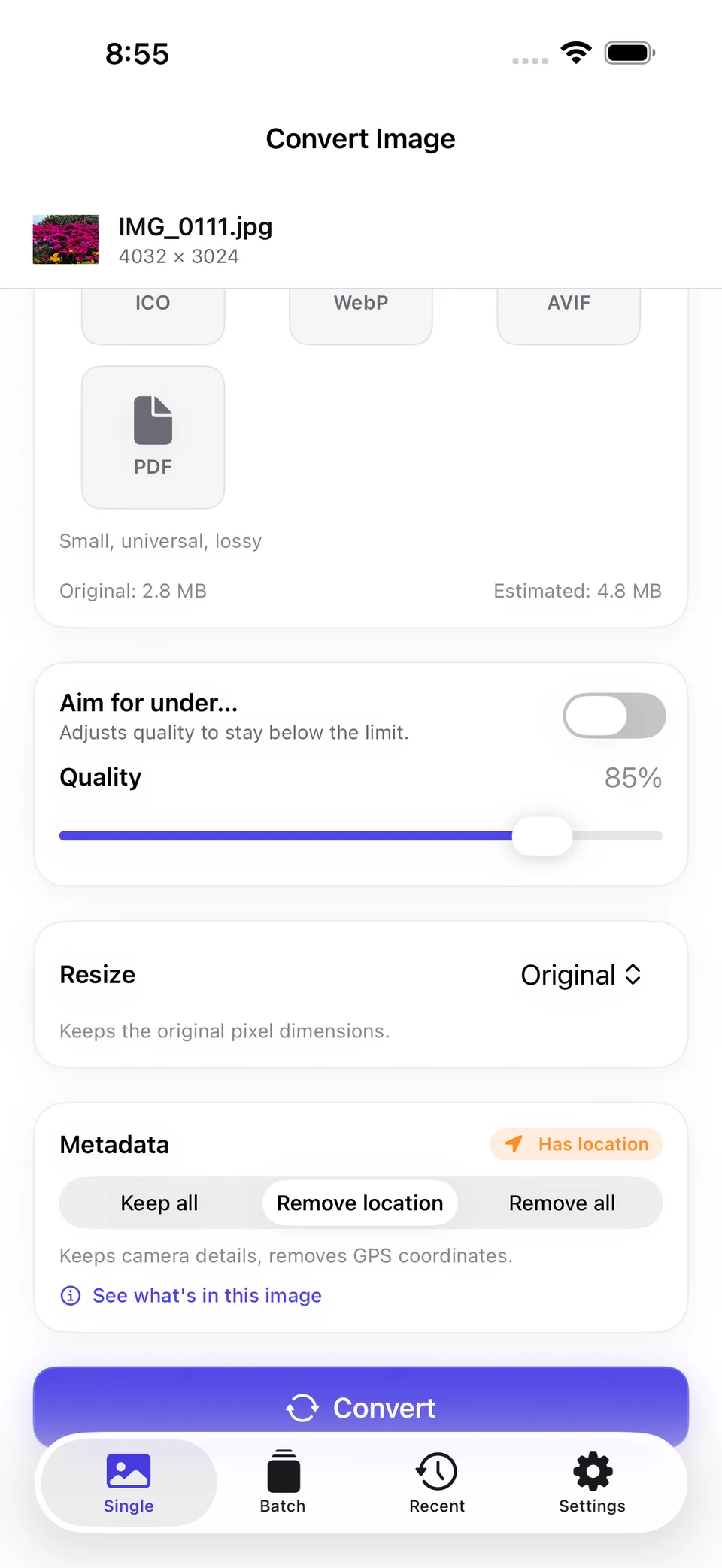
- Turn off Keep metadata: In the conversion settings, make sure the Keep metadata switch is switched off before you convert so location data is excluded from the new copy.
- Apply resize or size targets if needed: If the listing site caps file sizes, enable Aim for a file size (with optional dimension reduction) or set custom dimensions with aspect ratio lock.
- Save to a dedicated folder in Files: Export the converted images to a named folder in Files, such as a folder for that item, rather than mixing them back into your main camera roll.
If you are also standardising crops, white padding, or numbered filenames across multiple product angles, see my product photo preparation checklist for setting up a consistent gallery.
4. Verification check: inspect the exact file you plan to upload
The most common mistake is scrubbing a photo and then accidentally selecting the original image from the iOS photo picker when creating the listing. Before I upload anything, I verify the exported copy itself.
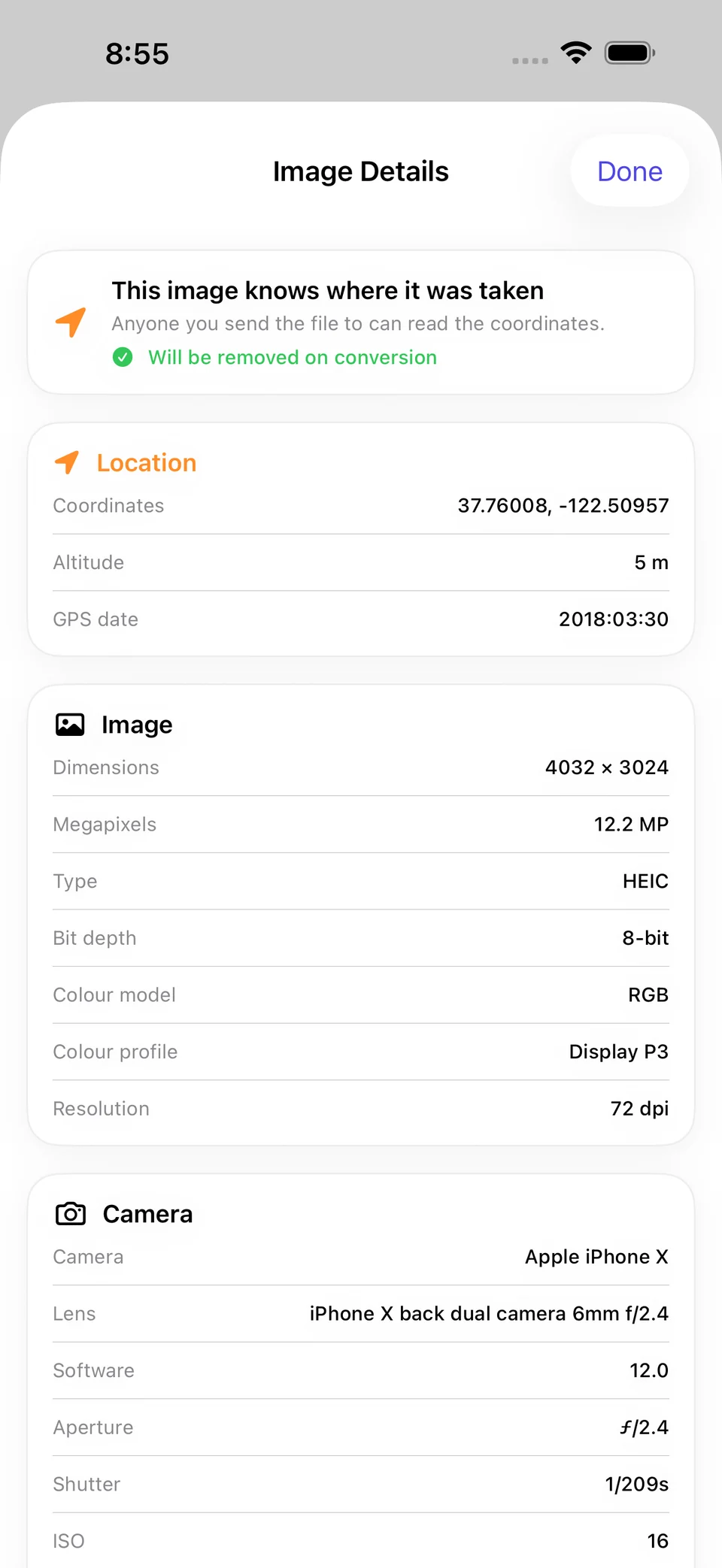
- Inspect the output in Files or recent conversions: Open the saved file from your listing folder (or check Image Converter’s recent conversions list, which keeps your last 20 conversions handy) and inspect its file info to confirm no map or GPS coordinates remain.
- Confirm readability: Use the original-versus-converted comparison in Image Converter if you also compressed the file, checking that serial numbers, brand labels, or wear marks buyers need to see are still sharp.
- Upload from the clean folder: When the marketplace asks for photos, choose Choose File or pick from your clean Files folder so you do not tap the unedited camera original by mistake.
Some marketplaces strip EXIF data automatically when they re-encode listing images, while others preserve more of the uploaded file. Checking your own exported copy takes thirty seconds and removes the guesswork.
Pre-listing sign-off and access limits
Before hitting publish on a listing, confirm four things: no street or address clues in the frame, Keep metadata turned off during conversion, GPS absent in the exported file’s info, and the clean file selected for upload.
Image Converter processes all conversions on-device without requiring an account or uploading your photos to a server. The free version includes ads (which use network access) and allows 5 conversions per day, with optional rewarded ads for extra conversions. A one-time lifetime Pro purchase removes ads and unlocks unlimited conversions, compressed PDFs, and ZIP export. You can read the full details and download link on the app page.