In this article
A photo can include more than the visible picture. Depending on camera permissions and how the file was saved, it may also contain capture information such as a date, device model, or GPS coordinates.
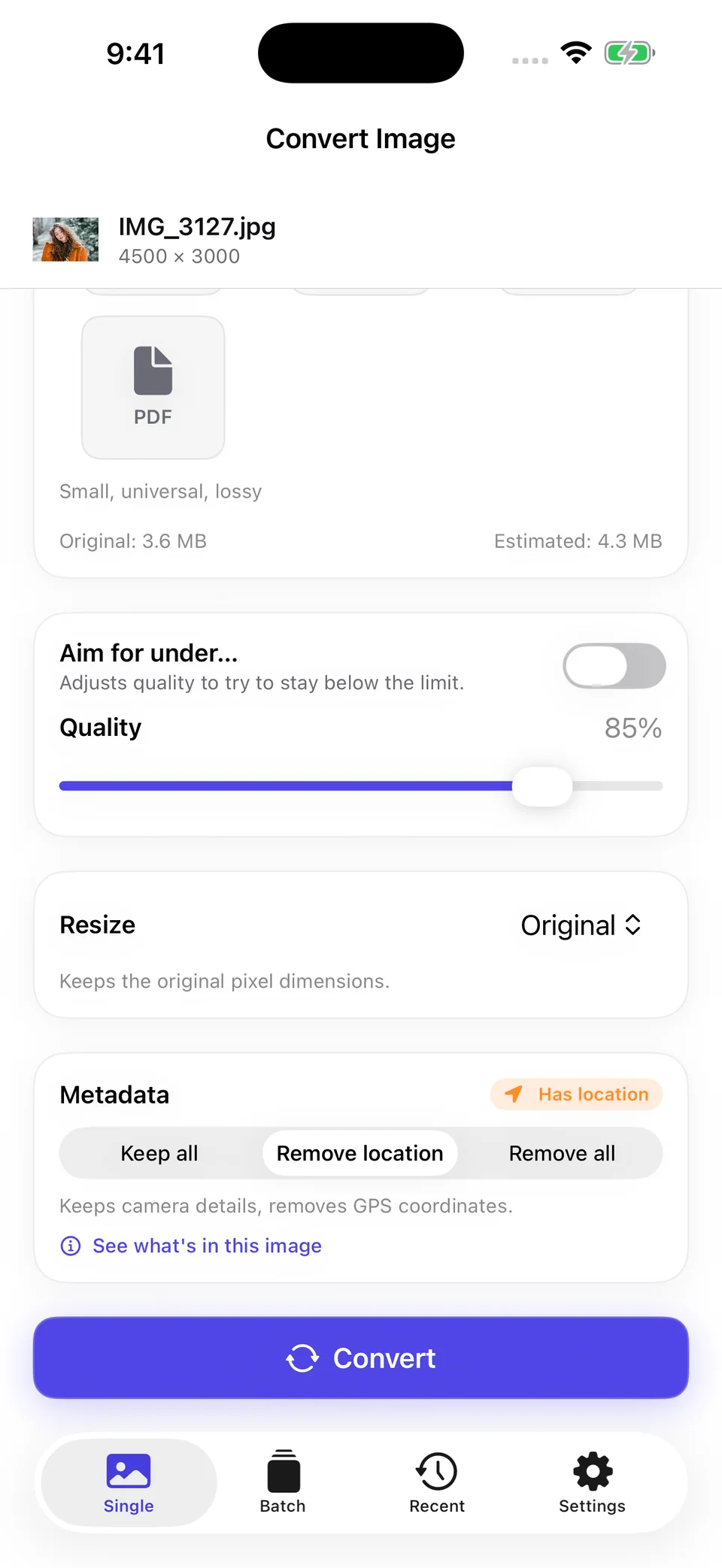
I build a location-removal option into Image Converter because sometimes the recipient needs the image but not the place it was taken. Here is how I would check that workflow.
First, check whether location is present
Do not assume every photo has GPS data. Camera permissions, editing, exports, and sharing services can change what a particular copy contains.
On iPhone, open a photo in Photos and inspect its information. If a map or location appears, decide whether that information belongs in the copy you plan to share. Apple explains the controls in its photo date, time, and location guide.
Use the sharing controls when they fit the task
For a direct share from Photos, review the available Options and the Location setting before sending. Apple documents this under sharing photos and videos.
Removing a location from the library entry, excluding it from one share, and creating a separate converted file are different workflows. Choose the one that matches what you need to send.
Make a converted copy without location metadata
- Import the source image into Image Converter.
- Choose an output format the recipient accepts.
- Review the metadata setting and turn off keeping location information for the exported copy.
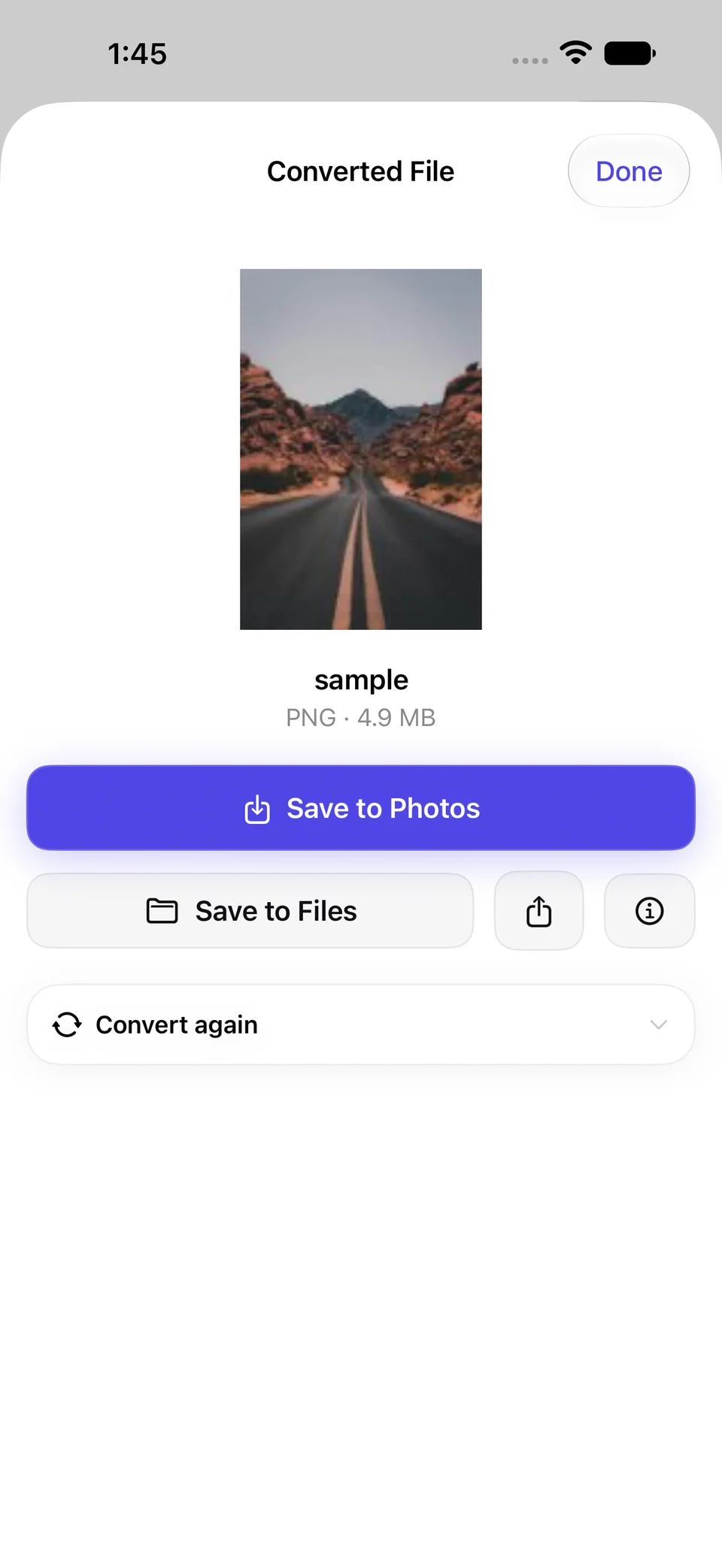
- Convert and save the output to Files or another compatible destination.
- Inspect that saved copy, rather than checking only the original.
Verify the exact file you will send
If this matters to your workflow, inspect the exported file with a metadata viewer before sharing it. Removing GPS does not necessarily mean every other metadata field is removed.
Also look at the picture itself. A street sign, shipping label, reflection, or recognisable building can reveal information even when there are no coordinates in the file.
Be precise about privacy
Some services remove metadata from displayed images; others preserve original files. I would not assume that every social post exposes GPS, or that every upload service retains images for training. Check the service and the actual shared copy.
Image Converter processes conversions on-device without uploading your photos to a conversion server. The free version includes ads that use network access; lifetime Pro removes them. That distinction is part of explaining the app honestly.
For the rest of the workflow, read my single-image conversion guide or my batch conversion guide.