In this article
Finishing a shoot for a holiday let usually leaves twenty or thirty HEIC files sitting in Photos—mixed orientations, multi-megabyte originals, and camera filenames like IMG_4812.HEIC that give a booking portal no clue about room order. Uploading them straight from your phone often means slow transfers on rural broadband, rejected file types, or a gallery that opens with the utility cupboard instead of the living room.
To make this concrete, here is how I batch-prepare an illustrative set of twenty holiday-let photos in one sitting using Image Converter. The goal is a consistent format, predictable dimensions, and numbered filenames you can upload in order—along with an honest look at how the app’s five-image daily free limit affects a twenty-photo job.
Auditing the twenty shots before choosing output settings
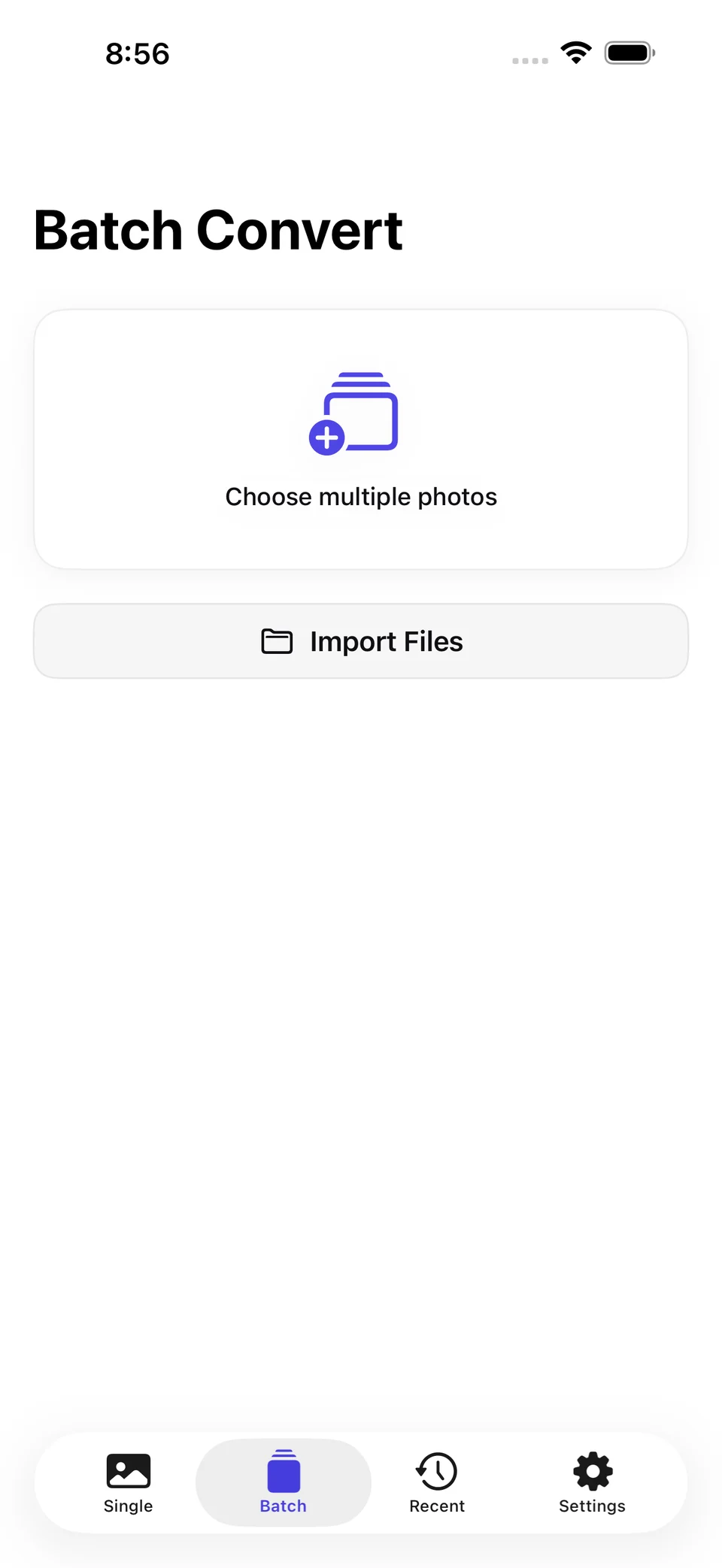
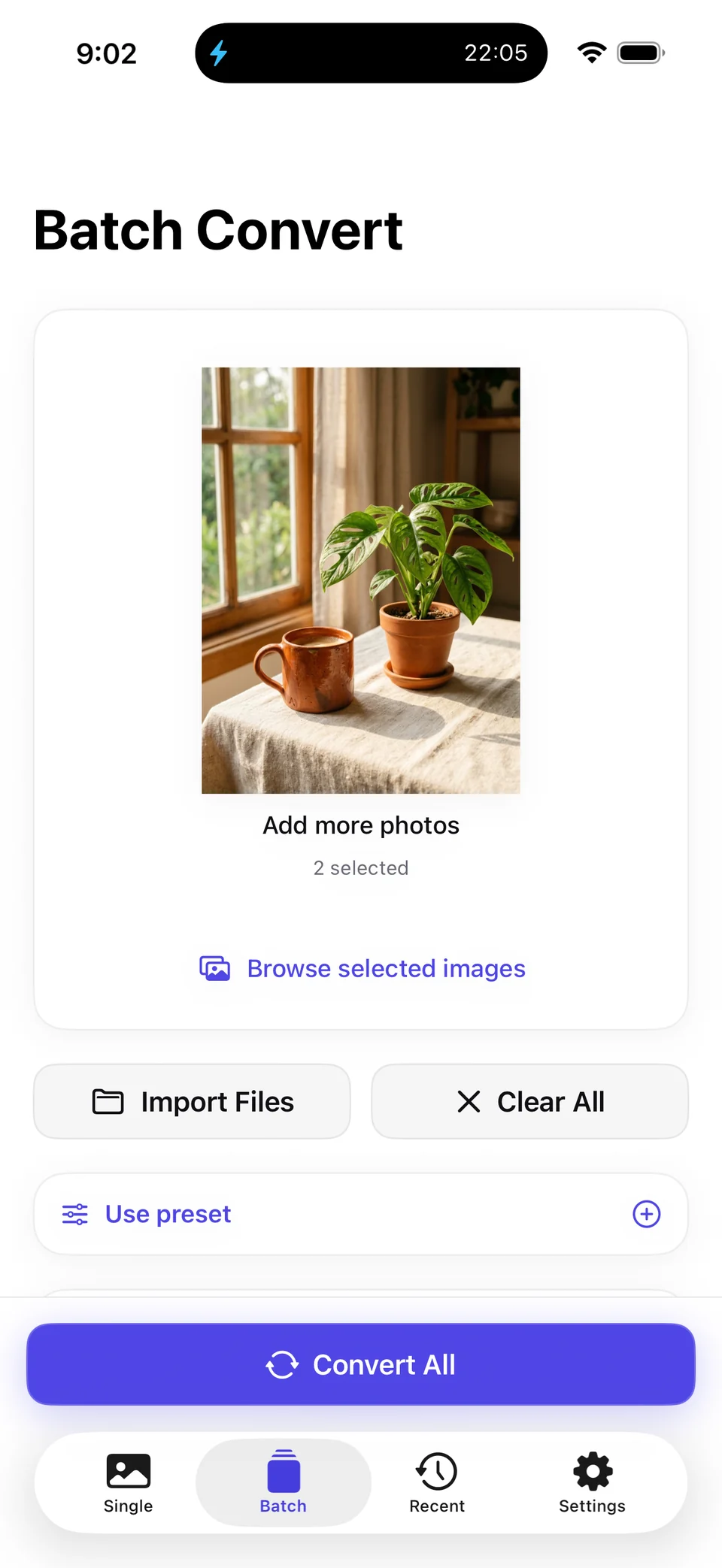
A typical twenty-photo listing mixes wide shots of the sitting room, kitchen, and bedrooms with a few upright frames of a narrow hallway, staircase, or en-suite bathroom. Before touching compression or resize controls, I import the full selection into Batch and step through the swipeable preview and thumbnail strip.
Checking the queue first saves wasted conversions later. Batch preview and item removal are free, and undo catches accidental taps if you drop the wrong photo. If sixteen images are landscape and four are portrait, forcing all twenty through a single landscape Center Crop rule can slice the top off a shower or doorway. I prefer pulling those four vertical shots out of the first pass and running them separately with Fit or White Padding, or adjusting them to match the portal’s exact dimension rules.
If your photos live in iCloud, download the full originals while you have a steady Wi-Fi connection. Conversions run on-device, so waiting on cloud-only originals mid-batch slows everything down.
Standardising format, dimensions, and room order
Once the queue is clean, I set one shared output specification that the booking platform actually accepts. Always check your platform’s current upload guidelines first, as pixel and file-size rules vary by site. When compatibility across older portals matters, JPEG is the safest default; if you are also publishing to your own direct-booking website, WebP is worth considering.
- Dimensions: Use Custom Dimensions with Aspect Ratio Lock enabled when you want every landscape room shot to share the same width. Choose Fit to keep the entire room in frame, or Center Crop only after checking that doorways and windows stay intact.
- File-size targeting: Turn on “Aim for a file size” for JPEG, HEIC, WebP, or AVIF if a portal caps individual uploads, and enable “Reduce dimensions if needed” so high-resolution originals can still hit the target. Remember that the limit applies to each photo individually, and a bright tiled kitchen compresses differently from a dark timber bedroom.
- Sequential naming: Set a filename prefix, starting number, and number padding—for example
harbour-flat-001.jpgthroughharbour-flat-020.jpg. Inspect the filename previews before converting so the lead exterior and sitting room sit at the front of the folder. - Location privacy: Because property photos are often taken on a personal phone, inspect and remove EXIF location metadata before exporting so exact GPS coordinates are not left inside public listing files. See my metadata scrubbing guide for what stays and what gets removed.
If you manage more than one property or refresh seasonal photos every few months, save this configuration as a named preset. Reusing a saved preset keeps format, quality, metadata, and resize choices identical across future shoots.
The twenty-photo question: free limit versus lifetime Pro
Twenty photos is the exact point where you hit the free allowance, so it is worth being direct about how access works. Image Converter lets you convert five images per day for free, supported by ads, with optional rewarded ads for extra conversions when ad inventory is available.
In practice, that gives hosts three realistic paths for a twenty-photo listing:
- Split across four days for free: If you are not rushing to publish tonight, save your named preset and convert five rooms a day over four days. Every batch will share the same format, dimensions, and padding if you adjust the starting number (
001,006,011,016). - Top up with rewarded ads: If you only prepare listings occasionally and need a few extra images in one session, optional rewarded ads can extend your daily count, though availability depends on the ad network and is not guaranteed on demand.
- Unlock lifetime Pro: If you manage several holiday lets, update galleries regularly, or want to hand a clean ZIP archive to a co-host or letting agent, the one-time lifetime Pro purchase (no subscription) removes ads and unlocks unlimited images, ZIP export, and compressed PDFs.
Whichever route you choose, image processing stays 100% on your device with no photo upload or account required; only advertising in the free version uses network access.
Checking the exported set before uploading
Before uploading all twenty files, open the comparison view on two contrasting rooms—such as a sunlit window shot and a detailed kitchen counter—to check shared zoom, final dimensions, and file-size savings. Confirm that plasterwork, fabric textures, and small welcome-book text still look crisp.
Export the finished batch to a dedicated folder in Files (or as a ZIP archive if you have Pro), and keep your original HEIC files untouched in Photos. A quick scan of 001 to 020 in Files confirms the room order before you drag the set into your listing dashboard.
If you want to test this workflow on five sample shots first, visit the app page for current details and download links. The free version covers five conversions per day with ads and optional rewarded ads, while one-time lifetime Pro removes ads and unlocks unlimited batch conversions, compressed PDFs, and ZIP export.