In this article
A folder of individual attachments can be awkward to send and easy to mix up. I use an archive when the recipient needs the complete set together, but I still check the image files before packaging them.
Agree on what the recipient expects
Confirm the required format and whether the destination accepts ZIP files at all. A photo-upload field may require individual JPGs and reject archives. A collaborator receiving a project folder may prefer one ZIP with descriptive filenames.
Choose one folder name and avoid including originals, temporary comparisons, or unrelated personal photos. An archive is a delivery container, not a privacy review. If location metadata matters, inspect the conversion settings before creating the images.
Finish the batch before archiving it
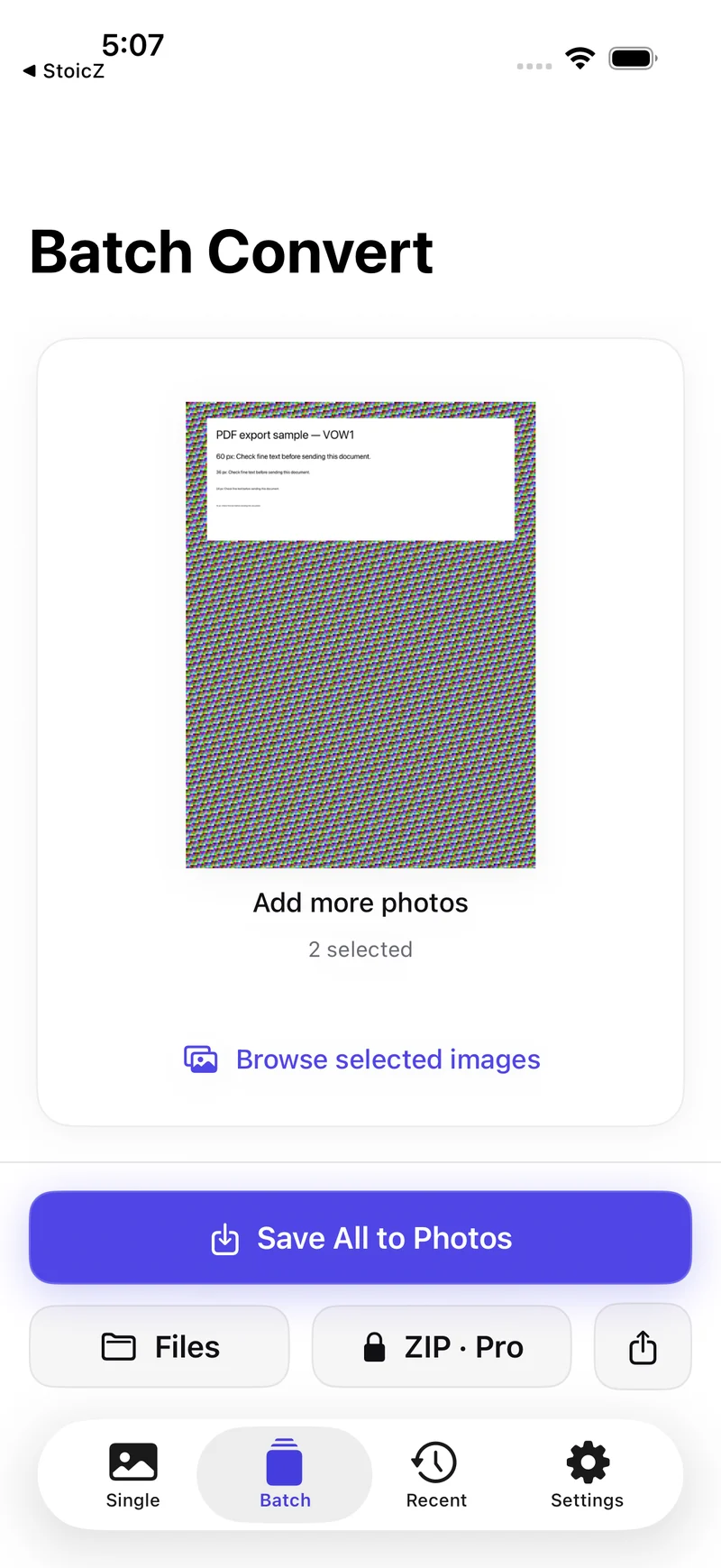
Use Batch to choose the format and, when useful, a prefix and padded numbering. Preview the selection and remove anything that does not belong. Convert, then inspect several outputs with different content: fine text, smooth gradients, and detailed edges.
The batch guide covers that preparation. If the outputs are wrong, packaging them neatly does not make them ready to send.
Create the ZIP and verify an extracted copy
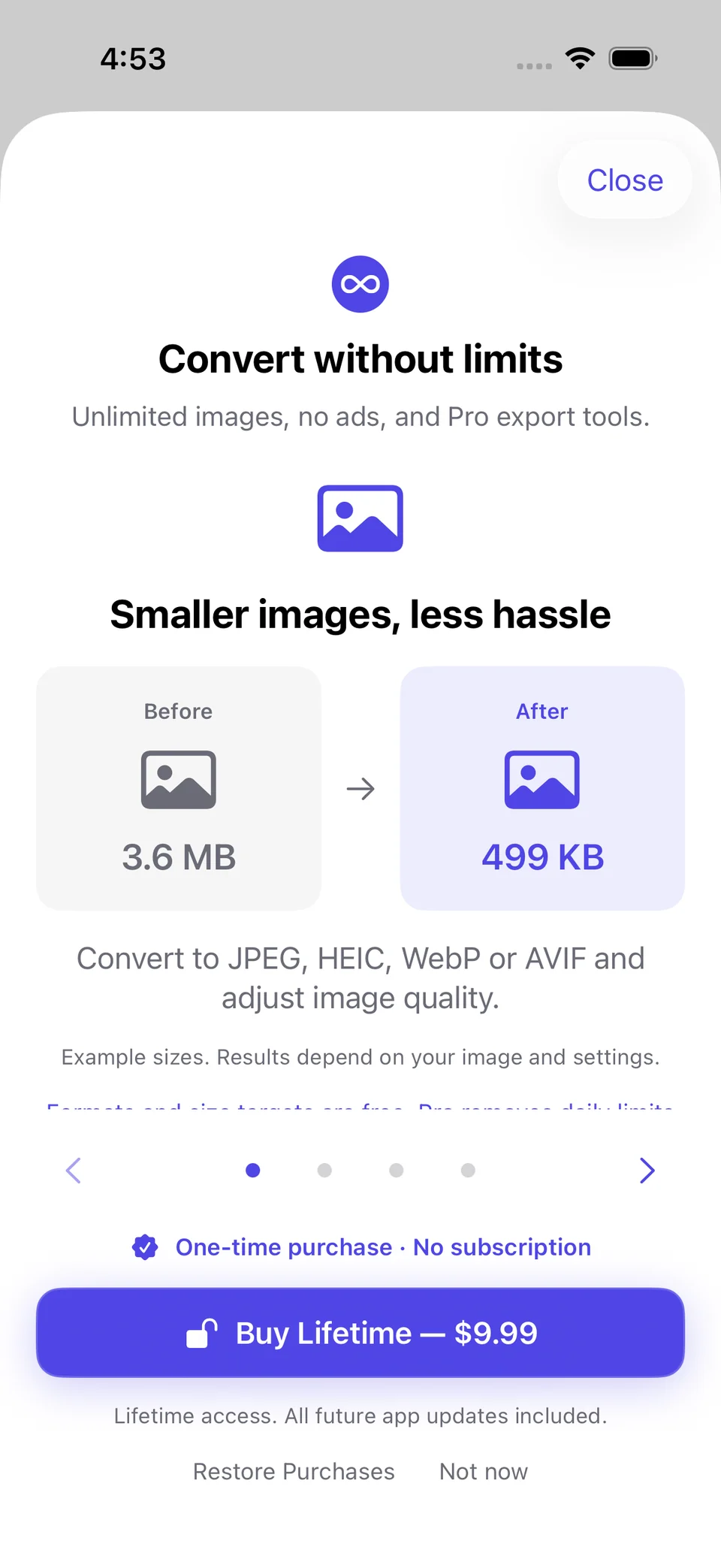
The Batch result actions include ZIP, marked as Pro when locked. Use the export action and save the resulting archive in Files. Do not infer the archive’s contents solely from the filename shown on the share sheet.
- Locate the saved ZIP in Files.
- Extract a separate copy and open the resulting folder.
- Check the count, extensions, names, and at least two actual images.
- Send the verified archive and keep the originals separately.
Apple documents creating and opening ZIP files in Files. That also provides a system packaging route for files you have already saved, if you do not need the app’s direct ZIP shortcut.
Keep image size and archive size separate
JPEG and other compressed image formats may gain little from another archive layer. If the receiving service has a size limit, check the actual ZIP size rather than expecting a fixed percentage reduction. To make the images smaller, adjust conversion settings and inspect detail again.
ZIP export in Image Converter requires Pro; exporting ordinary image files remains subject to the free daily allowance. For location review before delivery, see the metadata guide. For the purchase decision, compare the free and Pro workflows.
Know the access limits
Image Converter processes conversions on your device without a photo upload or account. The free app includes ads and five images per day, with optional rewarded ads for extra conversions. Lifetime Pro removes ads and adds unlimited images, compressed PDF export, and ZIP export. Advertising uses network access; a cloud-only source may need downloading first.
Questions before you start
Does ZIP change the photo format?
No. The images inside retain their exported formats. Convert before packaging when another format is required.
Can I make a ZIP without buying the app’s Pro unlock?
Files can package already saved files. Image Converter’s direct ZIP export is a Pro feature.
See the app details and current access information before choosing your next step.