In this article
A finished picture does not have to disappear into a gallery. Colourify’s Home Screen widgets let a family keep a drawing in view and, with Your Picture, return to the colouring activity.
The first choice is which artwork you want the widget to show. Your Picture and Kept Drawings use different sources, so I would decide that before adding one.
Choose between the two widget types
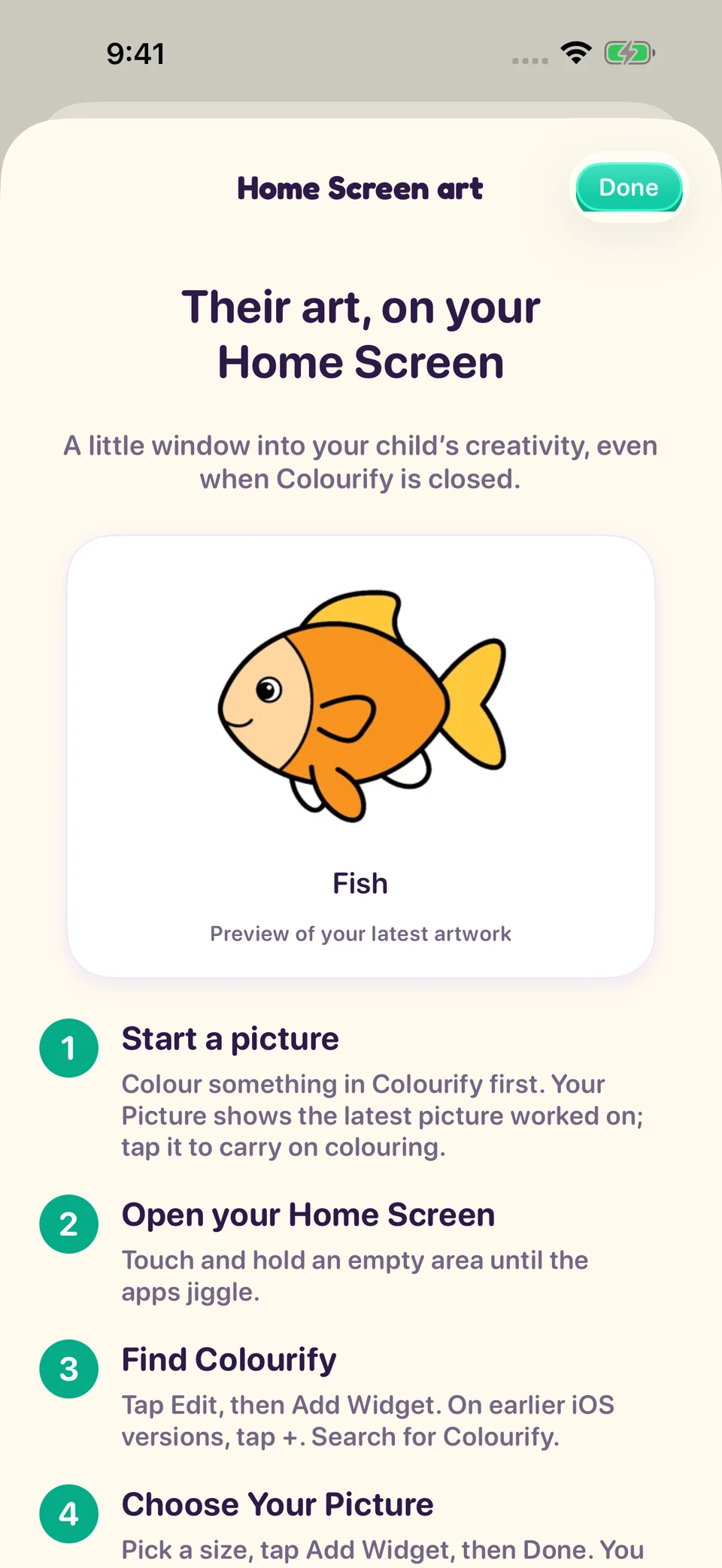
Your Picture shows the latest picture worked on and opens the colouring activity when tapped. It is a good starting point for artwork a child is making inside Colourify.
Kept Drawings displays drawings saved in My Art. Use that route when you want the keepsake collection rather than the current colouring picture.
They are not interchangeable views of one folder. If the widget shows something unexpected, check the chosen kind as well as the saved artwork.
Prepare something worth showing
For Your Picture, open a picture, add some colour, and return from the canvas so the current work is saved. For Kept Drawings, make sure the intended drawing is available in My Art.
Choose an image you are comfortable having on a visible screen. A widget can be seen by someone nearby, so review names and personal photos before placing it on a shared device.
Add the widget through iOS
- Touch and hold an empty area of the Home Screen.
- Open the option to add a widget.
- Search for Colourify.
- Choose Your Picture or Kept Drawings and a supported size.
- Place it and finish editing.
Apple’s widget guide explains the system controls. Your Picture supports small, medium, and large layouts, with more room for artwork in the larger sizes.
Review the details and branding
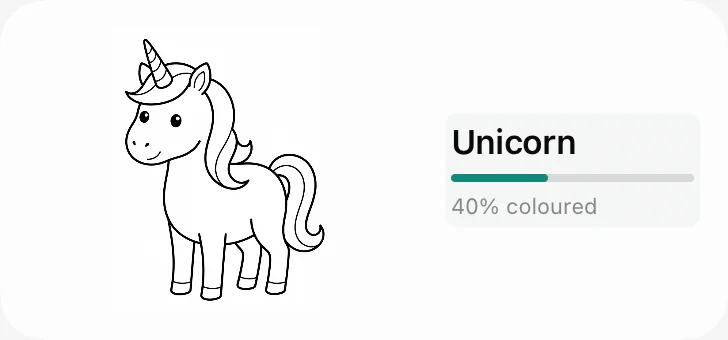
In the grown-up area, open the Home Screen art options. Picture details can be kept simple; check the actual widget after changing the setting.
Free widgets retain Colourify’s name and icon. Lifetime Pro can remove the branding, with the option to show it again. That is a presentation choice; it does not change the source drawing.
Give updates time to appear
iOS decides when widgets refresh. A widget is not a live recording of every brushstroke, and it may not change immediately after each mark.
If the picture looks old, open Colourify, check the intended artwork, return from the canvas, and allow time for a refresh. Then check that you added the right widget type. Removing and re-adding a widget can be a later troubleshooting step; deleting the app should not be the first one.
Use it as an invitation to return
The widget does not have to show a finished masterpiece. An in-progress picture can be a useful reminder that the activity is waiting and can be resumed.
For another way to keep artwork, my book guide explains printable PDFs. The free-versus-unlock guide covers what the optional purchase adds.