In this article
Use the artwork’s time-lapse flow to create an MP4 from recorded colouring. 720p is free; 1080p and 4K require Unlock Everything. Open the finished file and check its proportions, ending and sound before sharing.
A useful time-lapse shows the picture coming together, not an empty canvas changing once to a single colour. I would first make a drawing with an intentional palette and several meaningful actions. Export settings cannot create a richer colouring history than the artwork contains.
Prepare a worthwhile sequence
Open saved artwork with recorded fills and strokes. Inspect the final picture and any personal information. The export rebuilds the action history rather than capturing the whole screen, so it skips inactive waiting. Use the in-app replay first when you want to review the sequence without preparing a file.
Choose an appropriate quality
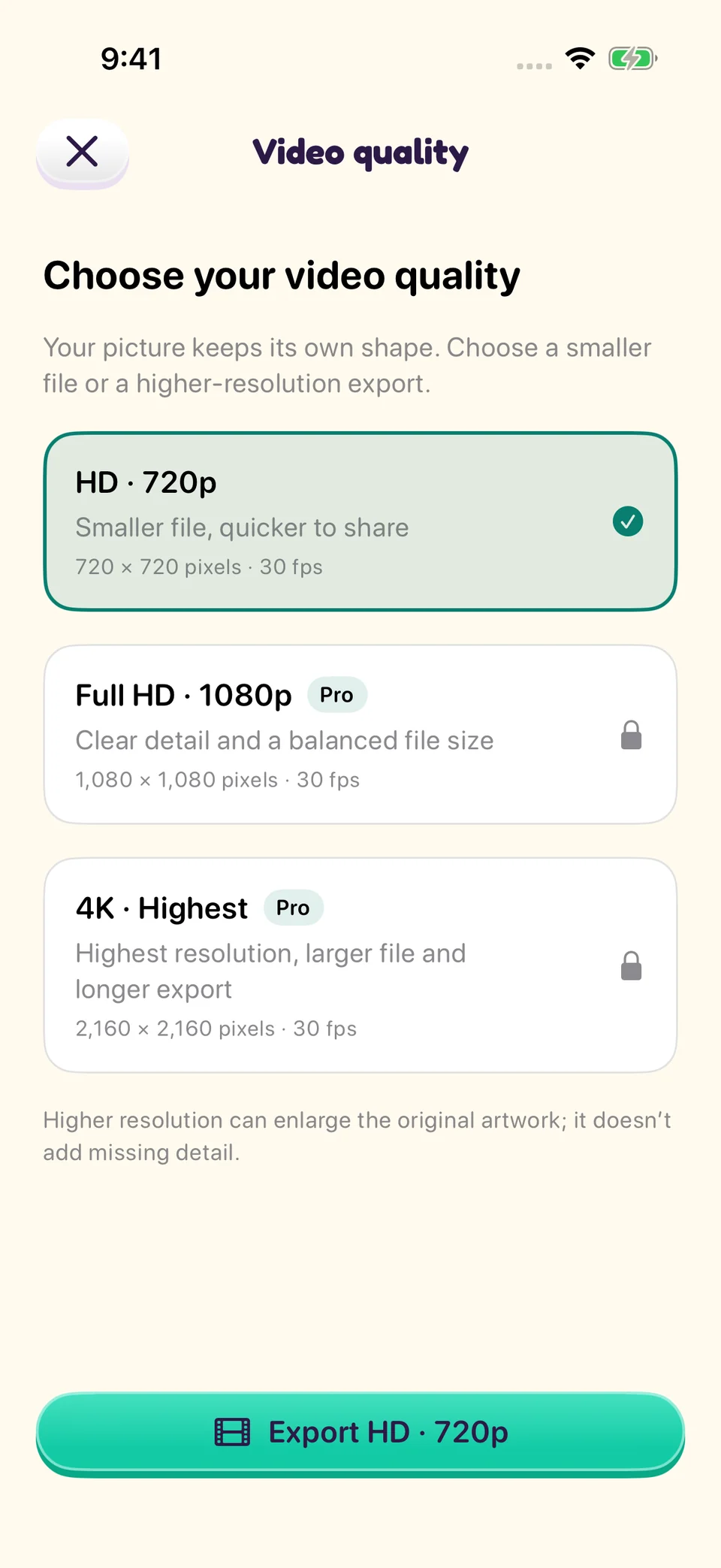
Open the time-lapse export action and choose an available quality. Start with 720p to check the sequence and destination. 1080p and 4K are paid options; a larger output does not invent detail missing from the source drawing. Colourify preserves the artwork’s proportions instead of treating every picture as a ready-made vertical social clip.
Inspect the MP4 outside the editor
Let creation complete, save the video through the grown-up sharing flow and reopen the actual file. Check its beginning, the smallest important marks and the completed-picture hold. Listen to the colouring feedback if present. This is Colourify’s ordinary replay export, not Colorist’s separate social-video editor, signature treatment or Studio Music workflow.
Check the result
- Play the saved MP4 from start to finish.
- Check that the whole subject remains visible.
- Confirm the output quality and destination before sending a larger file.
Know the access limits
720p export is free. 1080p and 4K require Unlock Everything. Sharing is protected, and the exported video does not preserve an editable artwork library.

Explore Colourify, or continue with the related guide.