In this article
In Make a Book, choose the artwork source, review the finished-only filter and select the pictures you want. Arrange the order before fine-tuning decoration, then inspect every page in the preview.
A book feels more deliberate when its pictures form a small sequence rather than an accidental dump of the library. I would choose a beginning, a few varied middle pages and a clear ending. Six well-chosen pictures can be more useful than including everything available.
Choose the right sources
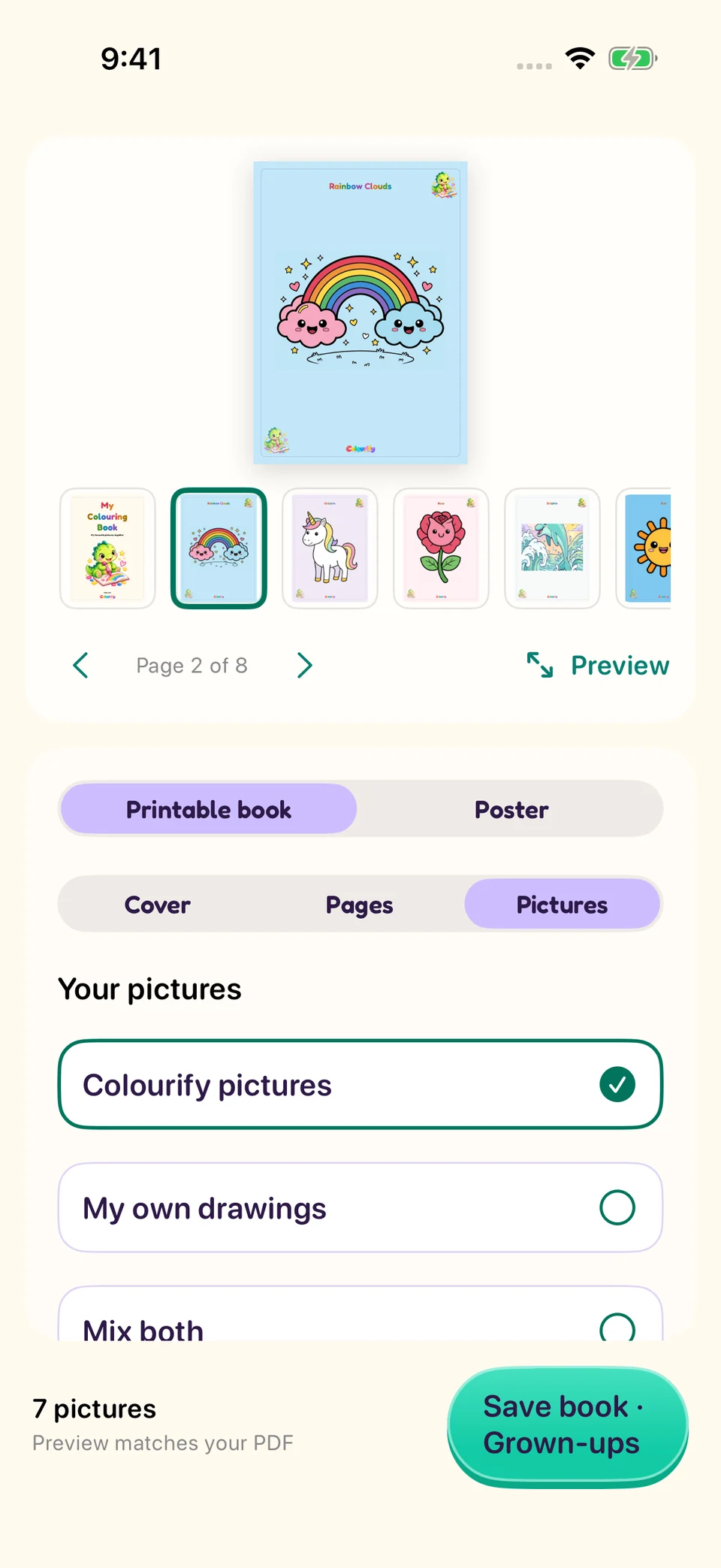
Open Make a Book from My Art and review the source options: Colourify pictures, your own drawings or a mixture. Include kept paper drawings when those photographs belong in the collection. Check the finished-only choice; an unfinished picture can be intentionally included when you want to preserve a stage rather than only completed work.
Select and order deliberately
Open the picture-selection controls. Select all is convenient for a small relevant group, but clear the selection when the library contains unrelated pieces. Use ordering controls to put the chosen pictures in sequence. Avoid neighbouring near-duplicates unless comparing them is the purpose. Check a wide picture and a tall one before settling on a shared page design.
Review the sequence before decoration
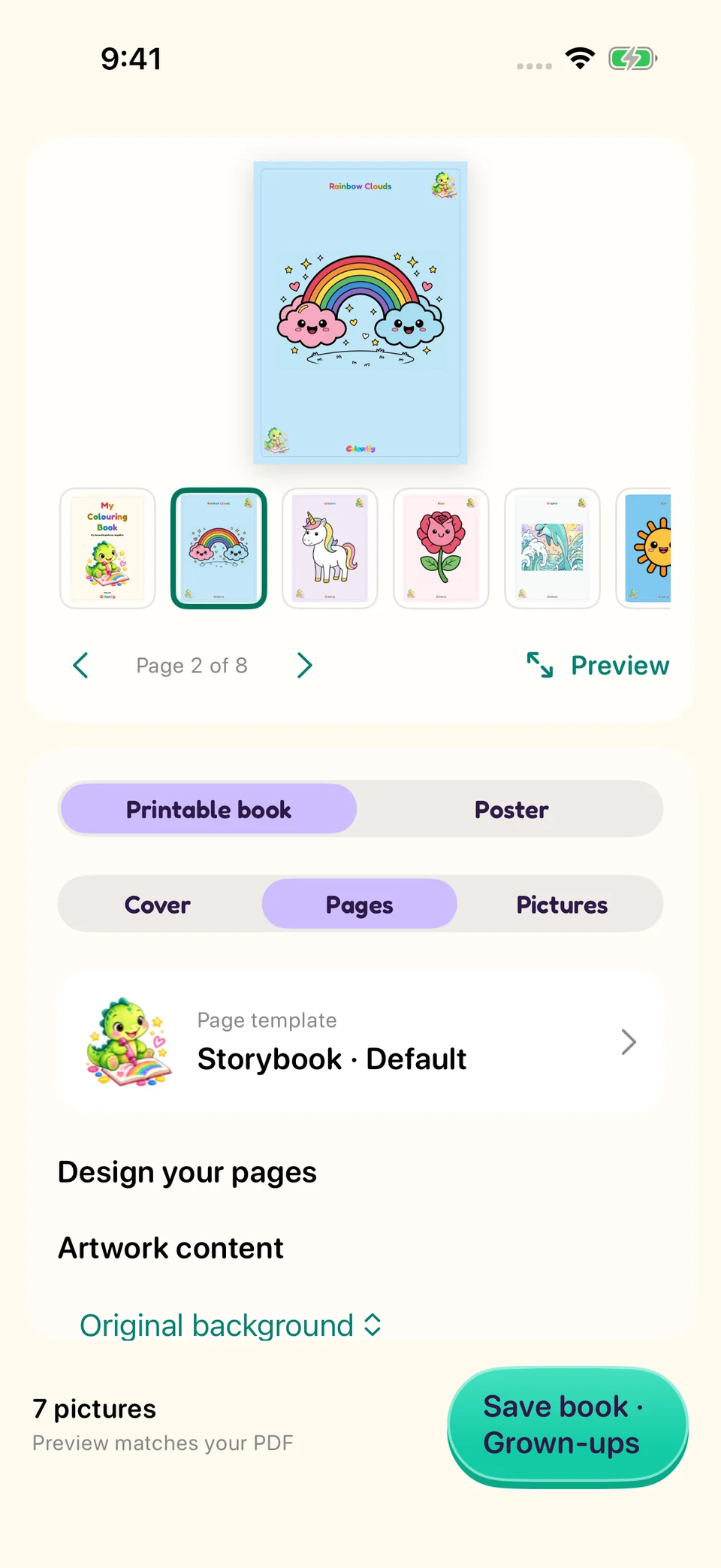
Move through the page previews and compare each subject with its name/caption. Remove an unintended picture before solving spacing and typography. Decorations should support the selected artwork, not disguise a collection that is still uncertain. The demonstration book uses deliberately multicoloured sample artwork; it does not claim to document a real child’s portfolio.
Check the result
- Compare the selected count with the intended collection.
- Review first, middle and final pages in order.
- Reopen the exported PDF and verify the same sequence.
Know the access limits
The book designer can be explored before purchasing, while personalised PDF export requires Unlock Everything. Removing names or replacing branding has its own paid boundary.
Explore Colourify, or continue with the related guide.