In this article
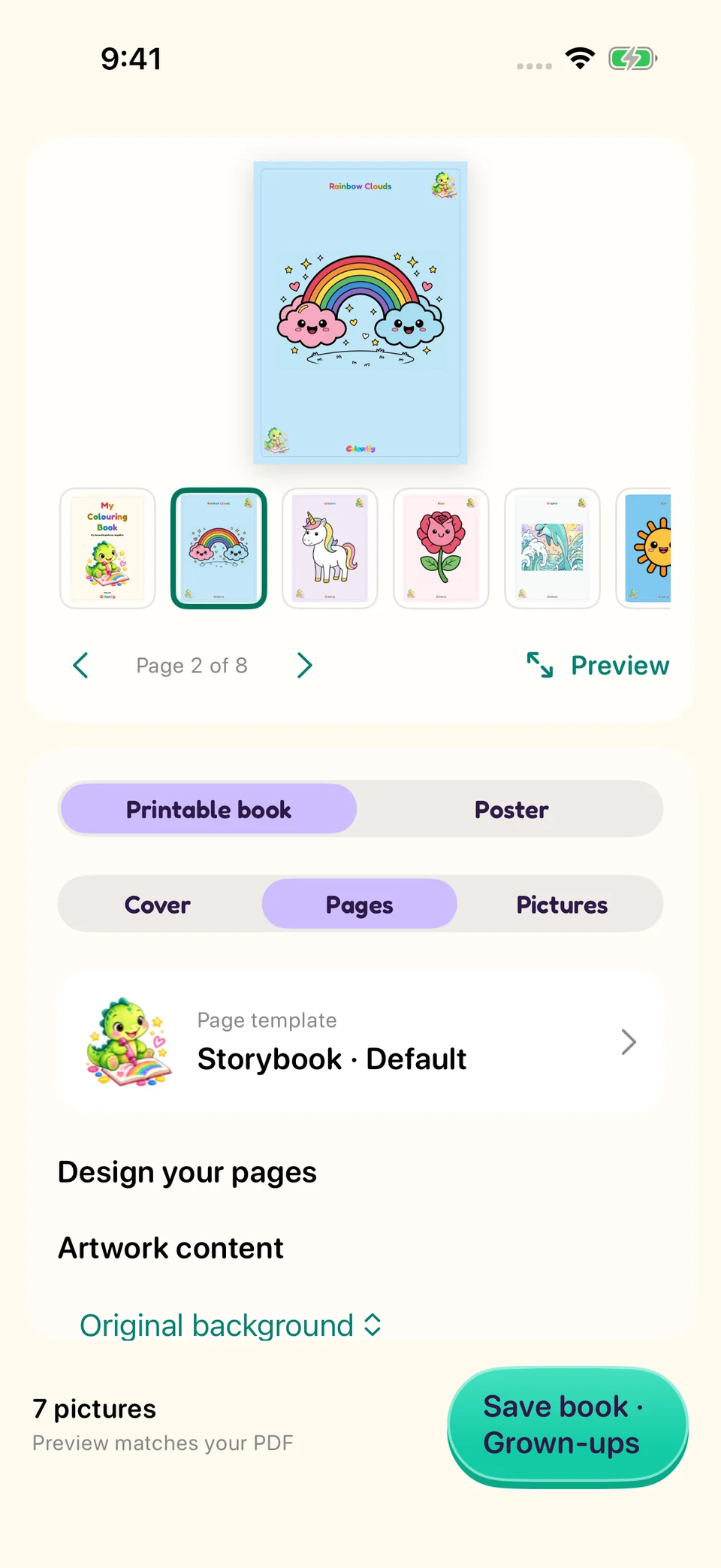
Start with the common book design, then use a selected picture’s page controls for an individual override. Compare the page with its neighbours and use the common-style reset when the exception is no longer useful.
A wide landscape and a tall flower do not always need identical treatment. I would establish a consistent book first and make exceptions only when a particular page has a clear problem. That keeps individual styling from becoming a collection of unrelated experiments.
Establish the shared design
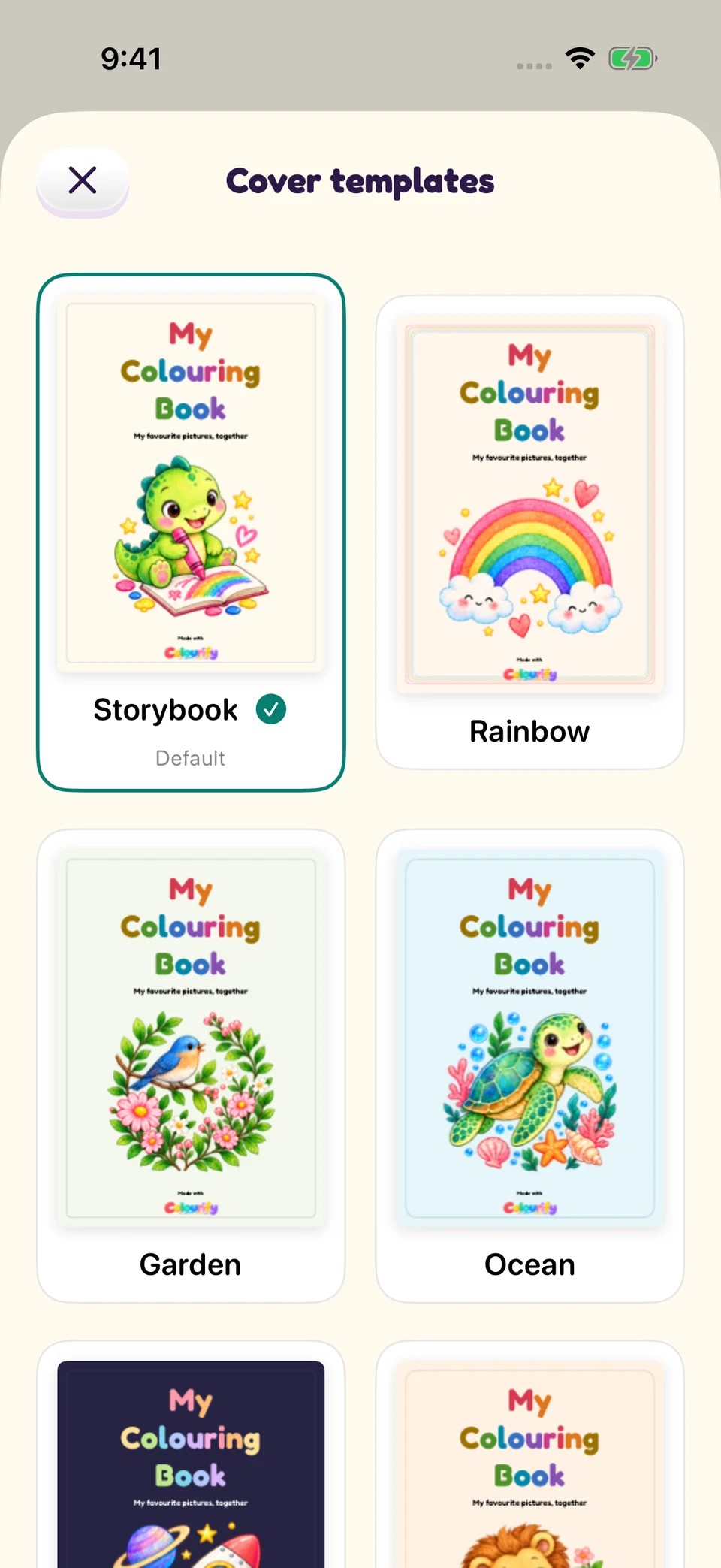
Choose the book’s general paper, artwork scale, frame and text treatment. Preview several different pictures before editing one page independently. If every page feels crowded, change the shared design instead of repeating the same repair across the whole collection.
Make a focused page override
Select the picture/page you want to adjust and open its available style controls. Change the element responsible for the problem, such as the mounting, frame relationship, background treatment or spacing. Keep the source artwork unchanged. An override is a book presentation choice, not a new coloured edition of the drawing.
Compare, reset or retain
Move to the preceding and following pages and judge whether the exception still belongs in the collection. Use the option to return to the common book style if it was only an experiment. A page that needed different spacing may not need different fonts, colours and decoration as well. Check the full exported page after deciding.
Check the result
- Name the problem the override is solving.
- Compare the selected page with its neighbours.
- Verify the override or reset in the saved PDF.
Know the access limits
The page designer supports previewing the result; personalised PDF export requires Unlock Everything. Other paid controls, including hiding names or replacing branding, remain separately enforced.
Explore Colourify, or continue with the related guide.