In this article
When several jobs need the same format and resize rules, a named preset saves repeating the setup. It still needs a test on the actual images you plan to convert.
I would name the recipe after its destination and requirements, such as “Catalogue square — white padding,” rather than treating one recipe as right for every website.
Configure one representative image
Choose the output format, quality or size target, metadata, and resizing. If you need an exact canvas, check Fit, Crop, or Pad deliberately; an aspect-ratio lock is a different control.
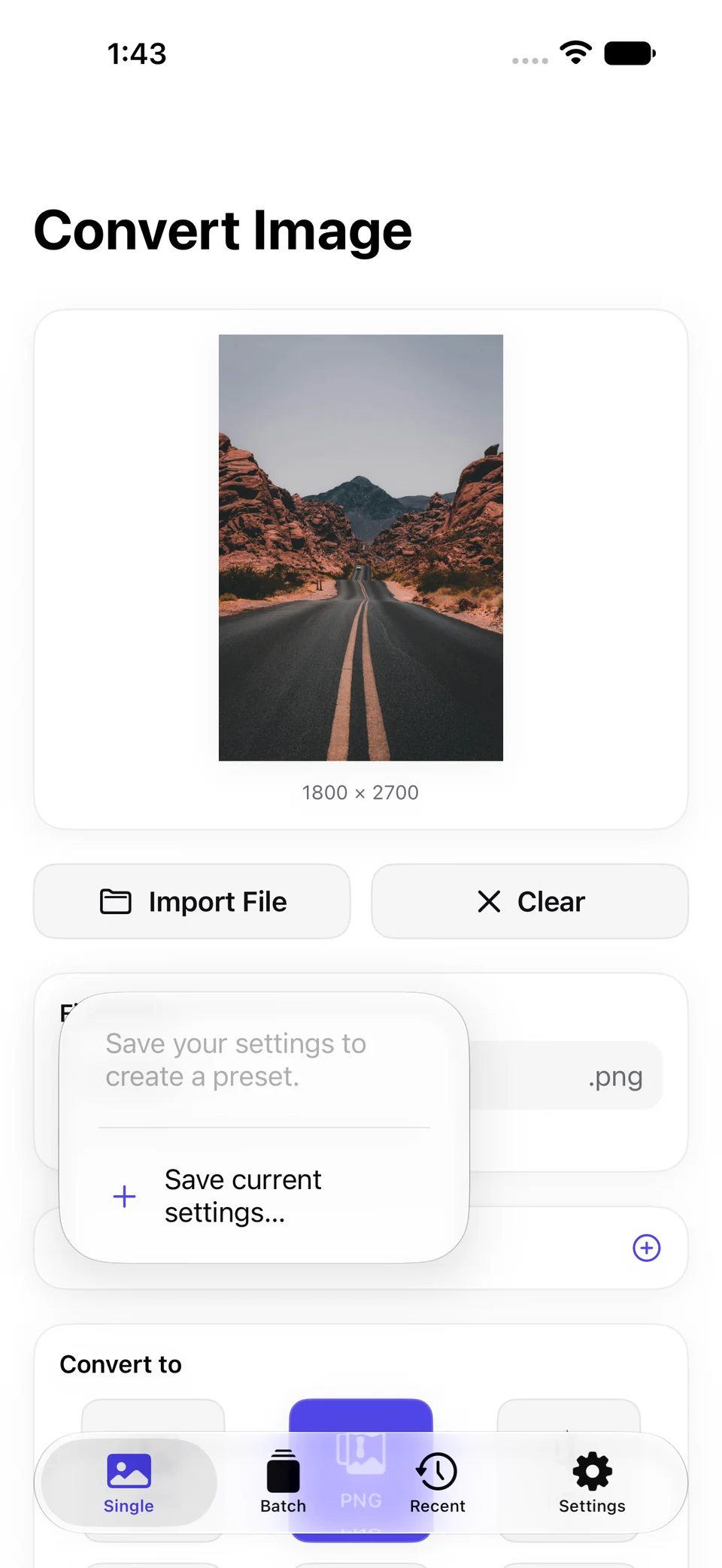
Save and apply the recipe
Open Use preset and choose Save current settings. Enter a recognisable name and save. Apply it from the same menu in Single or Batch, then inspect the active settings.
A preset can be reused across the two modes. A multi-image PDF layout cannot become a multi-image page in a single-image workflow. Pro-only PDF compression is also subject to current access when the recipe is applied.
Test before converting a large selection
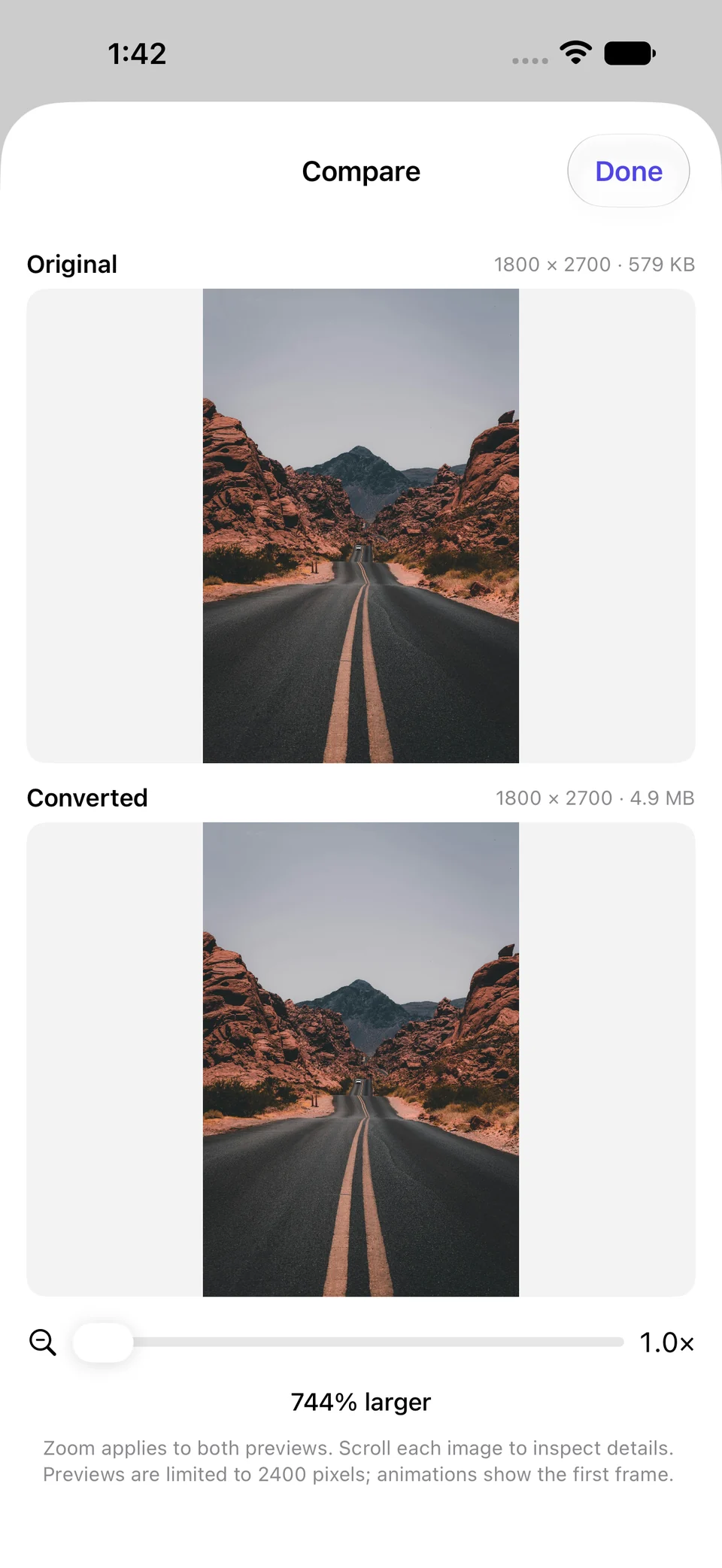
Try a landscape, a portrait, and an image with small text when those appear in the job. The same centre crop or size target can affect each differently. Compare the exported copies with the destination’s rules.
Keep the preset useful
Manage presets from the menu and remove obsolete recipes deliberately. Saving a recipe does not make the daily free allowance unlimited: five images per day are free with ads and optional rewarded extras. Lifetime Pro removes ads and adds unlimited images, compressed PDFs, and ZIP export.
For canvas choices, see exact dimensions. For interface ordering alone, use Favourite Formats.