In this article
If nearly every file you send needs JPEG or PNG, those formats should be easy to find. You can put them first in Image Converter without removing the other choices.
I keep three decisions separate: favourites change the order of the format choices, a default supplies a starting format, and a preset stores a fuller set of conversion settings. This guide is about the first of those.
Choose formats from actual work
Think about the last few files you sent. If an upload form asks for JPEG and your design work needs PNG, start with those two. Add WebP only if the places you publish accept it.
You do not need to mark every supported format as a favourite. A short row is useful because you can recognise your usual choice quickly; the remaining formats stay available after it.
Revisit Favourite Formats in Settings
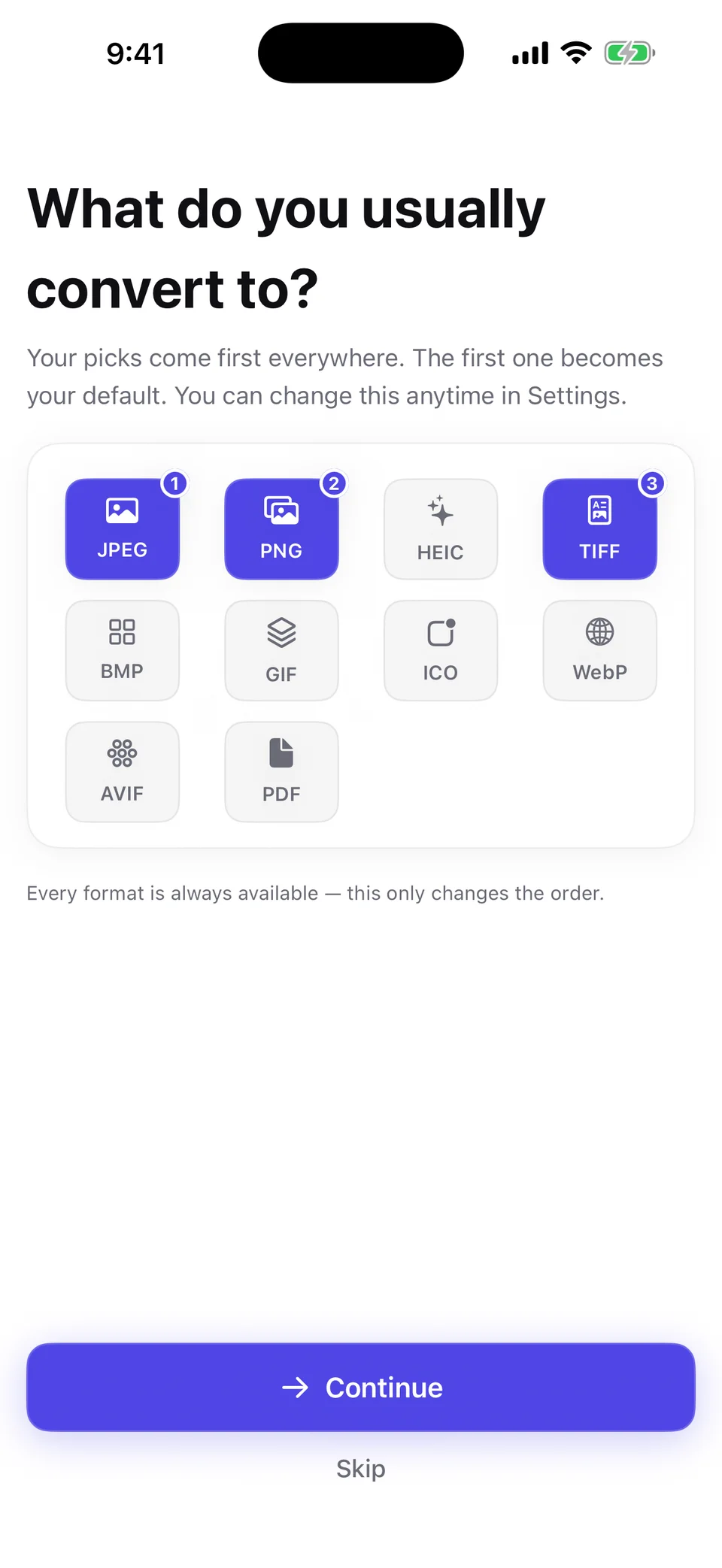
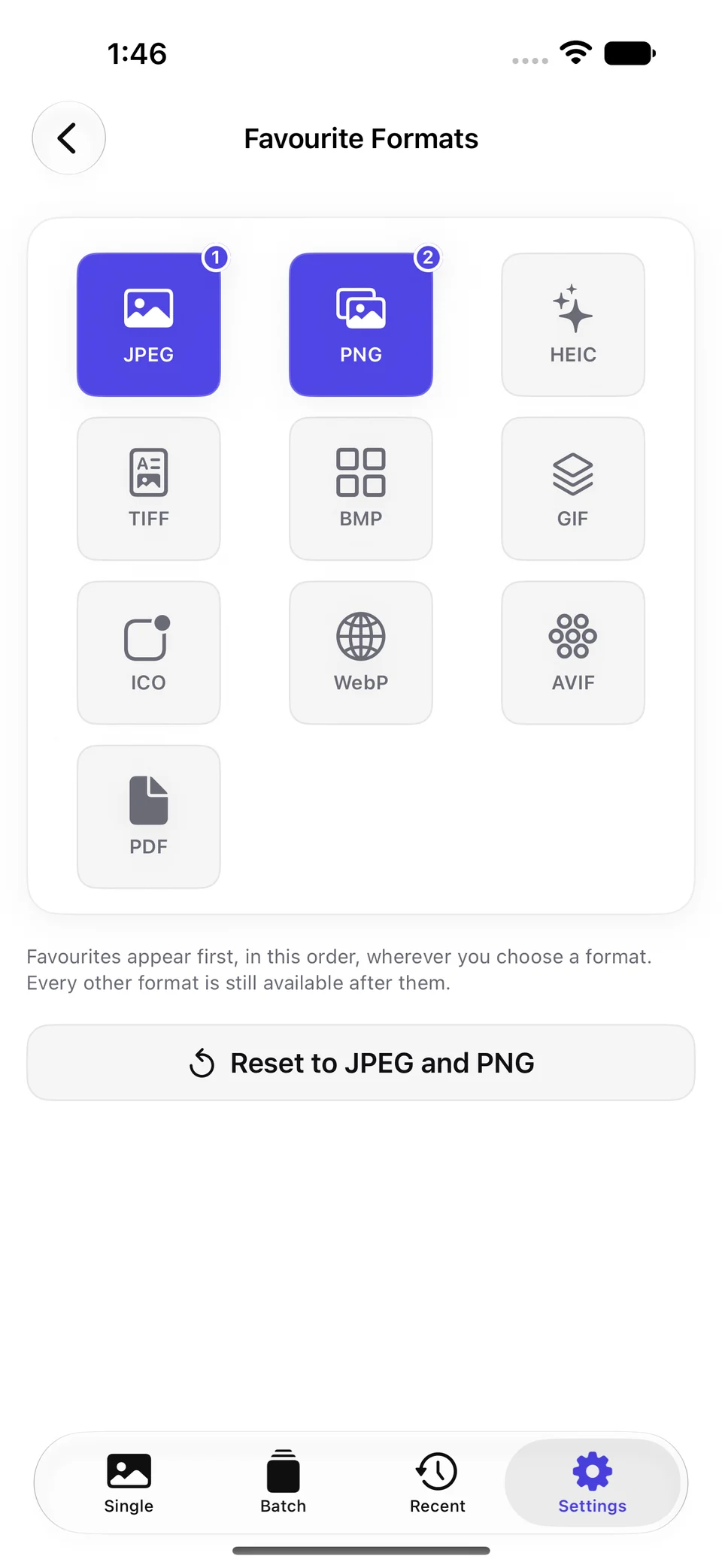
Open Settings, then Favourite formats. Select favourites in the order you want them to appear. The numbered badges show the chosen order; deselect and reselect when you need to change it. Keep at least one selected.
Return to Single or Batch and inspect the format row. The favored formats should appear first, followed by the rest. Test the order where you actually work rather than judging it only in the settings screen.
Leave a deliberate default alone
Suppose your default is JPEG but you move PNG to the front for a week of graphics work. Reordering favourites in Settings does not automatically change that default. Check the selected format when beginning each conversion.
If every product image needs the same dimensions, padding, and quality as well, favourites alone will not store that recipe. Use a named preset for those settings, then still inspect its output before applying it widely.
Reset when the list stops helping
The settings screen includes Reset to JPEG and PNG. It is a useful way back to a small starting set after experimenting. It changes the favourites list, not the contents of your existing images.
Favourites organise the interface; they do not expand the free conversion allowance. The free app includes five images per day, ads, and optional rewarded extras. Lifetime Pro adds unlimited images, compressed PDFs, and ZIP export while removing ads.
Use my format guide to choose the right encoding, or save a preset when the whole recipe should be reusable.