In this article
A PDF compression setting is useful only if the result still does its job. I compared the three choices with the same source and layout so you can see both the measurement and the limits of that measurement.
Keep the comparison controlled
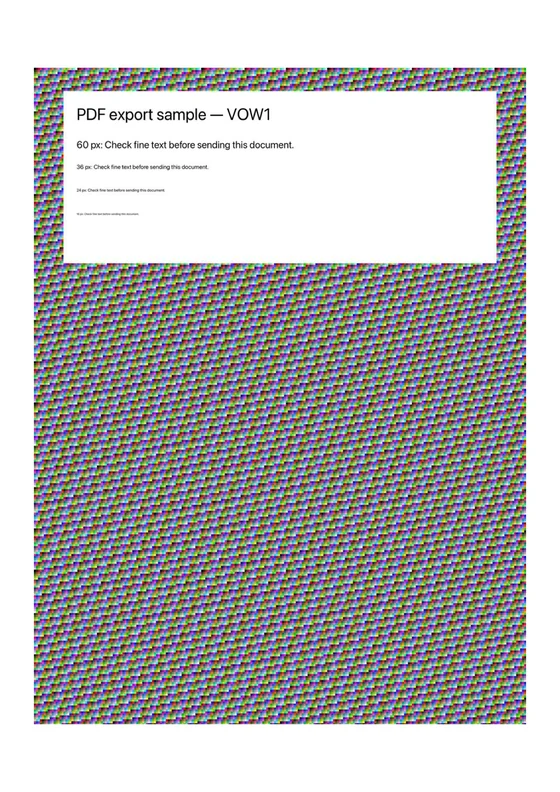
The source was a deterministic 3000 × 4000-pixel PNG test chart with a coloured detail pattern and text at several sizes, not a customer document or photograph. I supplied the same image twice, producing two A4 pages with one image on each page.
The files were generated in an isolated iOS simulator runner using Image Converter’s production PDFConverter, PDFCompression, and image-preparation code. This is a reproducible code-path example, not a timed App Store benchmark or a claim about typical photos. The source PNG was 967,973 bytes. No extra resize limit was applied.
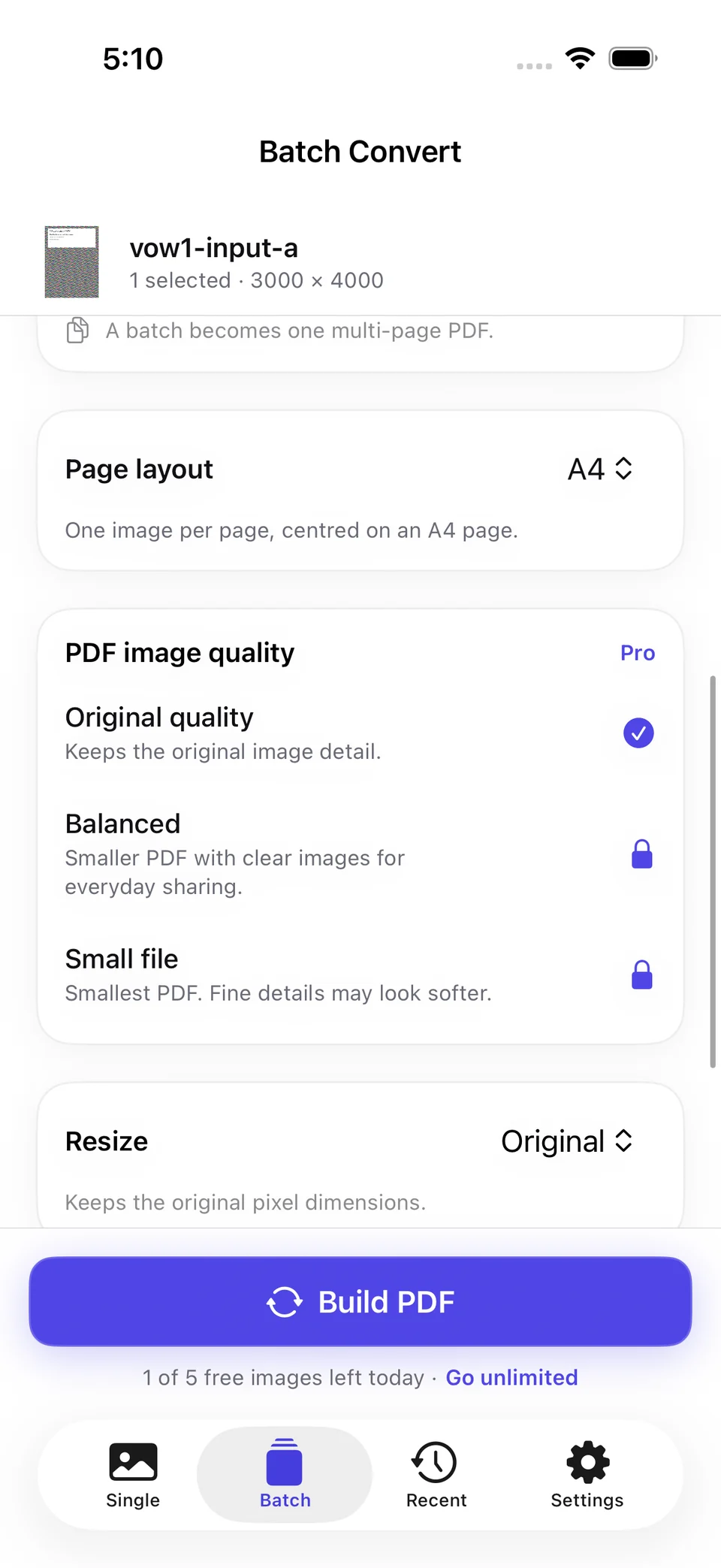
Read the measured outputs
| Option | Bytes | Pages |
|---|---|---|
| Original quality | 797,983 | 2 |
| Balanced | 1,343,771 | 2 |
| Small file | 360,560 | 2 |
Balanced was larger than Original in this sample. The patterned PNG and the renderer’s encoding behaviour matter: converting image content through a lossy JPEG preparation step does not guarantee a smaller final PDF than every alternative. Small file was smaller here, but that says nothing about an arbitrary receipt, scan, or camera photo.
All three PDFs kept the same A4 page dimensions. The compression choice changes the embedded bitmap preparation, so a smaller embedded image does not mean the paper layout has to shrink.
Inspect the text that matters
Open each PDF at a normal reading size, then zoom into the smallest text and fine coloured edges. The chart makes those areas easy to locate. Check your own document’s smallest important detail rather than the largest heading.
You can download the exact Original PDF, Balanced PDF, and Small file PDF, plus the measurement record. Keep the display zoom consistent when comparing them.
Choose by the destination’s requirement
If the original meets the limit and the detail matters, there may be no reason to compress. If it does not, try the compressed option and verify both bytes and readability. Stop if essential text becomes too soft; ask whether another format or delivery route is accepted.
For ordinary document assembly, use the photos-to-PDF guide. For a failed upload, check all the destination’s requirements before sacrificing more detail.
Know the access limits
Image Converter processes conversions on your device without a photo upload or account. The free app includes ads and five images per day, with optional rewarded ads for extra conversions. Lifetime Pro removes ads and adds unlimited images, compressed PDF export, and ZIP export. Advertising uses network access; a cloud-only source may need downloading first.
Questions before you start
Is Balanced always smaller than Original?
No. The controlled chart example here produced a larger Balanced PDF. Inspect the final size for your source.
Does this establish the best option for every photo?
No. These are measured results for one source and layout, not an average or a guarantee.
See the app details and current access information before choosing your next step.