In this article
You finish a conversion, close the share sheet, and later realise the file went to the wrong folder. I would check Recent before importing the original and doing the conversion again.
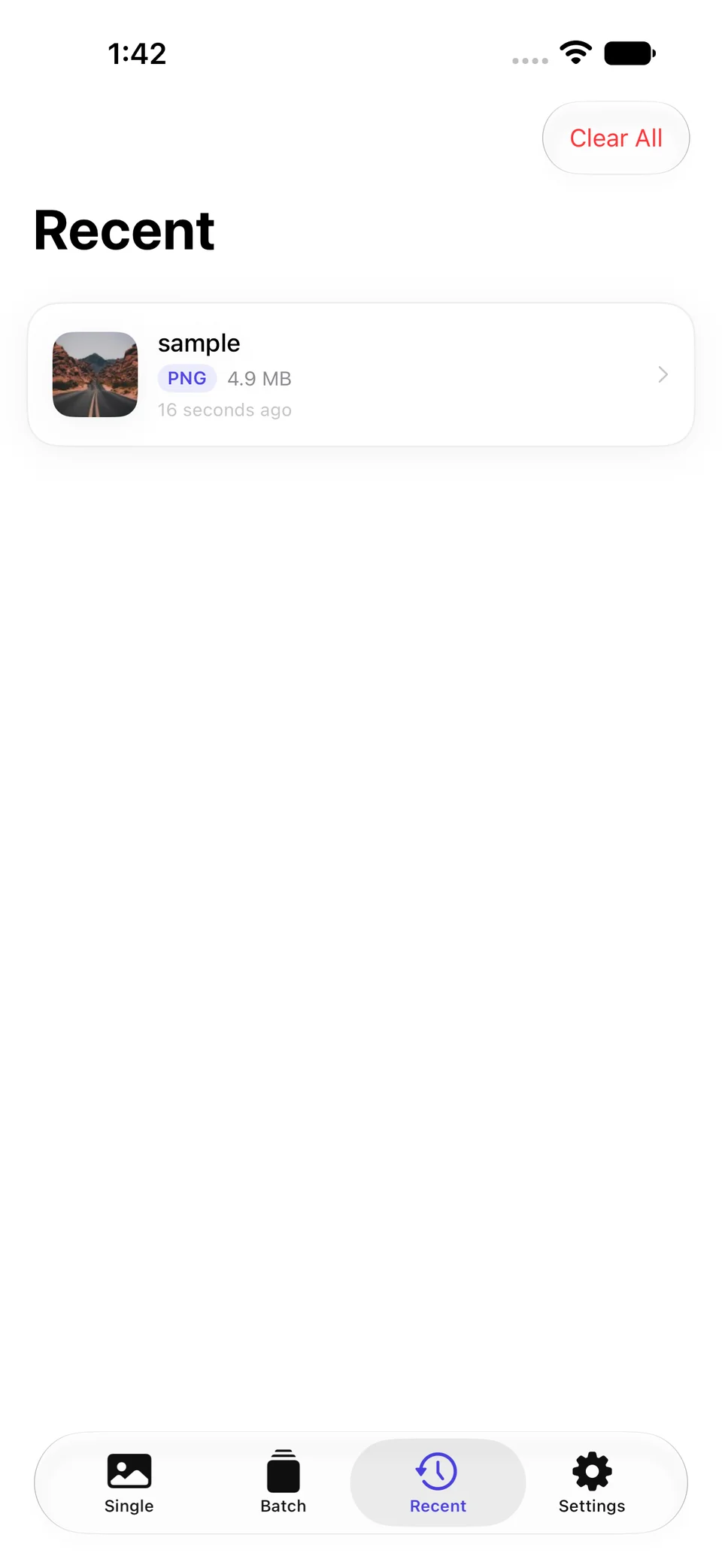
Image Converter keeps the last 20 conversions available for re-saving or sharing. That gives you a useful second chance after a missed export, provided the output is still in the list.
Find the output by its name or format
Open Recent. Look for the original filename and output format together; two entries with the same photo name may contain different encodings. Use search to narrow the list by name or format, such as PNG.
The thumbnail helps identify the picture, but it cannot tell you whether you have chosen the right file type. Check the format label and size before opening the entry.
Save the existing file
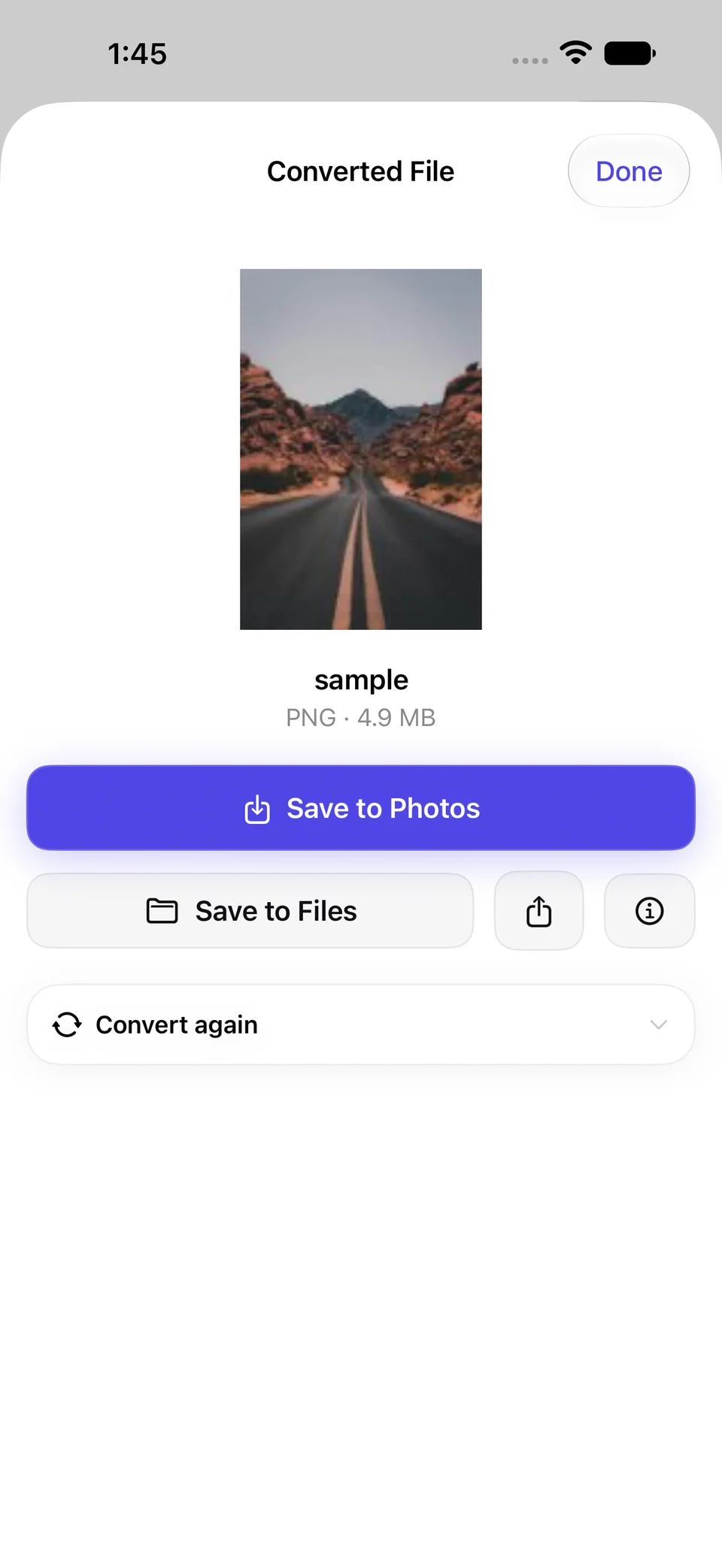
Open the entry and use Save to Files, a compatible Photos save, or the share action. For a document upload, Files makes it easier to choose a recognisable destination and then select that exact copy in the receiving form.
Open the saved file from its destination. Check the picture and filename there, rather than assuming dismissing a sheet means the save completed. If you need to send it again, sharing the retained output avoids another round of compression.
Use Convert again with care
The detail screen also offers reconversion. That starts from the retained converted file: the app does not keep the original photo with this entry. Converting a compressed JPG into PNG will not restore the detail the earlier JPG lost.
If the new destination needs a larger image or a higher-quality result, return to the original in Photos or Files instead. I use Recent for recovery and quick handoffs, and the original for a fresh quality decision.
Move important files out of Recent
A rolling list of 20 outputs can lose an older entry as new work arrives. Clearing history also removes this route back to an output. Save anything important into a folder you manage and back up before cleaning up.
Re-saving an existing output is different from making another conversion. The free app allows five image conversions per day, includes ads, and offers optional rewarded ads for more. Lifetime Pro removes ads and unlocks unlimited images, compressed PDFs, and ZIP export.
For fresh settings, use my single-image conversion guide. If you are deciding whether the result is good enough, compare the original and output before sending it.