In this article
A finished colouring needs a different presentation when it moves from a canvas to a wall or desk. I would start with one picture and a restrained frame, then check the exported file before choosing the paper and print size.
Choose the picture and the export route
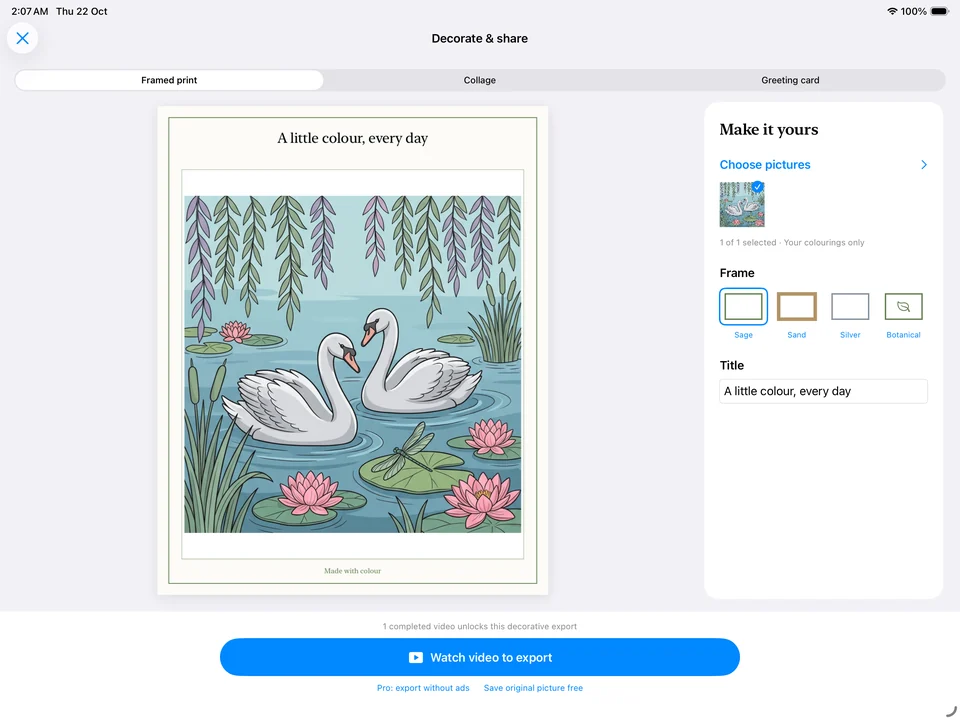
Open your own colouring and use the supported Decorate & share entry point. Choose Framed print when the job is one picture with a surrounding composition. The designer also supports other formats; a collage or greeting-card front is a different deliverable.
This guide uses the framed-print image workflow rather than the separate book PDF path. That matters because the receiving print dialogue may interpret image pixels differently from a PDF page with a fixed paper size.
Keep the composition simple
Choose a frame and inspect the full subject. Add a short title or artist detail only when it helps the result. Check whether the picture is sitting inside the frame or losing important detail at its edges.
The original colouring remains separate from the decorative export. There is no reason to erase or repaint a finished picture simply to test a different title or border. If the preview looks wrong, change the presentation controls before changing the artwork itself.
Inspect the actual file
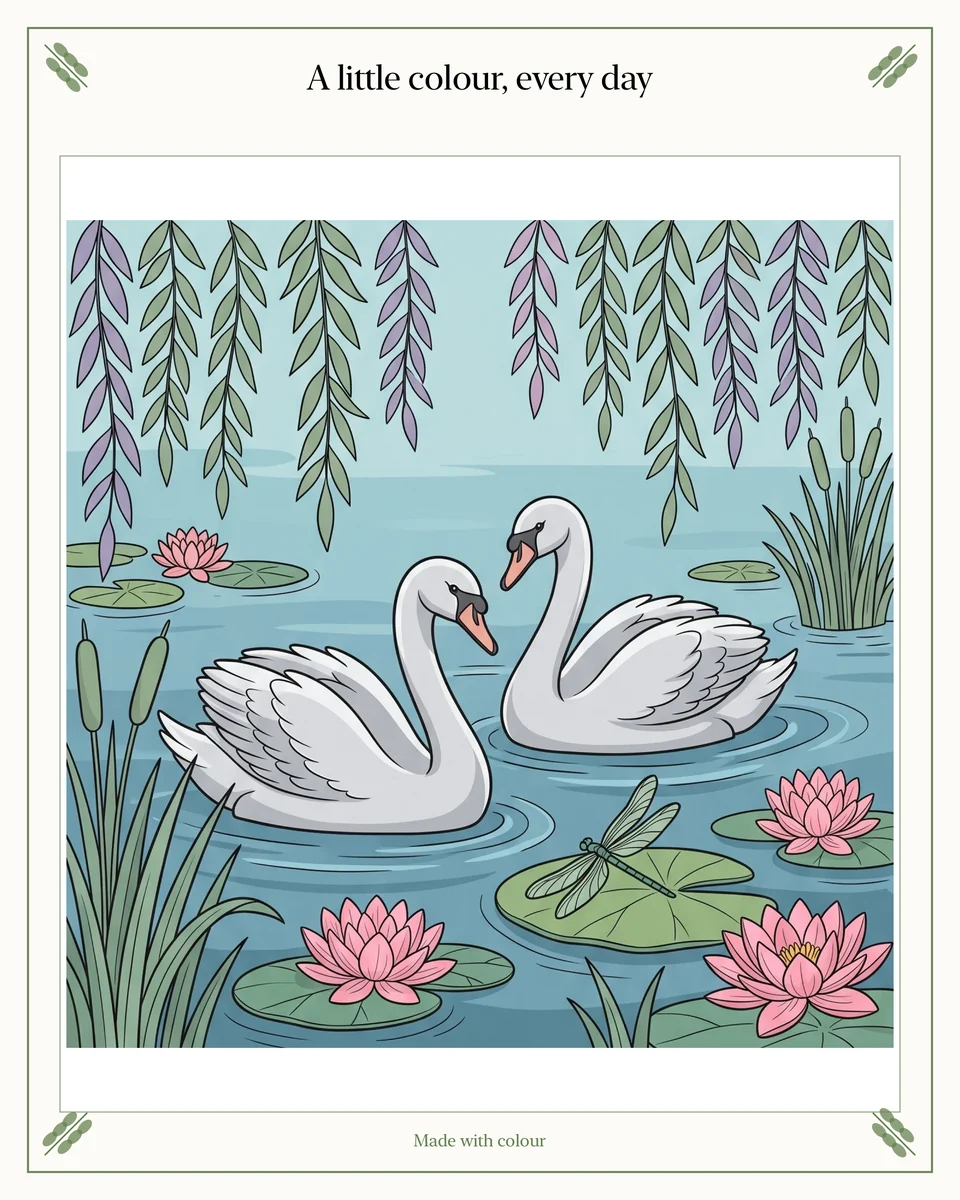
The released decorative workflow creates a high-resolution PNG composition. Open the saved file outside the app and check the subject, text, credit, and QR code. The example below is an actual native renderer output, not a photograph of a printed poster.
Check the access prompt for the export action. Supported rewarded exports and Pro are not interchangeable entitlements; Pro can remove the Colorist credit and QR code where those controls are offered. Do not promise a clean unbranded result until you have checked the saved output.
Print a small proof before choosing a large size
Image pixels and paper dimensions are separate. Select the intended paper, review the preview’s scaling and margins, and print one proof. Fine lines and small text that are readable on a bright screen may look different on your paper and printer.
Keep the original image file so a print service can tell you which physical sizes it can reasonably produce. If you want several pages instead, make an art book. If the composition needs multiple pictures or a message, use the decorative-design guide. This article is about a single framed piece, not another complete book walkthrough.
Know the access limits
Colorist is free to start with ads and a selection of pictures and tools. Optional lifetime Pro removes ads and adds Pro content, tools, sounds, and unlimited drawing imports. Some actions offer rewarded access. Pro can remove the Colorist credit and QR code from designs, books, and posters; check the actual export screen for the action you choose.
Questions before you start
Is this the same as a PDF book?
No. This route creates a framed image composition. The multi-page PDF book has its own workflow.
Can the preview establish the best paper size?
No. Check output pixels, printer scaling, intended viewing distance, and a real proof before enlarging.
See the app details and current access information before choosing your next step.