In this article
A picture is easier to return to when you can recognise it without browsing a gallery. Colorist Studio brings the latest artwork to the Home Screen, but I want its role to stay clear: a small visual return point for colouring inside the app.
Colour something recognisable first
Open Colorist, choose a picture, and make a few changes. Return to the collection so you know which artwork you expect to see. A fresh installation with no artwork may show an empty state rather than the example picture used in a guide.
The native examples below use Swan Lake and illustrative progress. They demonstrate the actual widget view at supported sizes, not a claim that a new installation will contain that exact state.
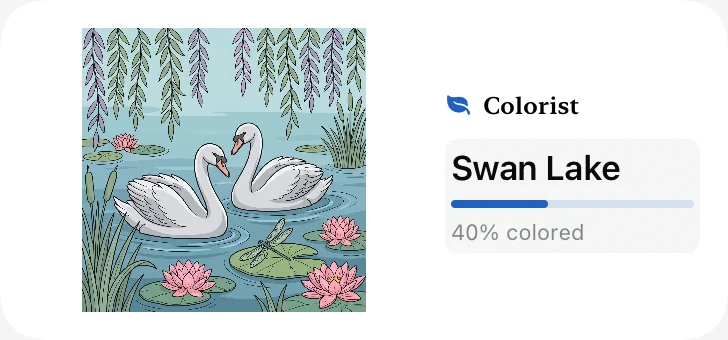
Add the widget through iOS
- Touch and hold an empty Home Screen area.
- Use Edit, then Add Widget; earlier iOS layouts may use a plus button.
- Search for Colorist and choose Colorist Studio.
- Compare the small, medium, and large choices, then add the one that fits your screen.
- Finish editing the Home Screen and tap the widget.
Apple’s widget setup instructions describe the system route. The exact surrounding menus depend on the installed iOS version.
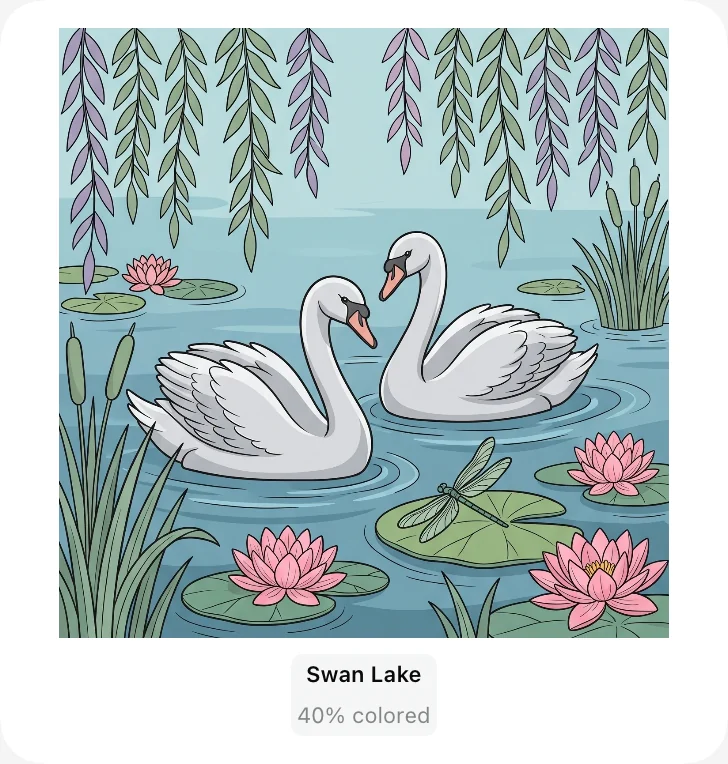
Choose the size for the space
Small is a compact reminder, medium places artwork and information across a wider row, and large gives the picture more room. The examples are native SwiftUI widget renders from the app’s widget implementation, clearly separated from an actual placed Home Screen capture.
A landscape scene and a drawing on plain paper may fit differently. The widget preserves the artwork’s intended proportions rather than turning every source into the same square crop. Inspect the subject instead of judging only the frame size.
Check the return path and refresh expectations
Tap the widget and check which picture opens before relying on it as your everyday return point. Continue colouring in Colorist; the Home Screen itself is not a full painting surface.
iOS controls widget updates, so a changed thumbnail may not appear immediately. Opening the app and verifying the saved picture is a better first check than assuming a delayed preview means the artwork vanished. For the library route, find an unfinished picture. To keep separate visual experiments, use editions. The widget is neither a separate copy of your library nor an account-based backup.
Know the access limits
Colorist is free to start with ads and a selection of pictures and tools. Optional lifetime Pro removes ads and adds Pro content, tools, sounds, and unlimited drawing imports. Some actions offer rewarded access. Pro can remove the Colorist credit and QR code from designs, books, and posters; check the actual export screen for the action you choose.
Questions before you start
Can I colour directly in the widget?
The widget is a preview and return link. Continue the artwork inside Colorist.
Why does an older thumbnail remain visible?
iOS schedules widget refreshes. Check the actual saved artwork in the app before treating the preview as a data-loss signal.
See the app details and current access information before choosing your next step.