In this article
A finished picture can become a small message or a collection of related work without changing its original colouring. I would decide whether the recipient needs one image, a collage, or a card front before adding decorative controls.
Choose the format by the message
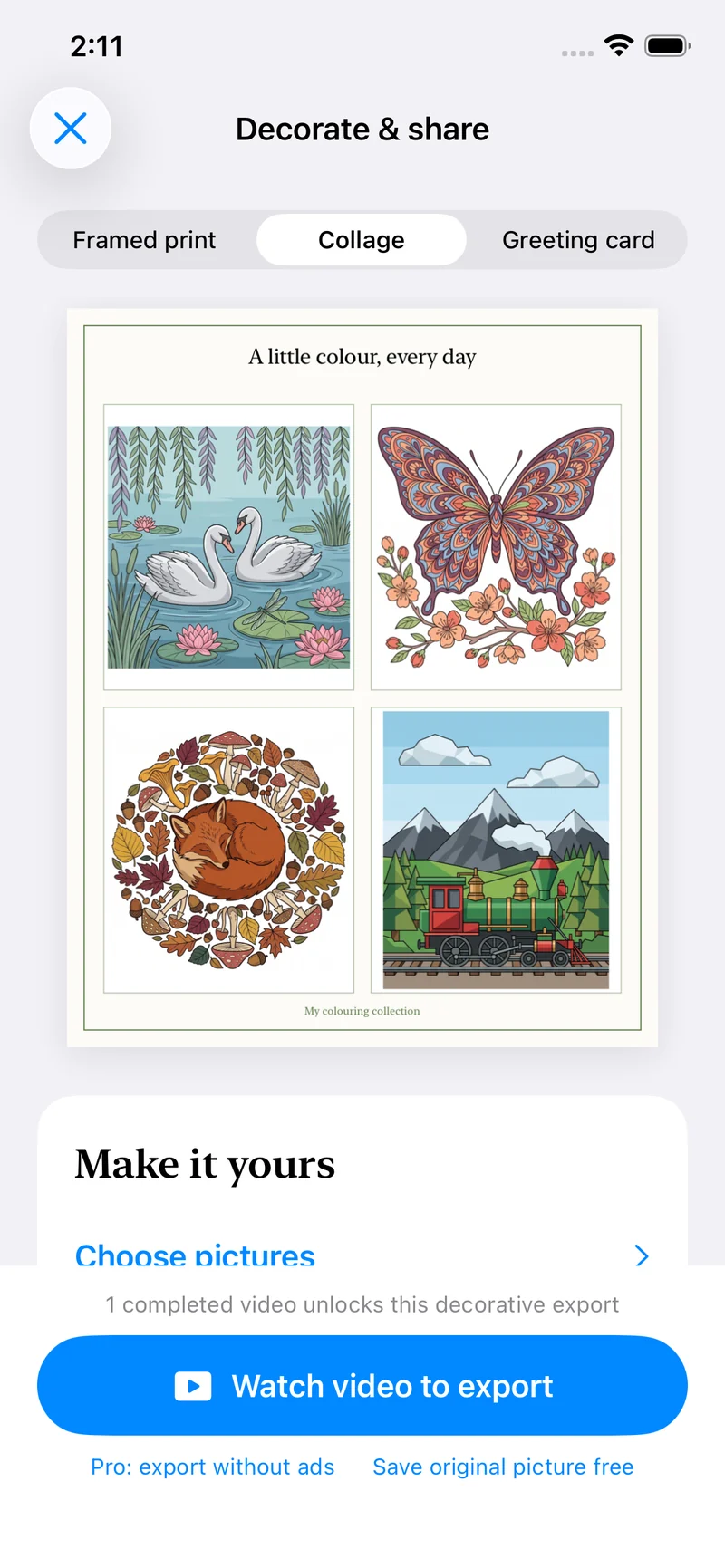
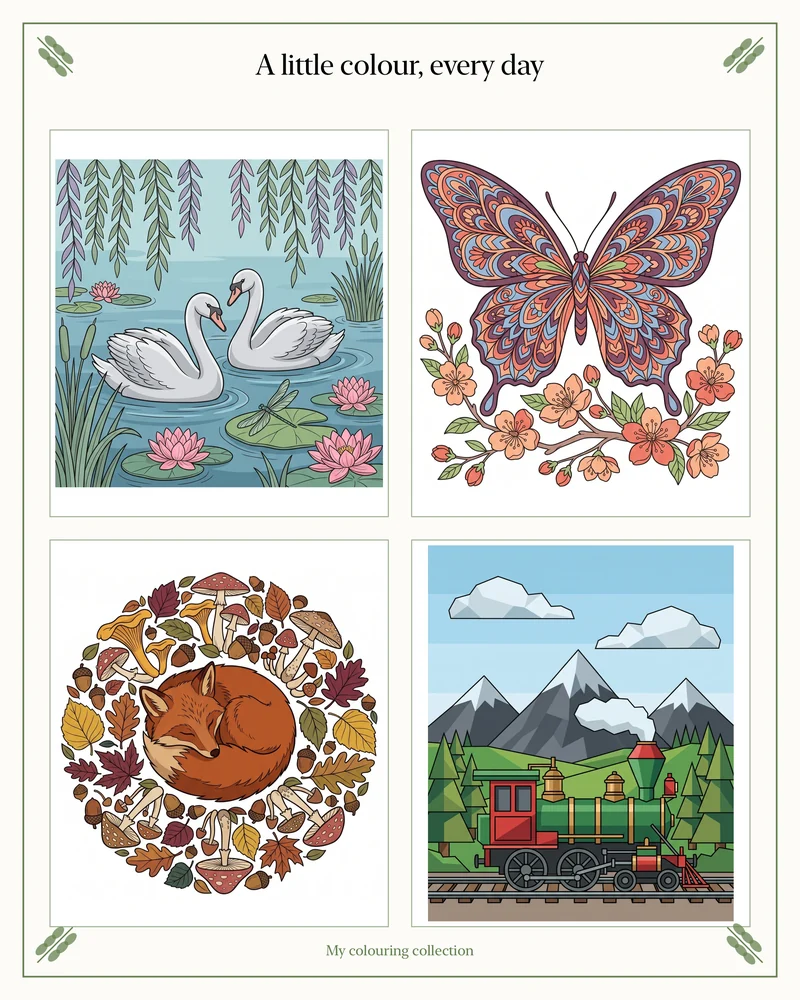
A collage works when several pictures belong together. A greeting-card front gives one composition room for a short message. A framed print is the simpler choice when the artwork should stand alone.
In Colorist, open Decorate & share from a supported colouring or collection entry point. Choose the format first because that determines how many pictures the composition needs and where text can go. This guide concerns the decorative image designer, not the book renderer.
Select your own colourings deliberately
Use pictures from your personal colouring collection and inspect the previews. A gallery thumbnail of locked content is not permission to export that artwork. For a collage, choose images that remain recognisable at the smaller size each panel receives.
I would try a coherent four-picture set before adding the maximum number simply because it is available. Large differences in detail or brightness can make one panel dominate even when every panel has equal dimensions.
Write less and check more
Keep the title and message short enough to read at the intended output size. Review line breaks, spelling, contrast against the paper, and any artist name or date the selected design supports. Test a real long name if that is part of the project.
The example composition is a native app output using demonstration artwork. It is not a customer gift or proof that I printed and mailed a card. Pro can remove supported credit and QR elements; a rewarded export has its own terms and should not be described as a permanent branding unlock.
Open the saved composition before sharing
Inspect the actual file in another viewer. Confirm the picture count, order, text, and branding. If you are printing a greeting card, determine the back, fold, paper orientation, and printer settings separately; the exported front does not invent those physical instructions.
Keep the source colouring intact. For a single larger piece, make a framed print. For several document pages, use the PDF art-book workflow. If you want another colour treatment first, create a separate edition instead of replacing the finished artwork.
Know the access limits
Colorist is free to start with ads and a selection of pictures and tools. Optional lifetime Pro removes ads and adds Pro content, tools, sounds, and unlimited drawing imports. Some actions offer rewarded access. Pro can remove the Colorist credit and QR code from designs, books, and posters; check the actual export screen for the action you choose.
Questions before you start
Will a decorative export repaint the original picture?
No. Presentation choices belong to the export; keep and inspect the original colouring separately.
Is a greeting-card front a complete folded print template?
No. Plan the fold, reverse side, orientation, and printer setup separately.
See the app details and current access information before choosing your next step.