In this article
Trying a new palette is easier when it does not mean replacing a version you already like. Colorist editions let you keep different colourings of the same source picture, each with its own progress and time-lapse.
I would use an edition when the question is “what would this look like another way?” Here is how to make that experiment deliberate and keep the versions easy to recognise.
Open the picture you want to explore
Begin with the artwork whose colours you want to change. Check which version you currently have open, especially if you have already made several editions.
From the canvas, open More and choose Editions. The list separates the original colouring from named editions. You can also reach edition management from a picture in Colourings.
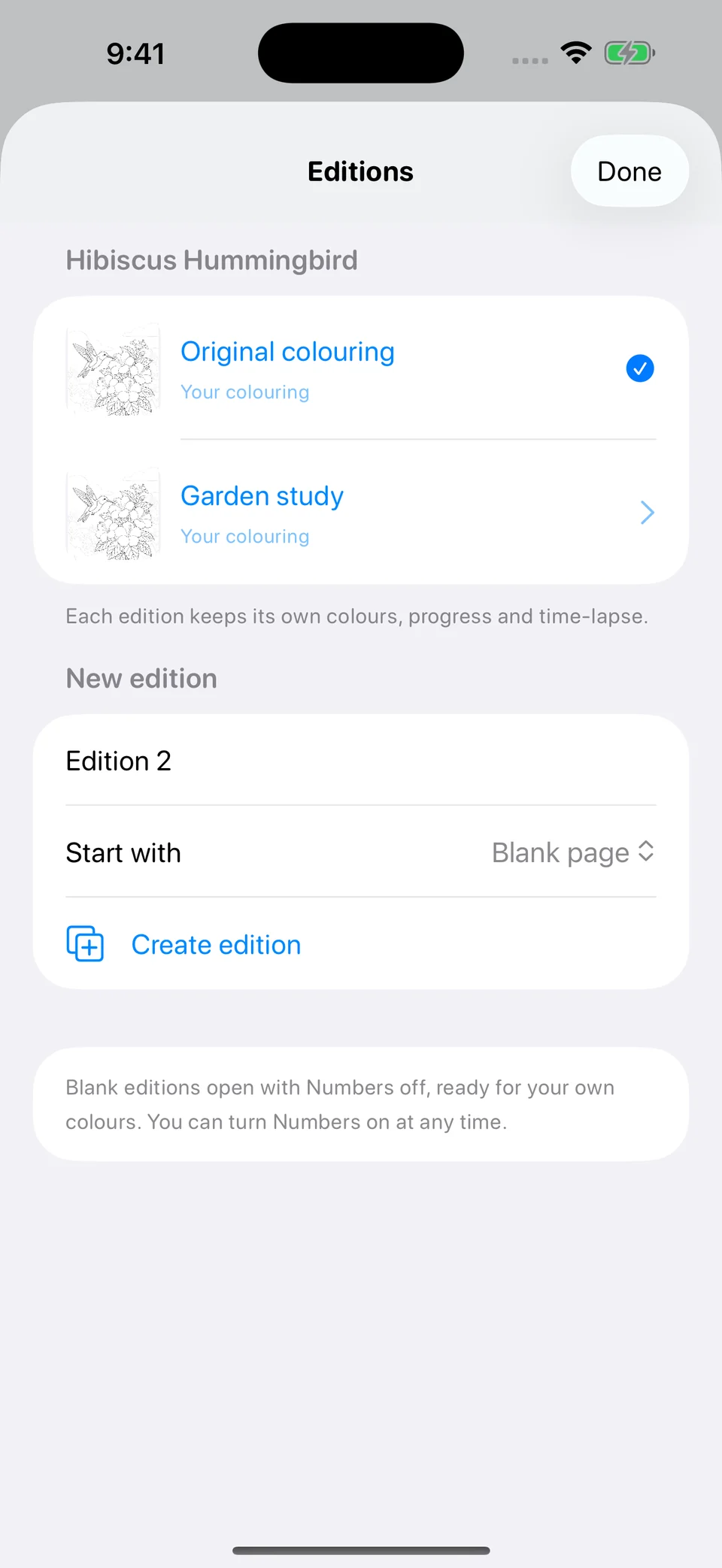
Choose Blank page or Copy current colouring
The two options answer different questions:
- Blank page: start a fresh version of the source picture for your own colours.
- Copy current colouring: begin with the open version’s work and change selected details.
A blank edition opens with Numbers off, ready for free colouring. You can turn Numbers on later. Copying is useful for testing one change, such as a different background, without rebuilding the whole picture.
Check that the current version is the one you intend to copy. “Copy current” describes the open colouring, not whichever thumbnail you happened to notice last.
Name the experiment before creating it
Use a name that describes the difference: “warm background,” “blue flowers,” or “evening colours.” A name such as “Version 7” is less useful when you return a month later.
Enter the edition name and choose Create edition. Wait for the new version to open before starting the next mark. That makes it easier to know which version you are changing.
Change one part of the palette
For a first comparison, keep most of the picture the same and change one area. The difference is easier to judge than a completely new collection of colours and tools.
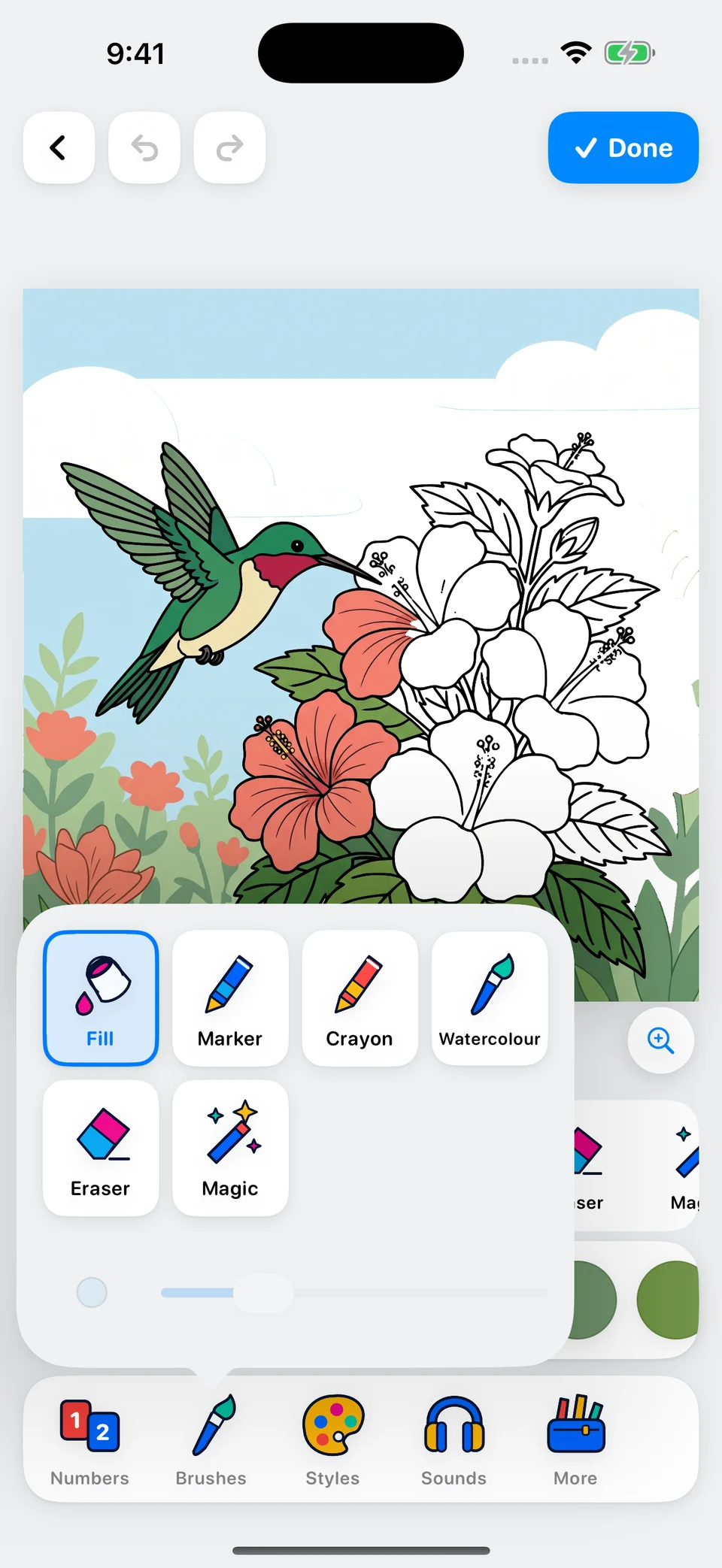
If you already have a palette you like, save it with a useful name so another picture can use the same combination. A palette and an edition are different things: one is a colour collection; the other is a version of an artwork.
Return, compare, and rename
Open Editions to move between versions. Each keeps its own colours, progress, and time-lapse. Where Compare editions is available, use it after you have at least two versions to inspect.
Long-press a named edition to rename it. Delete only after checking which version the action refers to. The currently open edition cannot be deleted from that list, but that is not a reason to treat deletion casually.
Keep the experiment useful
You do not need dozens of versions to learn something. Two clearly named alternatives can show you whether the change improved the picture for the mood you wanted.
Colorist is free to start with ads; lifetime Pro removes ads and unlocks additional tools and content. Check any access prompt in your version before relying on a particular paid tool.
When you have artwork worth presenting together, continue with the printable art-book guide. For choosing colours from another image, my palette extraction guide offers a separate workflow.