In this article
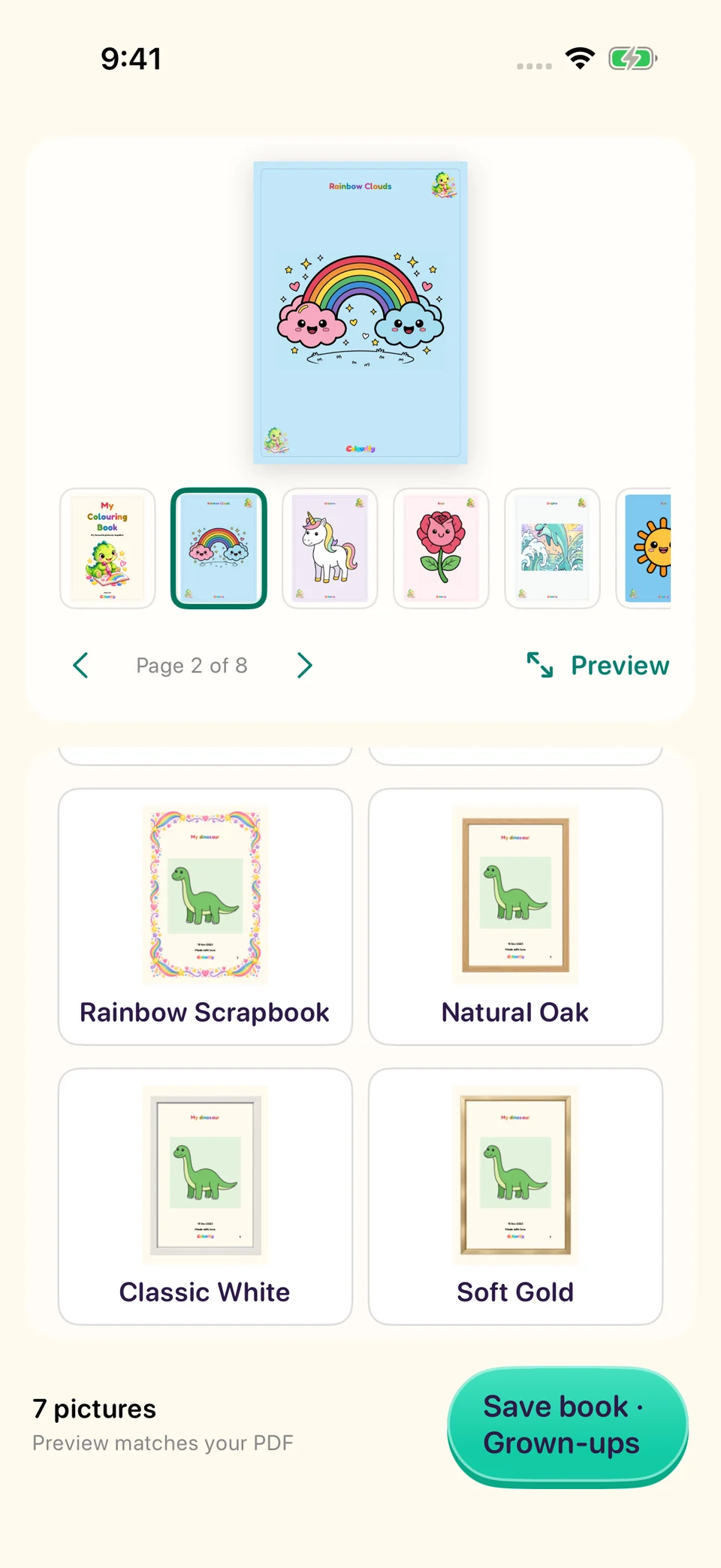
Choose the book format for the intended printer or digital recipient, then inspect portrait/landscape layout, margins and picture proportions. Reopen the exported PDF and make one proof print before a full run.
The same artwork can feel spacious on one paper shape and cramped on another. I would decide where the book is going before adjusting every picture. The printer’s paper and scaling are part of the result, even when the editor’s preview already looks complete.
Choose for the destination
Compare A4, US Letter and square formats in the book controls. A4 and US Letter are different page dimensions; neither label guarantees that a printer is loaded with matching paper. A square PDF can be useful digitally but may need deliberate scaling on an ordinary rectangular sheet.
Inspect orientation and margins together
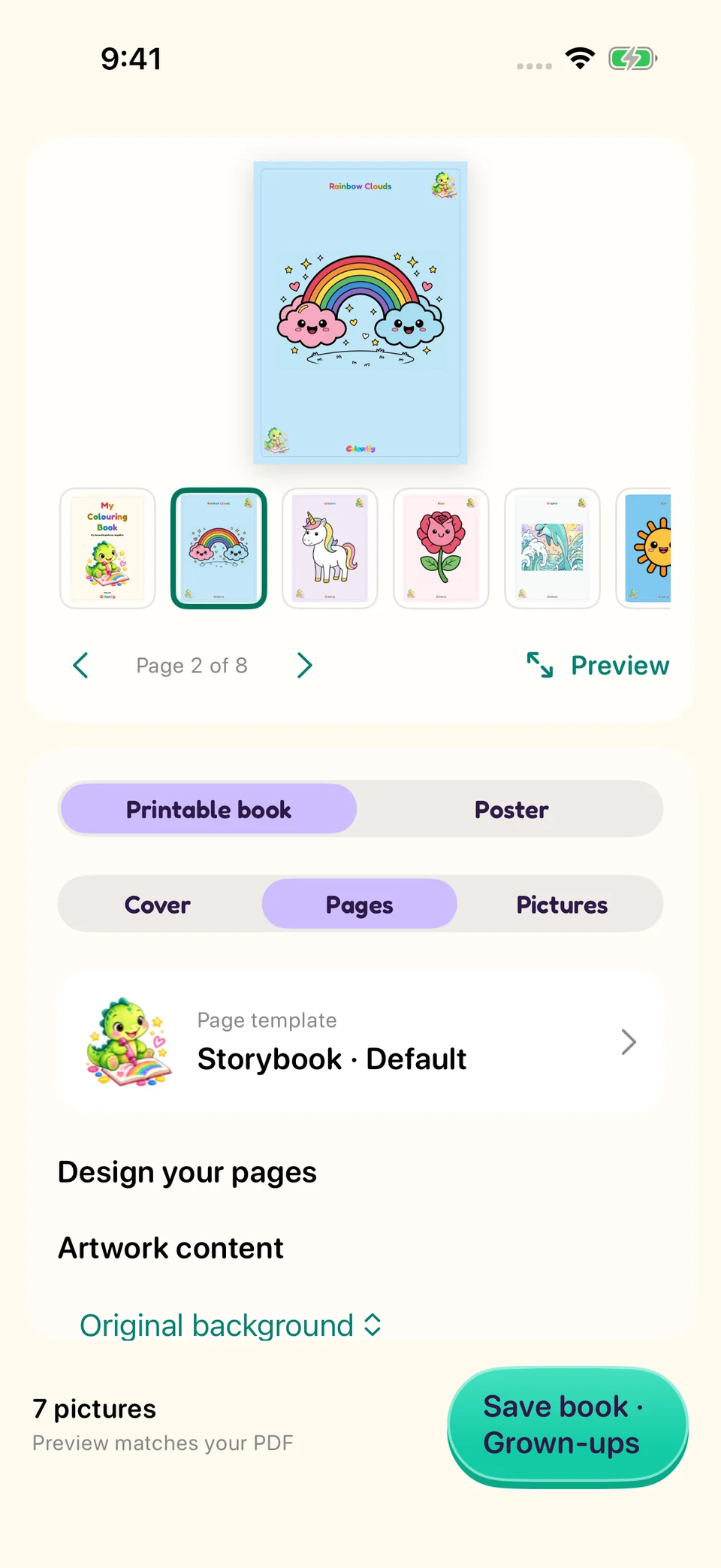
Compare portrait with landscape where offered and keep the full drawing’s proportions. Check a tall picture and a wide one, plus the cover. Margins, frame placement and picture scale all consume space. A drawing that appears smaller may be fitting correctly inside a more generous border rather than being accidentally cropped.
Check the actual PDF and print settings
Export with Unlock Everything and open the resulting file independently. Review the cover, a representative inside page and any picture close to the edge. On the printer, compare page size and scaling with the PDF. Make one proof before printing the collection; a screen rendering is not evidence of a measured printed colour or border width.
Check the result
- Confirm the intended paper format and orientation.
- Inspect tall and wide artwork in the PDF.
- Check printer margins and scaling on a single proof.
Know the access limits
The book can be designed and previewed before the lifetime purchase. Personalised PDF export requires Unlock Everything; printer capabilities and costs are separate.
Explore Colourify, or continue with the related guide.