In this article
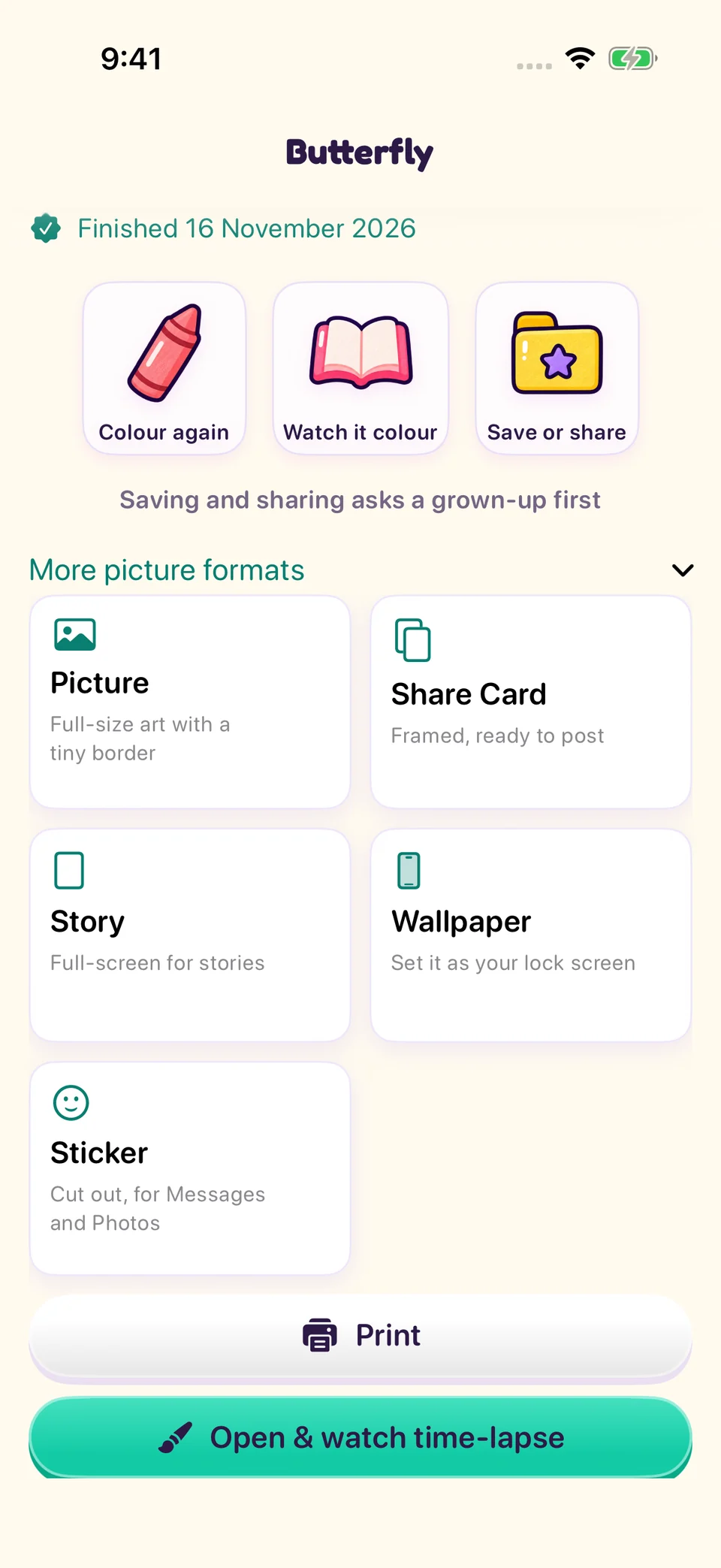
Use Picture for the artwork itself, Share Card for a framed portrait presentation, Story for a tall layout, Wallpaper for a phone background and Sticker for a transparent subject where supported. Inspect the actual saved output before sending it.
The same drawing can need a different shape for a message, a Home Screen background or a printed collection. I would choose the destination before the format. Otherwise a good picture can arrive with awkward surrounding space or important detail too small to see.
Start from the saved artwork
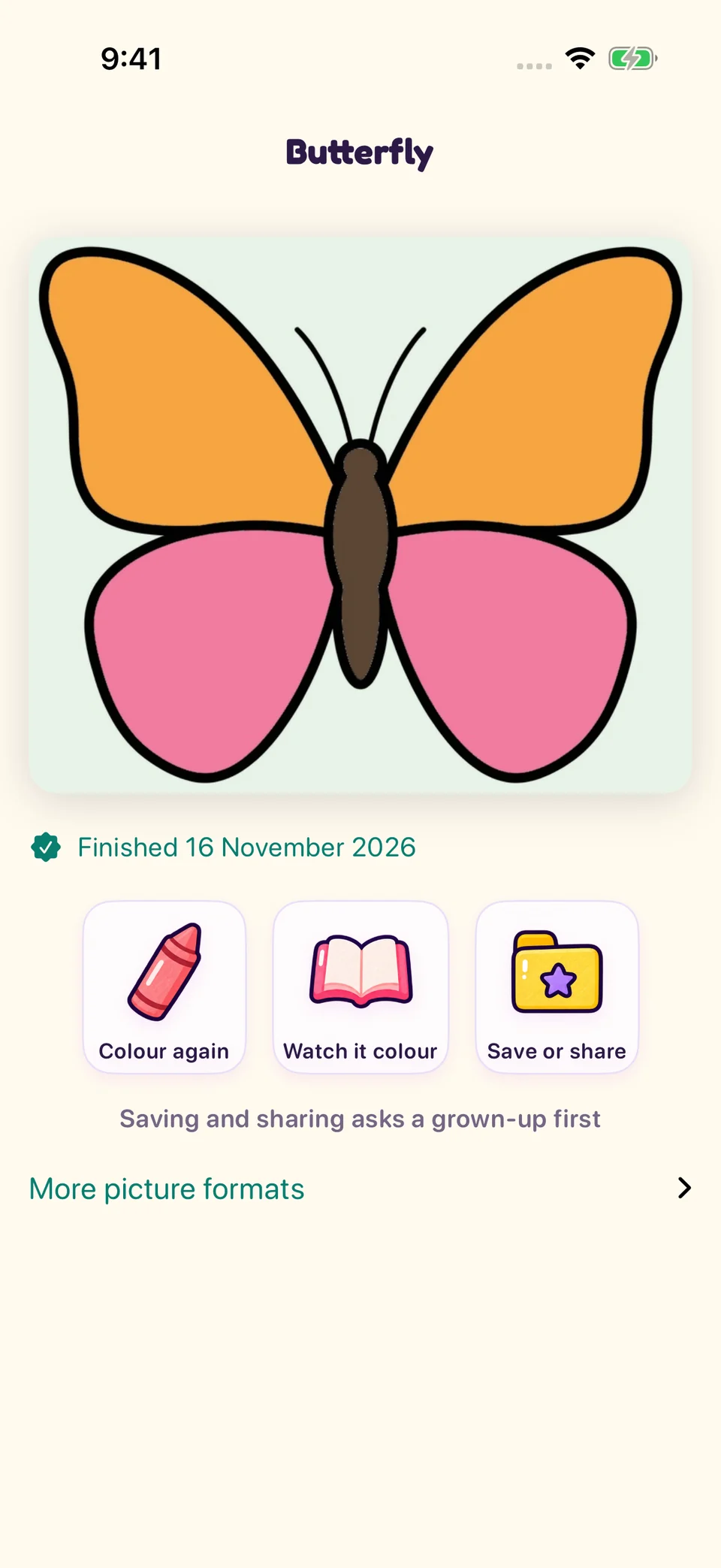
Open the picture’s detail and review the available sharing choices. Ask a grown-up to handle protected sharing. Use a thoughtfully coloured picture rather than a single test fill: the output should make the subject and palette clear. Check names, captions and personal photographs before choosing a recipient.
Match the format to the destination
Picture preserves a straightforward artwork image. Share Card adds a portrait presentation at 1080 × 1350; Story uses a taller 1080 × 1920 layout. Wallpaper prepares a phone-oriented 1290 × 2796 image. Sticker is a transparent subject PNG when extraction suits the artwork. A format name does not promise that every receiving service preserves the original dimensions.
Save a copy and inspect it
Use the system share interface to save or send through an available destination. Open the resulting file independently, checking its edges and any presentation text. A tall image may be cropped by another service’s preview even when its file is complete. For an actual printable multi-page collection, use the separate PDF book workflow.
Check the result
- Compare the chosen format with the intended destination.
- Check the saved image rather than only the in-app preview.
- Review names and personal details before sending.
Know the access limits
Ordinary picture sharing is separate from premium book/poster presentation controls. Available share destinations depend on the device and installed apps; sharing does not imply a cloud library.
Explore Colourify, or continue with the related guide.