In this article
A white rectangle around a photographed drawing can look out of place on a coloured book page. Colourify’s Subject only option addresses that presentation decision, but I would not use it automatically on every picture.
Decide whether the background belongs to the picture
A dark outline on clean white paper is a different source from a watercolor scene, a textured sheet, or a drawing with a pale sky. If the background carries meaning or contains delicate marks, preserving it may be more important than matching the book’s paper colour.
Start with a small set in My Art and keep the original photograph. The book option changes how the artwork is presented; it is not a replacement for the source file or a general-purpose photo subject-cutout service.
Compare one page without changing other settings
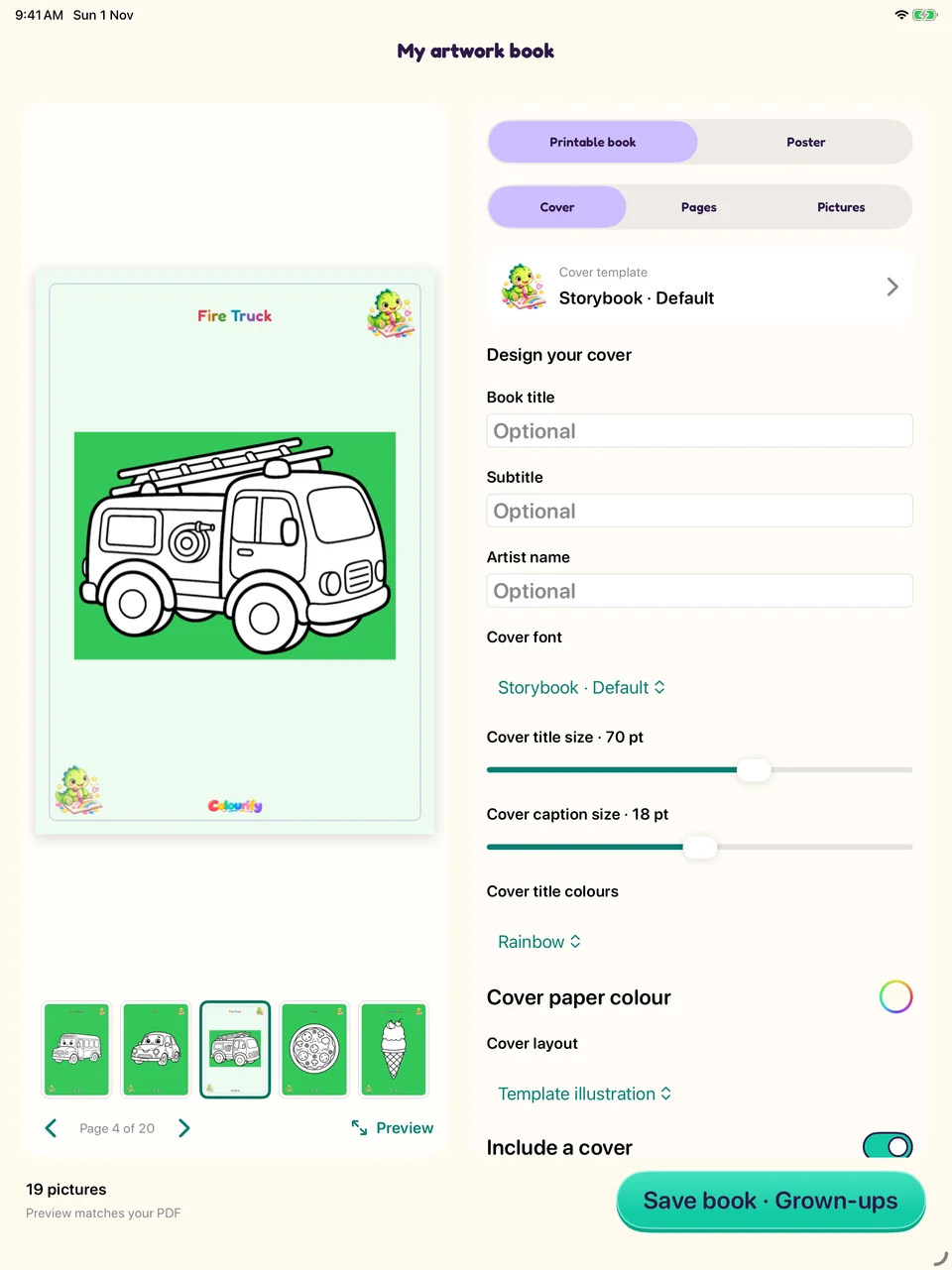
Open Make a Book and select the page you want to inspect. Keep the page colour, frame, and mounting choice constant. Compare Original background with Subject only in the relevant page presentation controls.
Use a paper colour that makes the difference visible, then enlarge the preview. If you simultaneously change the frame, picture size, and background treatment, it becomes difficult to tell which setting removed or concealed a detail.
Inspect the delicate parts first
- Pale pencil strokes near the outside of the drawing.
- White details that are meant to remain part of a subject.
- Shadows or uneven lighting from the original photograph.
- Edges that look abrupt against the chosen paper colour.
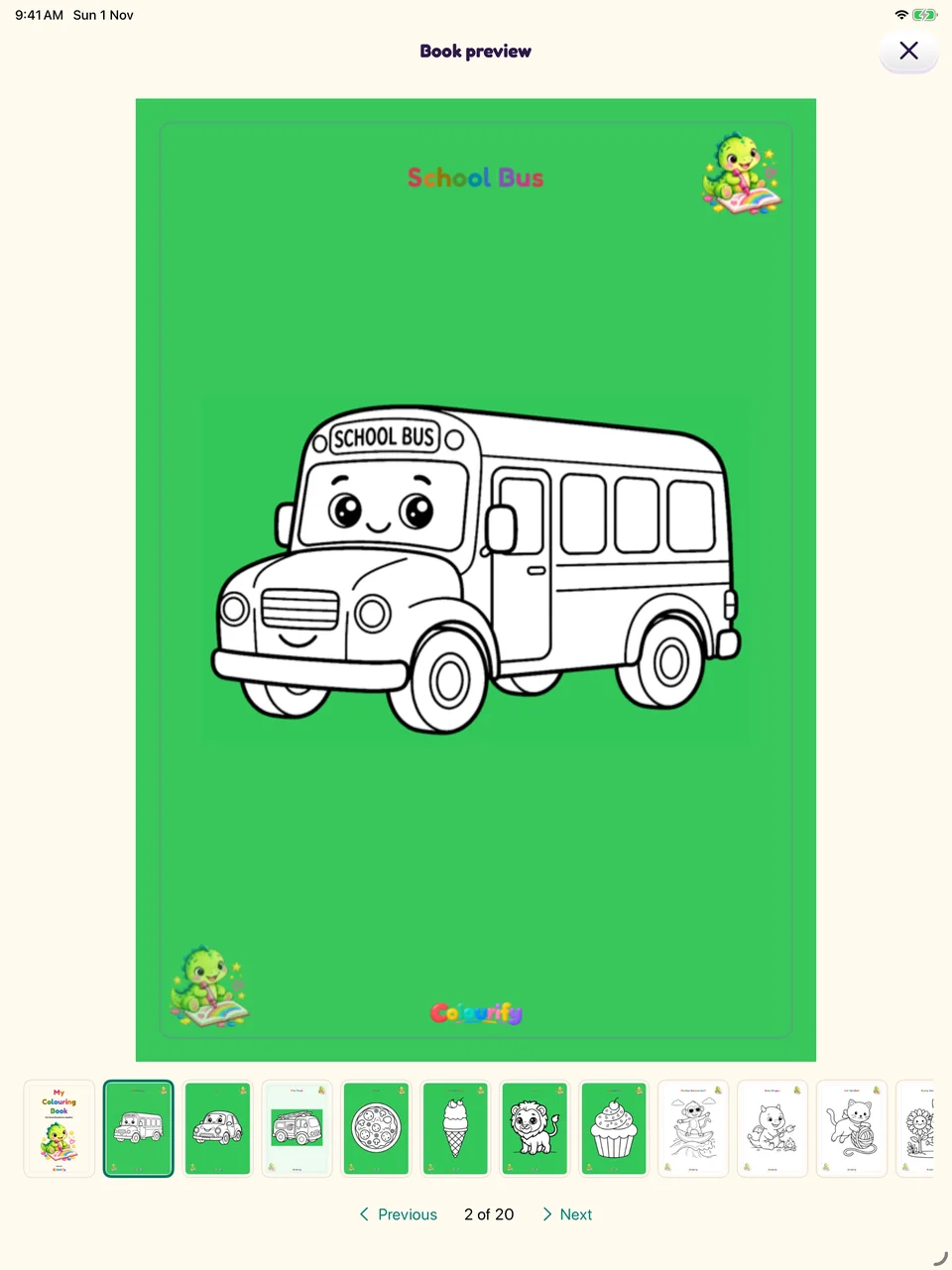
Do not treat a tidy small thumbnail as sufficient evidence. Open the full preview and inspect the areas you care about. If the result loses something important, keep Original background and choose a page treatment that suits that source.
The screenshots show actual book controls and a native page presentation. They are not a fabricated before/after comparison or a claim that every textured drawing was successfully separated.
Check the saved page and preserve the source
After choosing the presentation, export the PDF if you have Unlock Everything. Reopen that file, find the same page, and inspect it independently of the editor preview. Print a single page if its background matters to the final gift.
For preparing the photograph itself, use the drawing-photo guide. For the complete assembly process, make a printable artwork book. If the issue is the frame rather than the drawing’s background, compare frame placement without changing the source treatment.
Know the access limits
Colourify has no ads. Starter numbered pictures and ten brushing pictures are free. Optional lifetime Unlock Everything adds Pro pictures, extra brushes and fill styles, premium sounds, unlimited drawing imports, and personalised PDF book export. Purchases and protected sharing actions go through the grown-up area. Artwork remains on the device.
Questions before you start
Does Subject only replace my original photo?
No. It changes the book presentation; keep and inspect the source separately.
Should I use it for a fully painted landscape?
Compare carefully. If the background belongs to the artwork, Original background may be the better choice.
See the app details and current access information before choosing your next step.