In this article
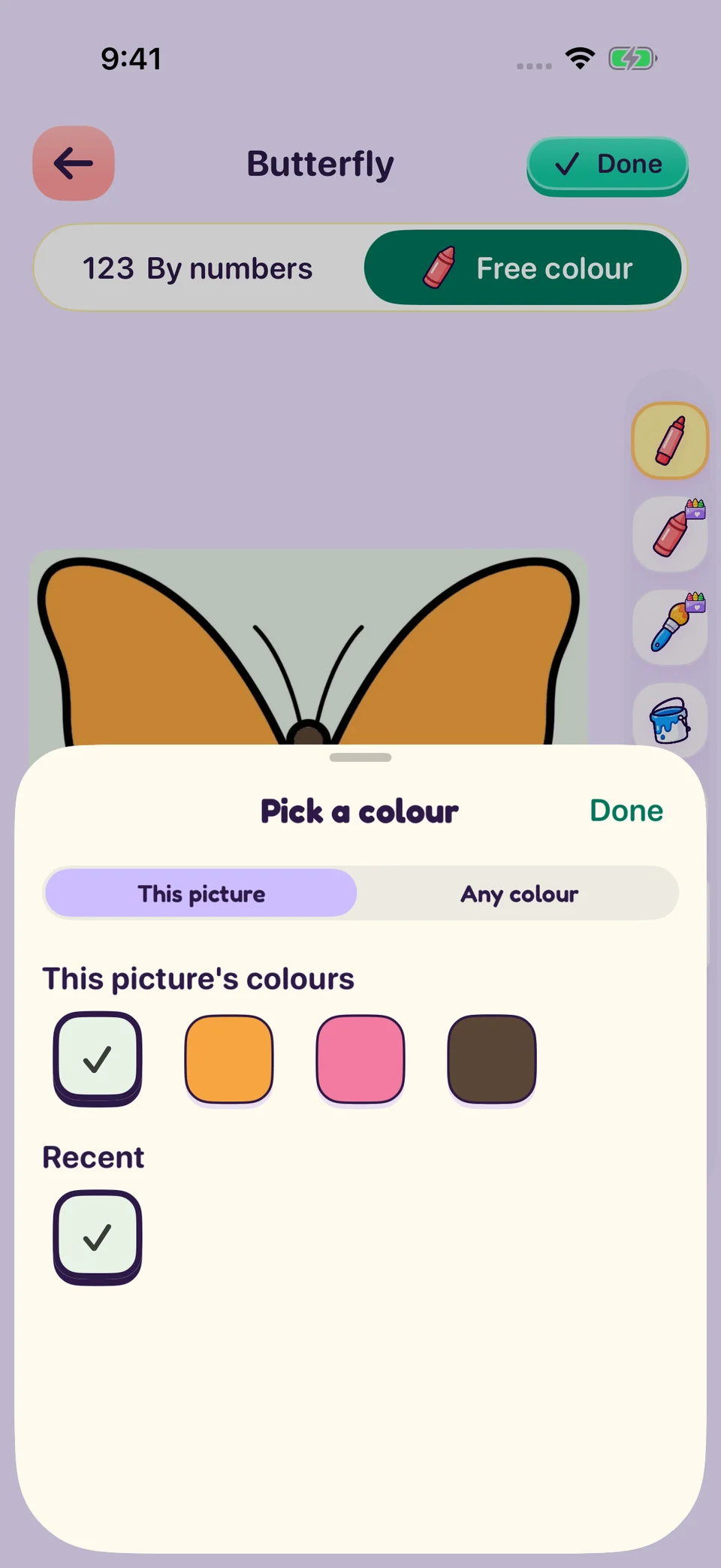
Start with a picture’s suggested colours, then use the colour chooser, recent swatches or Pick a colour to repeat a colour already on the page. Try this on a Brushing picture, where choosing colours is part of the activity.
A picture can feel inconsistent when every new area starts with another colour decision. I prefer choosing a small set first: one main colour, a companion colour and an accent. That gives a child room to explore without asking them to plan an entire palette.
Begin with the picture’s suggestions
Open a Brushing picture and choose its colour control. Try the suggested swatches before opening the wider colour families. A butterfly could use warm pink wings, golden spots and a turquoise body; green leaves and a pale background keep the main subject readable. These are demonstration choices, not a rule about how a butterfly must look.
Reuse a colour instead of approximating it
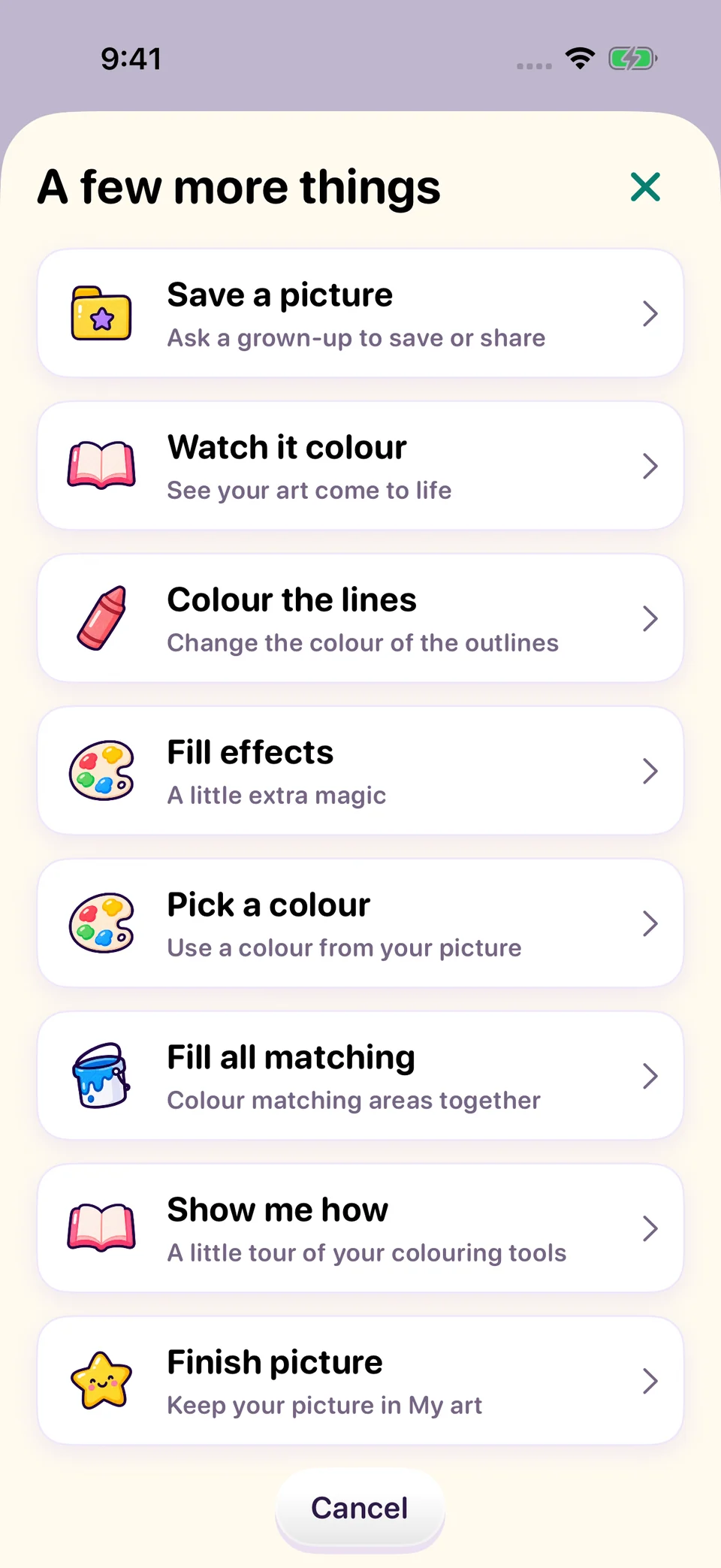
Choose a recent swatch to repeat a colour you have just used. To sample an existing mark, open Tools and choose Pick a colour, then select the colour in the artwork. Sampling avoids a collection of almost-identical shades when you wanted the same colour across several petals. Return to the ordinary drawing tool after the selection.
Change one colour at a time
Keep the tool and fill effect steady while comparing colours. Add one mark, look at it beside its neighbours and undo if you prefer the earlier version. Use the custom colour picker when the suggested shades do not include what you want. Numbered pictures follow their authored palettes, so the available choices differ from free colouring.
Check the result
- Repeat one chosen colour in two separate areas and compare them.
- Zoom out to judge the whole picture rather than one enlarged patch.
- Return to the saved artwork and check that the choices remain.
Know the access limits
Free Brushing pictures let you try colour choices without a purchase. Extra brushes and premium fill effects have their own unlock boundary; choosing a custom colour does not imply that every tool is included.
Explore Colourify, or continue with the related guide.