In this article
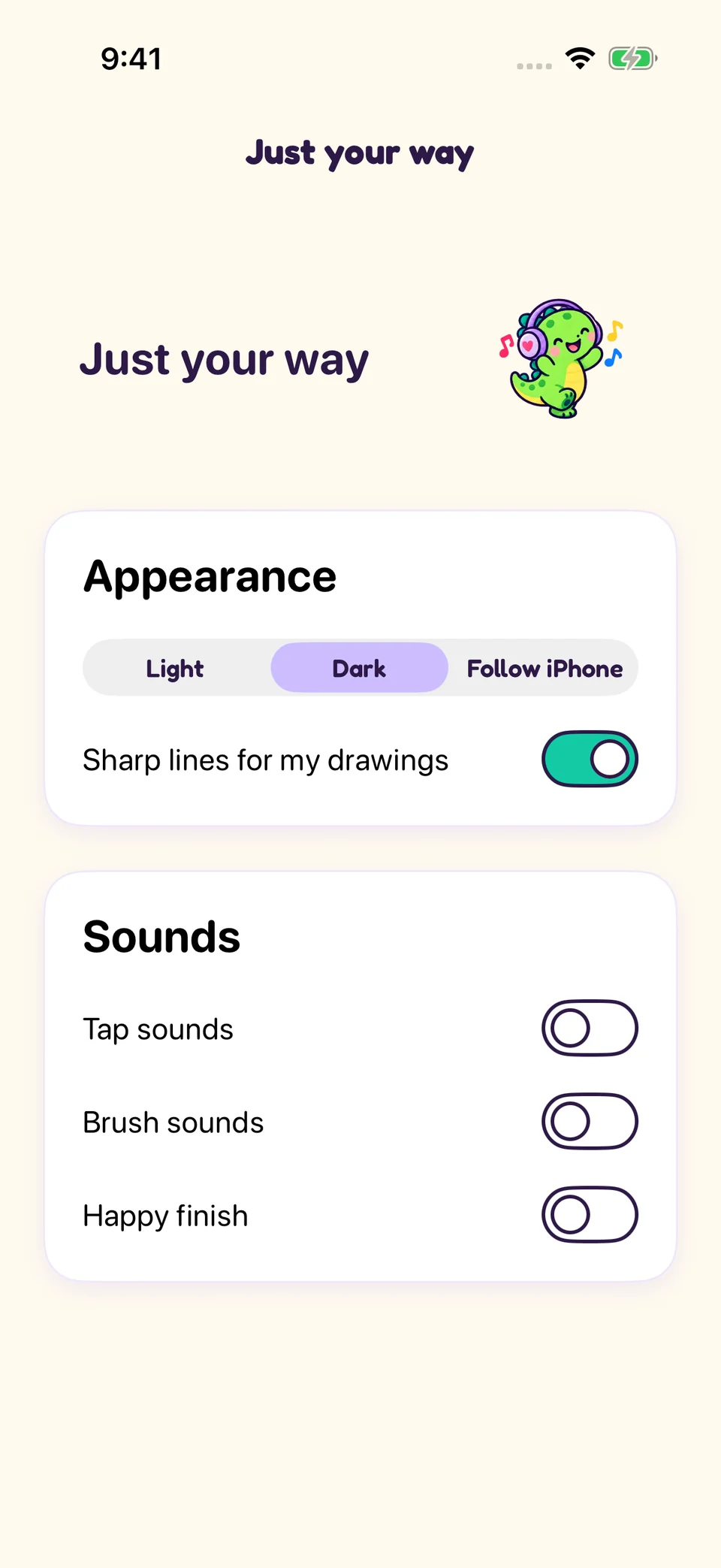
In Colourify’s preferences, choose Light, Dark or Follow iPhone/Follow iPad. Review the interface and artwork on the actual device rather than assuming that a darker interface changes the colours in the saved drawing.
A screen that works by a bright window may feel too strong later in the evening. Appearance and device brightness are different controls. I would choose the interface appearance first, then set the device brightness for the room without altering the artwork to compensate.
Choose how appearance follows the device
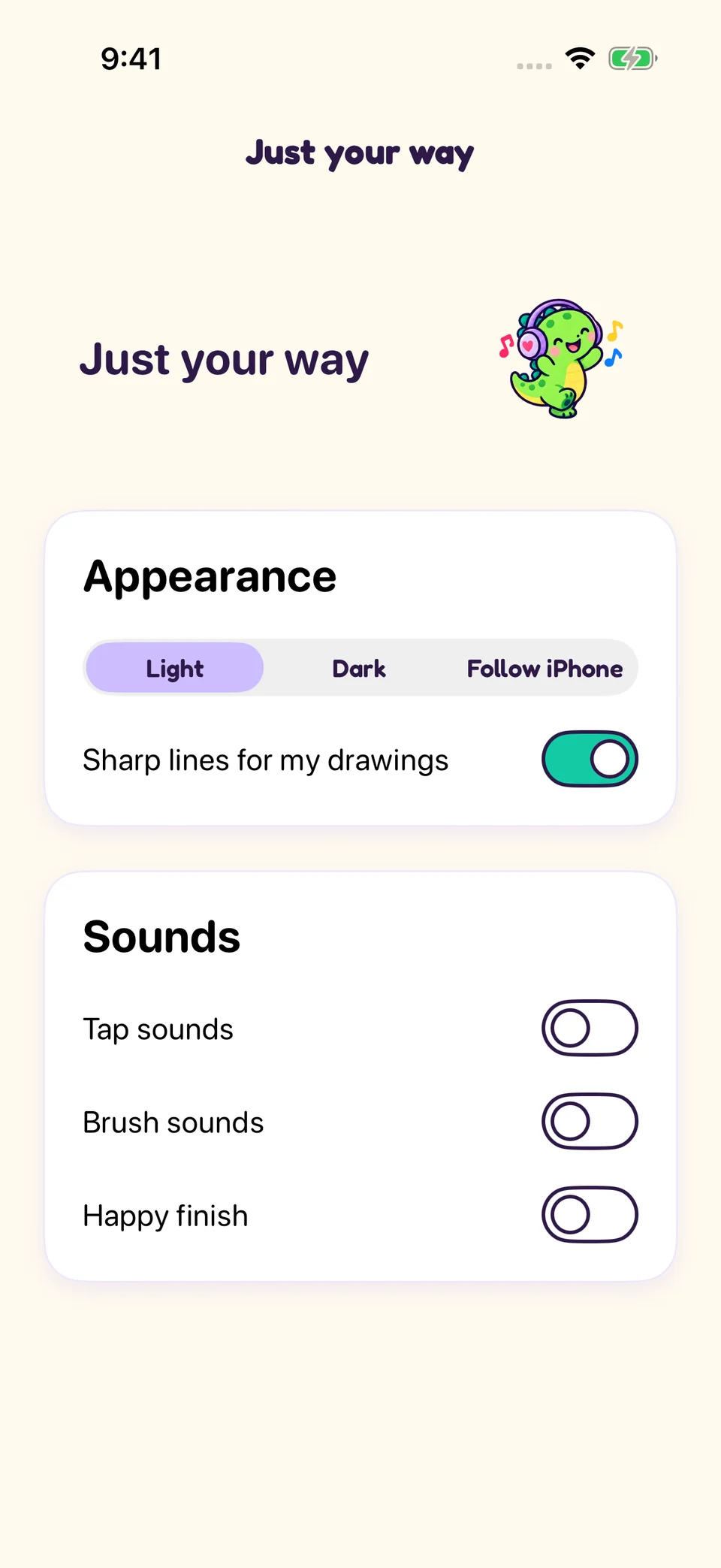
Open the grown-up preferences and find Appearance. Light and Dark set an explicit interface style; Follow iPhone or Follow iPad uses the system choice. A system-following app can change appearance when the device changes, which is useful to know before treating a later difference as a lost preference.
Inspect the controls and the picture
Return to a multicoloured drawing with both pale and dark details. Check tool labels, the canvas boundary and small icons at a normal viewing size. An appearance choice concerns the surrounding interface; it is not an instruction to repaint the subject, remove white paper or apply a dark filter to a finished export.
Check another part of the workflow
Open My Art or the book editor and review the same setting there. A dark interface does not remove the need for readable drawing colours or suitable print paper. If exported artwork looks different in another app, compare the actual saved file, viewer and display conditions before changing the picture itself.
Check the result
- Check the selected appearance after returning to preferences.
- Inspect tool readability and a saved picture.
- Compare an exported file without confusing the viewer’s background with the artwork.
Know the access limits
Appearance preferences do not unlock paid artwork or change the purchase model. Screens in this guide are native interface captures; they are not evidence of improved battery life or a measured accessibility result.
Explore Colourify, or continue with the related guide.