In this article
Use Undo for a recent action, or choose Eraser to work selectively on brush marks. Start small near details and keep line repairs separate: changing an imported drawing’s geometry can clear its existing colouring.
An unwanted brush mark does not always mean the whole action should disappear. I use undo when the latest stroke is the problem and the eraser when a small part needs attention. The distinction matters around outlines, where rubbing ink can affect how areas connect.
Choose the correction before the tool
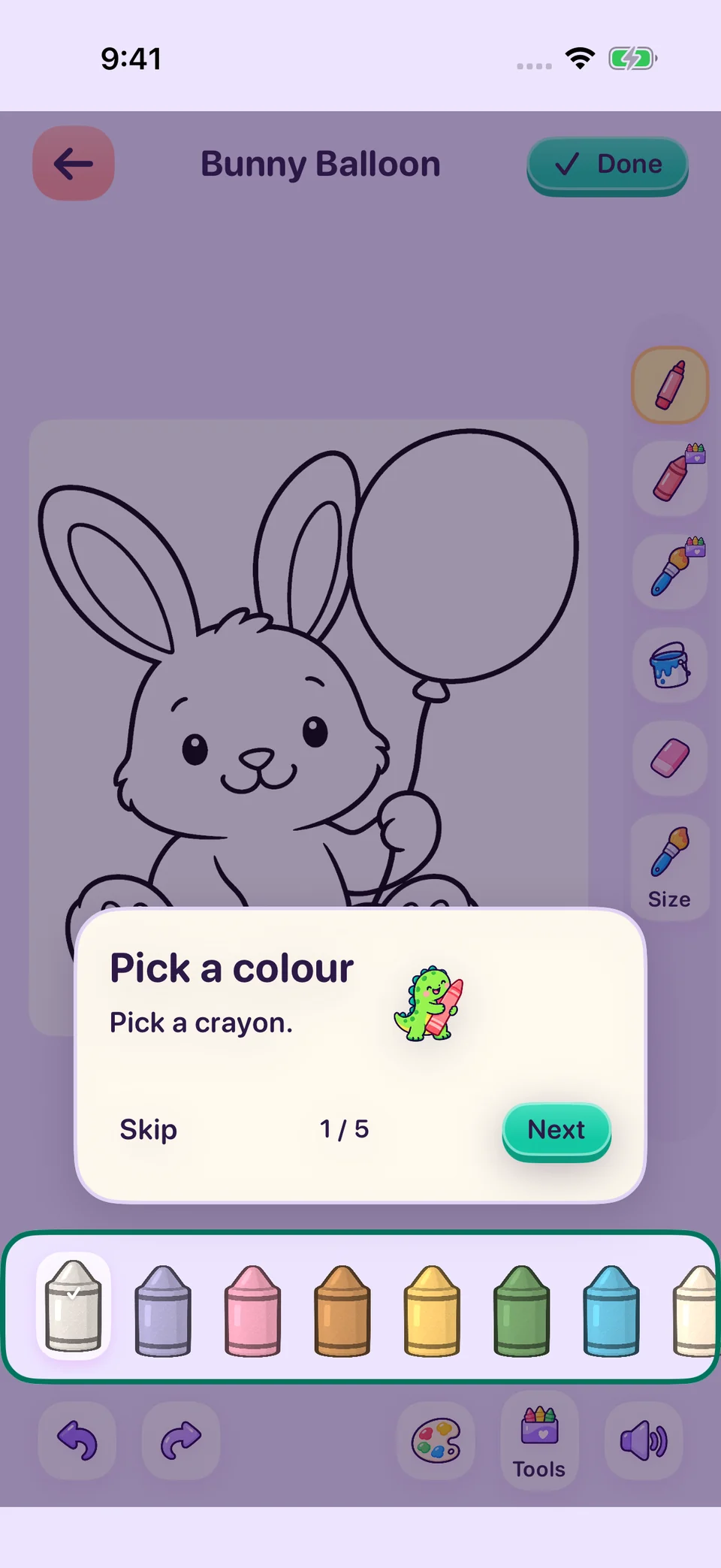
Open a Brushing picture with several deliberate colours and a brush stroke you want to adjust. If that stroke was the last action, try Undo and compare the result. Redo lets you return to the later state while deciding. This is usually clearer than erasing an entire new stroke a little at a time.
Work with a suitable size
Select Eraser from the drawing tools. Choose a small size near a face, petal edge or other fine feature; use a larger size for a broad patch away from those details. Zoom before starting rather than making a large movement and hoping it will stop at the right point. Check the mark after a short pass.
Treat the lines as a different edit
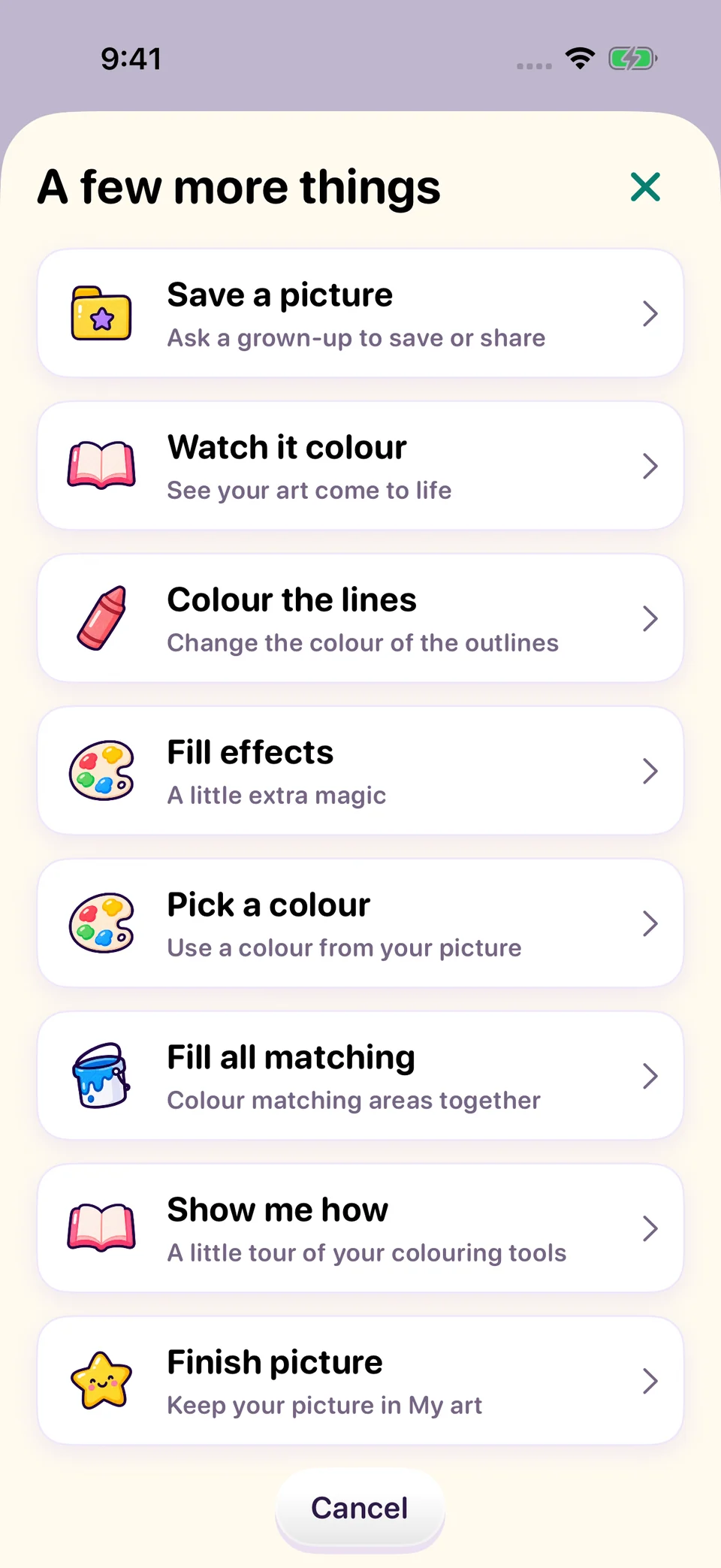
Removing paint and removing the drawing’s own lines are different operations. If an imported outline has a stray mark or an open gap, use the dedicated Fix lines workflow and read its warning before saving. Rebuilding those areas can invalidate the existing colouring. Keep the source photograph and avoid experimenting on the only important copy.
Check the result
- Compare the corrected area with its surrounding colours.
- Zoom out to check the repair is not more noticeable than the mark.
- Use Undo if the correction removed something you meant to keep.
Know the access limits
Marker and Eraser are starter tools. Crayon and Watercolour require Unlock Everything. The demonstration is an example correction, not a claim that every brush behaves like a physical material.
Explore Colourify, or continue with the related guide.