In this article
The ten minutes between placing a restaurant order and the food arriving are often the hardest part of eating out with a young child. Hunger and boredom arrive at the same time, and fumbling through Wi-Fi prompts, loud audio, or unfamiliar menus on a phone only adds to the noise at the table.
When I prepare Colourify for a meal out, I treat it like packing a small colouring pad rather than handing over an open-ended tablet. Two minutes of quiet setup before you leave the house makes the table session predictable, keeps the screen calm, and avoids surprises when there is no signal in the dining room.
The two-minute checklist before you leave home
Run through these four checks on the sofa while you still have a connection and your hands free:
- Test offline in flight mode: Bundled pictures and saved progress live on the device, so they do not need Wi-Fi or mobile data at the table. However, purchases, restoring purchases, and sending feedback require an internet connection. If you plan to colour a family drawing stored in iCloud Photos, download it to the device first so it is ready without a signal.
- Decide on sound before you sit down: A busy restaurant is rarely the place for trial-and-error audio. Mute the device if the room is lively, or set a very low volume with one of the three free recordings—Rain, Forest, or Ocean Waves—already chosen. For more on balancing audio levels, see my notes on choosing background sounds in Colourify.
- Drop the screen brightness: Dining rooms are usually dimmer than living rooms. Turning brightness down before you leave stops an iPhone or iPad screen from glowing like a torch across neighbouring tables and saves battery for the journey home.
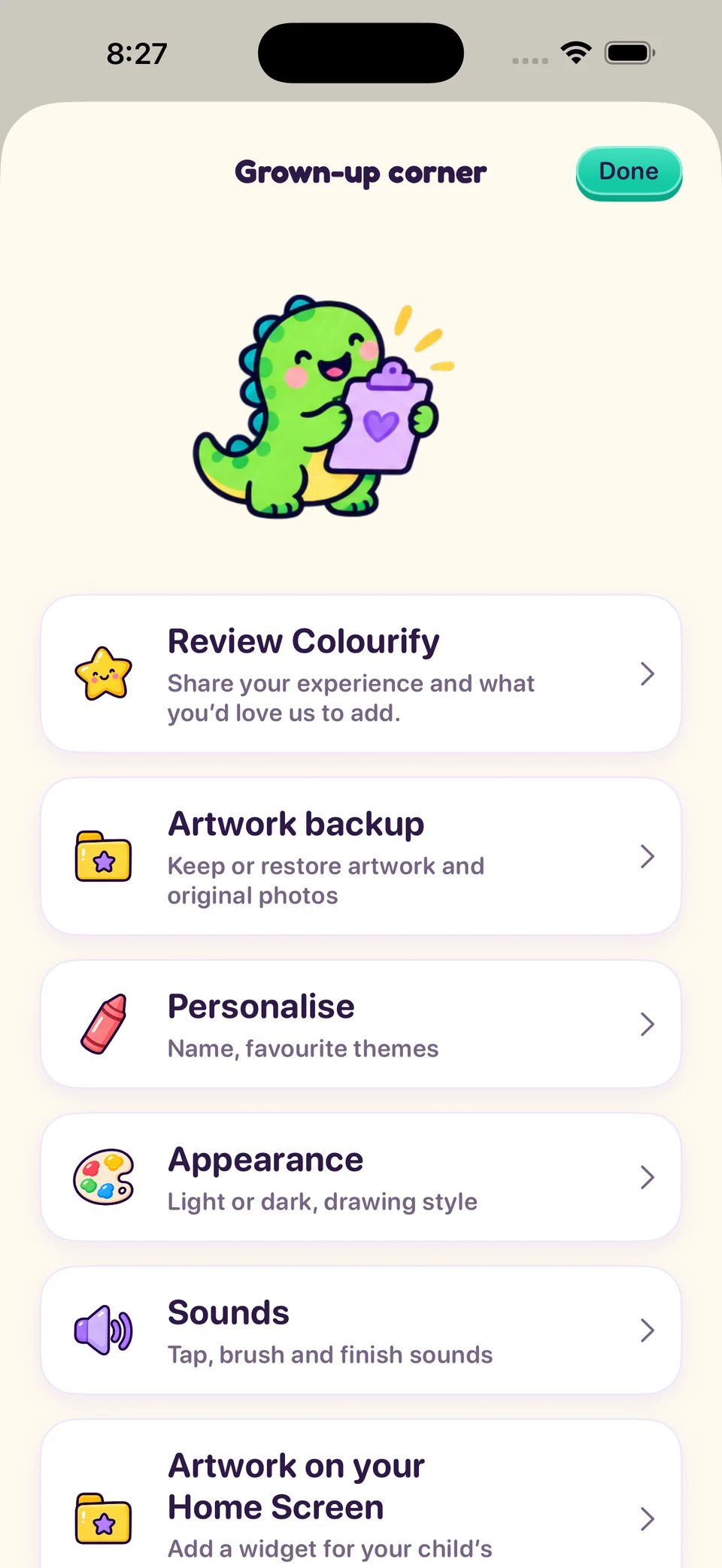
- Check the Grown-up corner and starting mode: Open Grown-up corner or Personalise to pick how pictures open, and confirm you know how the grown-up question behaves before handing the device over. It guards purchases, sharing, external links, and private feedback inside the app, though you should still check iOS restrictions if you want to lock the device to one app. I cover that boundary in my guide to the grown-up question and sharing.
Keeping the table session simple
At a crowded table, smaller, clearer interactions beat complex toolbars. I usually queue up a single numbered picture—such as one of the animals, ocean friends, dinosaurs, vehicles, or sweet treats—rather than leaving a child to browse the full gallery while water glasses are being set down. Numbered pictures have curated palettes with at least four playable colours, which is enough variety for a short wait without turning colour picking into a chore.
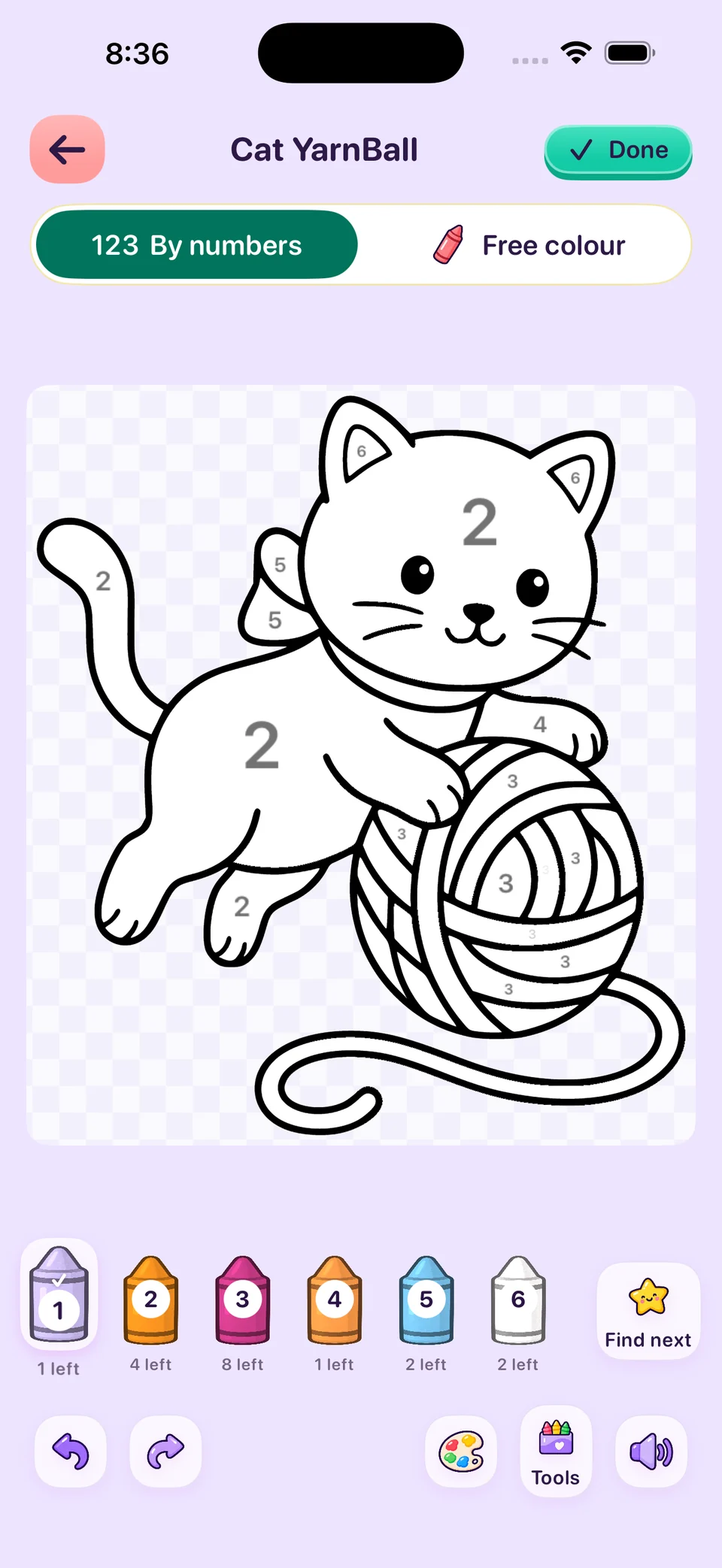
In numbered mode, a child picks a numbered crayon and taps the matching spaces. Tiny details fill in automatically so small fingers do not get stuck on fiddly outlines. If they cannot spot the last space for a colour, the Find next button beside the crayons jumps straight to it, and undo, redo, and zoom are right there if an elbow nudges the table. Layouts adapt across iPhone and iPad, so a phone works well for compact tables while an iPad gives roomier controls if you have space beside a napkin.
If your child prefers freehand colouring, switch to the separate brushing collection instead. It offers simple, roomy pictures with your own colours, a marker, and bucket fill—just pick that mode before you leave so the transition at the table takes one tap.
When the food arrives: ending the session cleanly
Putting a screen away when plates hit the table is often harder than starting it. I designed Colourify without countdown timers, streak penalties, or "finish the level" prompts so there is no artificial urgency when a meal arrives.
Because progress saves on the device as they colour, a picture does not need to be finished in one sitting. You can tell your child they have two more taps, close the screen as soon as the food comes, and let My Art hold their half-finished drawing for the drive home or the next wait. If you use the Your Picture Home Screen widget, they can also see that same picture waiting on the Home Screen next time you open the device, and you can save or share a favourite later once you are back on home Wi-Fi.
Know the access limits
Colourify is free to download and use with starter numbered pictures, ten brushing pictures, and three background sounds (Rain, Forest, and Ocean Waves). There are no ads in either the free or paid experience, and no account or sign-in is required.
The optional one-time Unlock Everything purchase adds all Pro pictures, extra brushes, special fill styles, premium background sounds, personalised PDF book export, and unlimited drawing imports, with no subscription. If you want to test whether it fits your family's routine before your next meal out, you can read the full feature list on the app page.