In this article
In Fix lines, use the rub-out tool to mark unwanted line segments, review those marks and apply Rub out. Saving rebuilds the drawing’s areas and clears the existing colouring.
A stray pen line can split a shape that should be one area. Painting over it is different from removing it from the fill geometry. Colourify’s line editor lets you mark what should go before applying the deletion, which gives you a chance to check nearby details.
Decide whether the line should disappear
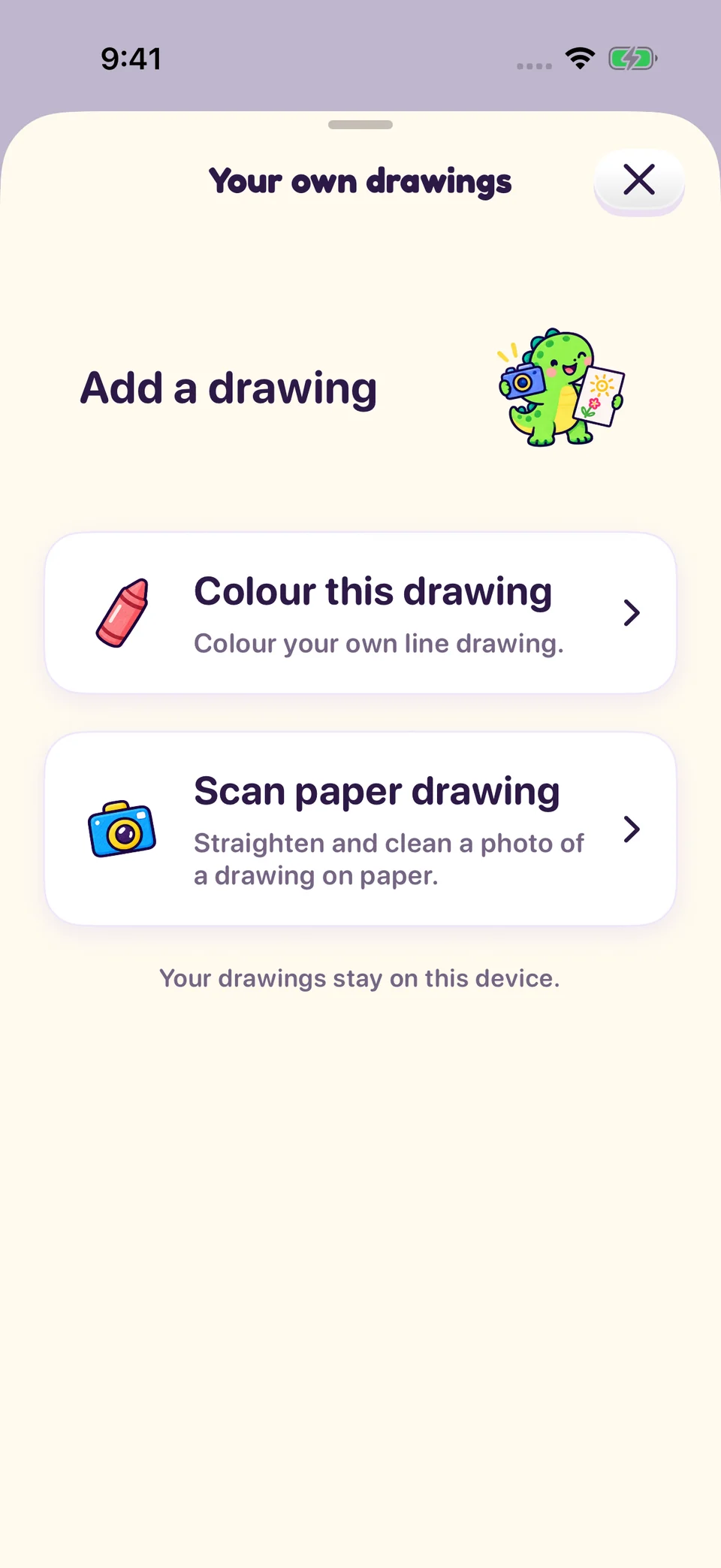
Open an eligible imported drawing and enlarge the unwanted mark. A line separating two petals may be deliberate; a short accidental stroke across the sky may not be. Keep the original source and an image of any important colouring. Removing a boundary can join areas that previously filled independently.
Mark, review, then rub out
Open Fix lines and select the rub-out tool. Make a small mark over the unwanted segment. The coloured selection is a preview of removal rather than a newly painted part of the artwork. Adjust the size when needed and use Undo to remove a bad selection. Apply the explicit Rub out action only after checking the marked regions.
Check the changed shape after saving
Save when the intended line edit is ready. Existing colouring is cleared as the app rebuilds the regions. Reopen the picture and try one fill where the line used to divide the area. Then test a neighbouring shape to make sure the removal did not open a route into the background. A smaller second repair is preferable to erasing a large uncertain patch.
Check the result
- Review the highlighted selection before applying removal.
- Test the joined area and its immediate neighbour.
- Keep the source photo for another attempt if the result changes too much.
Know the access limits
This is the imported-line repair workflow, not the ordinary canvas eraser for brush marks. It is available for eligible line drawings; colourful imports with stored area data follow different rules.
Explore Colourify, or continue with the related guide.