In this article
Handing a tablet to a young child often swings between two extremes: silent solo tapping on one side, or an adult turning a relaxed picture into a rigid quiz on the other. When I built the numbered colouring mode in Colourify, I wanted a calmer middle ground where a parent and child can sit together and chat about numbers and colours without turning the sofa into a classroom.
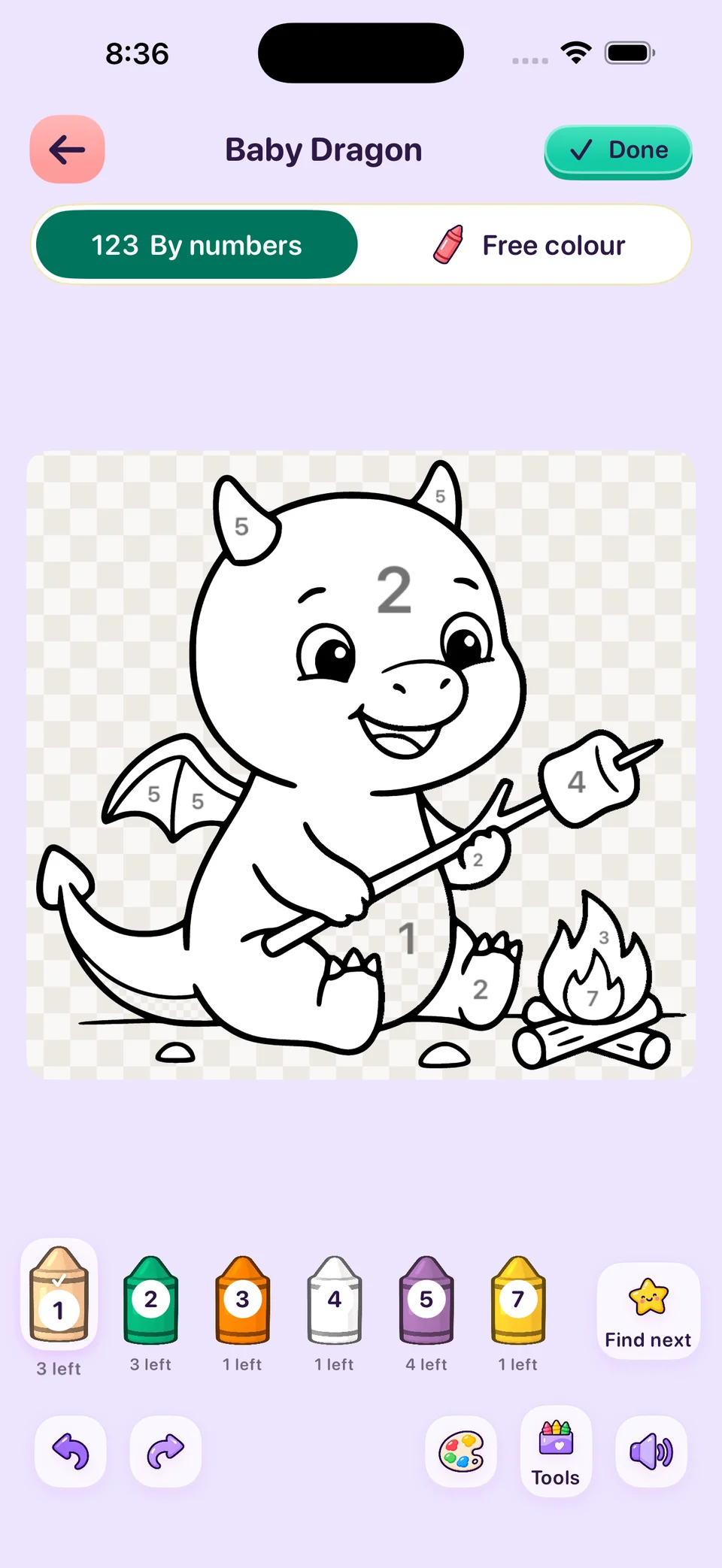
Every numbered picture in Colourify comes with its own palette of at least four playable colours, numbered crayons along the tray, and a Find next button beside them. Because tiny details colour themselves automatically, neither of you has to fight with microscopic specks just to keep the picture moving. That leaves room for a bit of back-and-forth talk while you tap.
What follows are three simple, parent-led ways to play with those numbers and colour names together. None of them are a curriculum or a promise of faster counting—they are just light games I would try if I were sitting beside a three- or four-year-old for ten minutes.
1. Play "which number next?" before anyone taps
Instead of rushing straight into filling the largest shape on the screen, pause on the crayon tray first. Pick a picture with a clear subject—an octopus, a dinosaur, or a friendly vehicle—and ask your child to point to any numbered crayon they like. Before tapping the canvas, see if you can spot two or three matching numbers hiding in the outline together.
I like keeping this slow and conversational. You might say, "I can see two fours near the bottom—can you spot another four near the top?" Once your child taps the crayon and starts filling those areas, the numbers disappear into colour. If one last number is tucked away in a corner and neither of you can spot it, tap Find next beside the numbered crayons to jump straight to another area for that colour.
This works well on an iPad where the controls have a bit more room, though the layout adapts to an iPhone screen too if you are waiting at a café table. If a number is hard to read in a tight spot, pinch to zoom in together and make spotting it part of the game rather than a test.
2. Swap who names the colour on each turn
Once a child gets used to matching numbers, the colours themselves can become the focus of the chat. Try taking turns: on your turn, your child picks a numbered crayon and you have to say the colour name out loud before tapping an area. On their turn, you pick the number and they tell you what colour they think it is—even if they call a teal tentacle "greeny blue" or a warm orange "peach".
I would avoid correcting colour names like a spelling test. Simply echoing back a gentle variation ("Yes, a bright sea green") keeps the mood light. Because each numbered picture uses a curated palette rather than an overwhelming wall of swatches, you naturally end up repeating four to eight colour words over a short session without forcing it.
If someone taps the wrong spot by accident, or if you want to compare how an area looks filled versus blank, undo and redo are right there. Showing a child that every tap is reversible takes the pressure off getting it "right". And if they suddenly decide they would rather paint the octopus bright purple from scratch, you can always switch over to the separate brushing collection—I wrote more about how those two modes differ in numbered versus free colouring.
3. Count what is left, not just what is done
Most colouring sessions focus on finishing the whole page, which can drag on longer than a young child's attention span. A gentler twist is to treat the remaining blank spaces as a small counting game. Pick one number together and count aloud how many blank areas with that number are still waiting on the screen before you tap them one by one.
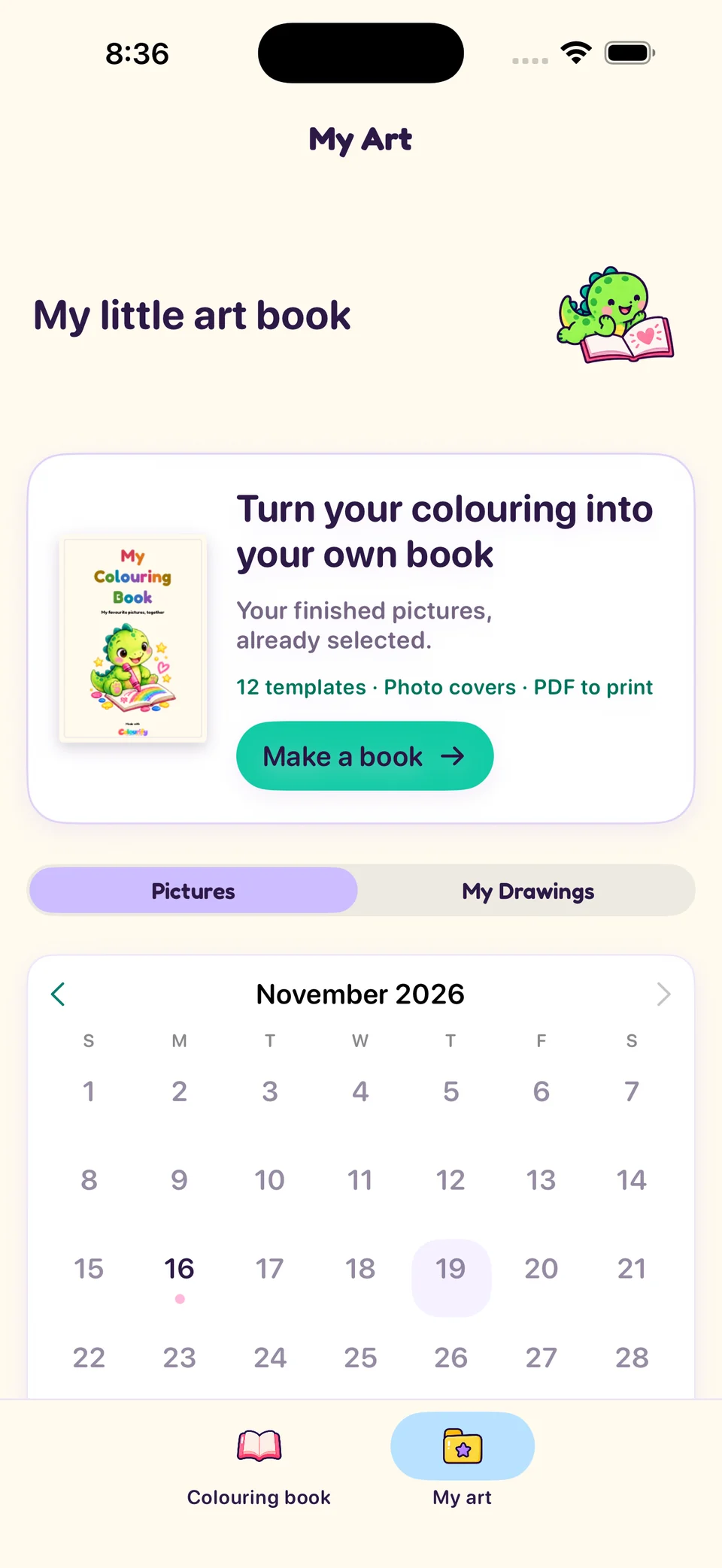
Counting down—"three twos left, now two, now one"—gives a natural stopping point that does not require completing the entire illustration. When you reach zero for that number, you can either pick another crayon or close the iPad and leave the rest for tomorrow. Colourify saves progress on the device inside My Art, so unfinished pictures stay waiting with their updated previews until you come back.
If you want a quiet backdrop while you count and chat, Rain, Forest, and Ocean Waves are included in the free app, though I usually keep sound off when we are talking so nobody has to speak over it. For more on keeping tap-by-number sessions calm and unhurried, have a look at my guide to offline tap-to-fill colouring.
Keeping it as play, with clear limits
I want to be straightforward about what this is and what it is not. Colourify is a colouring book, not an educational programme, and sitting down with a numbered octopus will not guarantee that a child memorises numbers or colour names on any particular schedule. It is simply a shared, low-pressure excuse to point, count, and talk together for a few minutes.
Everything you need to try these three games is in the free app: starter numbered pictures, ten free brushing pictures, no ads, and no account or sign-in required. Bundled pictures work offline with artwork and progress stored on your device. If your family later wants the full Pro picture library, extra brushes, special fill styles, premium background sounds, unlimited drawing imports, or personalised PDF book export, those sit behind a single optional lifetime purchase called Unlock Everything, guarded by a grown-up question.
If you would like to see what is included in the current release before downloading, head over to the app page for full details and the App Store link.