In this article
Following a numbered palette is one way to colour. Choosing a purple flower, a pink sky, or a completely different combination is another. Colourify’s brushing collection makes room for that kind of exploration.
I would begin with a simple picture and a single tool, then build from there. The aim is to learn what each control does, not produce a particular kind of finished artwork.
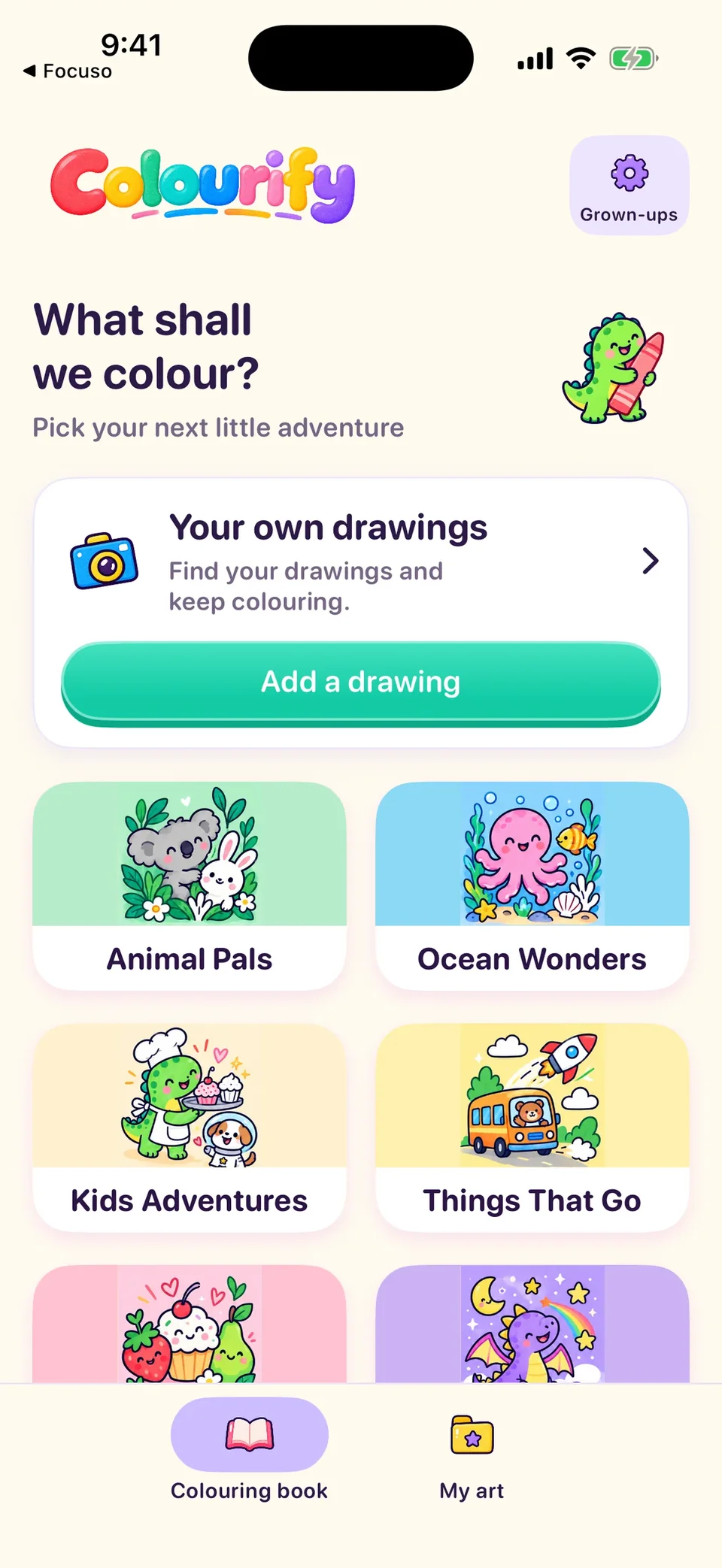
Open a brushing picture
Choose a picture from the brushing collection rather than assuming every numbered picture has the same tools. The free app includes ten brushing pictures, so you can try the experience before buying the larger collection.
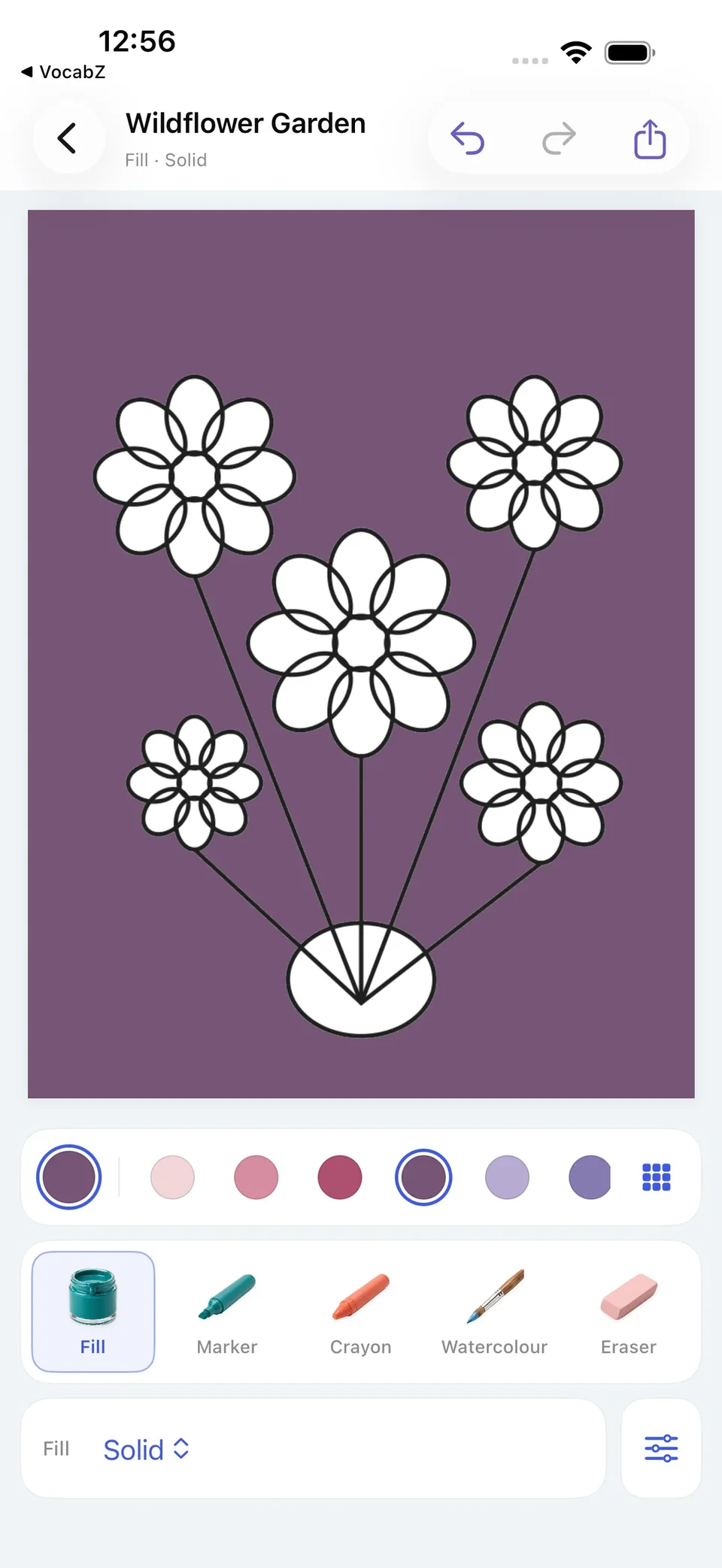
Select a colour, make a small mark, and use undo to see how easy it is to reverse it. That first experiment is often more useful than a long explanation.
Compare two tools on the same picture
Try the marker, then the crayon or watercolour tool. Keep the colour the same so the difference is easier to notice. If you change the colour and tool together, it can be harder to tell which change produced the result.
Use fill when you want a solid area, and zoom when a detail needs a closer look. A tool does not have to behave exactly like its physical equivalent to be enjoyable to use.
Leave the colours open to interpretation
A palette is a starting point. I do not want a colour choice to become a right-or-wrong exercise when someone has chosen the free-colouring experience.
If you are colouring together, try choosing one colour each or making two different versions of an idea on separate pictures. Keep the conversation about what you notice rather than how accurately the picture resembles a reference.
Keep a result you want to return to
My Art lets you revisit artwork. You can also bring in a paper drawing, then include saved pictures in a personalised book. PDF book export and unlimited drawing imports are part of Unlock Everything.
I would review a picture before sharing it, especially if it includes a child’s name or a personal photo. Sharing is behind the grown-up question.
Try a two-colour picture
For a small shared activity, choose two colours together and see how many ways you can use them in one picture. Then try another tool with the same colours. It gives you a concrete way to explore the controls without needing to finish every area.
Continue with turning artwork into a printable book, or return to numbered colouring and Find next.