In this article
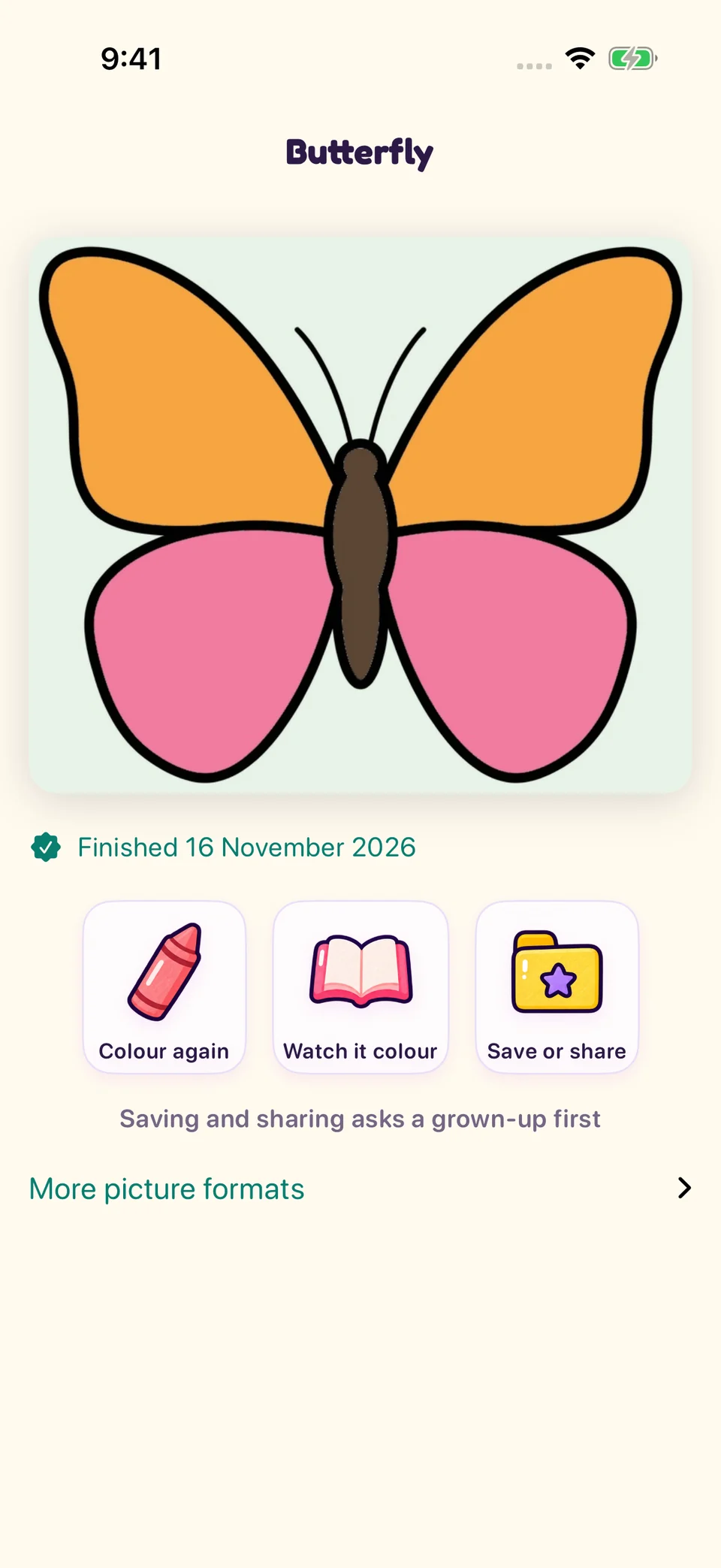
Open the saved artwork in My Art and use its continue action. Finish picture marks a stopping point; it does not mean the drawing can never be coloured again.
A half-coloured picture can be the right place to stop. I want returning to it to be a small decision rather than an obligation to begin again. The same applies to a finished picture when a child wants another colour on a wing or a different background.
Find the saved version
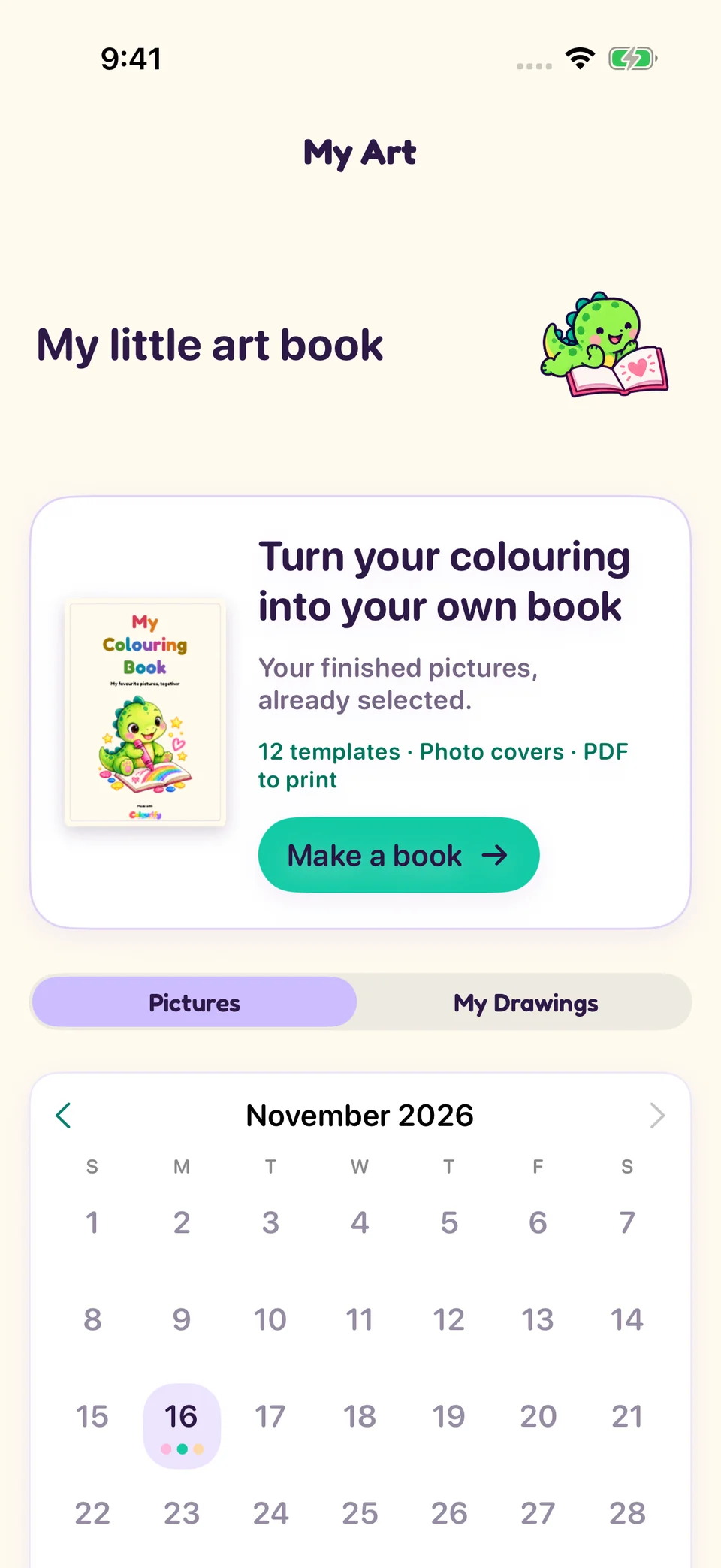
Open My Art, choose the appropriate picture collection and inspect the saved thumbnail. Use the calendar if you remember the session date. Check the actual artwork before continuing; a repeated subject or an imported drawing with a similar name can make the wrong entry look familiar.
Continue the activity
Use the artwork detail’s continue action to reopen the canvas. Look at the selected tool and, for numbered pictures, the current crayon before tapping. Zoom and undo remain useful when returning after a break. If you are only checking the saved result, you can leave without adding a mark.
Choose a stopping point deliberately
Use Finish picture when you want to keep the result as finished. You can still return and keep colouring. Do not confuse this with starting a new independent edition: Colorist has separate edition features, while this guide concerns continuing the same Colourify artwork. An export is useful when you want a fixed image of a result before further edits.
Check the result
- Leave a picture partly coloured, then reopen it and compare the saved areas.
- Inspect a finished picture before changing it.
- Export an important version if you want a separate image to keep.
Know the access limits
Bundled colouring and its saved progress work locally. Accessible pictures depend on free, purchased and historical access; continuing artwork is not a promise of automatic cloud synchronisation.
Explore Colourify, or continue with the related guide.