In this article
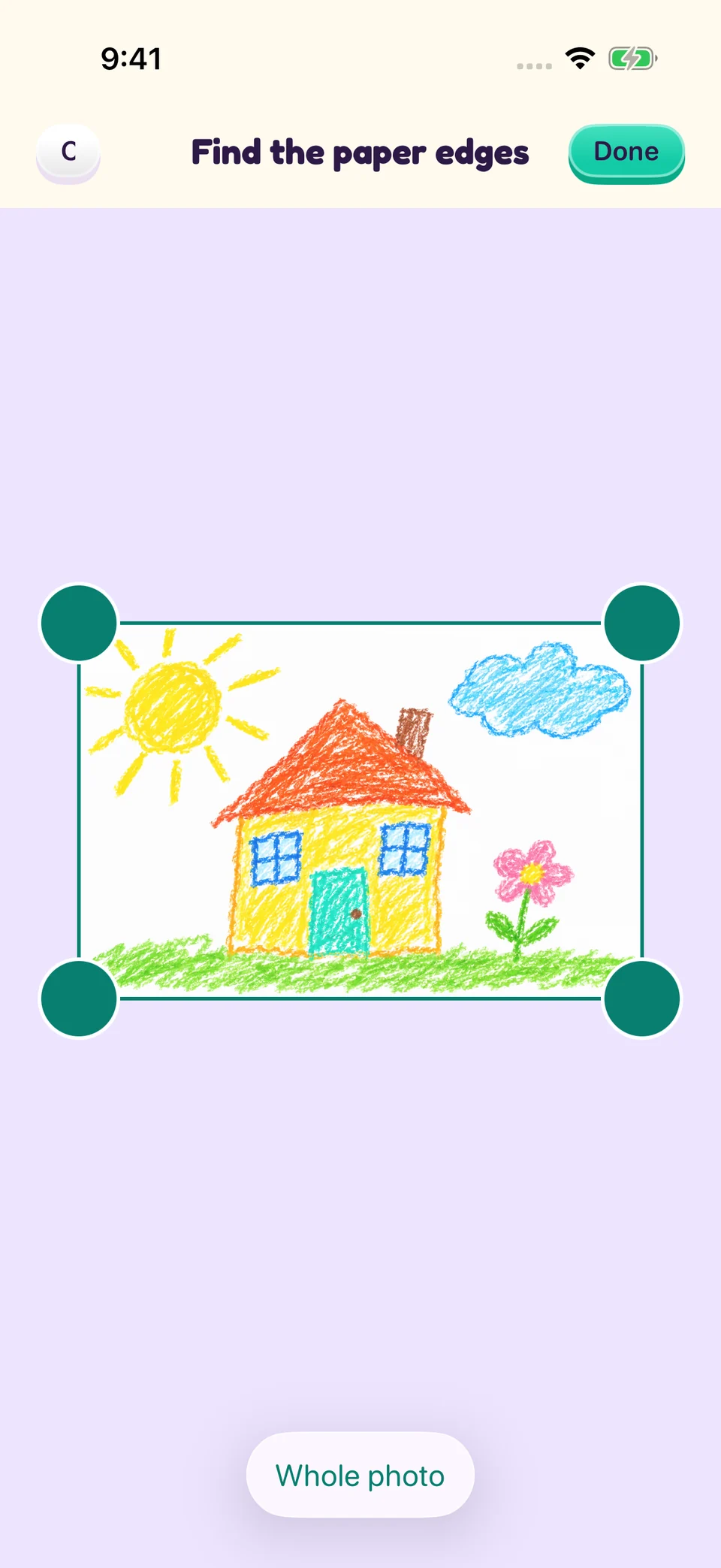
Choose Colour this drawing for clean digital line art with enclosed shapes. Choose Scan paper drawing for a photograph that needs paper straightening and cleanup. Both Colourify choices open Photos after the choice sheet closes.
A clean colouring page and a photograph taken across a table have different problems. Applying paper cleanup to the first can be unnecessary; skipping it on the second can leave shadows and uneven lines. I would choose the route from the source image rather than trying both without a reason.
Prepare the source in Photos
Save the intended image to Photos first. For the demonstration I created a childlike garden drawing and a crayon-house sample; neither is presented as a real child’s work. The garden’s clear enclosed outlines suit filling. The coloured house is useful for preserving paper artwork, which is a separate workflow from preparing a fillable template.
Choose the import route
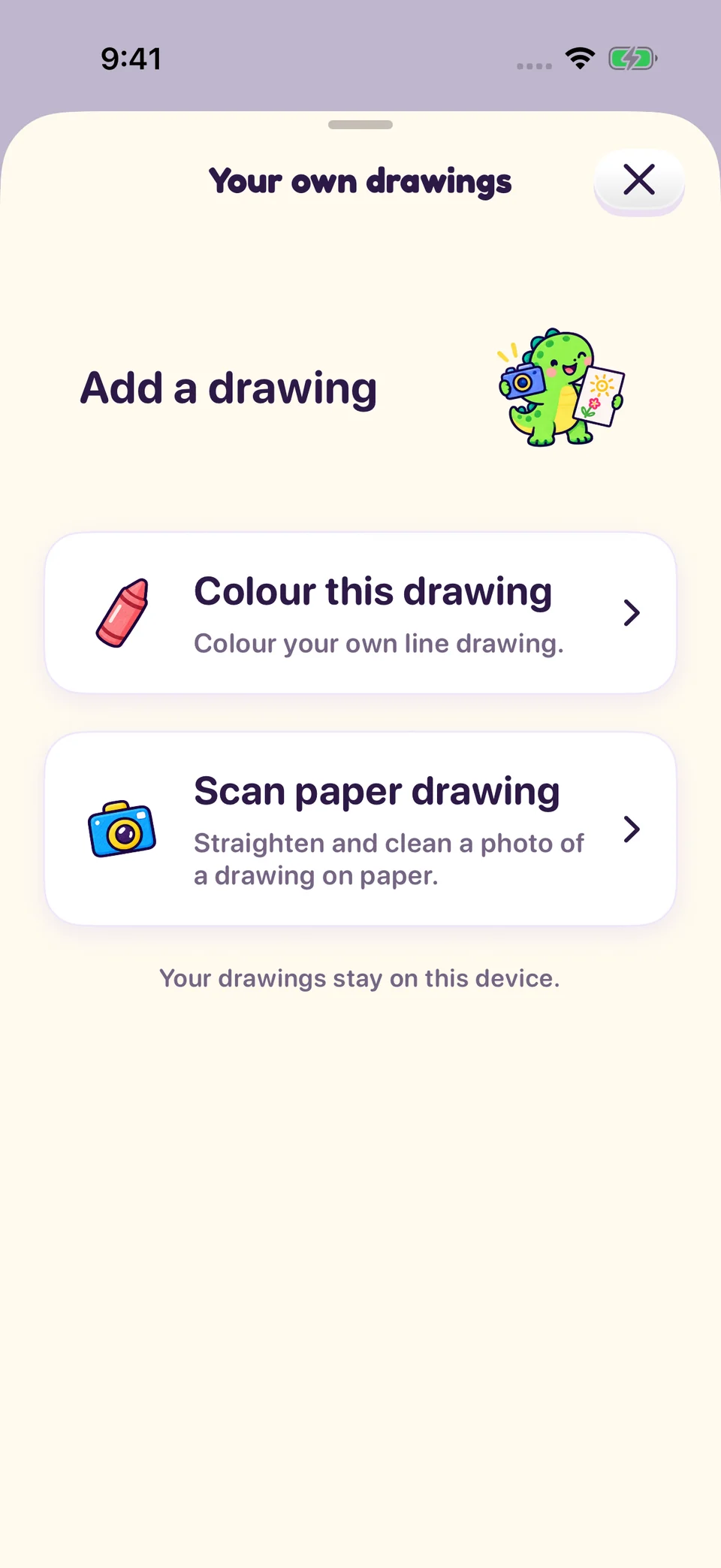
Open Your own drawings and Add a drawing. Choose Colour this drawing for the clean line-art sample, then select it in Photos. Use Scan paper drawing when you have a photographed sheet that needs paper detection and cleanup. Wait for actual preparation stages rather than interpreting a delay as permission to start another import.
Test one area before colouring everything
Inspect a small face, a narrow leaf and the page background. Try a colour in an enclosed area and undo it. If several areas behave as one, inspect the source for open lines before spending time painting. A photograph with colours does not automatically become the same kind of carefully authored numbered picture as the bundled catalogue.
Check the result
- Confirm that you selected the intended sample in Photos.
- Check the imported picture’s orientation and smallest important line.
- Keep the original source and test a fill before continuing.
Know the access limits
The local Colourify implementation permits four retained free imported drawings and removes that limit with Unlock Everything. Check the installed access prompt; deleting a retained drawing is different from buying unlimited imports.
Explore Colourify, or continue with the related guide.