In this article
A website may display a picture in a format the next app does not accept. Image Converter’s Safari extension can find eligible images on the current page and save a converted copy.
This is separate from sharing an existing image into the app. The browser extension reads the page’s image candidates; the share action receives whatever the source app passes to it.
Enable the Safari extension
In the device’s Safari settings, find Extensions and enable Image Converter. Review the site access request for the page you intend to use. The Settings path depends on iOS version.
Use only images you have permission to save and reuse. A visible picture on a website is not automatically licensed for another project.
Select the image and output
Open the extension from Safari’s extension controls on the relevant page. Choose JPEG, PNG, or HEIC, then use Save beside the intended image. Check the image dimensions to avoid choosing a small thumbnail.
The native handler downloads the image from its source URL before converting it locally. That requires network access to the source; “on-device conversion” does not mean the source image arrives without a download.
Use the share action for an existing image
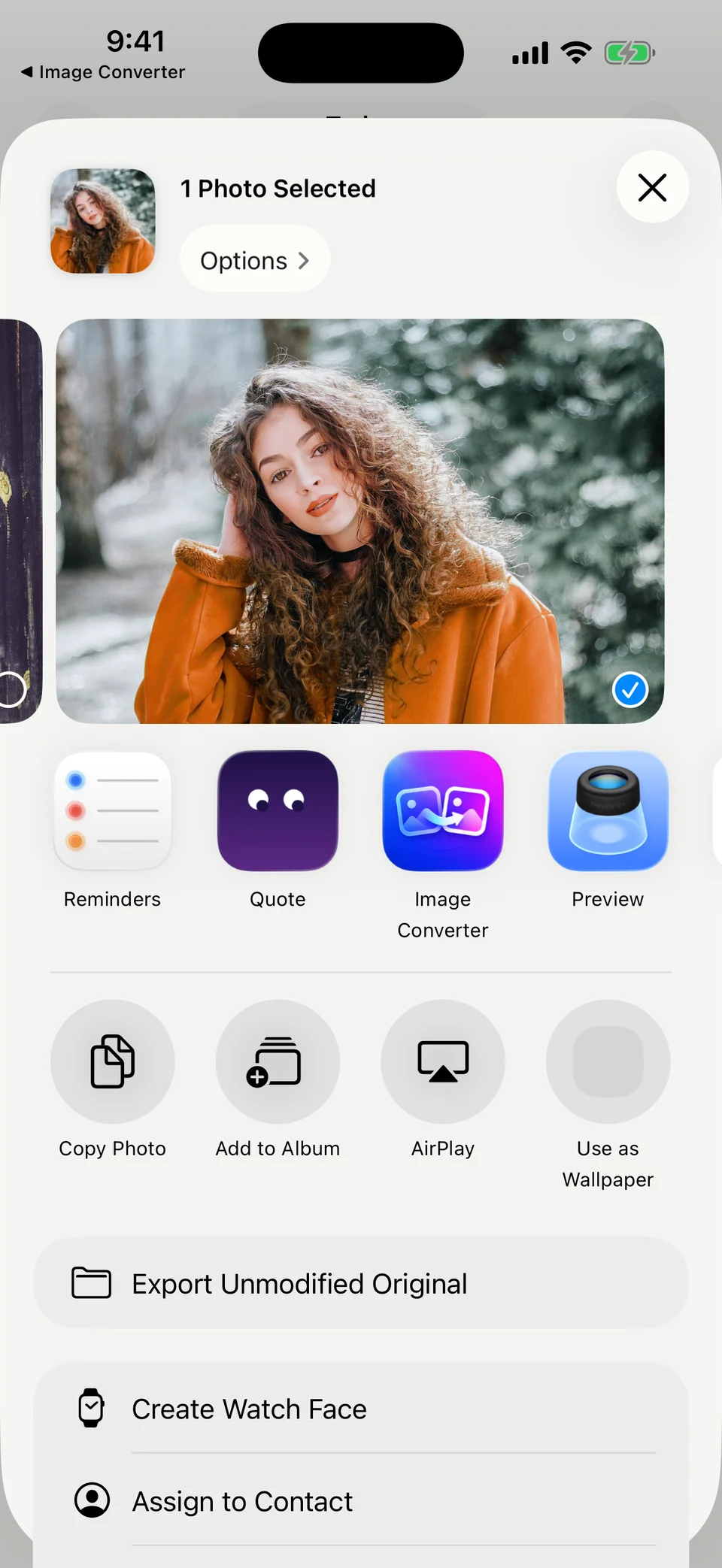
If a page image is not listed or cannot be fetched, save a permitted source through the website’s own download route and import the local file into the app. Some page resources require access the extension cannot reproduce.
Check the saved result
Open the output and confirm the image and format before sending it elsewhere. The verified Safari saving path does not show the main app’s quota or Pro gate. In the main app, five images daily are free, with ads and optional rewarded extras. Pro removes ads and unlocks unlimited conversions, compressed PDFs, and ZIP export.
For a local photo, use the share-sheet workflow. For format choices, see the format guide.