In this article
Ten minutes on the sofa is awkward for a physical jigsaw: by the time you clear the table and sort the edges, the break is over. Most digital puzzle games have the opposite problem, packing in noisy timers or endless boards that make a short pause feel like another chore.
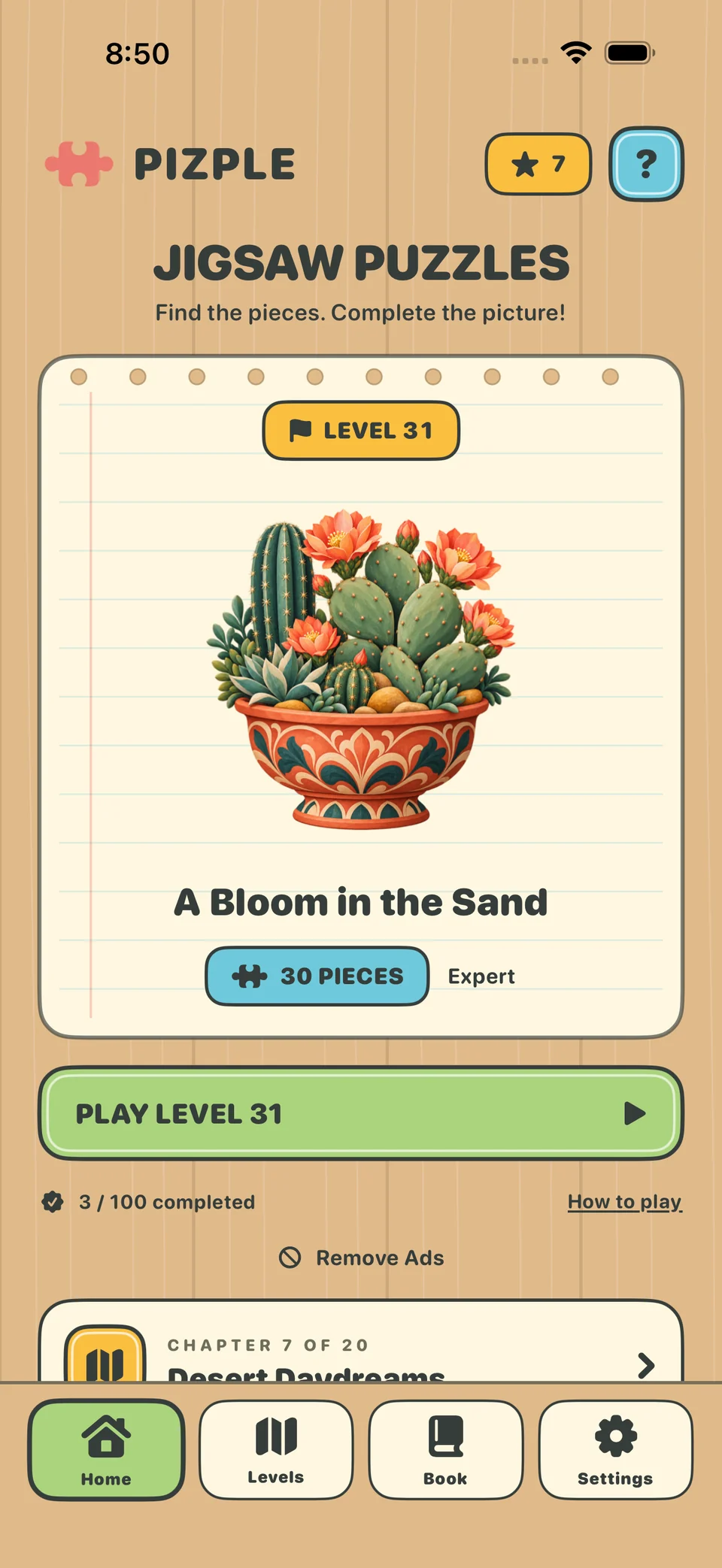
When I built Pizple, I wanted a picture puzzle you could open for a brief evening sit without feeling rushed or locked into a marathon. The released game holds 100 handcrafted puzzles across 20 themed chapters, with two distinct ways to pace a session: standard timed play or untimed Relaxed Play.
Pick a chapter that matches the time you have
Not every picture in Pizple is meant for the same length of break. The 20 chapters cover gardens, woodland animals, coastal scenes, curious workshops, and fantasy worlds, and they scale in density as you move through the book.
Early puzzles begin with four large pieces. Later chapters climb up to 40 irregular pieces with finer silhouettes and closer colour palettes. If I only have ten minutes before dinner and want the satisfaction of finishing a complete illustration and adding it to my puzzle book, I pick an earlier chapter where the shapes are larger and quicker to read.
If I am happy to chip away at something denser, I open one of the 30- to 40-piece scenes instead. Progress saves automatically, so leaving a picture half-built when someone calls you away does not waste the pieces you have already placed.
Relaxed Play versus timed results on a short break
The biggest decision before you place the first fragment is whether you want a clock on screen at all. In standard play, Pizple tracks your time, lets the final piece settle into place before showing your result, and awards up to three stars alongside a personal best.
That timed mode works well when you already know a chapter and want a brisk second run to beat an earlier record. On a tired weeknight, though, watching seconds tick past while hunting for a small roof tile defeats the point of sitting down.
Switching on Relaxed Play in Settings removes the timer and gives you more forgiving placement. Pieces still snap into their matching silhouette, and you still get the quiet satisfaction of finishing the artwork, just without a star target hanging over your shoulder.
While you are in Settings, you can also toggle the soft snap sounds, completion chime, and haptic feedback independently on supported devices. If someone else is watching television beside you on the sofa, turning off audio while keeping subtle haptics on makes a noticeable difference.
What actually decides how long a puzzle takes
I avoid promising an exact minute count for a chapter because two 24-piece puzzles can behave very differently. Three practical things govern how quickly a picture comes together:
- Studying the finished picture first: Taking ten seconds to spot bright landmarks before the pieces scatter saves far more time than guessing blindly once the tray is full.
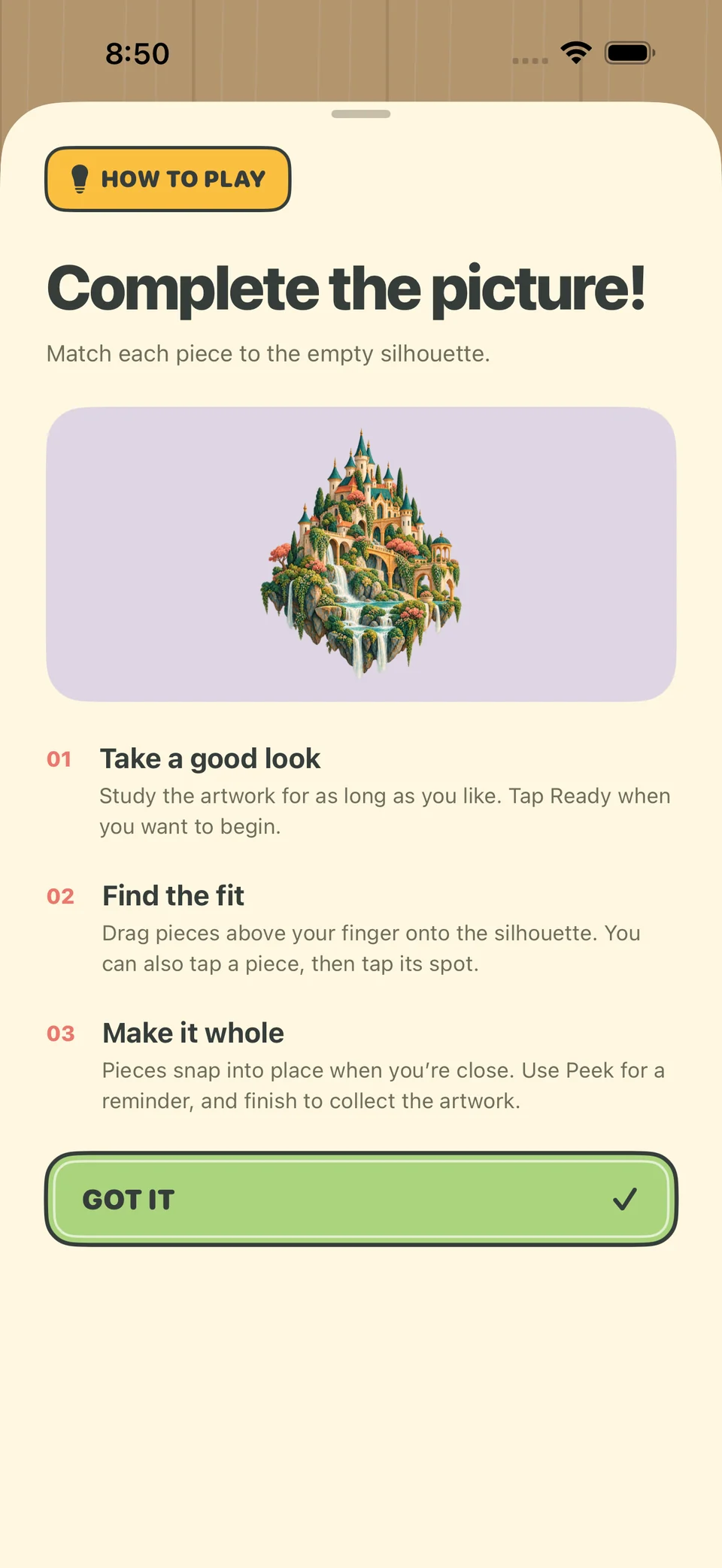
- How you place pieces: You can drag a piece directly onto its silhouette, or select a piece and tap where it belongs. On a phone held in one hand, select-and-tap is often steadier and faster than dragging across the screen.
- Using Pieces and Hint deliberately: Opening Pieces lets you scan available fragments cleanly, while Hint gives a brief look at the completed image when you lose your bearings in a detailed workshop or woodland scene.
Screen orientation plays a small part too. Portrait keeps a scrolling tray beneath the board, whereas landscape centres the picture with dual trays on the left and right—especially handy on an iPad resting on your lap. I compared both arrangements in the iPhone and iPad layout guide, and if you want a full walkthrough of the basic controls before starting a chapter, the first-puzzle guide covers those step by step.
Most importantly, you do not have to force a 40-piece puzzle into ten minutes. Treat ten minutes as a comfortable chunk of progress: place the outer edges or one clear corner, let the auto-save hold your spot, and pick up the remaining fragments tomorrow.
Free access, ads, and where to try it
Pizple is free to download on iPhone and iPad with advertising. The App Store listing also includes a Remove Ads purchase; check the in-app purchase screen for current terms before buying, as the released description does not specify its duration or additional content limits.
Once downloaded, the bundled puzzles work offline, though advertising and any purchase checks require a network connection. If you want a quiet, self-contained jigsaw for your next ten minutes on the sofa, you can read the full details and grab the App Store link on the app page.