In this article
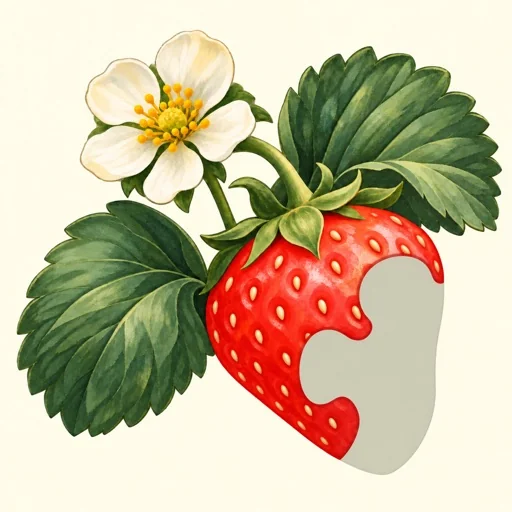
Pizple is my picture puzzle game for iPhone and iPad. You fit illustrated pieces into a matching silhouette, complete a picture, and add it to your puzzle book.
The current game includes 100 puzzles across 20 chapters, starting with four large pieces and progressing to pictures with up to 40 irregular pieces. Here is how I would introduce the controls.
Look at the whole picture first
Study the finished image before beginning. Notice a few landmarks: a bright fruit, a roofline, or a curved edge. Those details can give you a place to start when the pieces are separated.
You do not have to solve every piece in a fixed order. Start with one shape you recognise and use its neighbors to build the next part of the picture.
Try both placement methods
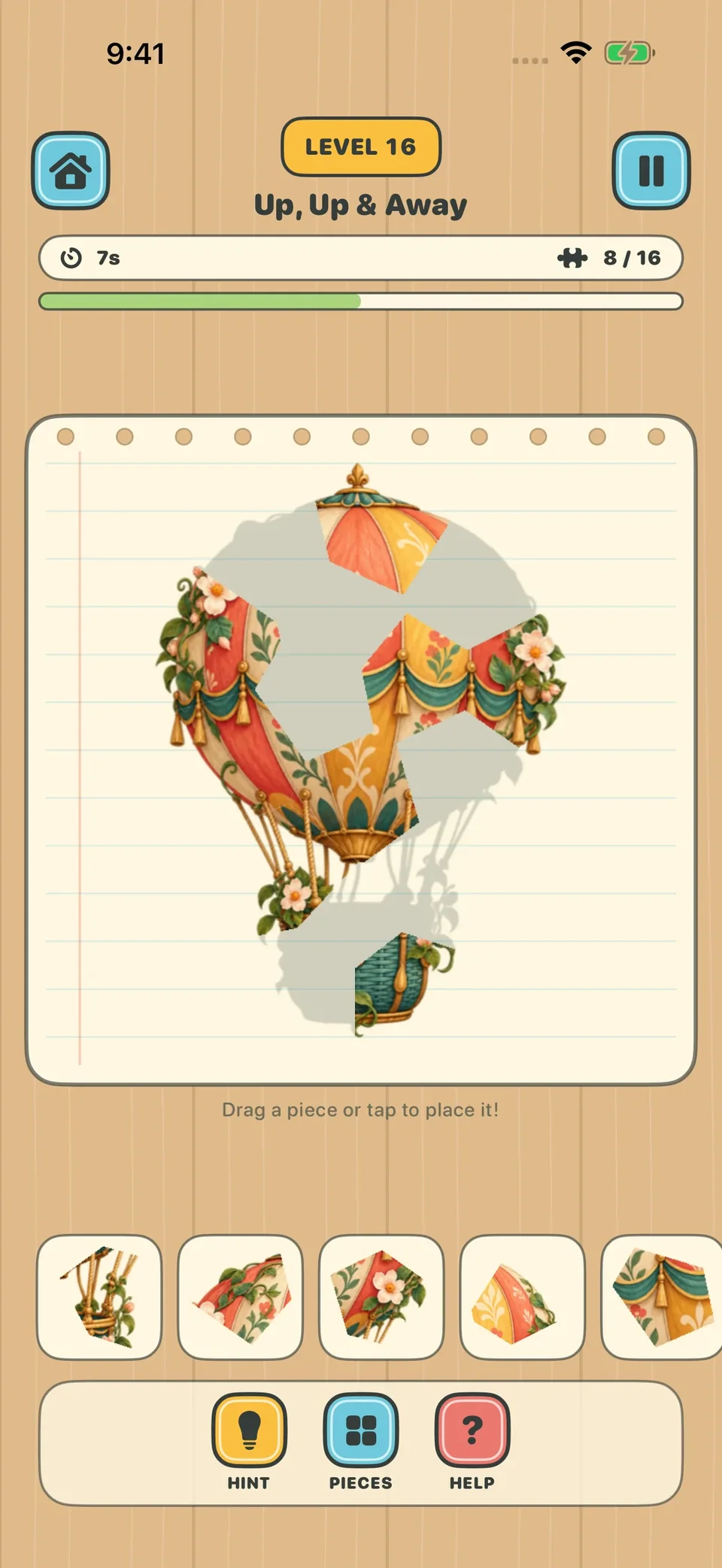
Drag a piece onto its matching position, or select a piece and tap where it belongs. Try each method on an early puzzle and keep the one that feels easier on your device.
Use Pieces to inspect the available fragments. If you lose track of the full image, Hint gives a brief look at the picture.
Choose the pace you want
Standard play includes results, stars, and personal best times. If those are not what you want from the session, choose Relaxed Play for an untimed puzzle with more forgiving placement.
That distinction matters. I would not describe every mode as untimed when the game offers both ways to play.
Try a different orientation
Portrait uses a scrolling tray below the board. Landscape places the board in the centre with pieces on both sides. On iPad, the larger layout gives the picture and controls more room.
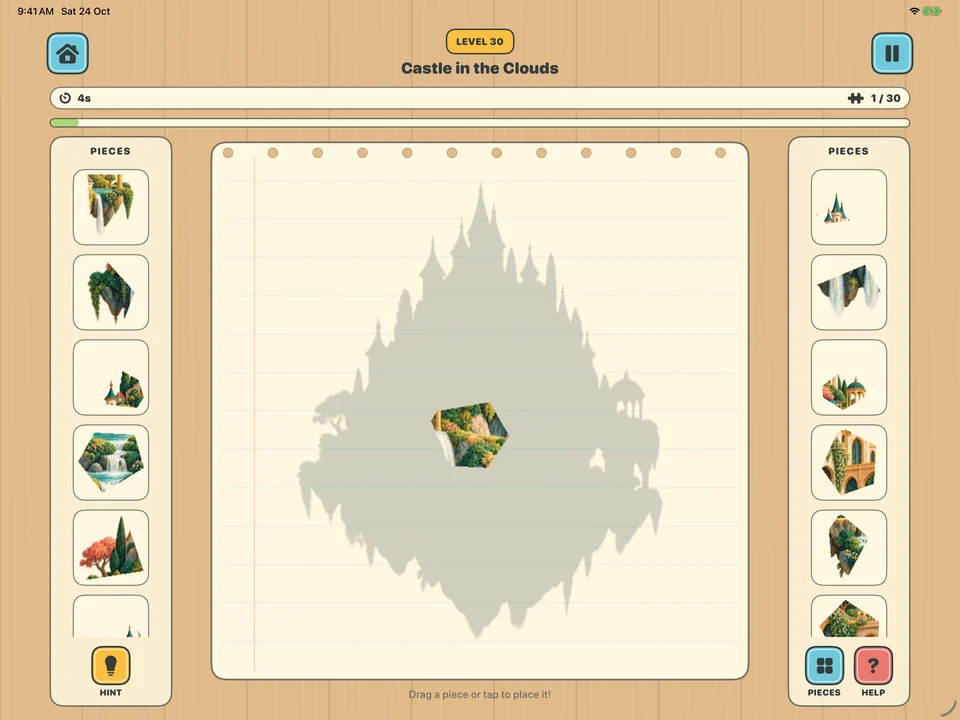
Rotate before settling into a longer puzzle and see which arrangement makes the pieces easier to inspect. The best layout can depend on where the device is sitting.
Adjust feedback and return later
Sounds and haptics have separate Settings switches, with haptics available on supported devices. Use the feedback you enjoy and turn off what you do not need.
Progress saves automatically, so you can leave an unfinished picture and return. I would treat that as permission to pause rather than a reason to finish a chapter in one sitting.
For a first session, I would choose an early picture, try both placement methods, and leave the next chapter for later. A completed picture is a good place to stop, but a saved unfinished one is fine too.
See Pizple’s current app details. For a colouring activity instead, try Colourify’s brushing pictures.