In this article
You chose a palette yesterday and now need one more colour from the same photo. History is a better starting point than guessing which image you imported.
In ColorPicker, History keeps earlier image explorations within reach. I use it to return to the source; Saved Palettes is where I keep a named set of colours for reuse.
Find the image before changing the palette
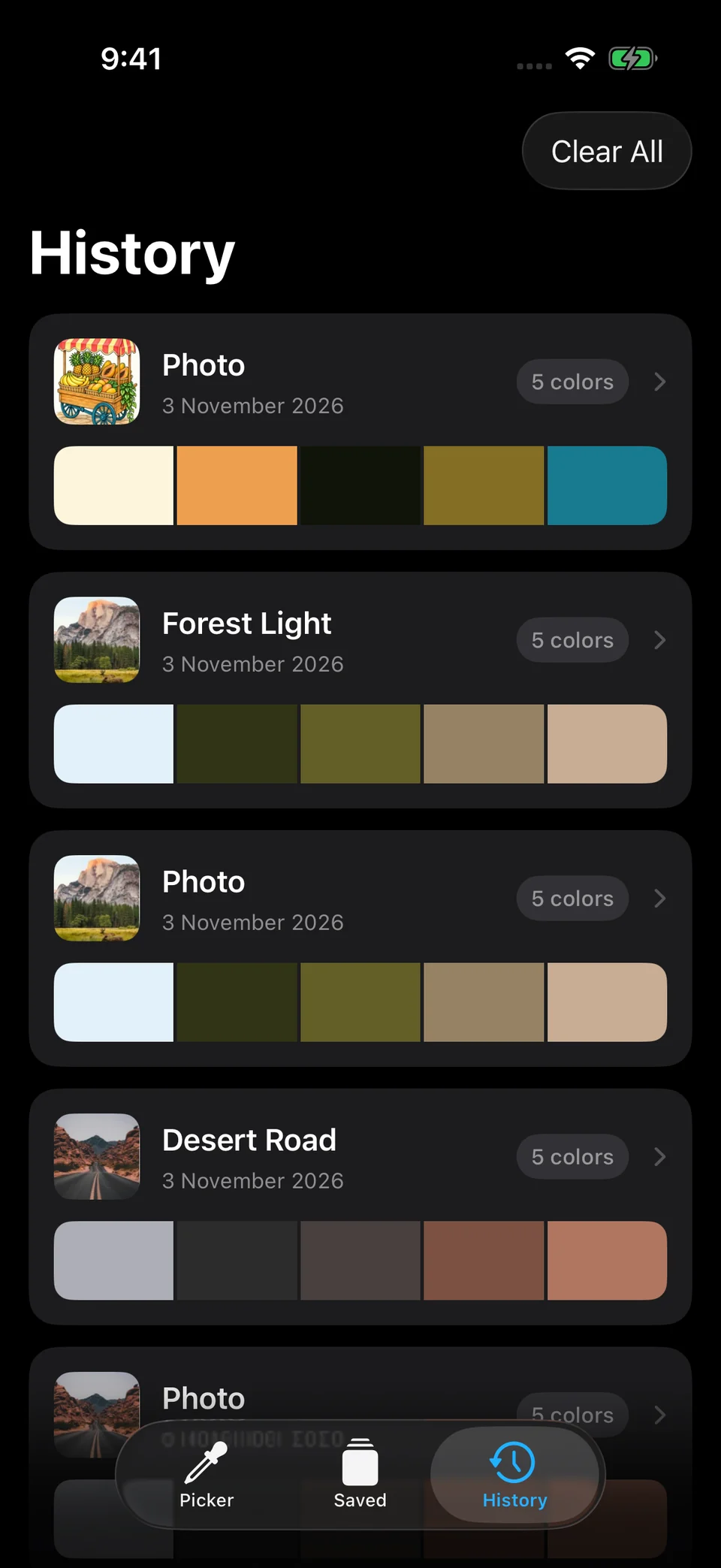
Open History and inspect the thumbnail, name, date, and colour preview. Similar photos can produce similar swatches, so use the picture itself to confirm the source.
Tap the intended entry to reopen its image in the colour workspace. If the image cannot load, dismiss the message and return to a source copy you still have in Photos or Files. Do not clear history as an attempt to repair a missing source.
Sample the detail you missed
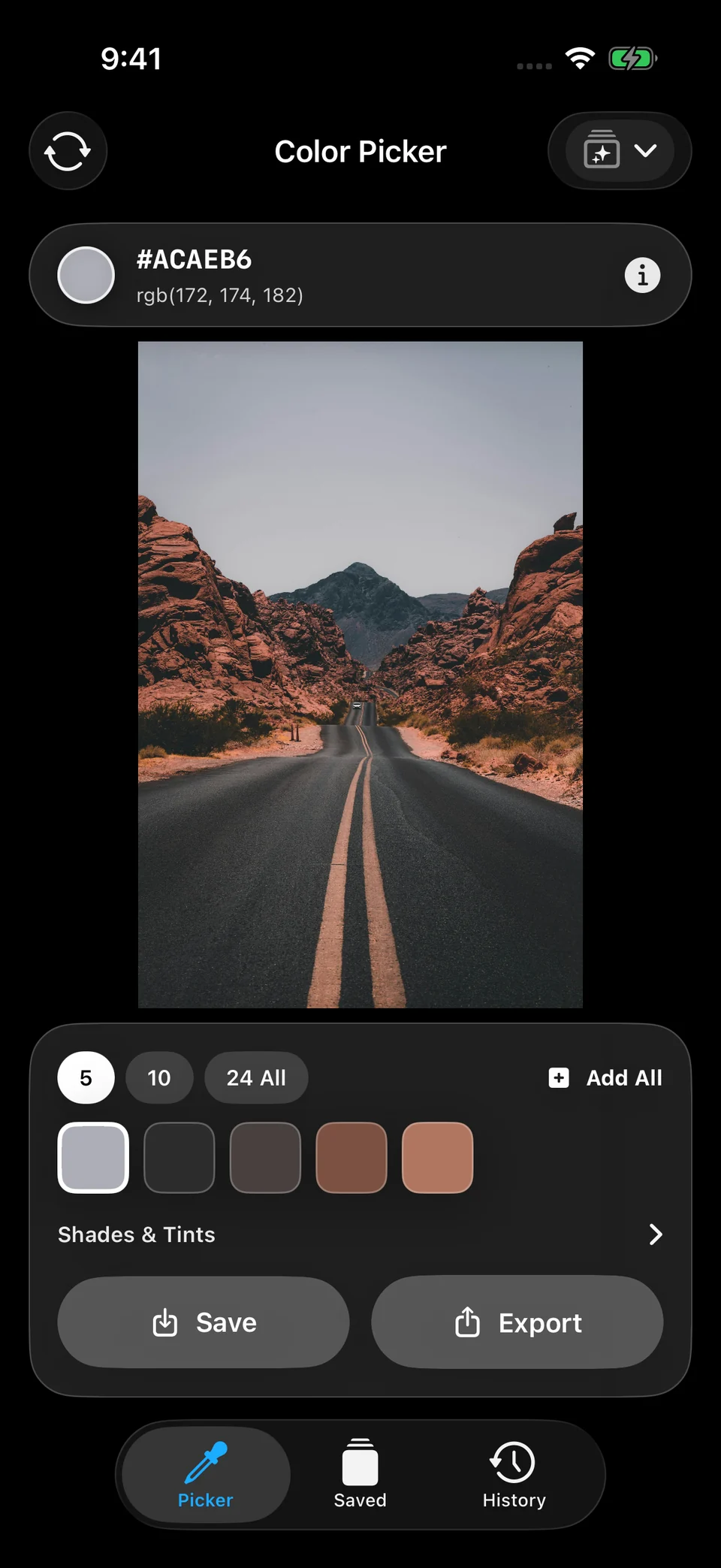
Once the image opens, zoom in on the detail. Touch and drag to preview a colour, then release to add it. If you need a sign’s red paint, avoid sampling a bright reflection or a compressed edge beside it.
Try a few nearby pixels and inspect the values. The aim is to choose a useful colour from that photo, not to recover a calibrated physical paint formula.
Save the revised selection explicitly
When the extra swatch belongs in a reusable project collection, use Save and give the palette a name you can distinguish from the earlier version. Check the resulting collection in Saved Palettes.
I would also copy the HEX list into the project notes if another person depends on the values. Keeping a source photo, a local history entry, and a project palette serves three different needs.
Clean up without losing your reference
History includes deletion and Clear All controls. Clear All asks for confirmation and cannot be undone. Keep source images and important colour exports somewhere you normally back up before using those actions.
The free app includes ads; reopening images may involve an ad. Five saved palettes are free, while Pro makes that library unlimited and removes ads. Copying HEX lists and sharing palette images are free; code and JSON exports need Pro or an available rewarded credit.
For the next step, organise the saved collection. If you need a broader starting selection from the reopened photo, use the extraction guide.