In this article
A colour combination you like should be easy to find in the next picture. Colorist’s named palettes keep those choices together without tying them to one artwork.
I would begin with a small collection: a background, a few subject colours, and one accent. There is no ideal number every picture must use.
Open My palettes
From the colour controls, choose My palettes and use New. The named collection can also be managed through the palette library in Settings.
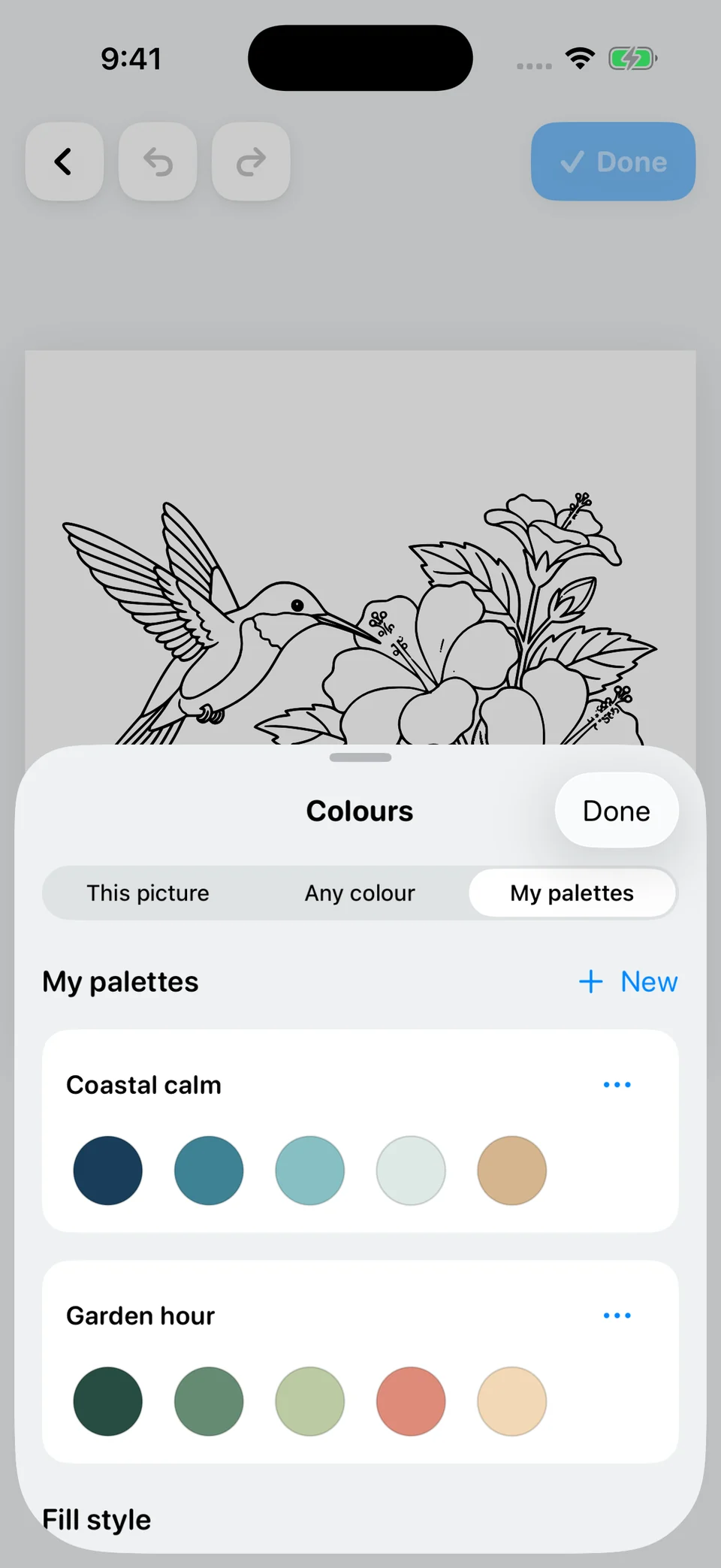
Add and name the colours
Give the palette a descriptive name. Use the editor’s native colour picker and Add colour action. Where offered, Use picture and recent colours gives you a starting selection.
Remove colours you do not need, then save. Reopen the collection to verify its name and swatches before relying on it for a second picture.
Choose a fill style separately
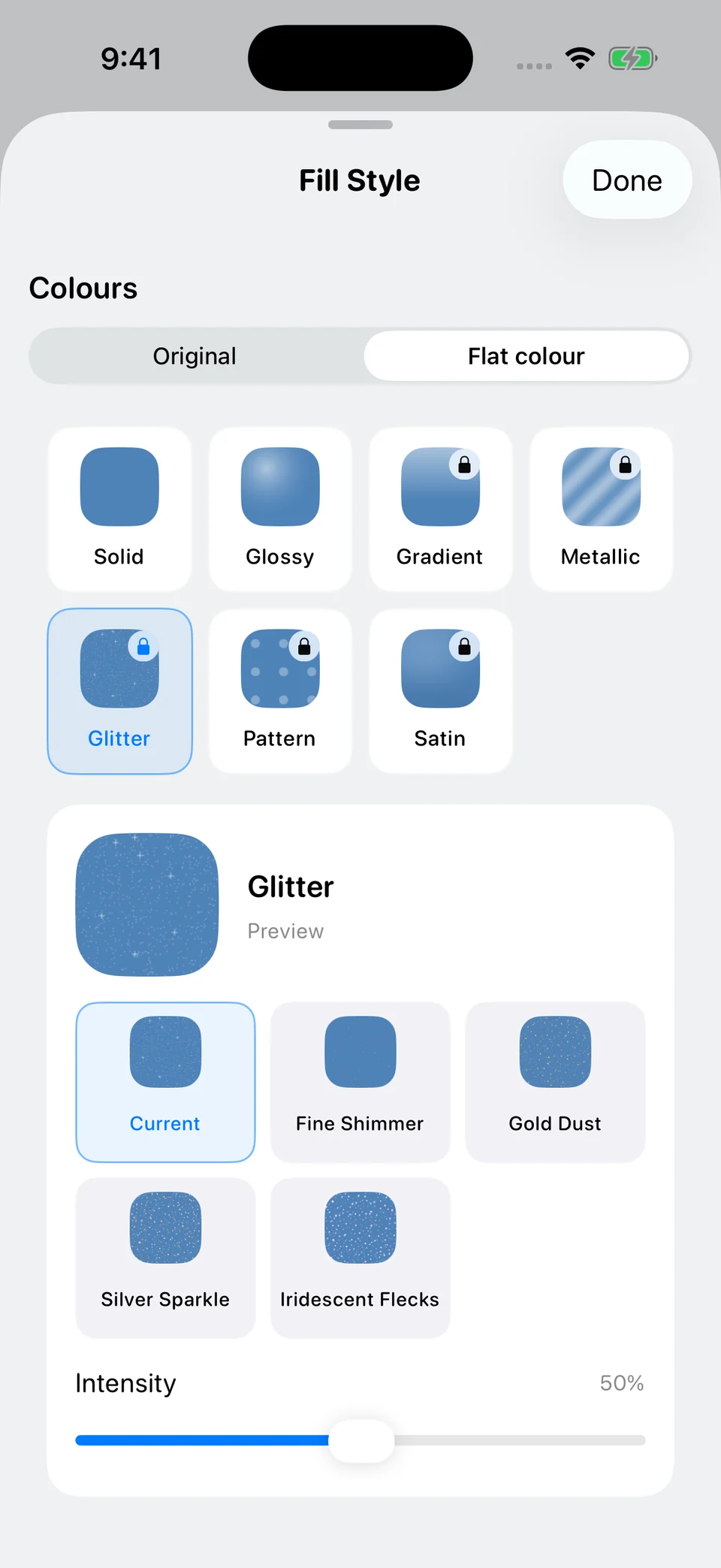
Choose a colour from the collection, then check the active tool and fill style. Changing a palette does not recolor marks you already made. I would test one area before making a larger change.
Reuse the collection in another picture
Open another artwork and select the named palette. If you want to compare full alternative colourings of one image, use editions rather than overwriting a version you like.
The verified palette editor does not impose the previously stated two-free-palette limit. Colorist is free to start with ads; Pro removes ads and adds Pro pictures, tools, sounds, and unlimited imports. Follow access prompts for the specific tool you choose.
See editions for alternate versions, or a controlled fill-style comparison.