In this article
A paper sketch can be a good starting point for your own colouring page, but its lighting and line quality still matter. Importing it does not guarantee perfect boundaries or create a carefully authored numbered palette.
Release checked: Colorist 1.1, 16 November 2026. Use the installed access screen for the offer available to your account.
I would prepare a clear photo, inspect the import, and make a small test before spending time on the whole drawing.
Prepare a source you have permission to use
Photograph the page in even light, keep it straight, and avoid a shadow from the phone. Preserve the original drawing. If outlines are faint or broken, improve the capture first rather than assuming the app will infer every missing edge.
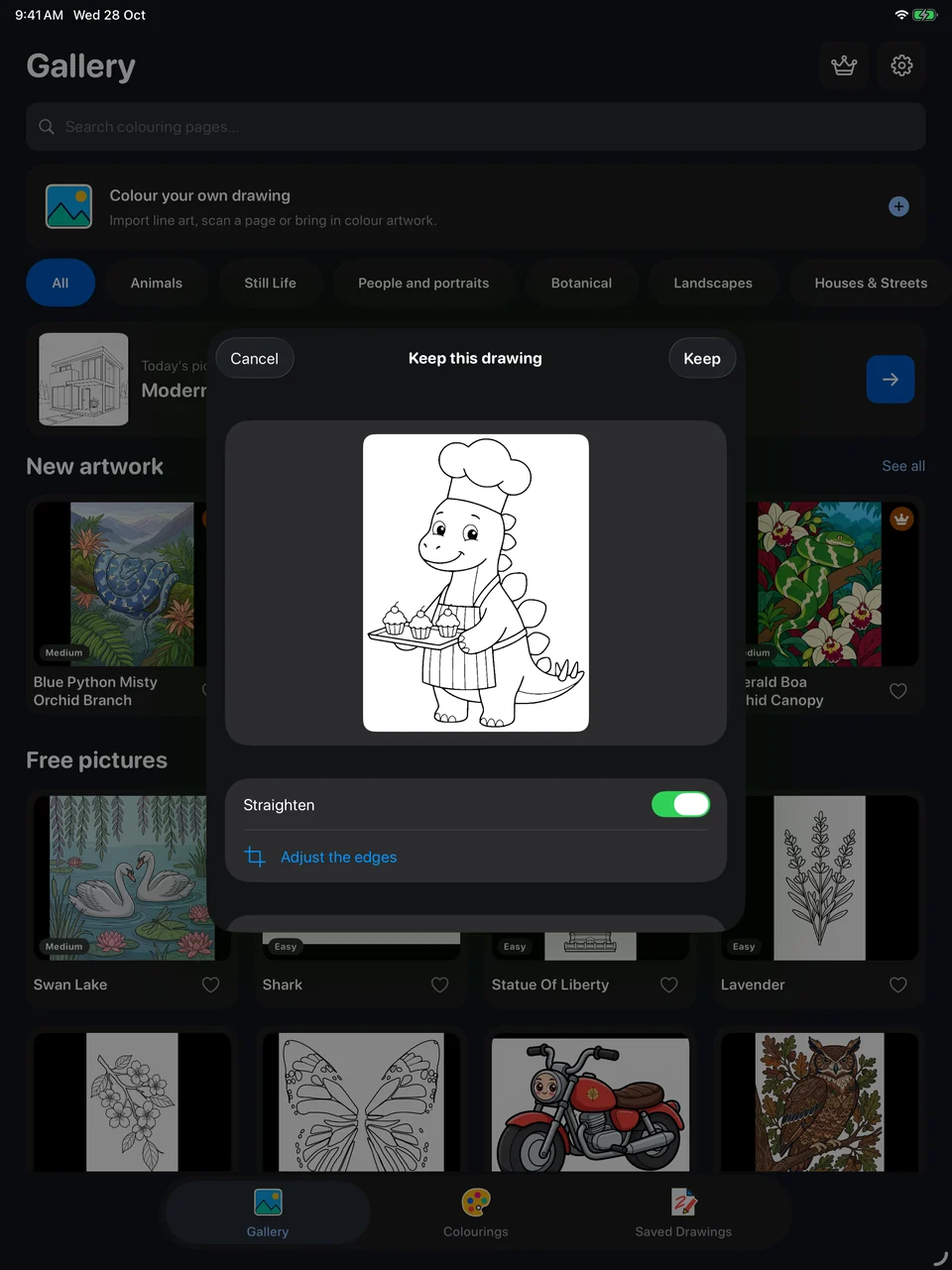
Open the imported picture
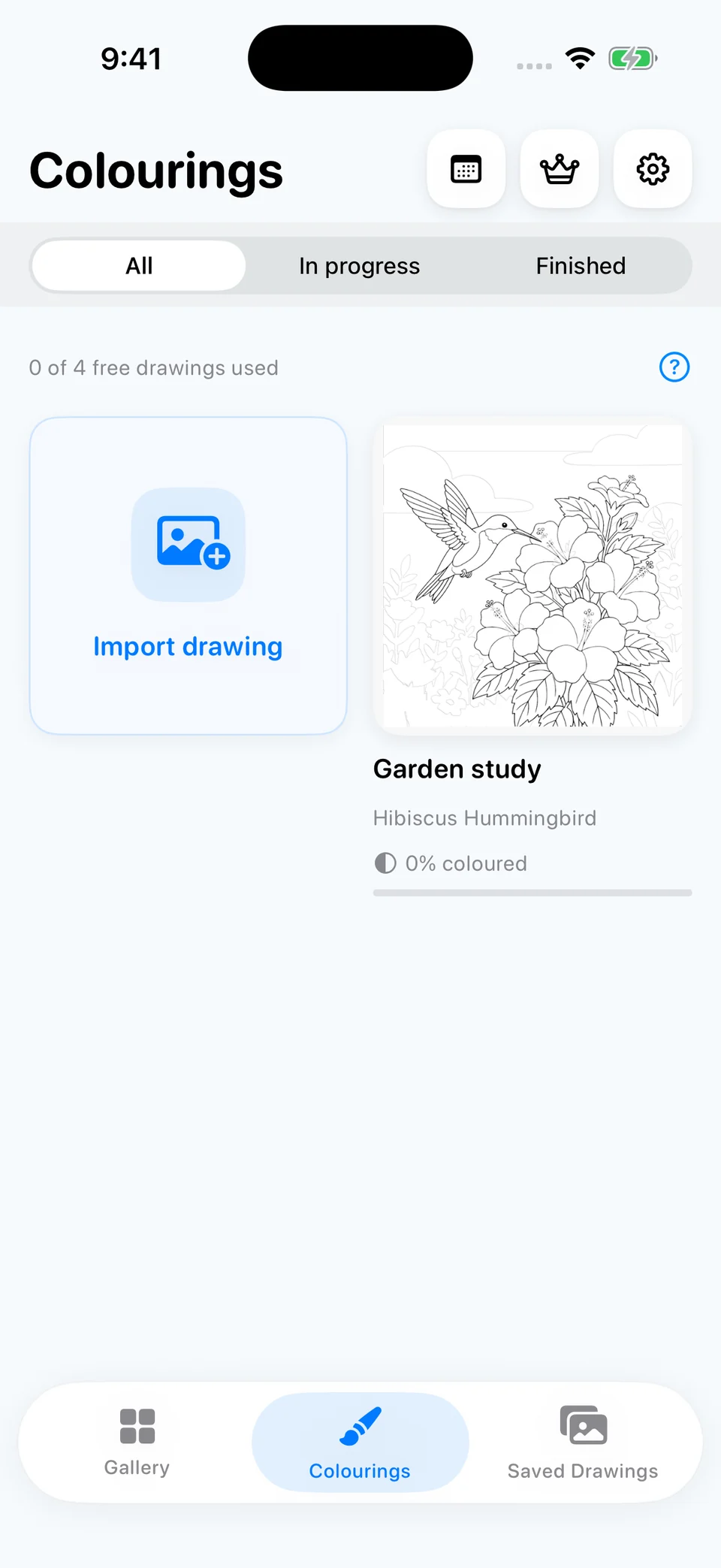
Go to Colourings and use the drawing import action. Choose your source through the offered photo or file controls, then inspect the resulting picture before colouring.
Test a closed region
Select a colour and try one region. Zoom in to inspect the line and use undo if the result is not what you intended. Test a second area near a fine detail before committing to a larger section.
Magic reveals original colours in authored pictures. An imported uncoloured sketch does not necessarily contain that reference, so choose your own colours rather than expecting Magic to invent them.
Keep and revisit the result
Return to the library and reopen the picture to check saved work. Keep an exported copy of artwork you want to preserve; local app storage is not a promise of cloud backup.
Colorist 1.1 is free to start with ads. Optional lifetime Pro removes ads and adds Pro pictures, tools, sounds and unlimited drawing imports. Some tools offer temporary rewarded-ad access; follow the installed prompt for an action rather than assuming every import is free. Artwork and progress remain on the device.
Continue with a printable artwork book or resuming a saved project.
Use one small import as the acceptance check
- Keep the original capture and choose a drawing with a clear closed shape.
- Import it through the source options actually offered by Colourings. Do not assume every document type is supported.
- Zoom in, choose your own colour and test that shape. Undo the mark if a gap or unwanted result makes the picture unsuitable.
- Return to Colourings, reopen the same project and check that you can identify the drawing and continue the work.
The library screenshot shows an imported project beside its available controls. It does not prove that every paper sketch will import cleanly. A useful result is a recognisable saved project with line quality and colouring behaviour you have checked before investing time in the whole page.
If the import is poor, improve the lighting, framing or original line work first. Magic in an authored picture has a source of original colours; it should not be treated as a way to invent those colours for an uncoloured sketch.
See Colorist app details and current access information before your next session.