In this article
When several pictures are underway, finding the one you meant to finish can take longer than adding the next colour. Colorist’s Colourings library gives those projects a place separate from browsing the catalogue.
I would begin there when returning to existing work. Opening another copy of a similar-looking catalogue picture can make the session more confusing than it needs to be.
Start in Colourings
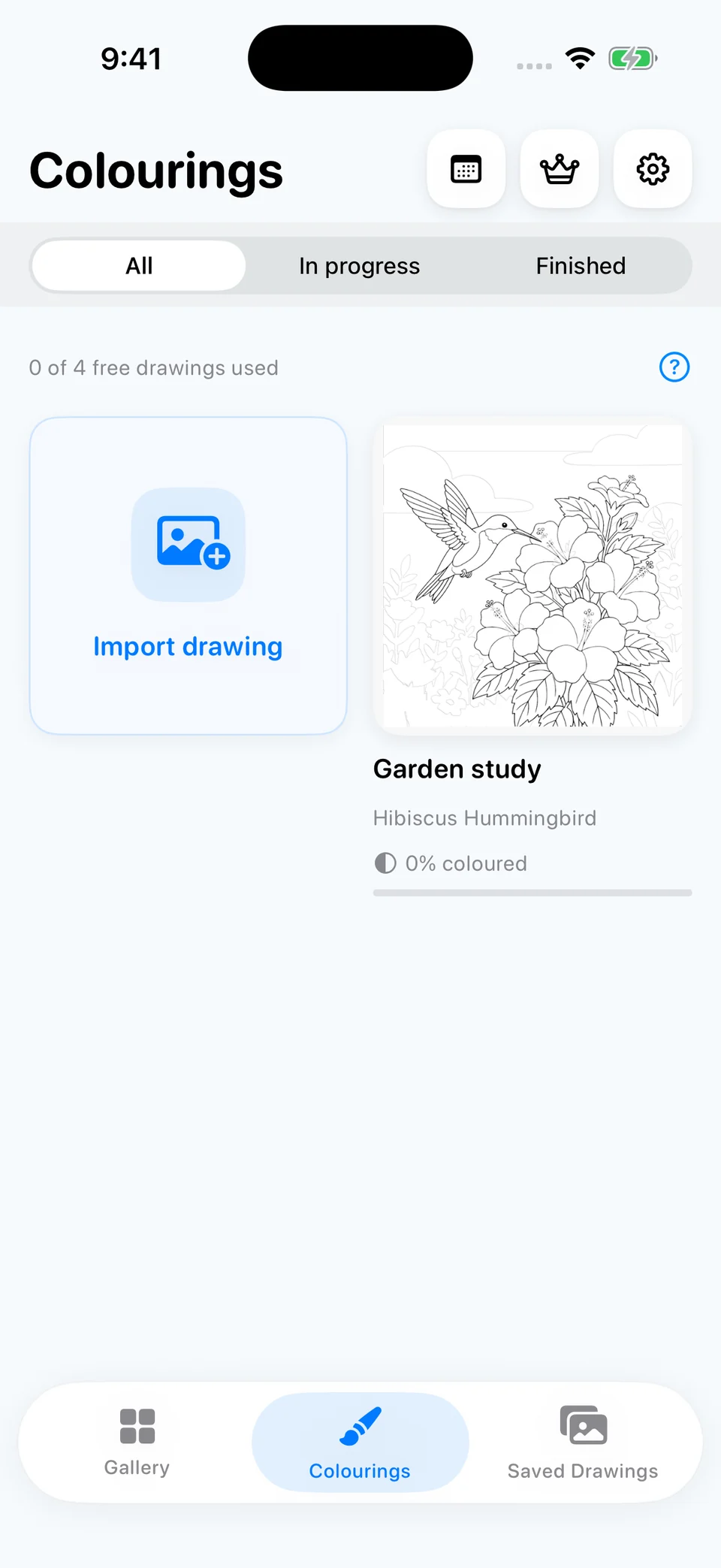
Open Colourings and choose In progress. Inspect the thumbnails for the picture you were working on. The Finished shelf is useful when the picture has already been completed; All is the wider view.
The library can also contain imported drawings. Use the picture and its name together to distinguish a personal project from a bundled illustration.
Check the picture and edition
Open the intended artwork and inspect a part you remember colouring. If it does not look right, check Editions before making another mark. Different editions keep separate colours, progress, and time-lapse histories.
I would name experiments after their difference—“blue background” or “warm flowers”—so that returning a few days later is easier. A copy and a blank edition answer different questions, and neither needs to replace the original.
Choose one next area
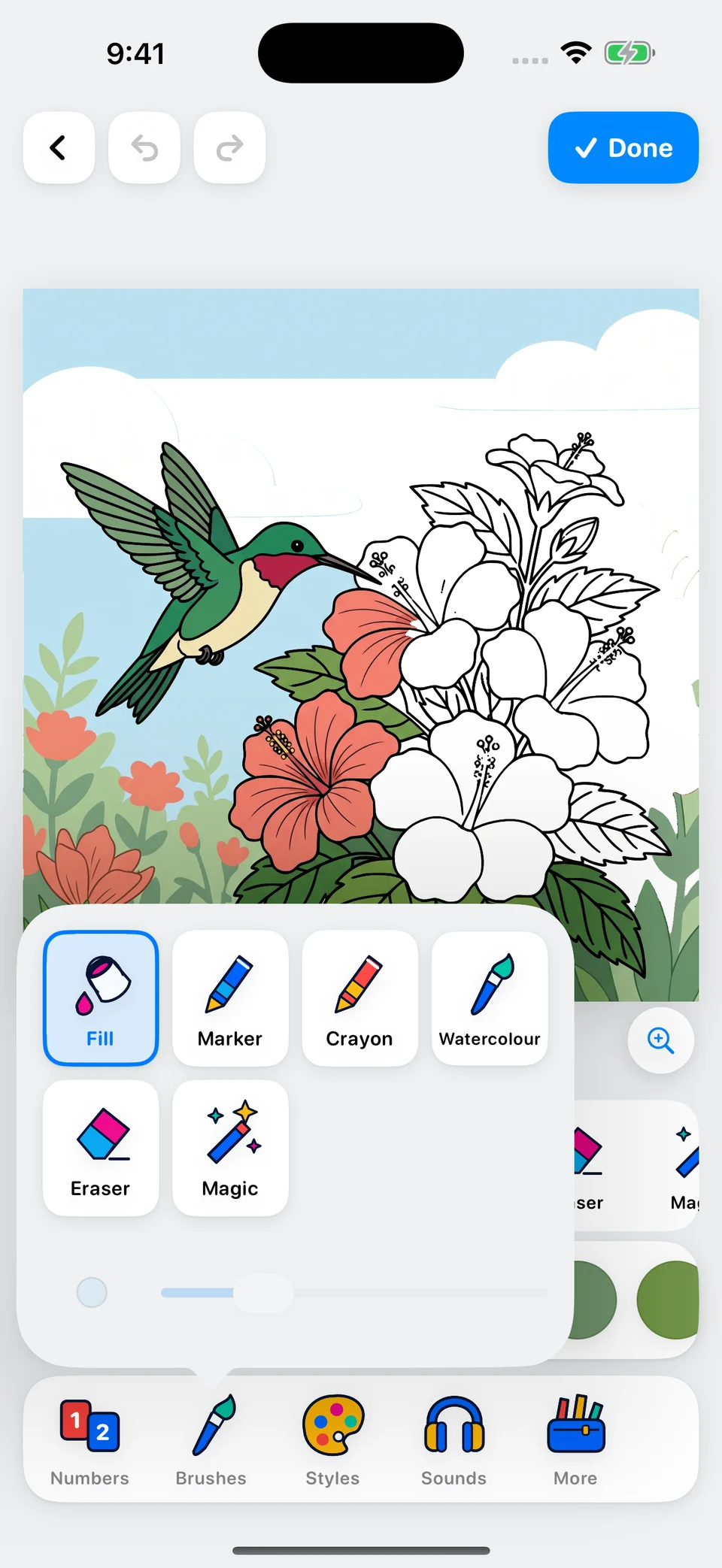
Pick a recognisable section such as the next leaf or background region. Check the tool and colour, then add a small mark. That is enough to confirm you are continuing the right work.
If you have forgotten the palette, inspect the current swatches before replacing them. Saved custom palettes help reuse a combination across pictures, but they are separate from the picture’s saved progress.
Leave the next session a clear starting point
When stopping, return from the canvas and check the library preview. Reopen it once if you want to confirm the saved state before putting the device away.
Artwork and progress stay on this device. Keeping a project in Colourings should not be treated as a promise of cloud synchronisation or protection against deleting the app. Export finished work you want to preserve through your normal backup workflow.
Free pictures and tools are available with ads. Pro removes ads and adds Pro content, tools, ambient sounds, and unlimited drawing imports. Opening the library does not make a locked tool free.
For alternate versions, see the editions guide. For reviewing your activity rather than choosing a project, use Colorist’s Activity view.