In this article
Sometimes I want to follow a picture’s prepared colours. Sometimes I want to brush the colour in, and sometimes I want a different sky altogether. Colorist offers different controls for those decisions.
The useful starting question is what you want the next mark to do. You do not have to master every tool before opening a picture.
Use numbers when you want a prepared palette
Open a bundled numbered picture. Select a numbered colour and fill a matching region. This gives you a clear next action without asking you to choose the entire palette yourself.
Zoom when the shape needs a closer look. If you want to test a tool, choose an area you can recognise afterwards and use undo before making many other changes.
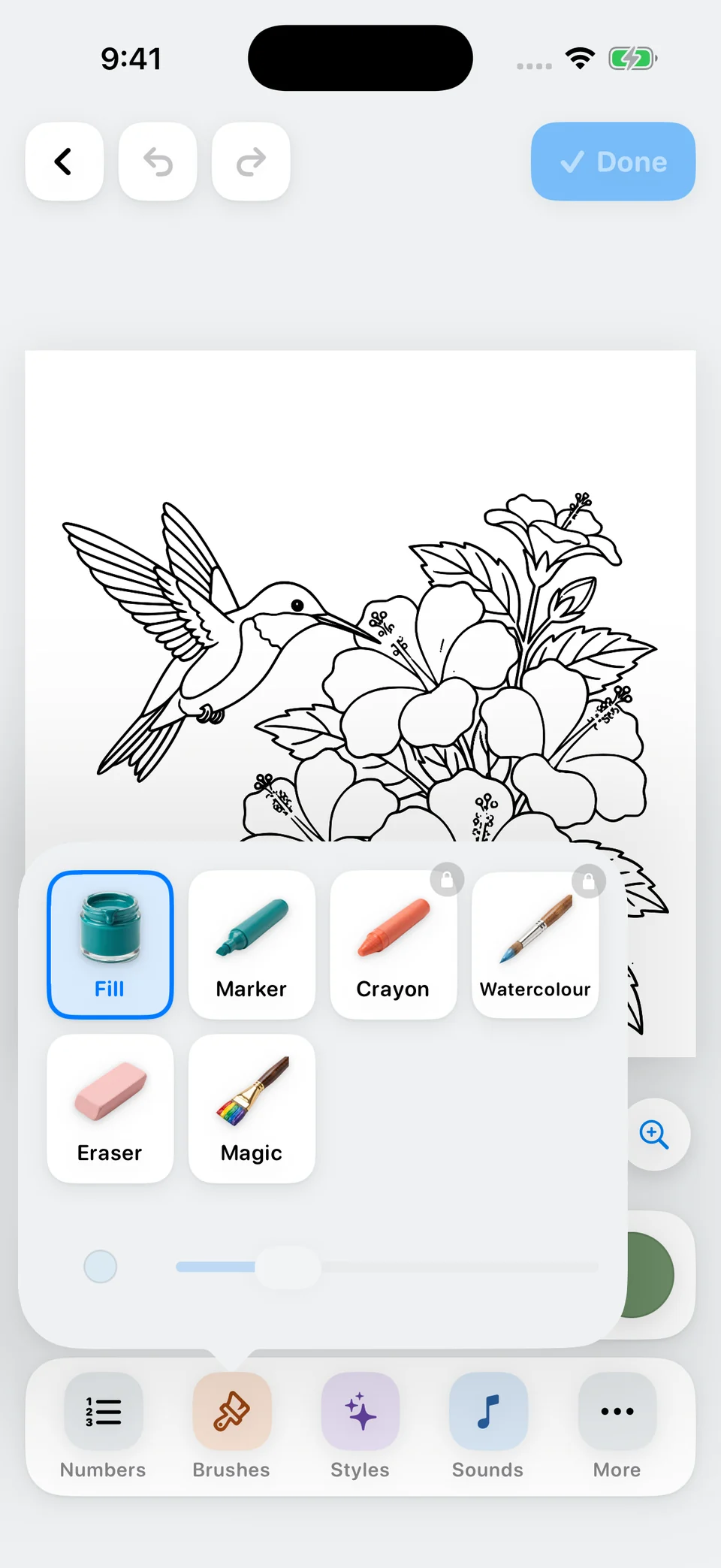
Try Magic for the original colours
Magic brushes in the picture’s original colours. Try a short stroke on a bundled picture and notice the result. It is useful when you want the reference colours to appear through a brushing action.
A drawing you import does not necessarily contain the authored colour reference of a bundled numbered illustration. I would not expect Magic to invent the intended colours of an uncolored paper sketch.
Turn Numbers off to make your own choice
For a different palette, turn Numbers off and select your own colour. Then choose the application tool you want: fill a region or make a brush mark. A tool changes the mark; the selected colour changes the pigment.
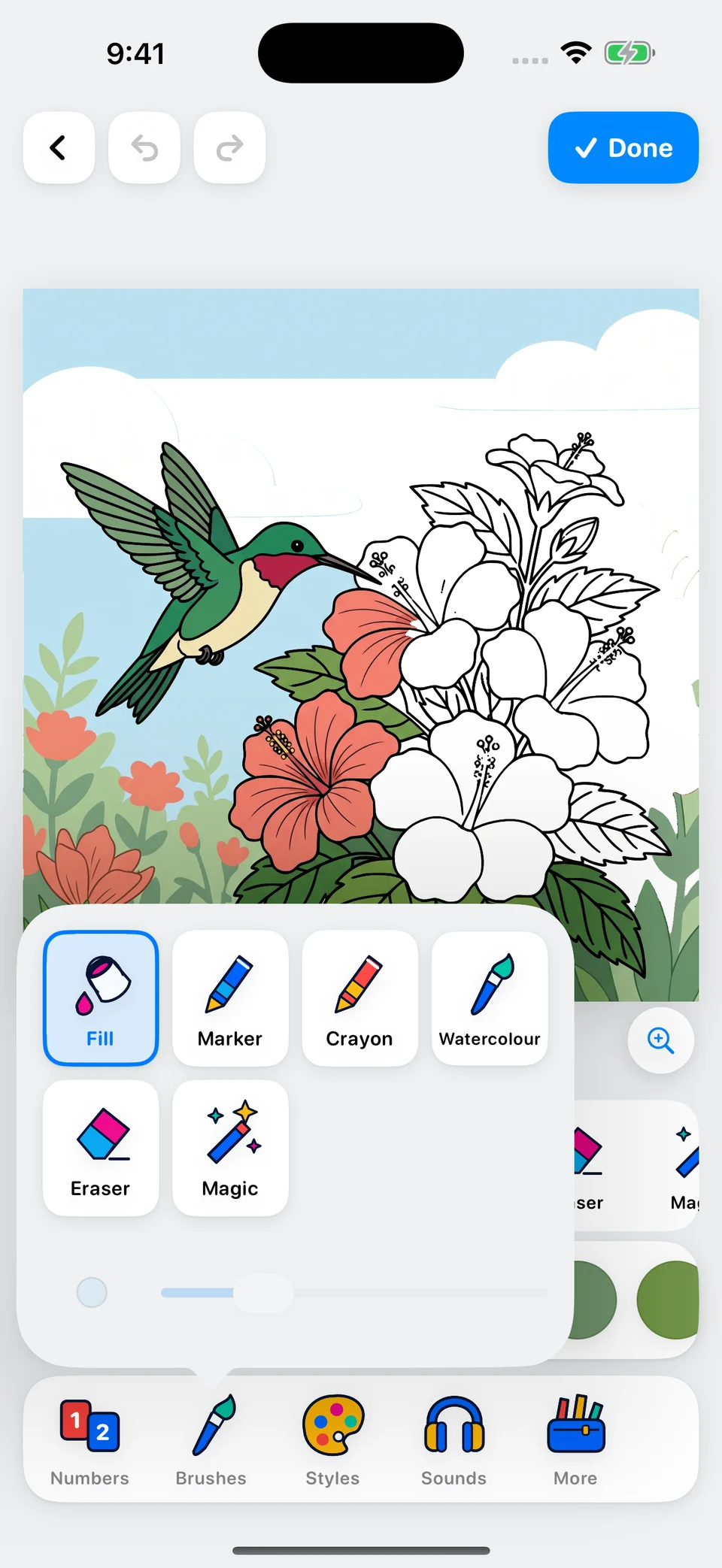
Keep the first experiment small. For example, use one background region to compare the prepared colour with a colour you choose. Changing mode, palette, and fill style together makes it harder to understand which choice produced the result.
Keep an alternative without replacing the original
If you want a full alternate colouring, create a named edition. A blank edition is useful for a fresh palette; copying the current colouring is useful when you only want to change one part.
Return from the canvas and reopen the picture to check the saved state. If you are comparing editions, verify which name is open before continuing.
Colorist includes free pictures and tools with ads. Lifetime Pro removes ads and unlocks Pro pictures, tools, sounds, and unlimited drawing imports. Some tools offer temporary rewarded access. A control’s access prompt tells you whether it is available in your current setup.
Continue with named editions, or compare fill styles while keeping the base colour consistent.