In this article
Open Personalise in the grown-up area to review the optional name, favourite themes and preferred colouring experience. These choices help shape the starting experience; they do not lock a child into one kind of picture.
The first screen should offer a useful next choice without asking for a long explanation. I would personalise Colourify lightly: choose a starting mode and a few subjects that are actually wanted, then let the activity show whether those choices help.
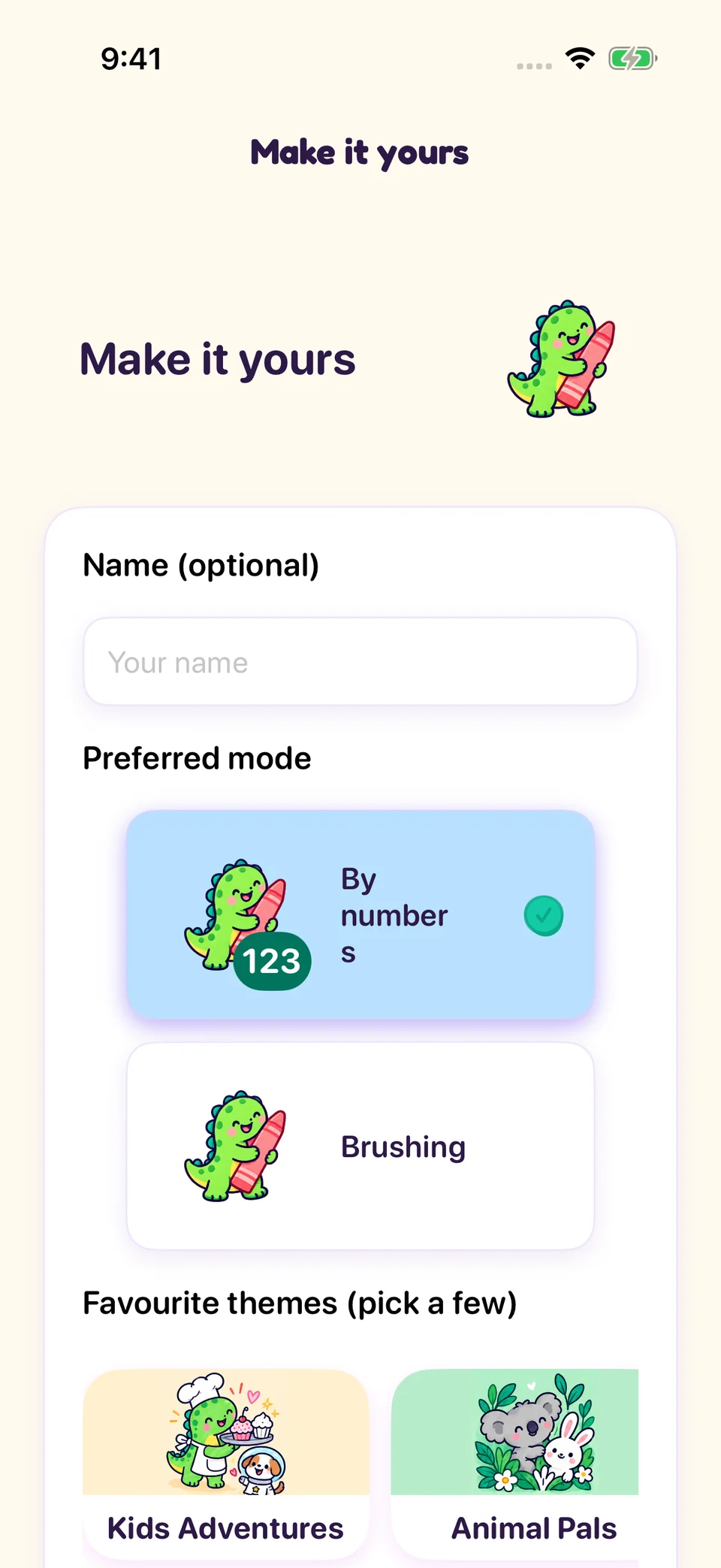
Keep personal details optional
Open the grown-up area and choose Personalise. A name can personalise the greeting, but a real full name is unnecessary for trying the app. Leave optional information empty when it adds nothing to the experience. The demonstration uses sample artwork and settings rather than a real child’s profile.
Choose a starting mode and favourite subjects
Compare numbered colouring with Brushing. Numbered pictures supply an authored palette; Brushing makes colour choice part of the activity. Select a few favourite themes so discovery can put useful subjects closer to the start. These are preferences, not skill levels or a requirement to progress from one collection to the other.
Review style and time preferences
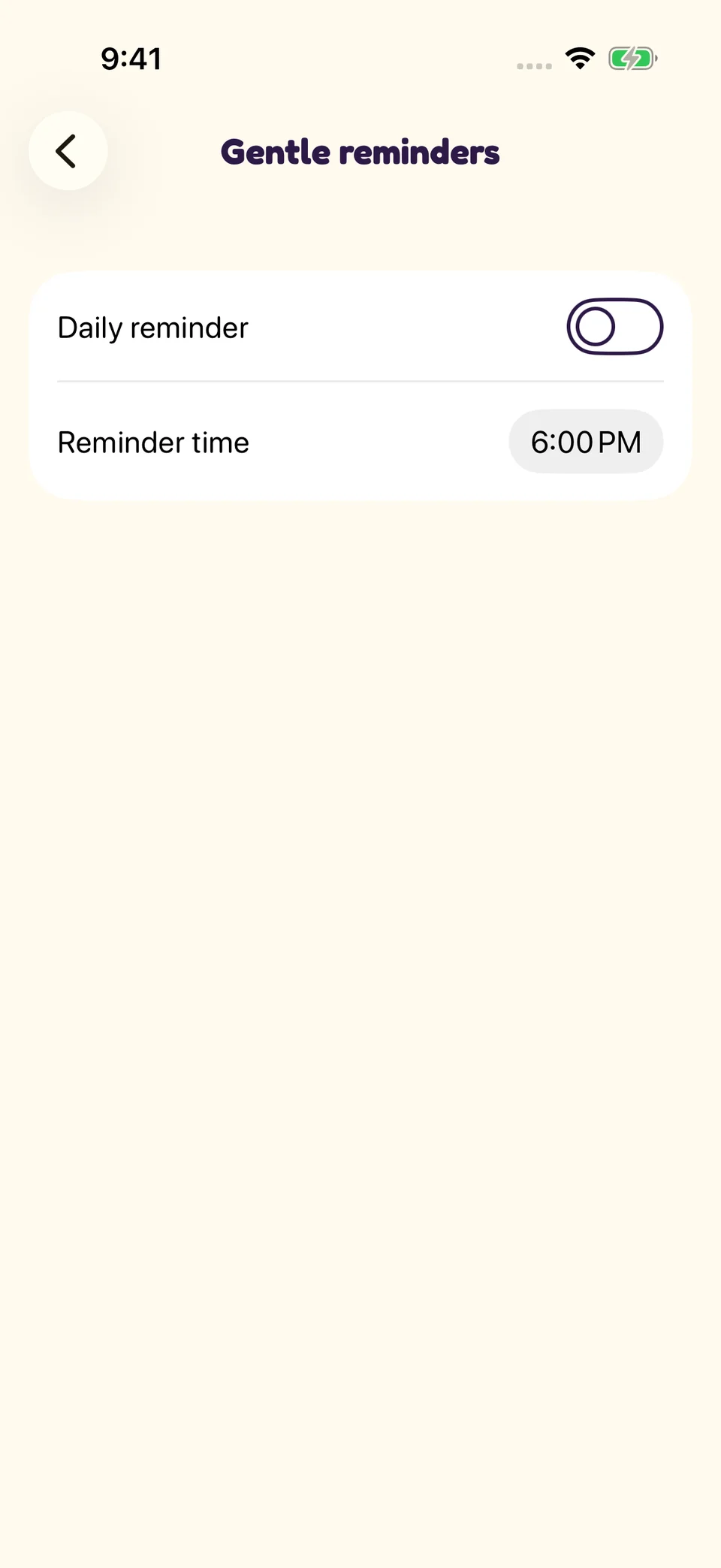
Look at the available preferred-style and colouring-time choices. Use them to describe what suits the family now, then revisit later if the activity changes. A preferred time is not the same as permission to schedule a daily notification. Reminder setup is a separate grown-up decision with its own permission and time controls.
Check the result
- Return to the gallery and inspect the starting experience.
- Check that the selected subjects are useful rather than choosing everything.
- Review any visible name before sharing screenshots or a device.
Know the access limits
Personalisation stays on the device. It does not create an account, synchronise artwork or unlock paid pictures. Free activities remain a good way to test the choices.
Explore Colourify, or continue with the related guide.