In this article
For a first Focuso session, choose one action you can finish or stop at a clear point, select a work interval and press play. Leave the extra appearance and sound choices until you know whether the basic rhythm fits the task.
Release checked: Focuso 23.0, 16 November 2026. Use the installed access screen for the offer available to your account.
This walkthrough covers released version 23.0. It replaces the older first-launch instructions: a new trial does not begin merely by opening the app.
1. Confirm access before planning the session
Eligible new users start seven days of full access through a free Apple in-app transaction. Read the confirmation shown to your account. There is no automatic charge or renewal; afterwards, lifetime access is required to start or resume further sessions. Earlier installations and valid previous purchases retain their existing access.
Use eligible access to try an ordinary task. A demonstration screenshot is not evidence that a purchase has been made, and a price shown by one storefront is not a quote for another.
2. Choose a task with a visible stopping point
“Work on my essay” leaves several decisions. “Write three rough bullet points for the introduction” tells you where to begin and gives you something to inspect afterwards. Open that document before starting the timer.
- Select the focus mode on the timer screen and check the displayed duration.
- Choose the task you intend to work on, or keep the general task if it is sufficient.
- Press play, then do the action you chose. Review distractions and notification settings separately.
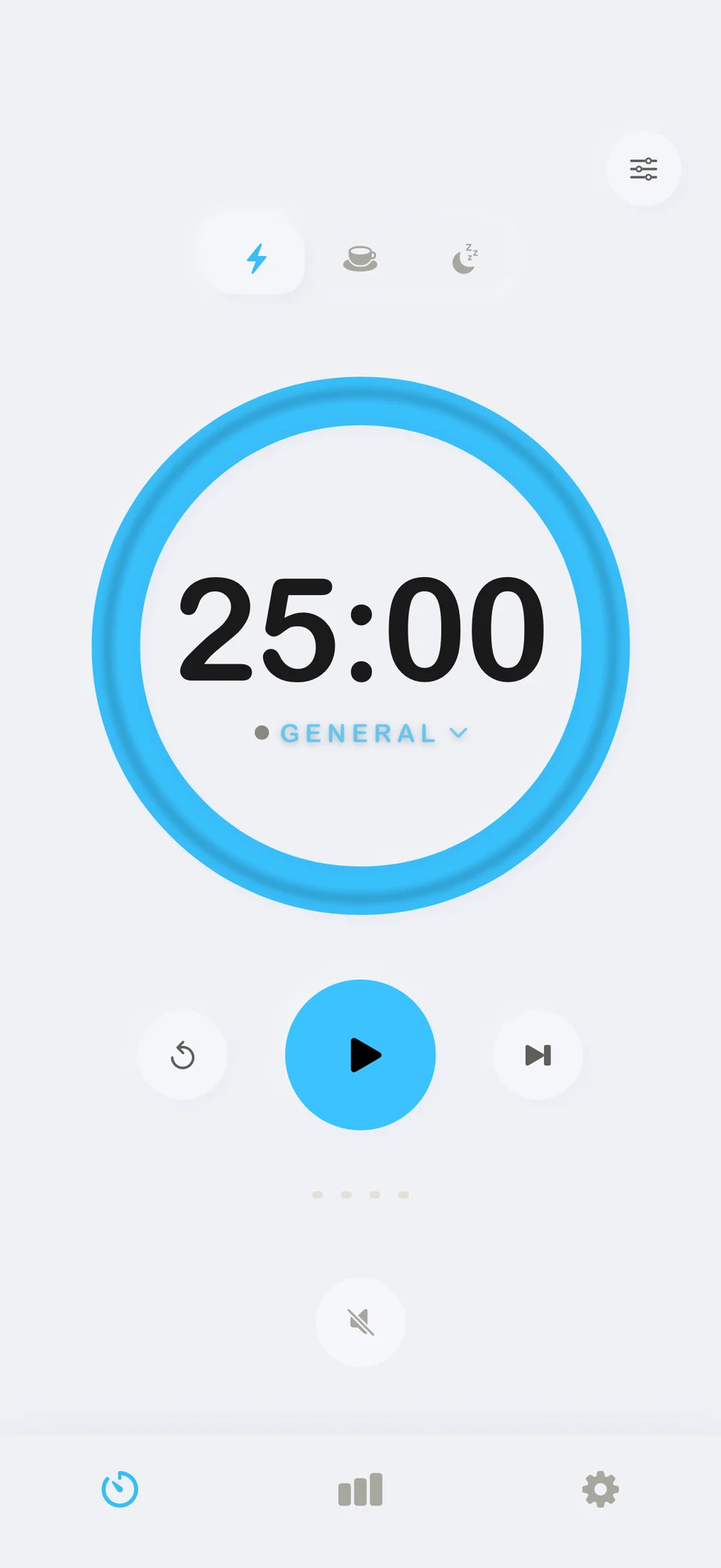
The screenshot shows the native 23.0 timer before a session starts. It is an example setup, not a record of completed work.
3. Check background timing and alerts separately
Focuso uses a date-based countdown, so you can open the app containing your task and return to the timer. That timing behaviour does not guarantee that every device will present a notification exactly as you expect.
If an alert matters, enable the completion notification and test a short interval. Device notification permissions and Focus settings affect delivery and presentation. The notification checklist helps separate these settings from the timer itself.
4. Take a break and leave the next action
When the work interval ends, note where you stopped, then select a short break or the break appropriate to your routine. Check its displayed duration. Standing up or getting water can be enough; decide what makes returning manageable for you.
If the session was interrupted, record that honestly. You can change the task size or duration for another attempt without turning one stopped timer into a judgement about the whole day.
5. Check what actually happened
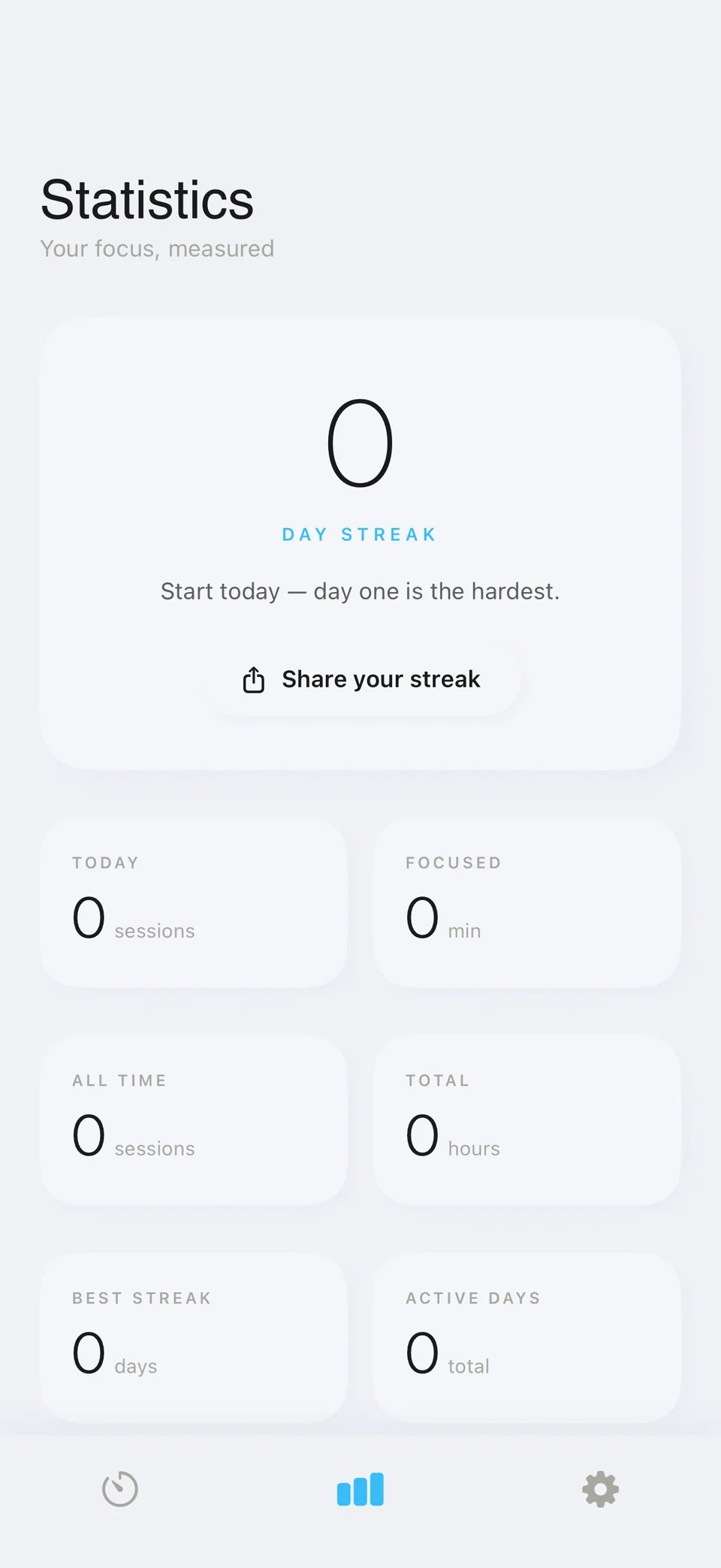
The clean demonstration installation has no completed sessions. Your own check is the work you can point to and the record available after your session:
- Did you write the three bullet points, or identify exactly where you stopped?
- Does the available session record match the activity you intended to time?
- Can you name the next action after the break?
Time recorded is not proof of uninterrupted attention. Keep one useful observation and change one setting at a time. The 25/5 and 50/10 comparison provides a way to try different durations without claiming a universal best schedule.
Current access
In Focuso 23.0, eligible new users start seven days of full access by completing a free Apple in-app transaction. There is no automatic charge or renewal. Afterwards, a one-time lifetime purchase is required to start or resume further sessions. History and Settings remain accessible. Existing installations retain their earlier freemium access, and valid earlier purchases remain honoured.
See Focuso app details and current access information before your next session.