In this article
A timer hidden in a browser tab or buried behind a full-screen editor stops doing its job the moment you forget it is running. When I work on a Mac, I prefer keeping Focuso open in its own small window beside whatever I am building or writing, so a quick glance tells me where the session stands without breaking my train of thought.
This is a practical workflow note from my own desk rather than a list of system tricks. Focuso is built for iPhone and iPad, and on Apple silicon Macs running macOS 14.0 or later (M1 or newer) it runs as a compact window you can park alongside your main work.
Where I park the window on a second screen
If you use an external monitor, the temptation is to throw every reference window onto the far side of the second display and forget about it. For a timer, that usually backfires because turning your head away from your main screen feels like checking a separate device.
Instead, I place the Focuso window along the inner edge of my second display—right next to the bezel that meets my primary screen. When I am working on a laptop alone without an external monitor, I narrow the main document or code editor slightly and tuck Focuso into a slim vertical strip on the right-hand side.
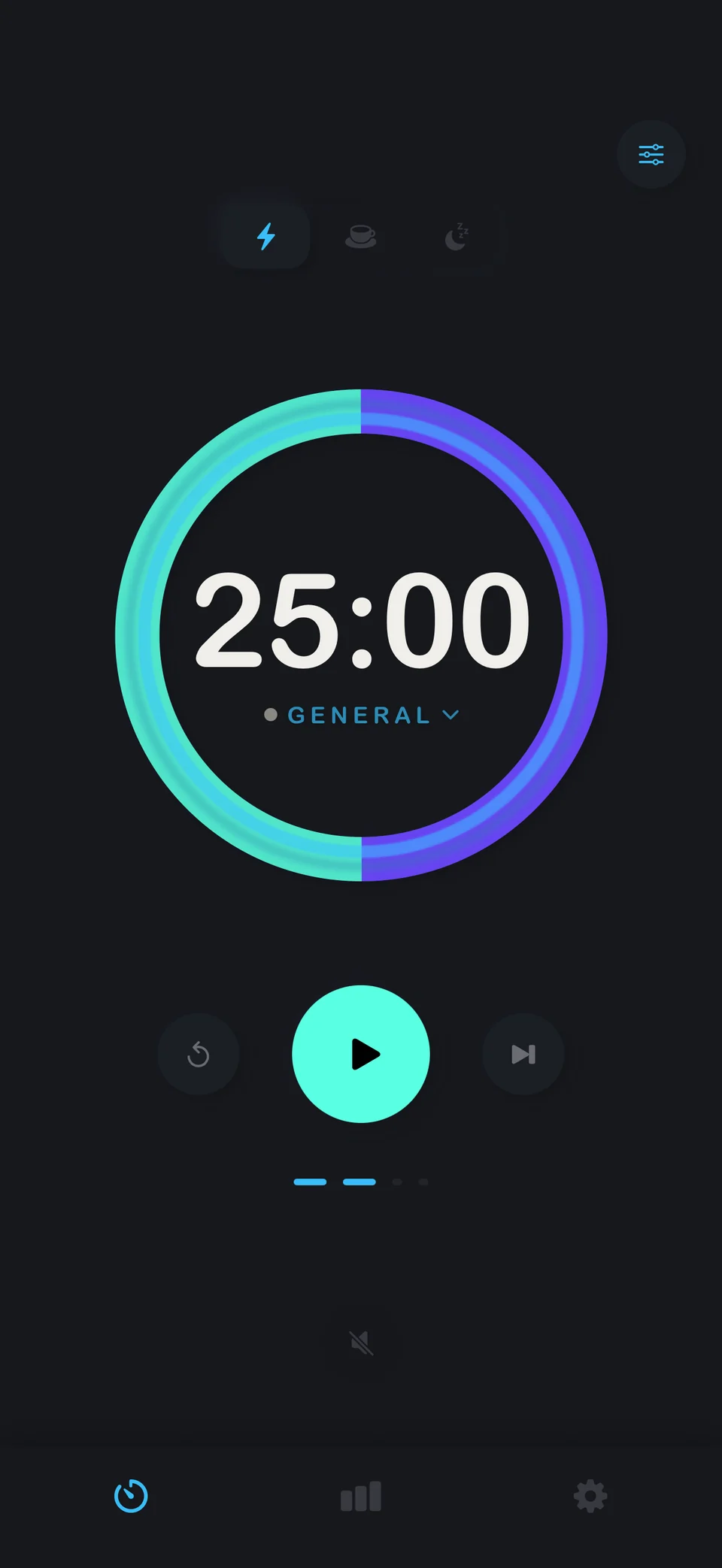
Because Focuso’s interface is designed around a vertical mobile layout, it stays legible in a narrow portrait window. The central countdown and progress ring remain easy to read without eating half a desktop, and you can match Light or Dark appearance—including high-contrast OLED dark mode—so the window does not sit like a bright rectangle next to a dark workspace.
Keeping the countdown visible without babysitting it
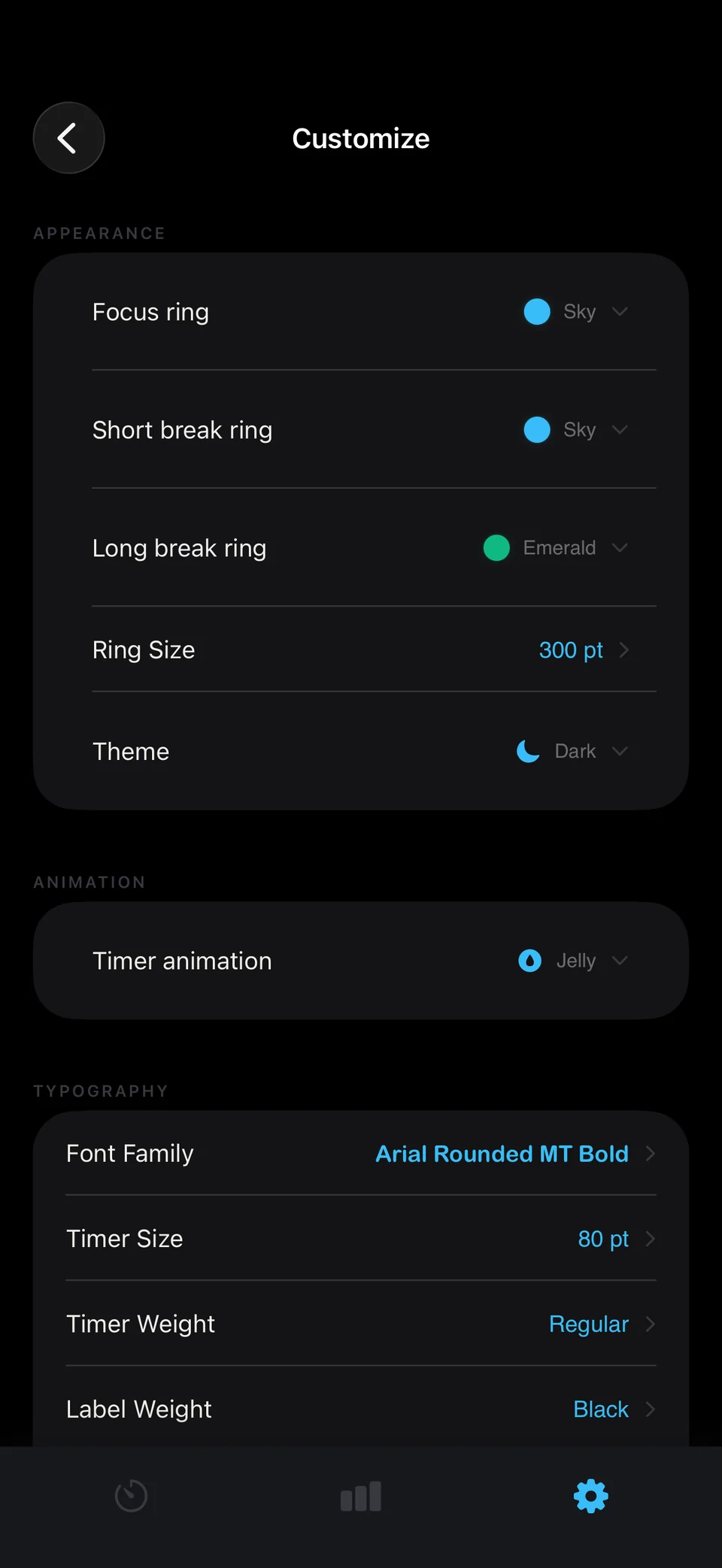
Once the window is parked, the goal is to stop fiddling with it. I pick one task name, choose a focus interval that fits the block ahead—such as 25/5 or 50/10, or the open count-up flow when I do not want a hard stop—and leave the ring animation on something calm. Focuso includes five timer animations and customisable focus ring colours, so you can pick a pairing that stays unobtrusive in your peripheral vision.
Even with a second screen, windows still get covered during video calls or when a full-screen app takes over. Focuso uses a date-based countdown, which means covering or leaving the app window does not pause or drift the clock; when you bring the window back into view, the remaining time is accurate.
If you often work with the timer hidden behind other windows, optional completion alerts matter more than visual placement. Before relying on an end-of-session chime during a busy afternoon, run a short test interval and verify macOS notification permissions using the completion alert checklist. If you also log sessions on an iPhone or iPad, optional iCloud sync keeps your session history and streaks aligned across devices without needing a Focuso account.
Using ambient sounds and Studio Music quietly
On a Mac, Focuso often shares audio output with calls, voice notes, or reference videos, so I treat background audio conservatively. I keep ambient soundscapes—rain, café, forest, ocean waves, fireplace, or white noise—and Studio Music low enough that they sit behind my thoughts rather than competing with them.
My rule on a desktop setup is to choose or adjust a mix before pressing play, then leave the sound panel closed while I work. Changing levels mid-session usually turns into procrastination disguised as tweaking your environment. If you want to test layered mixes properly, my notes on balancing ambient soundscapes cover how to judge one layer at a time against the actual task.
When the work interval finishes, I let the short break or long break timer remind me to step back from the keyboard rather than clicking straight into the next task. The value of a second-screen timer is not squeezing more minutes out of the day; it is making the boundary between working and resting obvious.
Mac compatibility and access limits
Before setting up this workflow, check your hardware: Focuso 23.0 supports Apple silicon Macs running macOS 14.0 or later (M1 or newer), alongside iPhone (iOS 17.0+) and iPad (iPadOS 17.0+). It is not a separate Intel Mac build. The timer, ambient audio, and session history work offline with no account required, though App Store purchases and restores need an internet connection.
For access in Focuso 23.0, eligible new users can start seven days of full access by completing a free Apple in-app transaction, with no automatic charge or renewal. After the trial, a one-time lifetime purchase is required to start or resume further sessions, while your session history and Settings remain accessible. Earlier installations keep their previous freemium access, and valid earlier purchases remain honoured.
If you want to try this layout beside your own work, you can check compatibility and current App Store details on the app page.