In this article
A timer can finish correctly while its notification goes unnoticed. Before changing your study routine, I would check the session-completion setting, iPhone permission, and the conditions under which you expect to hear it.
This guide concerns the alert at the end of a Focuso session. Scheduled study reminders are a separate feature, so turning on one does not answer every question about the other.
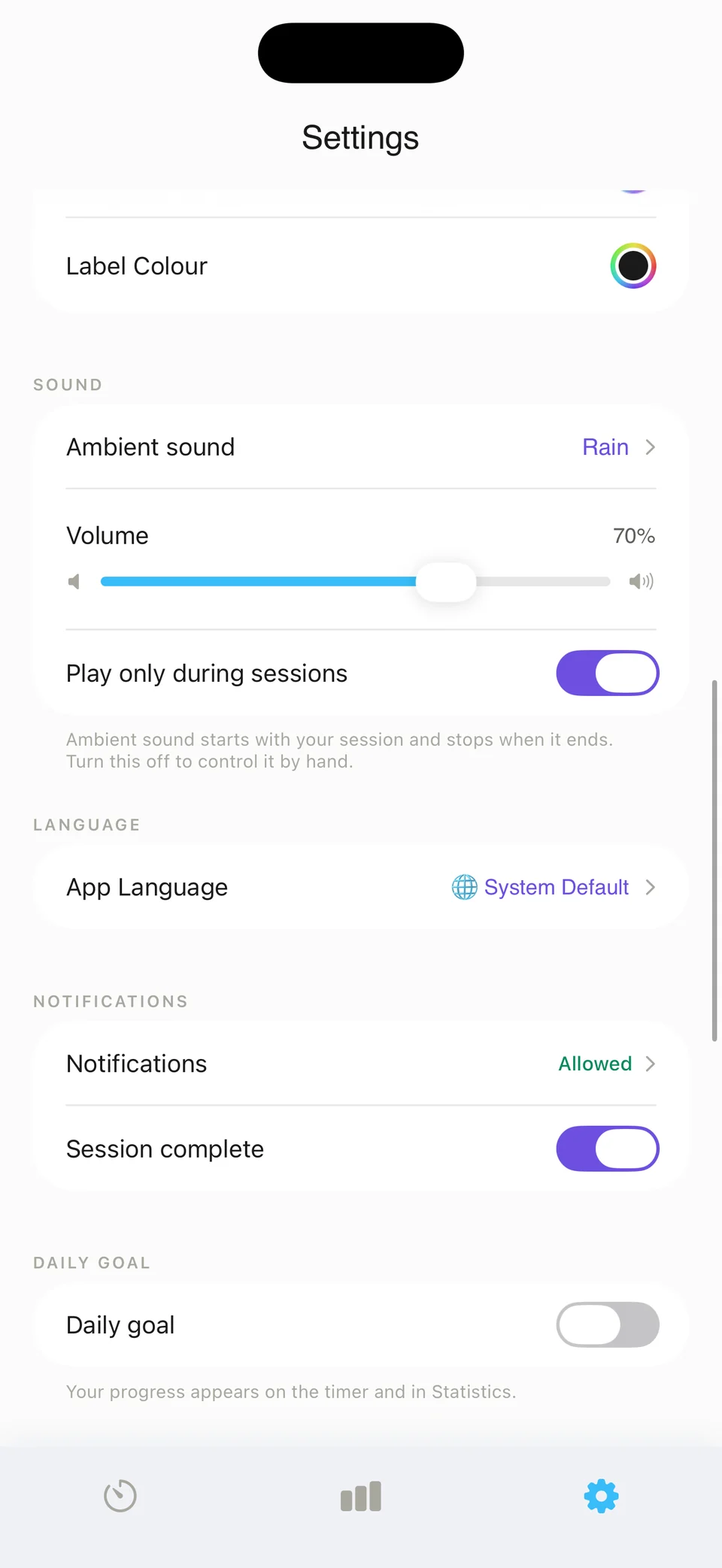
Check Focuso’s completion control
Open Settings and find the notification area. Check Session complete and the displayed notification permission state. Make sure the feature is available through your trial or Pro access.
The released Focuso 22.0 listing includes session-completion notifications among Pro features. Its seven-day trial begins on first launch; lifetime Pro is an optional one-time purchase with no subscription.
Inspect the iPhone’s notification settings
In the device’s Settings, open Notifications and find Focuso. Review whether notifications are allowed and which presentation options you want. Also inspect any active Focus mode and sound settings that could affect what you notice.
Grant the behaviour you need rather than enabling every alert indiscriminately. Apple’s notification settings guide explains the system options for your iOS version.
Run a small background test
- Choose a short test interval through the controls available to your access level.
- Start it and switch to the app you normally work in.
- Wait for completion without pausing the timer.
- Check whether the alert appears and whether its sound and placement suit your setup.
Then repeat with the device locked if that is how you normally study. A foreground test does not establish how a locked-screen session will feel.
Change one condition at a time
If the test is quiet, inspect the notification in Notification Center and compare it with the expected timer end. Try changing one permission or Focus setting, then repeat. Reinstalling the app is a poor first troubleshooting step because it can put local history at risk.
If the behaviour still seems wrong, note your app version, iOS version, timer mode, and whether the phone was locked. Send those details through the app’s feedback route when you choose to contact me; you do not need to attach private study material.
For getting the timer itself started, see the first-session guide. For prompts to begin later in the day, use scheduled study reminders.