In this article
Bringing a paper colouring book and a tin of pencils onto a commuter train rarely survives the first sharp brake. You need a free tray table, decent overhead lighting, and both hands—otherwise a pencil rolls under the seat in front while you are reaching for your stop.
When I use Colorist on my iPhone during a rail journey, I treat it differently from sitting at a desk at home. A carriage sways, signal drops in tunnels, and some hops last only two or three stops, so the setup has to handle interruptions without leaving a mess behind.
Pick Fill over freehand brushing when the carriage sways
On a steady sofa, dragging a Marker or textured brush across an open canvas feels natural. On a moving train—especially if you are standing with one hand on a grab rail or holding a bag—freehand strokes drift the moment the train hits a set of points.
For one-handed sessions, I switch to Fill in the brush tray and leave numbered mode on. You only need a single thumb tap to fill a region, and numbered regions keep you from having to judge colour choices while people walk past in the aisle. If you want the picture’s original shading without hunting for exact edges, Magic is the middle ground, though I still find tap-to-fill far more forgiving when the ride gets bumpy.
Pinch to zoom in on tight botanical details or mandalas before you tap. Giving yourself a larger target on screen prevents missed taps and saves you from constantly hitting undo. If you do want to experiment with custom gradients, satin, glitter, or patterns, save those touches for the quieter stretch of the journey when you have a seat.
Troubleshooting signal dropouts in tunnels and rural stretches
Train Wi-Fi and mobile data both cut out without warning. Colorist does not require an account to start, and your artwork, custom palettes, and progress stay on your device. Bundled pictures can be coloured completely offline, so a tunnel will not lock you out of a page you have already started.
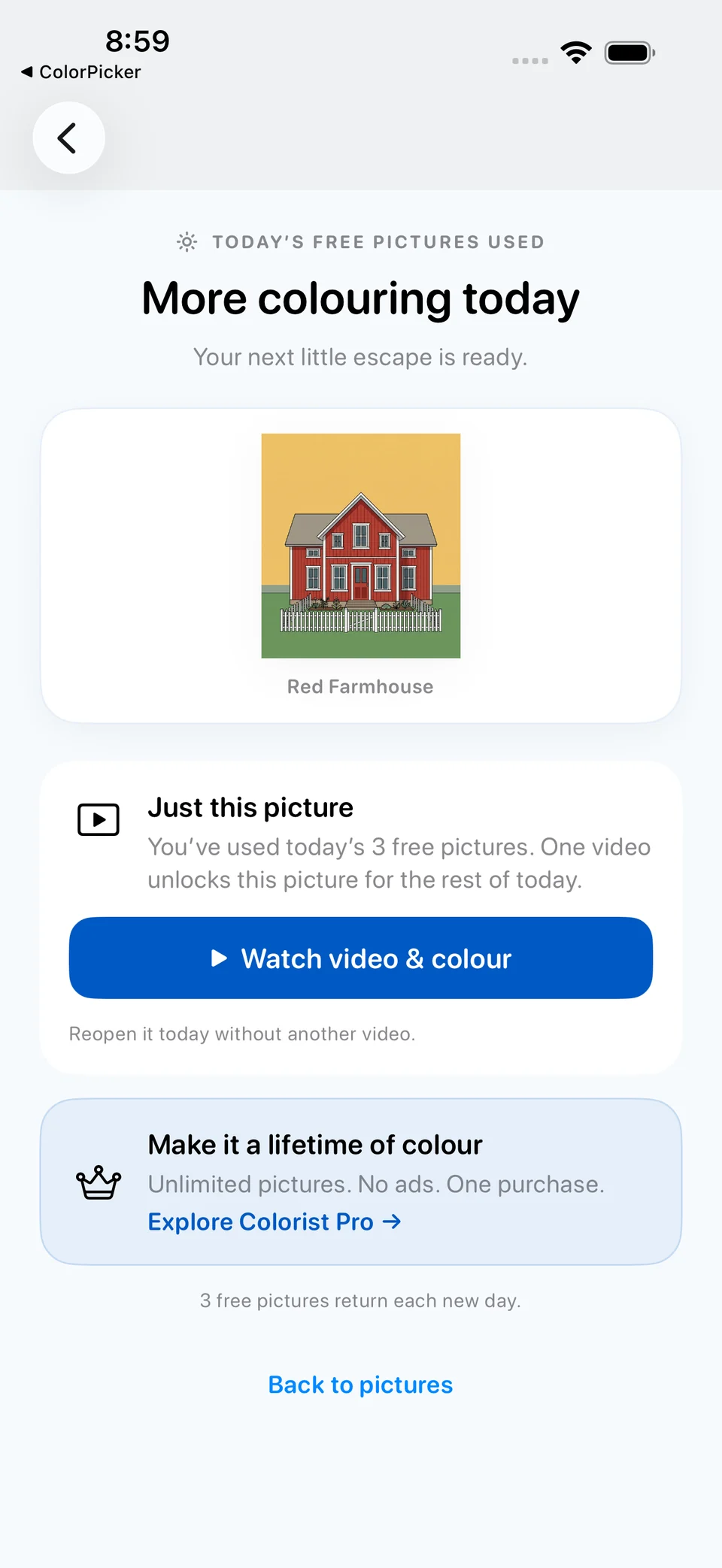
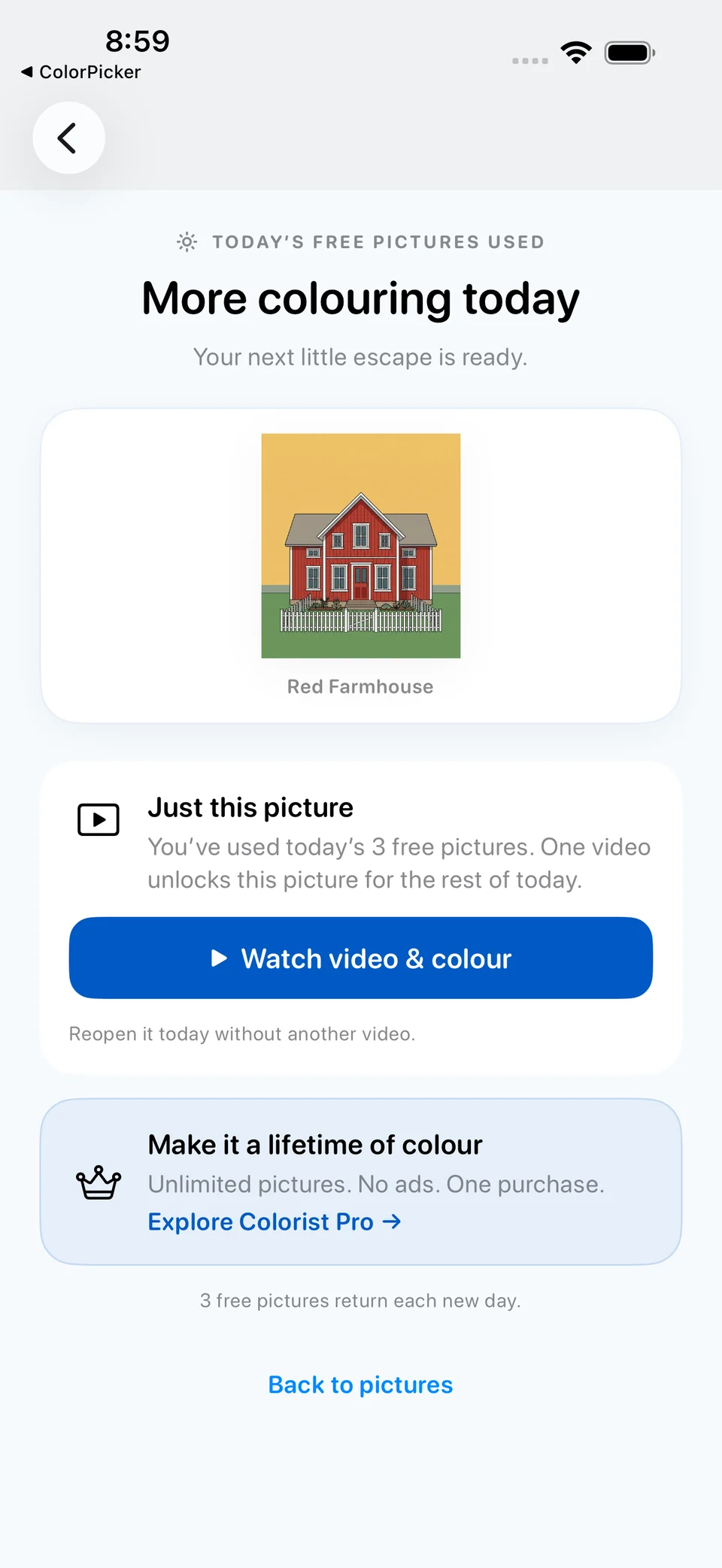
Where people get caught out is assuming every part of the app works offline. Advertising in the free version, in-app purchases, and sending feedback all require an internet connection. If you plan to unlock a locked tool temporarily by watching a rewarded ad, do that on the platform before you board rather than waiting until the train pulls into a cutting.
- Test in flight mode first: Open your chosen bundled picture before leaving home signal to confirm it loads cleanly with data switched off.
- Keep purchases for station signal: Complete or restore Colorist Pro while you have a reliable connection, not mid-journey.
- Check audio before pressing play: Colorist lets you mix ambient sounds while you colour, which can take the edge off carriage rattle through headphones, but keep your device volume modest so you still hear station announcements.
Short stops and picking up an unfinished picture
Most commutes are broken into awkward five- or ten-minute windows. You rarely finish a detailed portrait or landscape in one ride, and you should not have to rush to beat your station.
Because Colorist saves progress automatically on the device, you can lock your phone as the doors open and return to the exact spot on the ride home. When you have multiple pieces underway, open Colourings and check the In progress shelf rather than scrolling through the full catalogue again. I wrote a separate walkthrough on finding an unfinished picture in Colourings if you want a reliable routine for keeping track of half-done pages.
If you want an even faster way back in on a crowded platform, add the Colorist Studio widget to your Home Screen in small, medium, or large. Tapping it takes you straight back to your latest artwork without hunting through folders; you can see how the sizes behave in my Colorist Studio widget guide. And if you feel like trying a bold colour swap during a short hop without risking your main version, create a separate named edition first so your original progress stays untouched.
Common train-session snags and quick fixes
Even with a simple setup, a few predictable snags pop up on public transport. Here is how I handle them:
- A jolt makes you tap the wrong area: Hit undo immediately before making any further marks. Zooming in one extra step on small regions reduces how often this happens.
- A rewarded tool will not unlock in a dead zone: Rewarded ads need an active connection. Switch back to free bundled tools until you reach the next station with signal, or stick to numbered Fill for the rest of the ride.
- You forget which colour scheme you were using yesterday: Save your favourite combinations as named custom palettes. Reopening a saved palette across sessions is much quicker than trying to remember which shades you picked three days ago.
- The widget thumbnail looks out of date: iOS controls when Home Screen widgets refresh. Open Colorist and check the In progress shelf directly—your saved strokes are inside the app even if the widget preview lags behind.
Know the access limits before you board
Colorist is free to start with a selection of pictures and tools, supported by ads in the free experience. Colorist Pro is an optional one-time purchase—there is no subscription—that removes ads and unlocks Pro pictures, extra tools, ambient sounds, and unlimited drawing imports. Decorative designs, posters, and printable PDF books include a Colorist credit and QR code, which Pro can also turn off.
If you want to try a calm, one-handed session on your next train ride without carrying pencils or paper, you can check the full feature list and App Store link on the app page.