In this article
On a long car journey, mobile signal drops out along rural stretches and motorways, and once you are buckled into the front seat you cannot lean back every five minutes to fix a stalled download or dismiss a prompt. Setting up an iPad for the back seat works best when you handle the checks before the engine starts.
When I built Colourify, I kept bundled colouring pictures on the device with no ads and no account sign-in, because a family tablet should not depend on a patchy connection. Even so, a car trip has its own constraints—window glare, road noise, and the fact that the driver cannot troubleshoot mid-journey—so following a simple timeline saves hassle later.
The night before: check offline pictures and restores
While you still have reliable home Wi-Fi, open Colourify on the iPad you are actually taking in the car. Bundled pictures work offline and artwork progress stays stored on the device, but purchases, restoring Unlock Everything on a second tablet, and sending feedback all require an internet connection. Leaving a restore until a motorway car park with one bar of signal is an easy way to start a trip frustrated.
If your child wants to colour a photograph of a paper drawing or an imported page in My Art, bring that photo into the app while you are still connected. Images that sit only in cloud photo storage cannot be pulled down once signal disappears.
Once everything is updated, switch the iPad to flight mode for two minutes and run a quick check:
- Open the gallery and confirm both numbered and brushing pictures load without a connection.
- Tap a few areas in a numbered picture, then test undo and zoom in a brushing picture.
- Return to My Art to check that the preview updates and stays saved locally.
At the car door: pick sound or quiet, and set the starting picture
Before everyone climbs in, decide whether the tablet will play audio or stay silent. Tyre noise and front-seat conversation compete with small speakers, and a background track that felt gentle in a quiet living room can wear thin after forty minutes on the motorway.
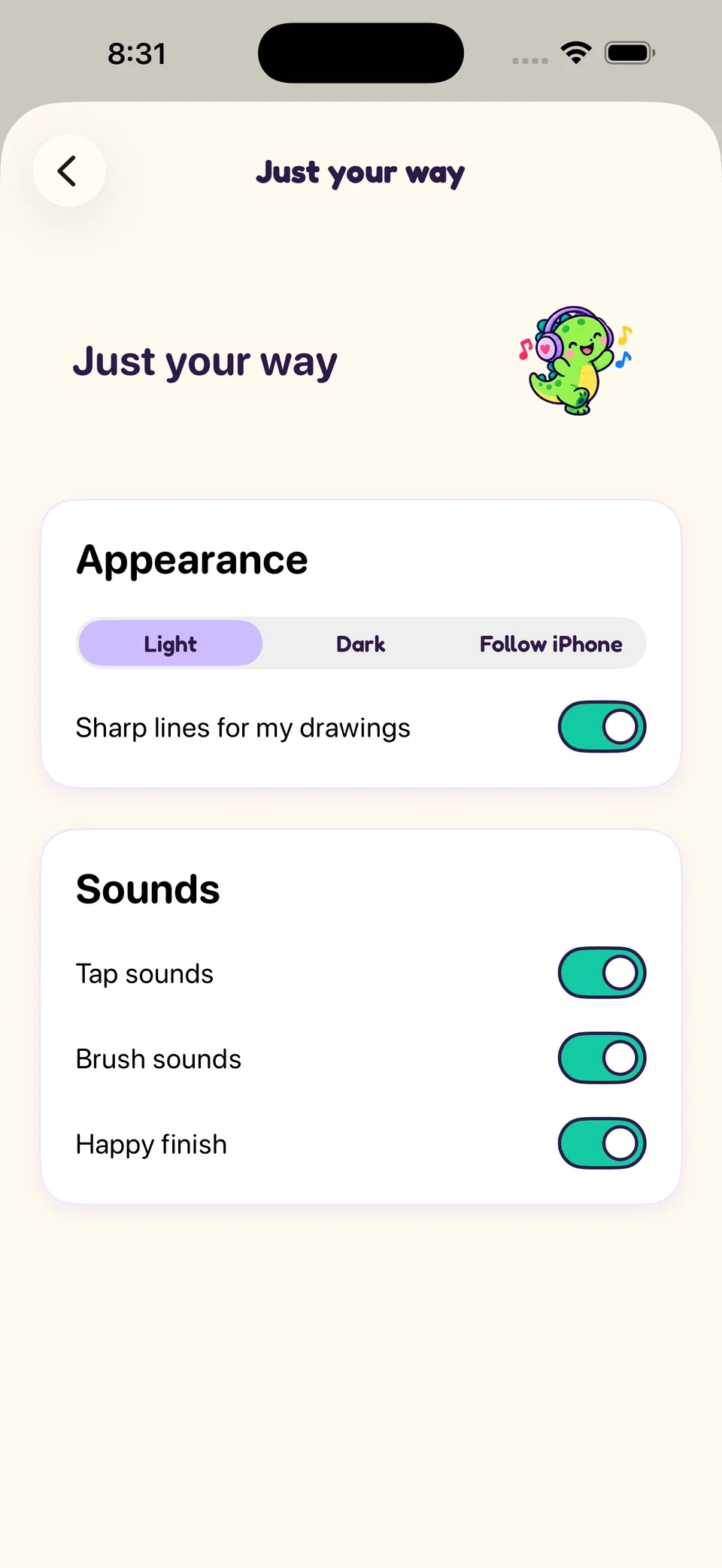
Colourify includes Rain, Forest, and Ocean Waves without any purchase, alongside extra background sounds in Unlock Everything, or you can leave sound off altogether. Test the volume from the back seat—or with your child’s headphones—before pulling away, and read my notes on choosing between background sounds and quiet if you are unsure which to try first.
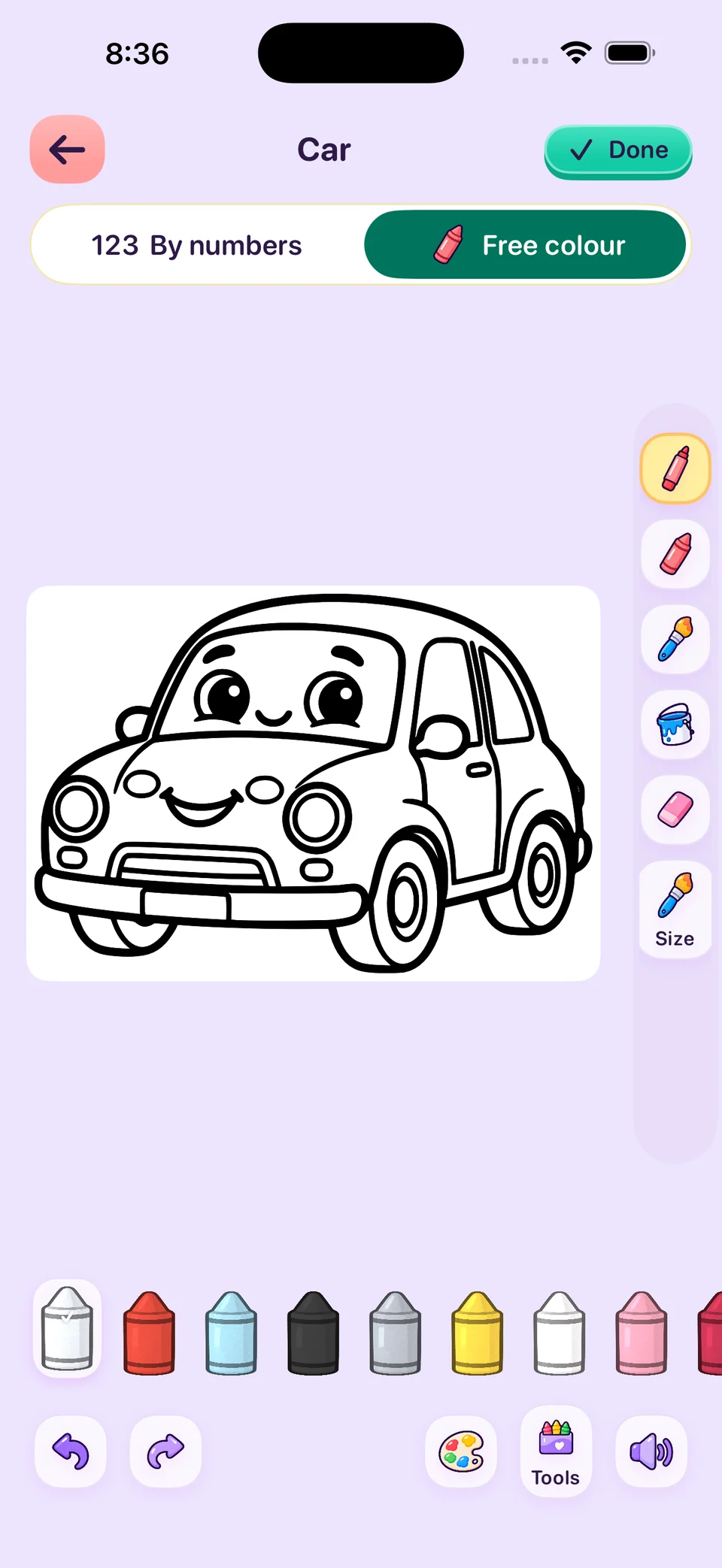
It also helps to open the Personalise settings and decide how pictures should start before handing over the tablet. For a younger child who wants clear guidance on a bumpy road, open a numbered picture where tiny details colour themselves and Find next sits right beside the numbered crayons. For a child who prefers picking their own colours, start in the separate brushing collection with bucket fill or a marker. Colourify adapts to iPhone, though the roomier iPad controls are noticeably easier to tap when the tablet rests on a lap or a travel tray.
On the road: hand-over rules when nobody can reach the back seat
Agreeing two or three plain hand-over rules at the kerb stops small questions from turning into distractions for the driver. Tell your child which collection is open, remind them that undo is always there if a tap lands in the wrong spot while the car turns, and show them how to return to the gallery if they fancy a different picture.
If they tap sharing, an external link, or an upgrade button, Colourify puts a grown-up question in the way before anything leaves the colouring canvas. I would demonstrate that boundary once before setting off so it does not come as a surprise twenty miles down the road; you can see how the grown-up question and sharing boundaries work in more detail.
Keep expectations realistic for the journey itself. No colouring app holds every child’s attention for an entire four-hour drive, and Colourify is not a guaranteed calm-down tool or a substitute for stretching your legs. I would treat the iPad as one stretch of the trip alongside a paper notebook, snacks, and a clear agreement to put the screen away at the first service stop.
Know the access limits before you pack
Colourify is free to start, has no ads, and requires no account or sign-in. Without paying, you get starter numbered pictures, ten brushing pictures, and three background sounds: Rain, Forest, and Ocean Waves.
An optional one-time lifetime purchase called Unlock Everything opens the Pro picture collection, extra brushes, special fill styles, premium background sounds, unlimited drawing imports, and personalised PDF book export, with no subscription. Check the access screen inside the app while you still have signal rather than guessing what is included once you are on the road. If you want to review the full feature list before packing the family iPad, visit the app page.