In this article
A background sound can make a workspace feel more comfortable. It can also become another distraction. In Focuso, I would start with a quiet, simple mix and judge it during the actual task.
The app’s sound controls let you combine sounds and adjust their levels. Here is a way to explore those controls without turning setup into the whole session.
Begin with one sound
Open the sound controls and choose something familiar, such as Rain. Keep the volume low enough that it stays in the background. Work for a short interval before deciding whether to add anything.
The full ambient library is part of Focuso Pro. The available options include rain, café, forest, ocean waves, fireplace, and white noise.
Add a layer only when it helps
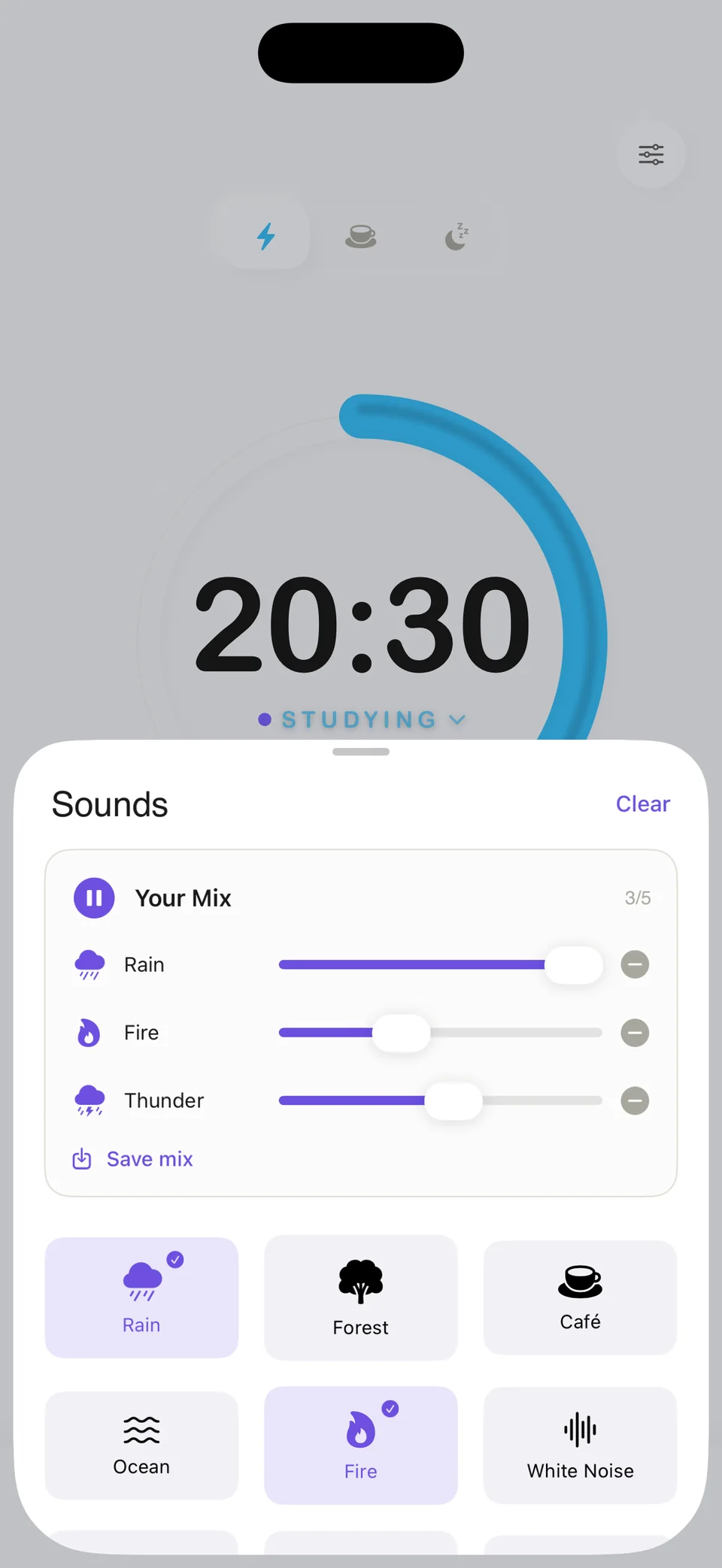
In the screenshot, rain is the strongest layer, with fire and thunder lower in the mix. That is an example to try, not an ideal formula.
If a sudden sound pulls your attention away from reading, remove that layer or lower it. If speech in a café recording competes with your writing, try a simpler sound. There is no requirement to fill every available slot.
Match the experiment to the task
- Reading: try one steady sound and compare it with silence.
- Repetitive work: try a mix you enjoy without continually adjusting it.
- Writing or language study: notice whether voices or changing sounds compete with the words.
- A break: decide whether you want the audio to continue or prefer quiet.
These are starting points. Keep the setup that feels useful to you rather than copying someone else’s preference.
Save a useful setup and move on
The mixer includes a Save mix action. If you find a combination you want to return to, save it and spend the next session using it rather than rebuilding it.
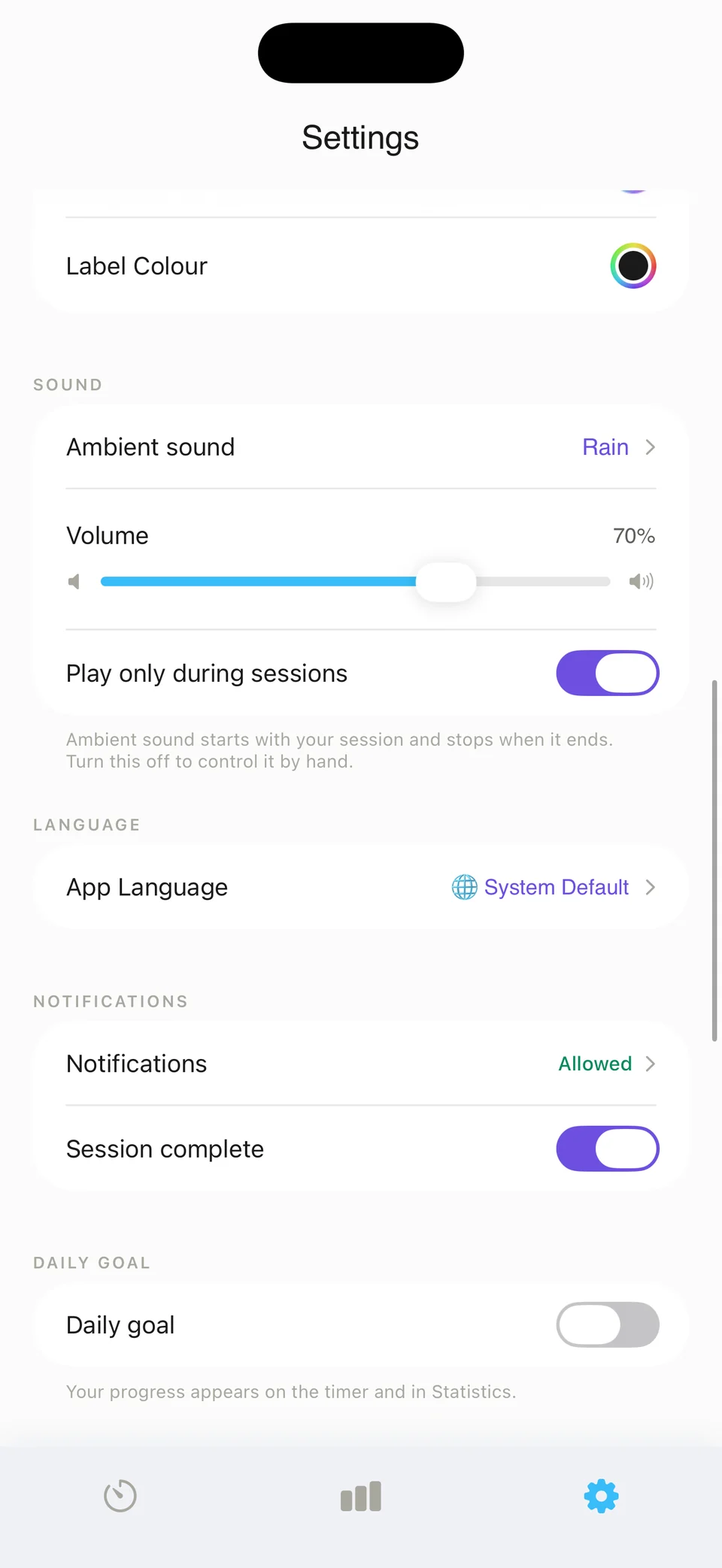
Use a comfortable listening level, especially with headphones. Turning the volume up is not the only response to a noisy room; changing location or working without audio may suit the task better.
Let the work decide
After a session, ask one question: did the sound help you stay with the task, or did you keep noticing it? Keep a useful mix, simplify a distracting one, and choose silence when that feels better. A preference can change with the room and the work.
You can explore Focuso or pair this setup with one clearly defined timer session.