In this article
Running a timer on your main laptop or phone pulls your eyes back to unread messages, browser tabs, and system banners every time you check how long is left. Putting a spare iPad on a desk stand separates the clock from your work, provided you configure the hardware and iPadOS settings so the tablet behaves like a quiet desk timer rather than a second inbox.
As the developer of Focuso, I build and test the app for both iPhone and iPad. Turning an unused iPad into a dedicated desk clock is mostly a physical and system setup job: choosing a stable stand, routing power cleanly, silencing notifications, and being realistic about what iPadOS lets a screen-on app do.
Start with the stand, angle, and charging cable
Place the iPad slightly to the side of your main monitor or notebook so you can read the countdown with a glance rather than turning your chair. A weighted aluminium stand or a sturdy folio set at a steep angle works far better than lying the tablet flat on the desk, which catches overhead ceiling glare.
Check the hardware basics before building a routine around it. Focuso requires iPadOS 17.0 or later, so verify your spare tablet supports at least that release. Plug the charging cable in before your first work block and route it behind the stand so it does not snag your wrist or mouse. If you plan to play Focuso’s ambient soundscapes or Studio Music through the iPad’s speakers rather than headphones, make sure the stand’s lip does not block the speaker grilles.
Silence interruptions with iPadOS Focus and Auto-Lock
A spare iPad signed into your Apple Account will still mirror messages, mail banners, and calendar alerts across your desk unless you stop them. Before you start timing, open Control Centre on the iPad and enable Do Not Disturb, or create a minimal Focus mode that allows no app banners on that tablet. A dedicated desk timer loses its value the moment a group chat lights up over the countdown ring.
You also have to decide how you want iPadOS to handle the screen, because iOS and iPadOS impose strict display limits. If you want an always-visible desk clock, the screen has to stay on, which draws steady power and can warm the battery if the tablet stays plugged in at high brightness all day. If you leave Auto-Lock set to two or five minutes, the display will go dark mid-session. Focuso uses a date-based countdown, so the timer keeps accurate track of elapsed time while the iPad sleeps and updates as soon as you wake it, but you will not see the ring without tapping the screen.
The practical compromise is to set Auto-Lock under Display & Brightness in iPadOS Settings to Never only while the iPad sits on its desk charger, or to choose a longer interval such as ten or fifteen minutes so the screen rests when you step away. Either way, press the top button to sleep the display when you finish for the day rather than leaving a static interface lit overnight.
Match dark appearance and brightness to the room
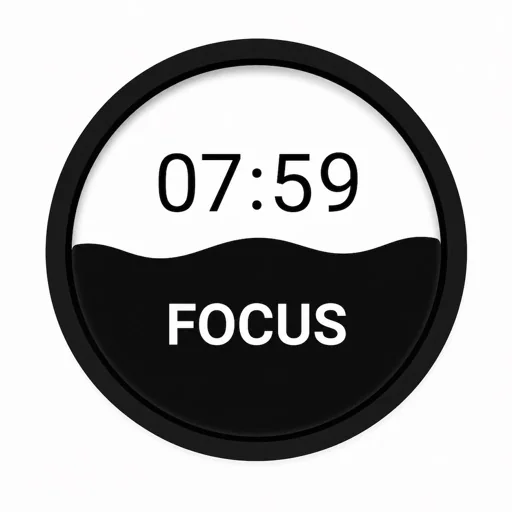
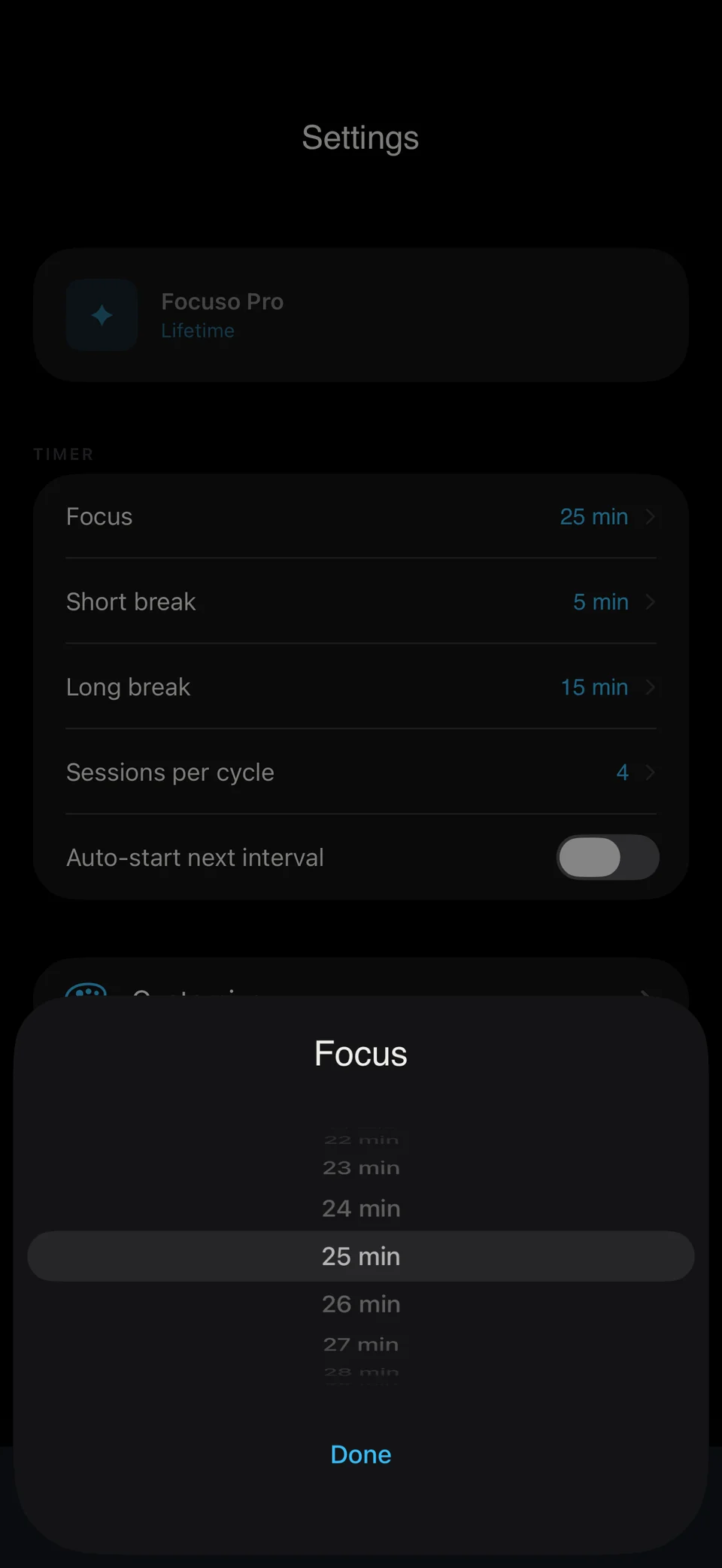
Once the stand and Focus mode are sorted, switch Focuso to its dark appearance so the background recedes and the white time display and focus ring carry the contrast. By default in Focuso 23.0, the sky-blue jelly timer and matching controls sit cleanly against the dark canvas, and you can pick another ring colour or one of the five timer animations if you want something calmer in your peripheral vision.
Be realistic about your spare iPad’s panel. On OLED iPads, high-contrast OLED dark mode turns off black pixels completely; on older LCD iPads, the backlight remains lit behind the dark background. In both cases, dark appearance cuts harsh white glare on your desk, but the real control over eye comfort and heat is the iPadOS brightness slider. Pull brightness down in Control Centre until the numbers look comfortable next to your desk lamp or monitor rather than glowing like a torch.
For picking a ring colour that stays legible in dim lighting, read my dark-appearance readability notes. If you rely on an audible chime at the end of a work block, the session-completion alert check covers how to verify system permissions so Do Not Disturb does not hide the prompt you actually want.
Run a quick desk check before your first block
Before starting a real work session, run through this short hardware and app check from your normal sitting position:
- Open Focuso and confirm your task, session mode (customisable Pomodoro focus and break intervals or open count-up flow), and ring colour are easy to read from across the desk.
- Check that Focuso works offline as expected; no Focuso account is required, and optional iCloud sync is only needed if you want history shared with your iPhone or Mac.
- Leave Do Not Disturb active and send a test message from your phone to confirm no banner interrupts the timer screen.
- Set speaker volume for any optional completion alerts or ambient soundscapes (rain, café, forest, ocean waves, fireplace, or white noise) at the distance you sit.
Know the access limits
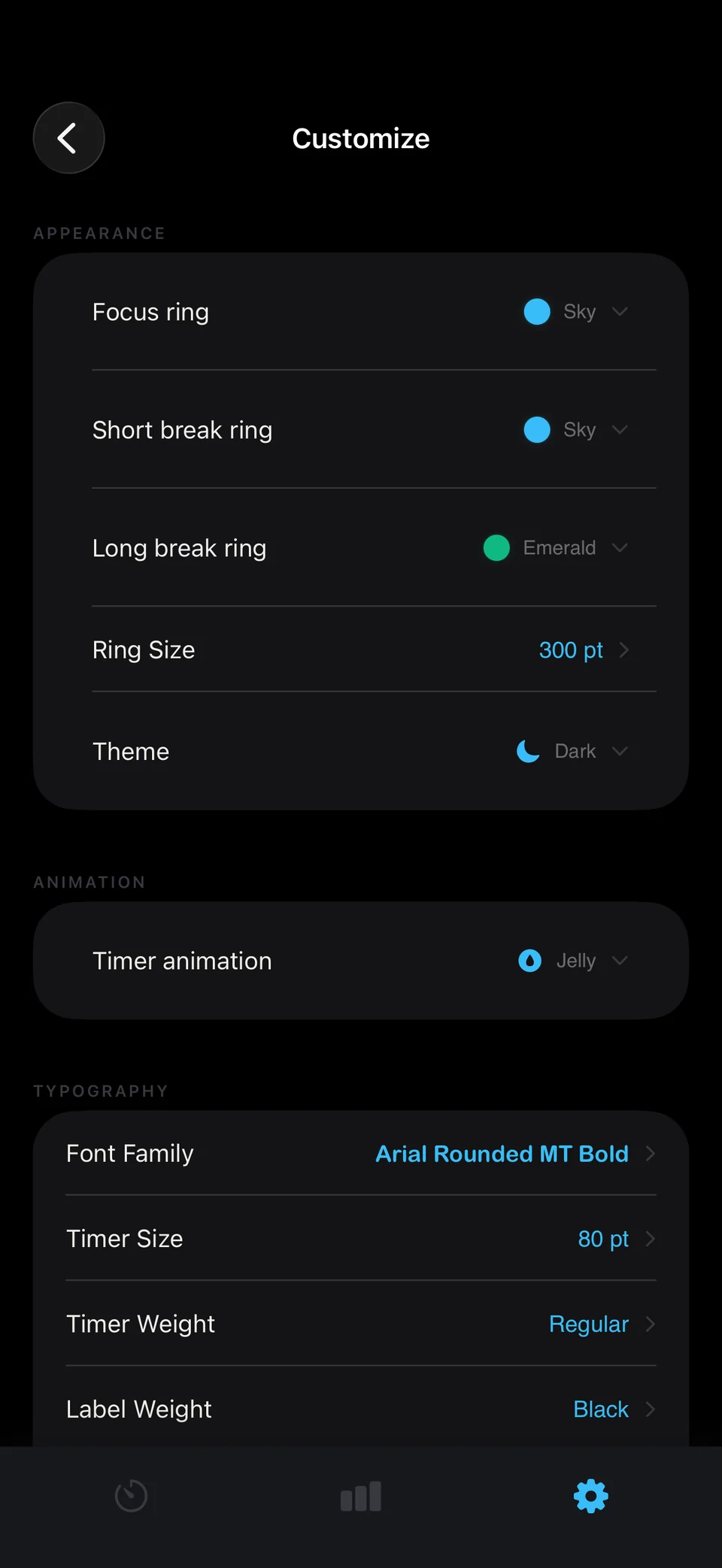
In Focuso 23.0, eligible new users can start seven days of full access by completing a free Apple in-app transaction, with no automatic charge or renewal. After the trial, a one-time lifetime purchase is required to start or resume further sessions, while your session history and Settings remain accessible. Existing installations retain their previous freemium access, and valid earlier purchases remain honoured—so if you have already unlocked Focuso on your iPhone under the same Apple Account, you can restore that purchase on the spare iPad.
If you want to check full device compatibility and App Store details before setting up your stand, visit the app page.